
Find your symptom below, run the checks in order, and stop when it's fixed. Most callbot problems come down to one of four things: forwarding, the schedule, the transfer number, or the knowledge base.
In this article
Learn how to manage permission groups
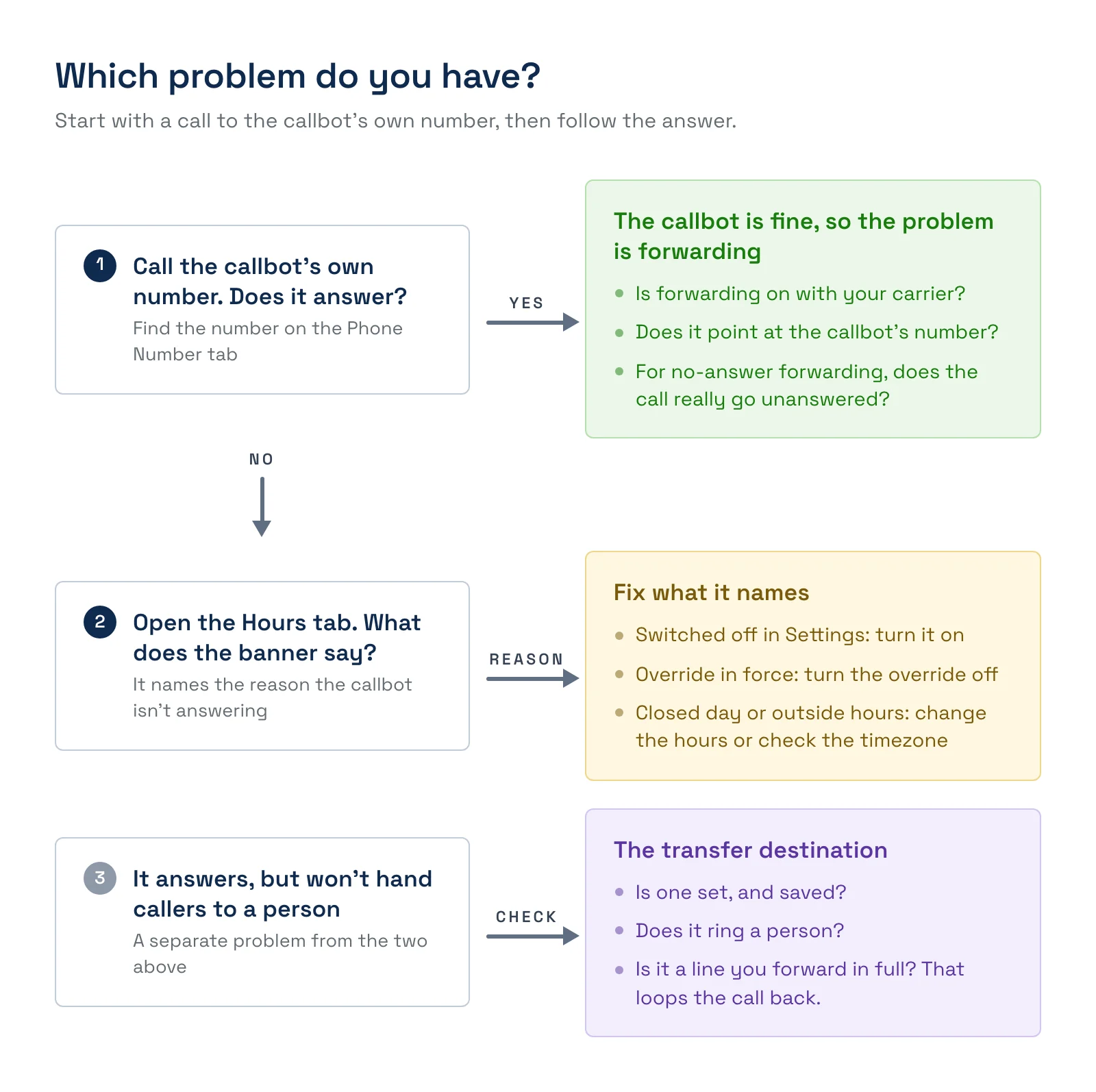
Calls aren't reaching the callbot
Start by finding out whether the callbot works at all, separate from your forwarding.
- Open the callbot's Phone Number tab and copy the number under Incoming Phone Number. Confirm the badge says Active.
- Call that number directly from another phone. If the callbot answers, the callbot is fine and the problem is forwarding. If it doesn't, go to The callbot doesn't answer and sends calls to a person.
- Call your business number. If the callbot doesn't pick up, check that forwarding is turned on with your carrier and that it points at the callbot's number, not an old or mistyped one. See Forward your phone line to your Callbot.
- If you forwarded only when no one answers, make sure the call actually goes unanswered. A phone that is busy, or that rings fewer times than your carrier waits, may never forward.
The callbot doesn't answer and sends calls to a person
If calls reach the callbot but go straight to your transfer number, it's deciding not to answer. Open the callbot's Hours tab. The banner at the top says Answering calls right now or Sending calls to a human right now, and gives the reason.
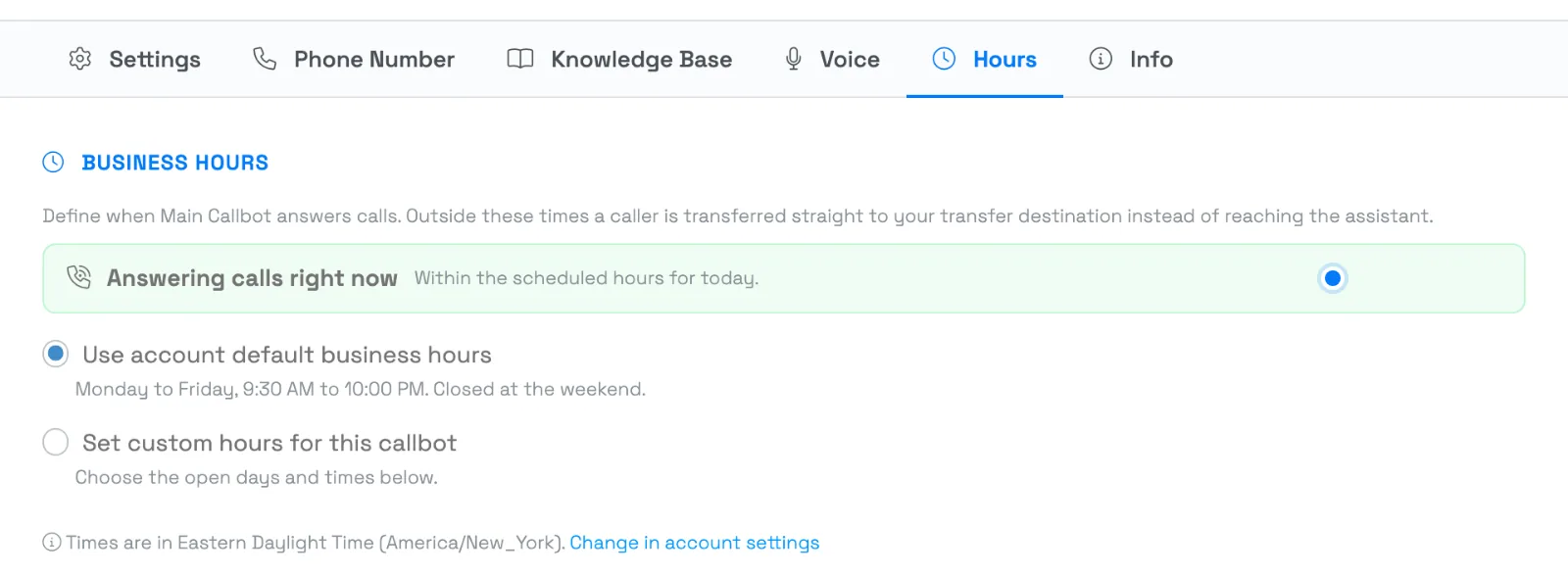
The reason it gives is one of these:
- This callbot is switched off in Settings. Turn it back on in the callbot's settings.
- An override is in force. A manual override is forcing calls to a person. Select Turn off override if it's no longer needed.
- Today is outside the schedule. Today is a closed day. Under account default hours the callbot only answers Monday through Friday, so switch to custom hours if you want weekend coverage.
- Outside the scheduled hours for today. The call came in outside the open window. Check the times, and remember hours are in your account's timezone, shown at the bottom of the section.
Calls aren't transferring to my team
Transfers go to the number on the callbot's Phone Number tab, under Transfer Destination (Optional).
- No number is set. Without a transfer destination, a caller who reaches the callbot when it shouldn't answer hears an apology and the call ends, and callers who ask for a person can't be handed off. Add a number. See Set your Callbot's transfer destination.
- The number is wrong or unattended. Call it yourself. If it doesn't ring a person, change it and save.
- You edited the number but haven't saved. The new number only applies once you save the callbot.
- The transfer loops back to the callbot. If you forward all calls from your business line to the callbot and your transfer destination is that same line, the transferred call can be forwarded straight back. Use a different transfer number, or forward only unanswered calls.
The callbot gives wrong or incomplete answers
First work out where the answer came from. Open the call in the callbot's call history and read the transcript. See Review AI callbot calls & analytics.
- It doesn't know something. The callbot answers from the knowledge bases attached to it. Open the Knowledge Base tab and make sure the right ones are checked. Add the missing information to a knowledge base, and see Build your Knowledge Base.
- A knowledge base is grayed out with "Not synced". It hasn't finished syncing, so the callbot can't use it yet. This usually clears on its own within a short time. If it stays that way, contact support.
- The answer is out of date. The callbot repeats what your knowledge base says. Find the document the answer came from, update it, and the next call uses the new content. See How your AI Chatbot and Callbot avoid guessing.
- It says a word, brand or place name wrong. That's a pronunciation fix, not a knowledge fix. Use Manage Pronunciations at the top of the Callbots page to add the word with a respelling and hear it before you save. See Teach your Callbot how to say your words.
- It doesn't offer an activity. The callbot only knows about activities set to Live. Draft, Unlisted and Archived activities are left out. See What your Callbot knows and where it gets its information.
- The availability or price is wrong. Availability and prices come live from your account, not the knowledge base. Check the activity's availability and pricing in TripWorks first.
- A banner says a newer version is available. An Upgrade Now button on the Settings tab updates the callbot's underlying template and keeps your own settings. See Set up your AI Callbot.
I can't create the callbot or get a number
- "No phone numbers available." TripWorks couldn't find a number to assign, and the callbot wasn't created. Contact support.
- "We couldn't set up the phone number for this callbot." Try saving again. If it keeps happening, contact support.
When to contact support
Contact support if you've run the checks above and the problem remains. Include:
- The callbot's Agent ID, from its Info tab. Select Copy to copy it.
- The date and time of a call that went wrong, and the number the caller dialed.
- What you expected to happen and what happened instead.
Examples
- Find out why a Sunday call went to a person. Open the Hours tab. If it says "Today is outside the schedule," the callbot is on account default hours, which are Monday to Friday. Switch to custom hours and open Sunday.
- Find out why forwarding isn't working. Call the callbot's own number. If it answers, the problem is your carrier's forwarding settings, not the callbot.
- Find out why a caller wasn't transferred. Open the Phone Number tab. If Transfer Destination is empty, add your front-desk number and save.
- Find out where a wrong price came from. Read the call transcript, then check the activity's price in TripWorks. Prices come from your account, so a mismatch means a pricing issue, not a knowledge base one.
Frequently asked questions
Why does my callbot answer some calls and not others?
It checks the schedule on every call. A call during open hours is answered, and one outside them goes to your transfer number. A manual override or switching the callbot off changes that for every call. The Hours tab shows the current state and why.
Does pausing the callbot stop forwarding?
No. Forwarding is set with your carrier. A callbot that is switched off still receives forwarded calls, but sends them straight to your transfer destination. To stop forwarding itself, turn it off with your carrier.
The callbot answered but the caller couldn't get a booking. Why?
Check the callbot's capabilities on the Settings tab. Bookings need Check live availability, and texting a payment link needs Send booking payment links via SMS. Then read the call transcript to see where the conversation stopped. See How AI bookings work.
The caller booked, but never got the payment link. What happened?
The booking is created as a draft before the text goes out, so it still exists. If the text couldn't be sent, the callbot tells the caller the booking is made but the link didn't go out. Check that Send booking payment links via SMS is on, that your payment request message template is set up, and that the caller gave a valid phone number. Then send the guest a payment link from the draft booking.
The callbot pauses a long time before answering. Is that normal?
Questions that need a lookup, such as pricing for a large party, can take several seconds. The callbot says a short acknowledgement while it works, and on a slow answer it may repeat one. If the pauses are long on simple questions, read the call transcript and contact support with the call details.
The callbot read my confirmation code strangely. Can I fix that?
The callbot reads confirmation codes one character at a time. If it mispronounces an activity name or another term, add it under Manage Pronunciations at the top of the Callbots page. See Callbot pronunciations.
Can I test the callbot without callers hearing it?
Call the callbot's own number from your phone. It's the same callbot callers reach, so it's a safe way to try a question or a booking. Bookings it takes are tagged AI Call Bot.
How do I see what happened on a specific call?
Open the callbot's call history and select the call. You can read the transcript and see the outcome. See Review AI callbot calls & analytics.
A knowledge base shows "Not synced" for a long time. What should I do?
Give it a little time after creating or editing it. If it still says "Not synced" after that, contact support and mention the knowledge base's name.
Related
- Set up your AI Callbot
- Forward your phone line to your Callbot
- Set your Callbot's transfer destination
- Set your Callbot's business hours and manual override
- Review AI callbot calls & analytics
- Teach your Callbot how to say your words
- What your Callbot knows and where it gets its information
Built for attractions, tours & activities
Never miss a call again
See how attractions, tours, and activities use TripWorks' AI callbot to answer the phone and take bookings when their team can't. Book a demo and make the switch.