
The AI Callbot is a voice agent that answers your business phone line, so an inbound call never rolls to voicemail just because your team is busy with guests, out running your activities, or closed for the day. For most operators a missed call is a missed booking. The callbot exists to close that gap: it picks up in a voice and greeting you choose, understands what the caller is asking, and handles the request from start to finish.
In this article
- How the callbot answers your calls
- Step 1: Create the callbot
- Step 2: Choose what it can do
- Step 3: Set up notifications
- Step 4: Set your Transfer Destination and forward your line
- Manage your Knowledge Base connections
- Choose a voice and tune how it sounds
- Teach it how to say your words
- Step 5: Test it
- The Info tab: reference details for support
- Upgrade Now: keeping your callbot's template current
- Frequently asked questions
It draws on the same sources your team does. For "how does this work" questions it answers from your knowledge base; for "do you have space Saturday morning" it reads your live availability, quotes what's open, and can take the booking right there on the call. You stay in control of the details: the voice, the greeting, and whether it answers every call or only the ones nobody picks up (after-hours and overflow).
This is the phone assistant. If you want the same thing on your website, set up the AI Chatbot instead. They are separate features, but they share the same knowledge base, so content you write once powers both.
Learn how to manage permission groups
Before you start, build at least one Knowledge Base so the callbot has your content to answer from.
How the callbot answers your calls
You don't replace your phone number. TripWorks gives the callbot its own dedicated number, and you forward your existing business line to it. Callers still dial your normal number; your carrier passes the call to the callbot. You choose whether to forward all calls or only when no one answers (after-hours / overflow).
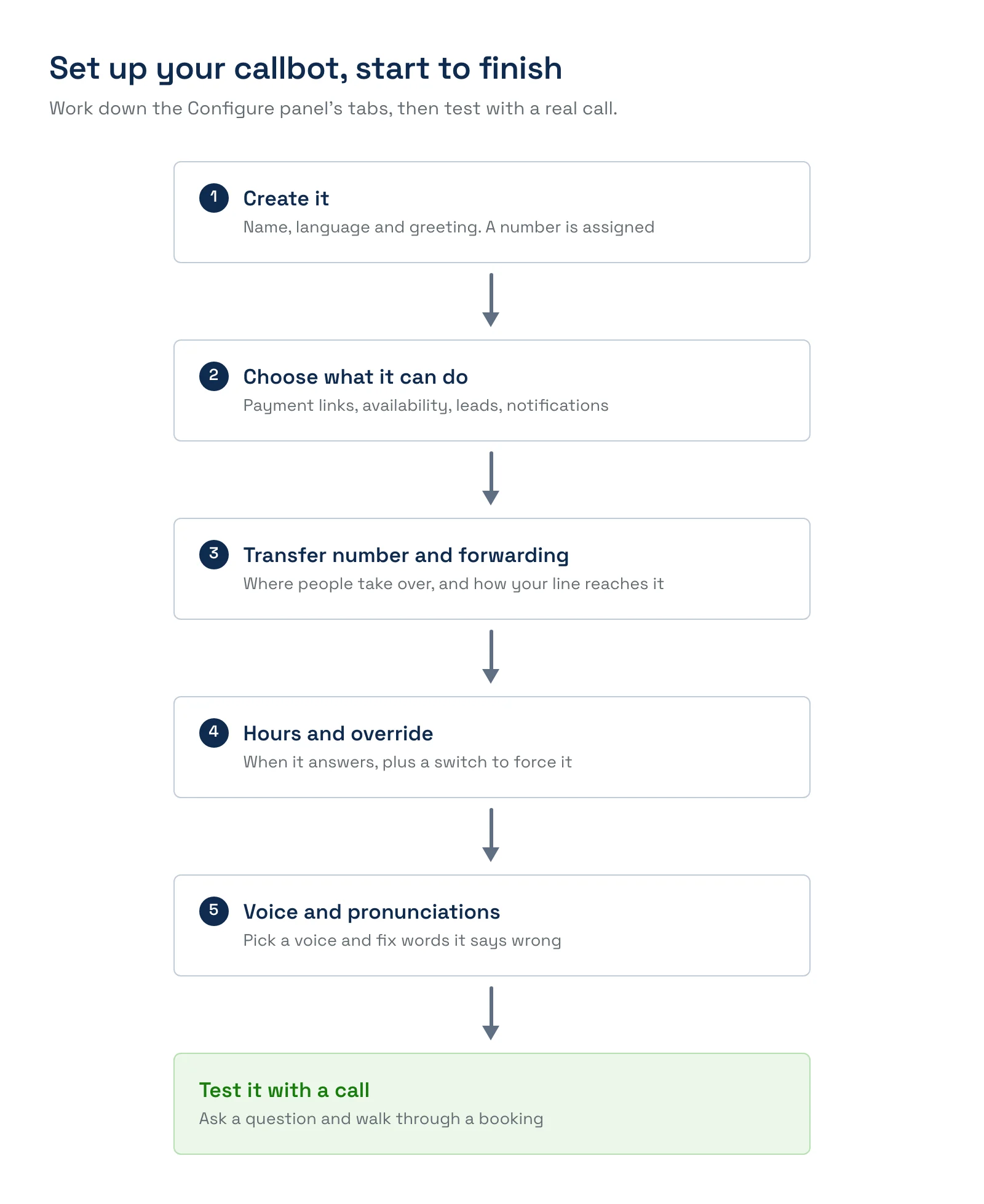
Step 1: Create the callbot
- Go to Setup → Marketing → Callbots. Callbots is available to every account, so there's nothing to turn on first.
- Select New Callbot.
- In the Create CallBot panel, fill in the Basic Information:
Field What it's for Callbot Name An internal label (e.g. "Annie"). It's also used throughout the rest of the form, so the Greeting field and capability descriptions read "Annie can…" instead of a generic "it can…". Language The language the callbot listens and speaks in on calls. Defaults to English. Greeting The first thing the callbot says when it answers. TripWorks seeds this with a greeting built from your business name (e.g. "Hi! Thanks for calling Otter Bay Kayak Tours. I can help you check availability or book an experience — how can I help?"), and you can edit it freely. Your Business Phone Number Under Phone Number, in the optional Transfer Destination section: the number the callbot hands a call to when it transfers to a person. It doesn't route calls to the callbot. To send a line to the callbot, forward that line to the callbot's own number. If you leave it blank, the callbot apologizes and ends the call when it can't help. Knowledge Base The knowledge bases the callbot may answer from, on the Knowledge Base tab. 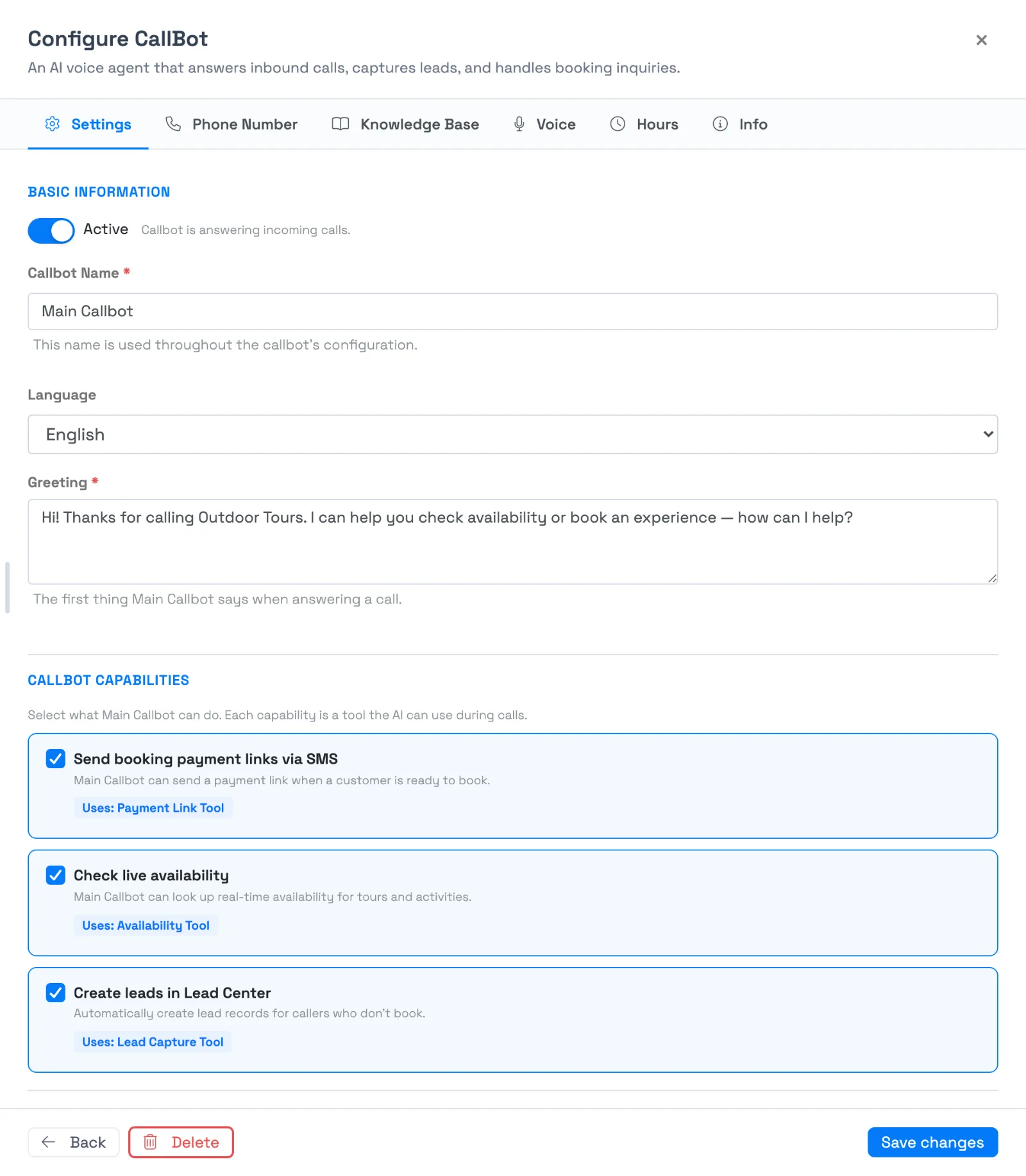
The Settings tab: name, language and greeting, then the three capabilities. The Phone Number, Knowledge Base, Voice, Hours and Info tabs sit along the top. - Select Create Callbot. TripWorks provisions the callbot's dedicated phone number and, on creation, automatically attaches every active knowledge base you have — nothing more to select before the callbot can start answering from your content (you can still fine-tune which ones it uses afterward, on the Knowledge Base tab). This can take a moment.
Language
Language sets the language the callbot listens and speaks in: English, Spanish, French, German, Italian, Portuguese, Polish, Dutch, Japanese, Korean, Chinese, Russian, Arabic or Hindi. Pick the language your callers actually speak. The Greeting and every live response come back in that language.
Most operators leave Language on English. Change it if you serve a non-English-speaking market, or set up a second callbot for a different language.
Example: A kayak tour operator based in Miami who fields a steady stream of Spanish-speaking callers switches Language to Spanish on a second callbot, forwards after-hours calls to it, and keeps the primary English callbot answering during business hours.
Step 2: Choose what it can do
Under Capabilities, turn on what you want the callbot to do:
- Send booking payment links via SMS: the callbot texts the caller a payment link when they're ready to book.
- Check live availability: it looks up real-time availability and pricing for your activities.
- Create leads in Lead Center: it automatically creates a lead record for callers who don't book, so you can follow up.
Each one is a tool the callbot can use during a call, and turning one off removes it from that callbot. For everything the callbot can look up and do, see What your Callbot knows and where it gets its information.
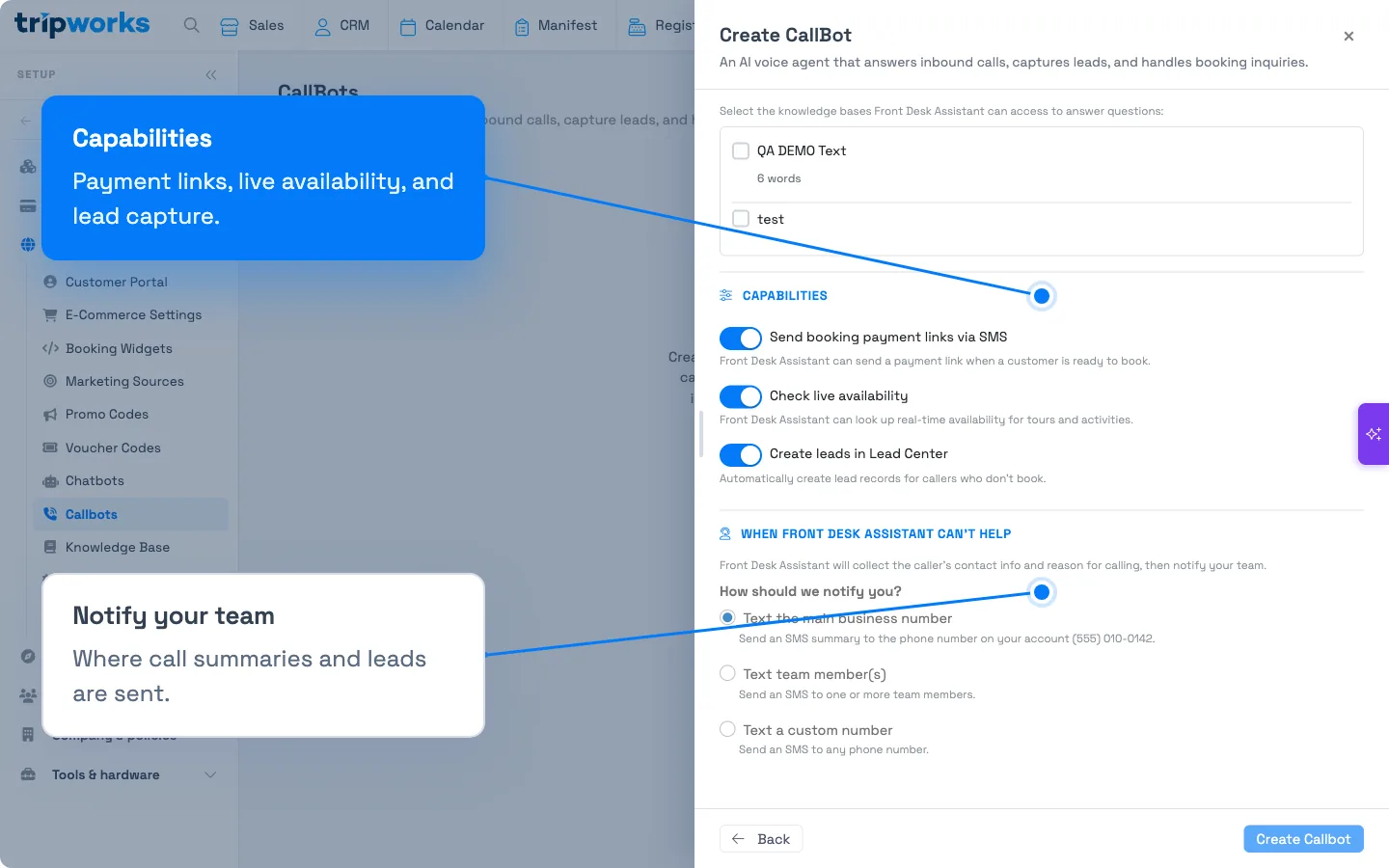
Step 3: Set up notifications
Under How should we notify you?, choose who gets a text when the callbot takes a message. When a caller can't be helped on the call, the callbot captures their name, phone number, reason for calling and preferred callback time, and texts it to the people you pick:
- Text the main business number
- Text team member(s): pick who
- Text a custom number
Step 4: Set your Transfer Destination and forward your line
Two settings on the Phone Number tab connect the callbot to your phones:
- Transfer destination: the number the callbot hands callers to when a person should take the call. See Set your Callbot's transfer destination.
- Forwarding: your callbot's own number, and how to forward your business line to it. See Forward your phone line to your Callbot.
Business hours
Beyond forwarding, the Hours tab lets you set exactly when the callbot should answer calls itself versus transfer them, plus a manual override to force it on or off right now regardless of the schedule (a holiday closure, or testing). See Set your Callbot's business hours and manual override for the full walkthrough.
Manage your Knowledge Base connections
The Knowledge Base tab lists every knowledge base on your account as a checklist, so you can see at a glance what the callbot can and can't answer from so there's no more guessing which article covers which topic:
- Each row shows the knowledge base's name, its word count, and a type tag (e.g. FAQ, Policy, Article).
- A "Not synced" badge appears on any knowledge base that hasn't finished syncing to the underlying voice AI provider yet. A knowledge base in that state can't be selected — it's grayed out until the sync completes, because an unsynced knowledge base genuinely isn't available to the agent yet, regardless of how the checkbox looks.
- Checking a box attaches that knowledge base to the callbot; unchecking removes it. Changes take effect the next time you save.
New callbots start with every active, synced knowledge base already attached (see Step 1). This list is where you narrow that down if you want a particular callbot to stick to a subset of your content (for example, a callbot dedicated to one location that shouldn't quote pricing from a different location's knowledge base).
Choose a voice and tune how it sounds
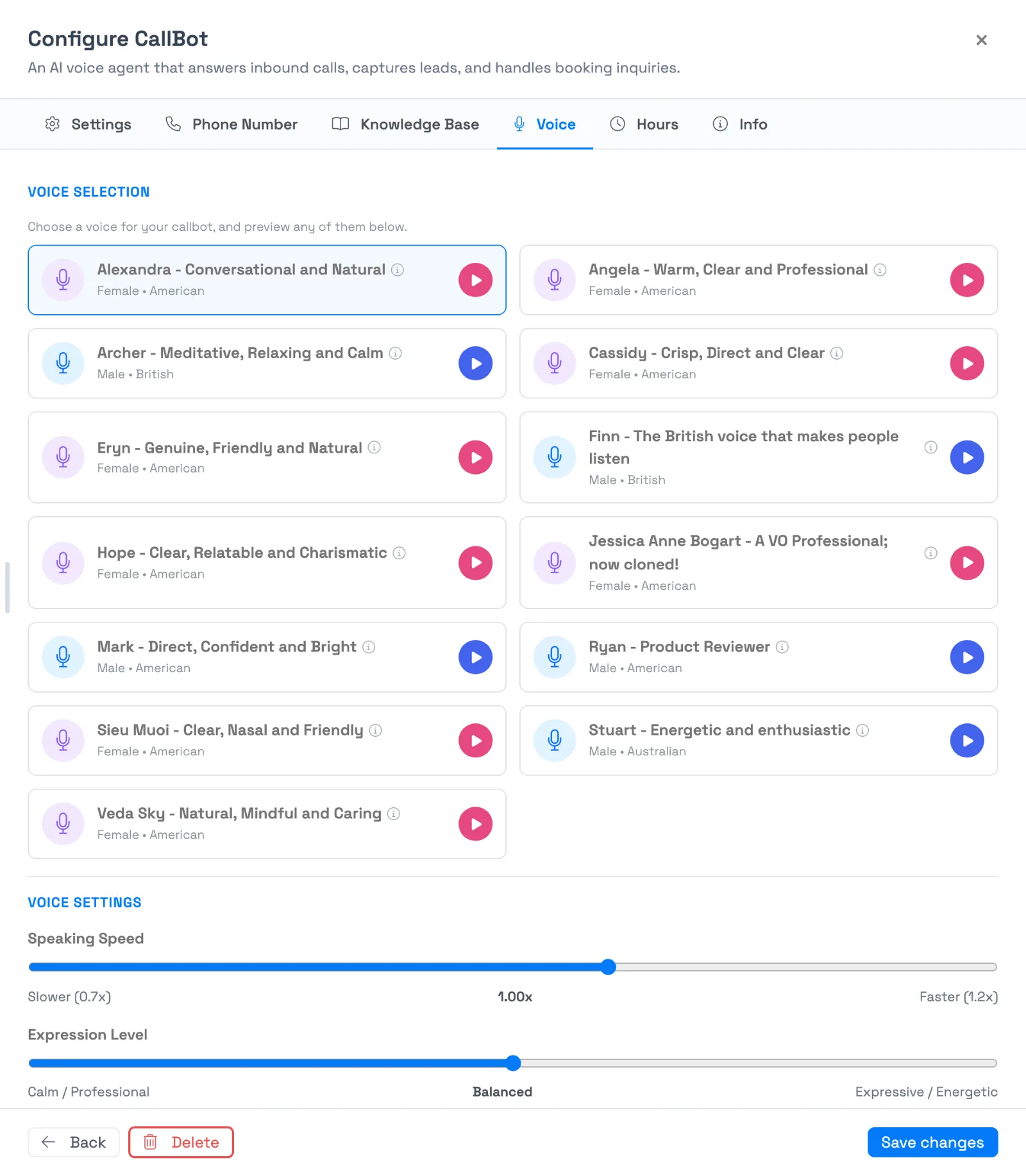
The Voice tab controls how your callbot sounds on the phone.
- Voice selection. Pick from the list of voices, each labeled with its gender and accent. Press the play button on any voice to hear a sample before you choose, and your selection is highlighted.
- Speaking Speed. A slider from Slower (0.7x) to Faster (1.2x), starting at 1.00x. Slow it down for callers who need time to write down a confirmation code or an address. Speed it up for a brisk, high-volume line.
- Expression Level. A slider from Calm / Professional through Balanced to Expressive / Energetic. Lower settings sound steadier and more even. Higher settings sound more varied and enthusiastic. New callbots start on Balanced.
Changes apply to calls after you save. For a moment after saving, the callbot's card may show Syncing… while the update reaches the phone system. See Callbot troubleshooting if it shows Sync failed.
Example: A whale-watching operator whose callers are mostly retirees picks a calm voice, slows Speaking Speed to 0.9x, and sets Expression Level toward Calm / Professional, so confirmation codes are easy to follow.
Teach it how to say your words
If the callbot says a brand name, a town or a guide's name wrong, you can fix it once for all of your callbots. Select Manage Pronunciations at the top of the Callbots page, add the word with a respelling, and hear it before you save. See Teach your Callbot how to say your words.
Step 5: Test it
Call your business number and talk to the callbot as a customer would: ask a question that's in your knowledge base and walk through a booking. Bookings it takes are tagged with the source AI Call Bot, and calls appear in the callbot's history. See Review AI callbot calls & analytics.
For the full booking-and-payment flow and its safeguards, see How AI bookings work.
The Info tab: reference details for support
The Info tab is read-only. There's nothing to configure here. It exists for the moments you need to hand a detail to TripWorks support or double-check when a callbot was set up:
- Agent ID: the unique identifier for the underlying voice AI agent behind this callbot. A Copy button next to it copies the ID to your clipboard. Have this ready if you contact support about a specific callbot's call quality or behavior; it lets support pull up the exact agent instead of guessing which one you mean.
- Created: the date and time this callbot was set up.
- Voice and Knowledge bases: a quick summary of the current voice selection and how many knowledge bases are attached, without switching tabs.
Upgrade Now: keeping your callbot's template current
TripWorks periodically improves the underlying prompt template that powers callbots — better call-handling logic, more reliable tool use, sharper responses. Existing callbots don't pick up those improvements automatically, since your saved Greeting, capabilities, and other customizations live on top of that template and an automatic overwrite could clobber them.
When a newer template is available for a callbot you've already created, you'll see an "A newer version of this callbot is available" banner at the top of the Settings tab with an Upgrade Now button. Selecting it pulls the latest prompt template onto your existing callbot in place — your name, greeting, voice, capabilities, knowledge bases, and phone number are untouched; only the underlying template logic updates. The banner may take a moment to appear after the page opens. If the callbot had a knowledge base document attached that has since been deleted, the upgrade removes it from the callbot and tells you so with a short warning.
There's no way to preview what a template upgrade changes before applying it, and no undo afterward. If you've heavily customized behavior beyond what the setup form exposes (not common, but possible via support), consider mentioning that to your TripWorks contact before upgrading.
Example: You set up a callbot six months ago. TripWorks ships an improved template with more natural call-transfer handling. The next time you open that callbot's Settings tab, you see the Upgrade Now banner, select it, and the callbot immediately starts using the improved logic — no re-entering your greeting or capabilities.
Frequently asked questions
What language should I pick if my callers speak more than one language?
Pick the language most of your callers actually speak, since that's the single language the callbot listens and responds in for a given callbot. If you regularly get calls in two languages, set up a second callbot in the other language and route calls to it separately (for example, a dedicated number you advertise for Spanish-speaking customers, or an after-hours callbot in a different language than your primary one).
Can I choose which AI model my callbot uses?
No. The AI model behind the callbot is managed by TripWorks and kept current with the callbot template, so there's nothing to choose on the Settings tab. If a newer template is available, Upgrade Now brings your callbot up to date. The website chatbot works differently and does let you pick a model.
Can I change the language, voice or speed after the callbot is already live?
Yes. Open the callbot's Configure panel, change Language on the Settings tab or the voice, Speaking Speed or Expression Level on the Voice tab, and save. The change applies to calls going forward; it doesn't affect anything about calls already completed.
What is the Agent ID on the Info tab, and do I need it?
The Agent ID identifies the specific voice AI agent behind this callbot. Most operators never need it day-to-day; it exists for support conversations. If you contact TripWorks support about an issue with one particular callbot, copying and sharing its Agent ID lets support find the exact agent immediately instead of asking you to describe which callbot you mean.
What does "Upgrade Now" actually change on my callbot?
It updates the underlying prompt template that governs how the callbot's AI reasons and uses its tools — the improvements TripWorks ships over time. It does not touch anything you configured yourself: name, greeting, voice, capabilities, knowledge bases, phone number, and hours all stay exactly as you set them.
Do I have to upgrade when I see the banner?
No. The banner is informational, and the callbot keeps working normally on its current template if you leave it. There's no deadline. Upgrade whenever it's convenient. That said, since upgrades are template-only and don't touch your customizations, there's usually little reason to wait.
Why is a knowledge base grayed out with a "Not synced" badge on the Knowledge Base tab?
That knowledge base hasn't finished syncing to the voice AI provider yet, so it isn't actually available for a callbot to draw from — the checklist disables it rather than let you select something that wouldn't work. This usually resolves on its own shortly after the knowledge base is created or edited. If a knowledge base stays "Not synced" for an extended period, contact support.
Do new callbots automatically get my knowledge bases, or do I have to attach them myself?
New callbots automatically start with every active, synced knowledge base already attached, so a brand-new callbot can answer from your content the moment it's created. You can then narrow that down on the Knowledge Base tab if you want a particular callbot limited to a subset of your knowledge bases.
What greeting does a new callbot start with?
TripWorks seeds a greeting built from your business name — something like "Hi! Thanks for calling [Your Business Name]. I can help you check availability or book an experience — how can I help?" You can edit it to anything you like before or after creating the callbot; it's just a starting point.
How do I make the callbot speak slower or sound less energetic?
Open the callbot's Configure panel and go to the Voice tab. Move Speaking Speed toward Slower (0.7x) and Expression Level toward Calm / Professional, then save. New callbots start at 1.00x and Balanced, and you can preview voices on the same tab.
The callbot says my business or a place name wrong. Can I fix it?
Yes. Use Manage Pronunciations at the top of the Callbots page to add the word and a respelling, and play it back before you save. It applies to all of your callbots. See Teach your Callbot how to say your words.
Where does the callbot get its information?
From your callbot settings, your account details, your live activities and next available dates, your knowledge bases, and live lookups of availability, pricing and bookings. See What your Callbot knows and where it gets its information for the full list, including what it can't see.
Related
- Build your Knowledge Base
- Review AI callbot calls & analytics
- How AI bookings work
- Set up your AI Chatbot
- Set your Callbot's business hours and manual override
- Set your Callbot's transfer destination
- Forward your phone line to your Callbot
- Callbot troubleshooting
- Teach your Callbot how to say your words
- What your Callbot knows and where it gets its information
Built for attractions, tours & activities
Never miss a call again
See how attractions, tours, and activities use TripWorks' AI callbot to answer the phone and take bookings when their team can't. Book a demo and make the switch.