
Handing guest questions to an AI agent only works if you can trust what it says, and check it when you can't. Your AI Chatbot and AI Callbot both answer from your Knowledge Base, not from memory, and every conversation leaves a record you can open to see exactly which article an answer came from. Callbot goes a step further on the phone: when it shouldn't handle a call itself, it hands the caller to a real person instead of struggling through it.
In this article
This article covers three things: how the bots avoid making things up, how to read a Knowledge Base citation in a transcript, and how to set up and use Callbot's live call transfer.
How your bot avoids guessing
Both bots are built with the same rule: facts about prices, dates, availability, and your experiences come only from a live lookup against your account, never from the AI's memory or assumption. If a tool hasn't returned a piece of information during the conversation, the bot says it needs to check rather than stating something it isn't sure of.
For Callbot, this extends to whether it should be handling the call at all. Every call starts with an initialization check against your callbot's settings — which now includes whether the call falls inside its configured business hours or an active manual override, not just the on/off toggle. If that check comes back negative (for example, the callbot is turned off, it's outside its business hours, or an override is forcing every call to transfer) or the caller directly asks to speak with a person, Callbot doesn't try to muddle through the call. It silently hands the caller to a real phone number instead, with no "one moment" filler or awkward pause: the caller is simply connected to a human, the same way any call transfer works.
This silent hand-off is separate from a spoken "I don't know." Callbot doesn't currently say "I don't know" out loud on a call. Instead, when it determines it shouldn't handle the call, it transfers before saying much of anything. Chatbot, on the website, doesn't transfer to a human; if it can't find an answer in your Knowledge Base, it tells the visitor it isn't sure and offers to help another way.
Reading a Knowledge Base citation in a transcript
Every time a bot answers from your Knowledge Base, that answer is tied back to the specific article it came from. Open any conversation from Review AI callbot calls & analytics or Review AI chatbot conversations and you'll find two places to check this:
- Inline in the Transcript tab. A turn where the bot answered from your content shows a "Sourced from" line naming the Knowledge Base article, with a link to the source and a match-confidence percentage, so you can see, turn by turn, exactly what the bot was drawing from when it said something.
- The Knowledge Base tab. This lists every article cited anywhere in that conversation, deduplicated, each with its match confidence and how many times it was cited. Selecting a card jumps you straight to that moment in the transcript.
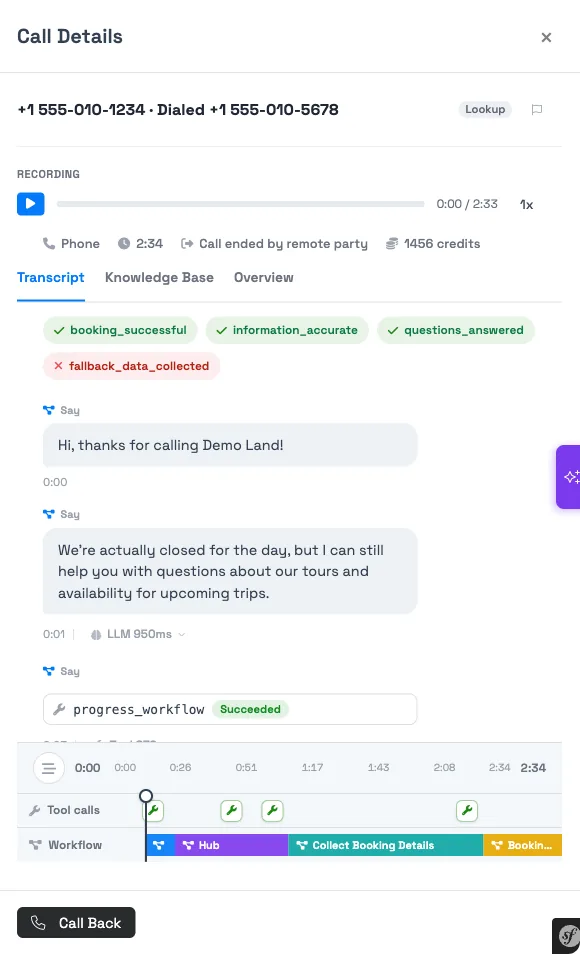
If a bot's answer turns out to be wrong or outdated, the citation tells you exactly which article to fix, so you're never guessing which one to open.
Citations only appear for answers the bot actually drew from your Knowledge Base. A turn with no citation shown was either small talk, a tool lookup (like checking availability), or, for Callbot, a workflow step like the transfer described below.
Setting up Callbot's Transfer Destination
On a callbot's Phone Number tab, the Transfer Destination section is where you set the business number the callbot hands calls off to:
- Open the callbot's Configure panel and go to the Phone Number tab.
- Under Transfer Destination, enter Your Business Phone Number: the number Callbot should connect a caller to during a live transfer, or any time it shouldn't be handling the call itself.
- Save. The number applies the next time a call needs to transfer.
If you leave Transfer Destination blank, a call that needs to hand off doesn't ring anywhere: Callbot apologizes and ends the call instead of dialing a placeholder number. Set a real destination if you want transfers to actually reach someone.
What the guest experiences
A live transfer is genuinely silent. The caller never hears the bot announce that it's transferring them. They're simply connected to your business number, the same as any other call transfer. Because of this, a transferred call has no bot turns to review after the hand-off point: the transfer itself is the last thing that happens on the bot's side.
You can see this in call history: a transferred call shows the Transferred outcome, so you know at a glance which calls a real person picked up instead of the bot.
Example scenarios
- A guest calls after hours and asks about your cancellation policy, which isn't in your Knowledge Base. The chatbot equivalent on your website tells the visitor it isn't sure, rather than guessing at a policy that doesn't exist.
- A caller says "let me talk to a person" partway through a call. Callbot silently connects them to your Transfer Destination number instead of continuing the conversation.
- Your callbot is toggled off for the day. An inbound call still comes in, and because the bot's initialization check comes back negative, the call transfers straight to your business line.
- Reviewing a chatbot conversation, you see a "Sourced from" tag naming your Cancellation Policy article on an answer about refunds, confirming the bot pulled from the right place and giving you a link to check the article's current wording.
- A call shows the Transferred outcome in call history with no bot dialogue after a certain point. That's expected: the transfer happens silently, so there's nothing more for the bot to say.
Frequently asked questions
Will my bot ever make up an answer?
No. Both bots are built to pull facts — prices, dates, availability, experience details — only from a live lookup against your account or your Knowledge Base, never from memory. If a tool hasn't returned something during the conversation, the bot says it needs to check instead of stating it.
What happens if the Knowledge Base doesn't have the answer?
On the chatbot, the bot tells the visitor it isn't sure and offers another way to help, rather than guessing. On a call, if Callbot's initialization determines it shouldn't handle the call, it silently transfers to your Transfer Destination number instead of trying to answer anyway.
How do I see which Knowledge Base article a bot's answer came from?
Open the conversation from call or chatbot history. Turns the bot answered from your content show a "Sourced from" line inline in the Transcript tab, and the Knowledge Base tab lists every article cited in that conversation with a match-confidence percentage.
How do I set up call transfer on Callbot?
Open the callbot's Configure panel, go to the Phone Number tab, and enter a number under Transfer Destination. That's the number Callbot connects a caller to during a live transfer or when it shouldn't handle the call itself.
Does the chatbot also transfer to a human?
No, the website chatbot doesn't hand a conversation off to a live person. Live call transfer is a Callbot feature, since it's built on top of a real phone call. If the chatbot can't answer something, it tells the visitor and suggests another way to reach you.
What happens if I don't set a Transfer Destination?
A call that needs to transfer doesn't ring anywhere — Callbot apologizes and ends the call rather than dialing a placeholder number. Set a real Transfer Destination if you want transfers to reach an actual person.
Will a caller know they've been transferred?
No. The hand-off is silent by design — there's no announcement or pause before the caller is connected. It's meant to feel like any other call transfer, not like a bot handing off a call.
How do I fix a wrong answer if a citation shows the source is outdated?
Open the Knowledge Base article named in the citation and update it. Once the article is edited and your Knowledge Base re-syncs, the bot answers from the corrected content going forward. The citation is what tells you exactly which article to open, instead of guessing.
Why does a transferred call show no bot dialogue after a certain point?
That's expected. The transfer is silent, so once Callbot hands the caller off, there's nothing more for the bot to say — the rest of the call happens directly between the caller and whoever answers your Transfer Destination number.
Related
- Set up your AI Callbot
- Set up your AI Chatbot
- Review AI callbot calls & analytics
- Review AI chatbot conversations
- AI Chatbot & Callbot FAQ
- Set your Callbot's business hours and manual override
Built for attractions, tours & activities
AI you can trust with your guests
See how attractions, tours, and activities put TripWorks' AI assistants in front of customers with confidence. Book a demo and make the switch.