
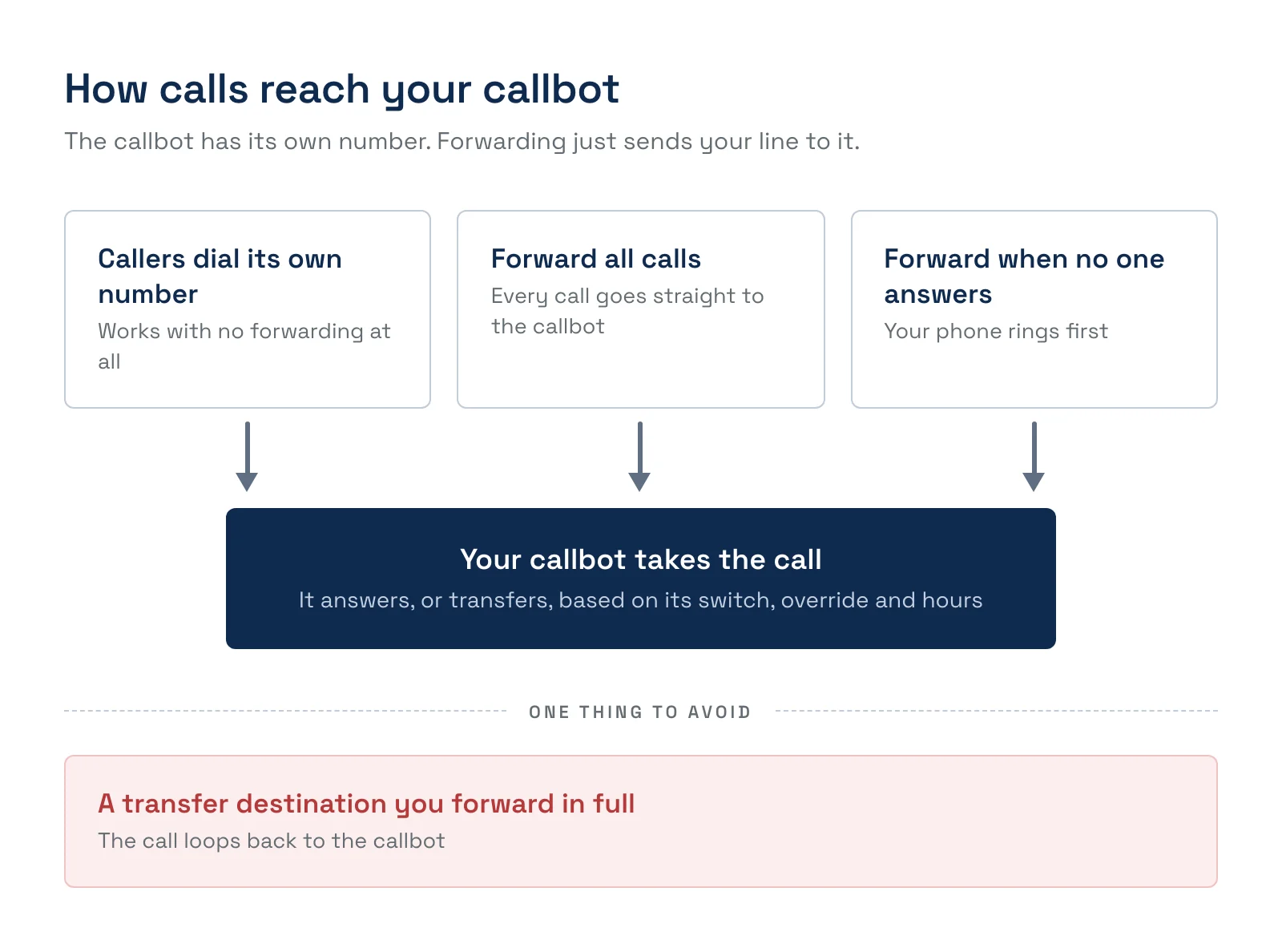
Your AI Callbot has its own phone number. To have it answer the number your customers already call, you forward your business line to the callbot's number. You decide whether it takes every call or only the calls your team doesn't pick up.
In this article
Learn how to manage permission groups
Find your callbot's number
TripWorks assigns the number when you save a new callbot. It prefers a number with the same area code as your business phone, so forwarded calls keep a local look, and uses another US local number if none is available.
- Go to Setup Marketing Callbots and open your callbot.
- Select the Phone Number tab.
- Your callbot's number is shown under Incoming Phone Number, with an Active or Inactive badge. You'll also find it in View Forwarding Instructions, labeled Forward your calls to.
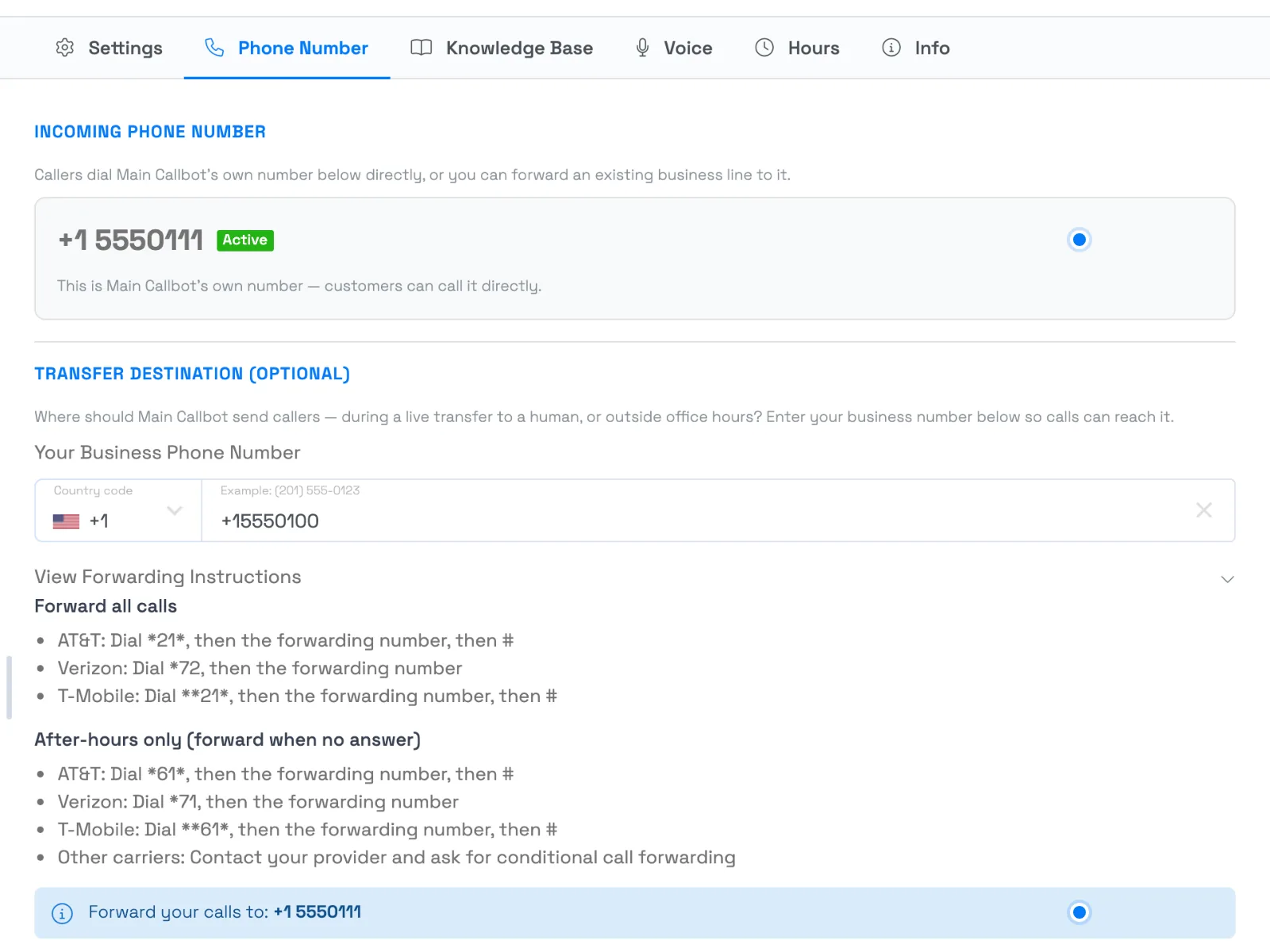
This number never changes after it's assigned, and customers can call it directly even if you never set up forwarding.
Choose which calls to forward
- Forward all calls. Every call to your business line goes to the callbot. Choose this if you want the callbot to be your front line, using business hours to send calls back to a person when you're open.
- Forward only when no one answers. Your phone rings first. The callbot picks up calls that go unanswered, such as after hours or when everyone is busy.
If you forward all calls and your business line is also your transfer destination, a call the callbot transfers can be forwarded straight back to it. Use a different transfer number, or forward only unanswered calls.
Turn on forwarding with your carrier
Forwarding is set up with your phone carrier, not in TripWorks. From your business line, dial the code for your carrier, then your callbot's number. The View Forwarding Instructions section on the Phone Number tab lists the same codes.
Forward all calls
-
AT&T: dial
*21*, then the callbot's number, then# -
Verizon: dial
*72, then the callbot's number -
T-Mobile: dial
**21*, then the callbot's number, then#
Forward only when no one answers
-
AT&T: dial
*61*, then the callbot's number, then# -
Verizon: dial
*71, then the callbot's number -
T-Mobile: dial
**61*, then the callbot's number, then# - Other carriers: contact your provider and ask for conditional call forwarding
If your business line is on a VoIP or office phone system instead of a cell carrier, set up forwarding in that system's own settings.
Test it
Call your business number from a different phone. If you forwarded all calls, the callbot should answer. If you forwarded only unanswered calls, let it ring through and the callbot picks up. If nothing happens, see Callbot troubleshooting.
Turn forwarding off
Forwarding is controlled by your carrier, so turn it off the same way you turned it on. Your carrier has a cancel code for each type of forwarding, and your provider can confirm the right one. Pausing the callbot inside TripWorks doesn't stop forwarding. See business hours and manual override to send calls to a person instead.
Examples
- Let the callbot cover nights and weekends. Forward only unanswered calls, then set the callbot's hours to your closed times so your team takes the calls during the day.
- Put the callbot on your seasonal line. Forward all calls on your peak-season number, so a guest calling at 6 a.m. about a sunrise tour gets an answer.
- Advertise a callbot-only number. Skip forwarding and put the callbot's own number on your website for guests who want to book by phone.
- Handle a second language. Create a second callbot in that language and publish its number, or forward a dedicated line to it.
Frequently asked questions
Do I have to forward my business line?
No. The callbot answers its own number whether or not you forward anything. Forwarding is how you get it to answer the number your customers already call.
Which should I choose, all calls or only when no one answers?
Start with only when no one answers if your team picks up the phone during the day. That keeps people on live calls and uses the callbot as backup. Choose all calls if you want the callbot answering everything, and use business hours to send calls to a person at the times you're staffed.
Can I choose the callbot's number?
No. TripWorks picks the number when you save the callbot, matching your business phone's area code when it can. The number can't be edited later.
Does my carrier charge for forwarding?
That depends on your carrier and plan, so check with them. The callbot's own number is provided by TripWorks.
I see "No phone numbers available" when I save a new callbot. What now?
TripWorks couldn't find a number to assign, and the callbot isn't created. Contact support and they'll sort it out. If you see "We couldn't set up the phone number for this callbot," try saving again first, and contact support if it keeps happening.
Does the callbot work if I use a cell phone as my business line?
Yes. Forwarding works from a cell line using your carrier's codes above. Other carriers support the same feature under the name conditional call forwarding.
Related
- Set up your AI Callbot
- Set your Callbot's transfer destination
- Set your Callbot's business hours and manual override
- Callbot troubleshooting
Built for attractions, tours & activities
Never miss a call again
See how attractions, tours, and activities use TripWorks' AI callbot to answer the phone and take bookings when their team can't. Book a demo and make the switch.