
The transfer destination is the phone number your AI Callbot hands a caller to when a person should take the call. Set it once and the callbot knows where to send callers when it shouldn't, or can't, help them itself.
In this article
Learn how to manage permission groups
When the callbot transfers a call
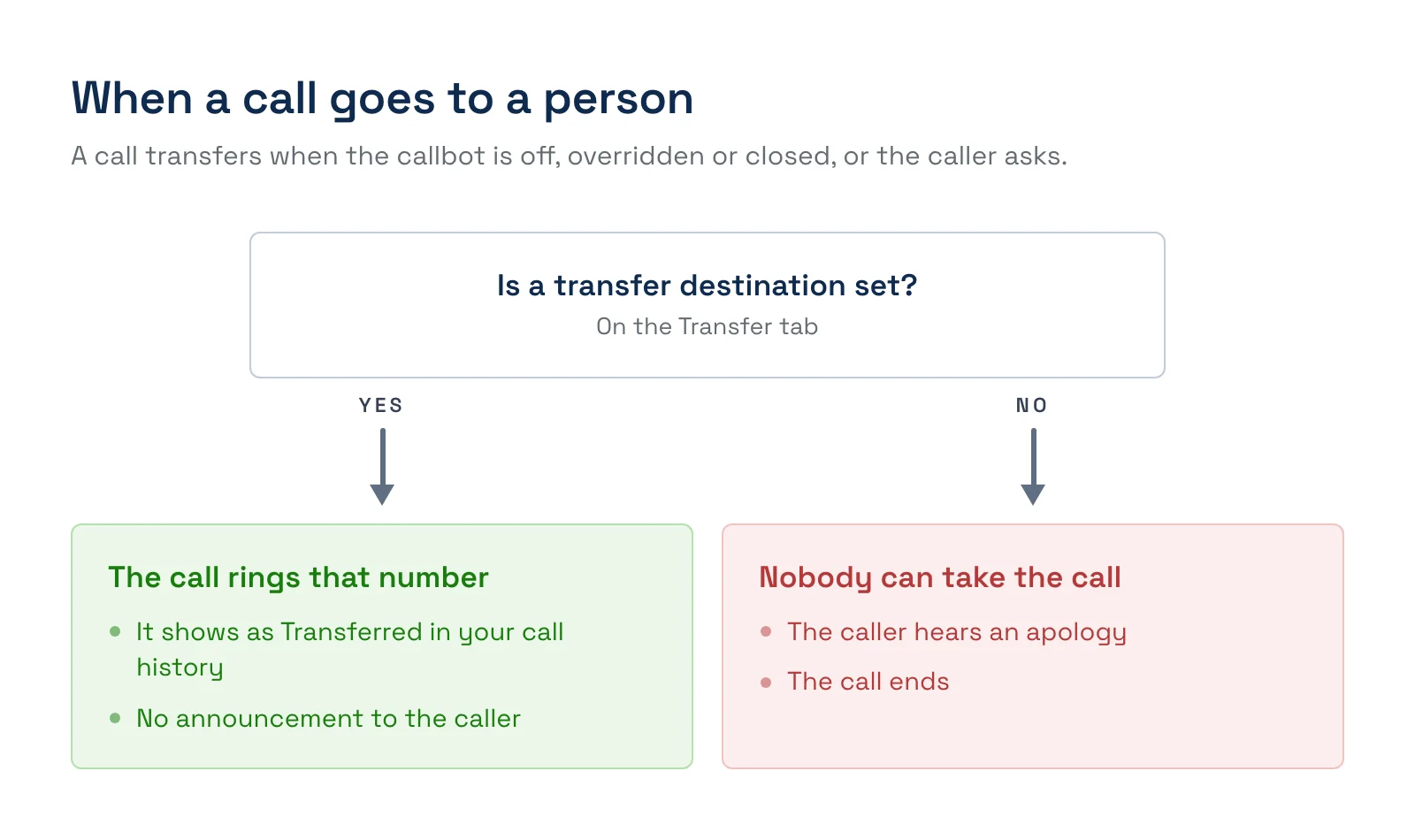
The callbot hands a call to your transfer destination in two situations:
- It isn't supposed to answer right now. The callbot is switched off, a manual override is sending calls to a person, or the call comes in outside your business hours. The caller is transferred straight away, without hearing the callbot first.
- The caller asks for a person. If a caller asks to speak with someone, the callbot transfers them.
In both cases the callbot doesn't announce the hand-off. The caller's call simply rings through to your number. Transferred calls show up in your call history with the Transferred outcome.
Set the transfer destination
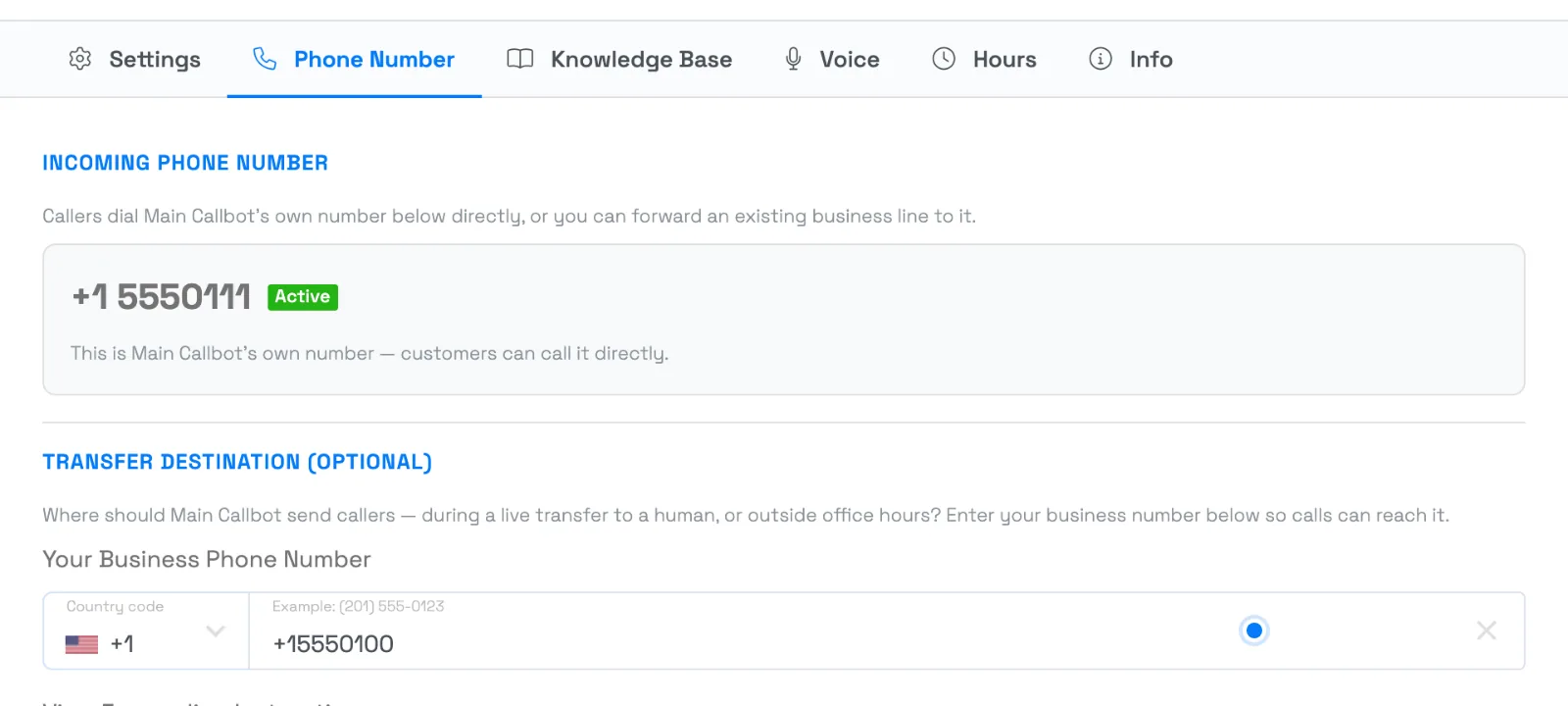
- Go to Setup Sell online Callbots and open your callbot.
- Select the Phone Number tab.
- Under Transfer Destination (Optional), enter the number in Your Business Phone Number. Include the area code.
- Save. The new number applies to calls from that point on.
Choose the right number
Pick a number that a person actually answers during the times the callbot isn't handling calls. A few things to check:
- It rings somewhere staffed. After-hours transfers to a line nobody checks are no better than a missed call.
- It isn't the line you forward to the callbot. If you forward all calls from your business line to the callbot and also use that same line as the transfer destination, a transferred call can be forwarded straight back to the callbot. Use a different number, or forward only unanswered calls. See Forward your phone line to your Callbot.
- It's one number. Each callbot has a single transfer destination. If different people should take calls at different times, point it at a main line or ring group that your phone provider sets up.
If you leave it blank
The transfer destination is optional, but without one the callbot has nobody to hand a call to. A caller who reaches the callbot when it shouldn't answer hears an apology and the call ends, and the callbot can't pass a caller to a person when they ask. If you use business hours or want callers to be able to reach a person, set one.
Examples
- Send after-hours calls to your front desk. Enter your front-desk number, then set the callbot's hours to match your opening times. Calls outside those hours ring the desk instead of the callbot.
- Cover a holiday closure. Start a manual override that sends every call to a person, with your transfer destination pointed at the owner's cell for the day.
- Hand off complex requests. A caller asks to speak with someone about a private charter. The callbot transfers them to the number you set, with no announcement.
- Change who gets the calls. A seasonal manager takes over phones. Replace the number on the Phone Number tab and save. The next call goes to the new number.
Frequently asked questions
Is the transfer destination required?
No. The field is optional and your callbot works without it. But without a transfer destination, the callbot can't hand a call to a person. Set one if you use business hours or want callers to be able to reach someone.
Does the callbot tell the caller it's transferring them?
No. The hand-off is silent. The call just rings through to your transfer destination.
How quickly does a new number take effect?
When you save the callbot. Calls already in progress aren't affected, and the next call uses the new number.
Can I use a different transfer number at different times of day?
Not directly. Each callbot has one transfer destination. If you need different people at different times, use a main line or ring group set up with your phone provider, or create a second callbot with its own number for a different team.
I saved a number and see an error. What's wrong?
The number isn't in a format TripWorks can use. Check that it has the right number of digits and a valid area code. The error under the field says what to fix, for example that the number has too few or too many digits.
Where do I see which calls were transferred?
In the callbot's call history, where transferred calls have the Transferred outcome. See Review AI callbot calls & analytics.
Related
- Set up your AI Callbot
- Forward your phone line to your Callbot
- Set your Callbot's business hours and manual override
- Callbot troubleshooting
Built for attractions, tours & activities
Never miss a call again
See how attractions, tours, and activities use TripWorks' AI callbot to answer the phone and hand off to your team when it matters. Book a demo and make the switch.