
As your team grows, you rarely want every staff member to see and do everything. A front-desk agent needs to take bookings but not touch your tax settings; a bookkeeper needs financial reports but not your marketing tools; a seasonal hire needs even less. A permission group is a named bundle of permissions you assign to people so each person can reach only what their role needs. Instead of setting access one person at a time, you build the bundle once (a group for reservation agents, one for accounting, one for seasonal staff) and add people to it. This keeps sensitive settings protected, makes onboarding a new hire a single step, and gives you one place to see exactly who can do what.
In this article
You manage groups under Setup Your team Permission Groups, and assign people to groups either here or from each person's profile (see team members).
Two things to know up front, because they shape everything else:
- A person's access is the combination of all their groups. Put someone in two groups and they get everything either one allows. There's no "deny": access is additive.
- You can only hand out access you have yourself (more on this below). It's why some permissions may appear locked when you edit a group.
Built-in vs. custom groups
Every account comes with five global groups maintained by TripWorks: Owner, Manager, Analyst, Affiliate Agent, and Reservations Agent. They cover the common roles and update as the platform adds features. You can put people into a global group, but its name and permissions are locked, and it can't be deleted.
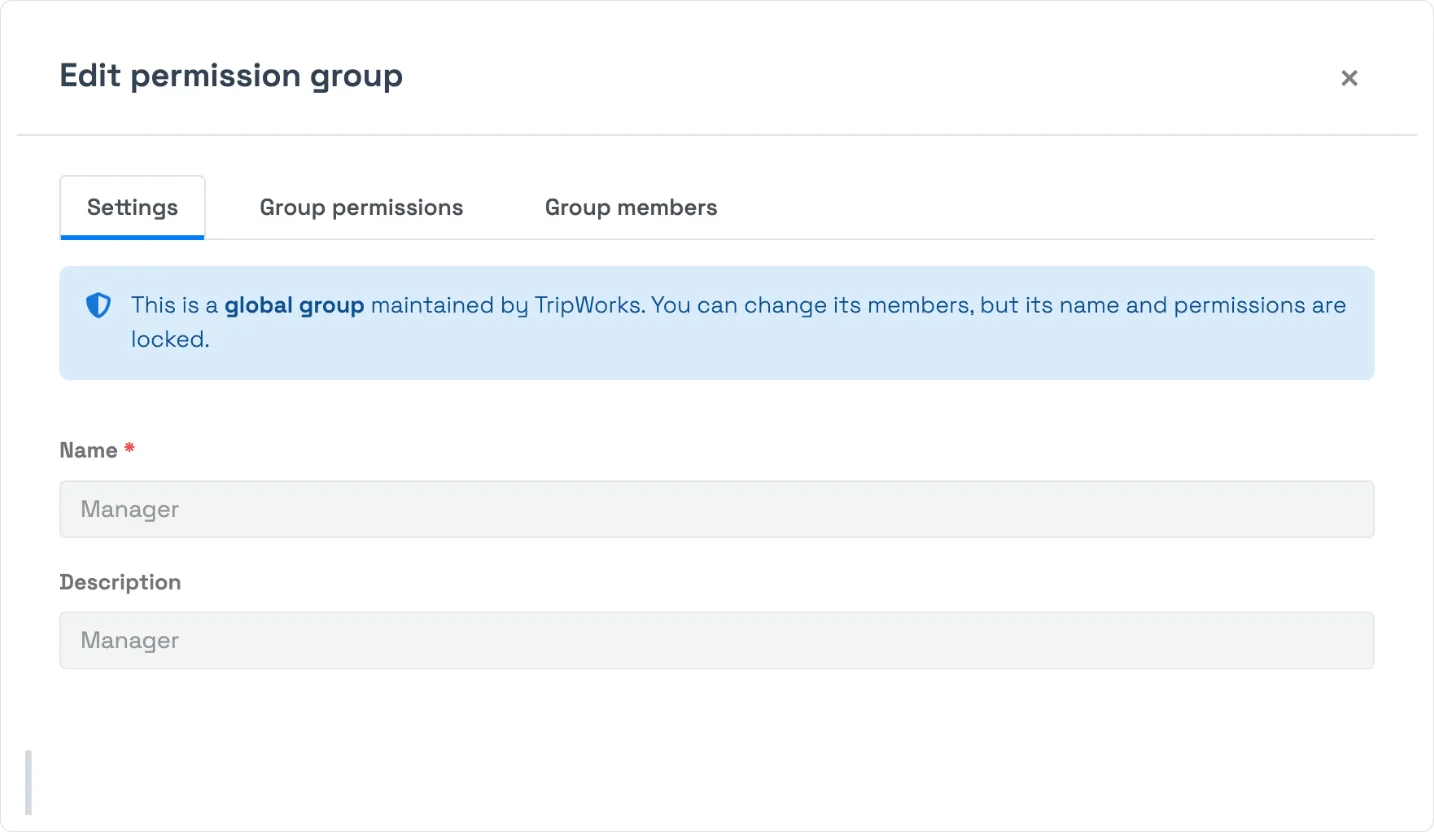
When the built-ins don't fit (a marketing consultant, an accountant, a "front desk" role), create your own custom group with exactly the permissions you want.
Create a permission group
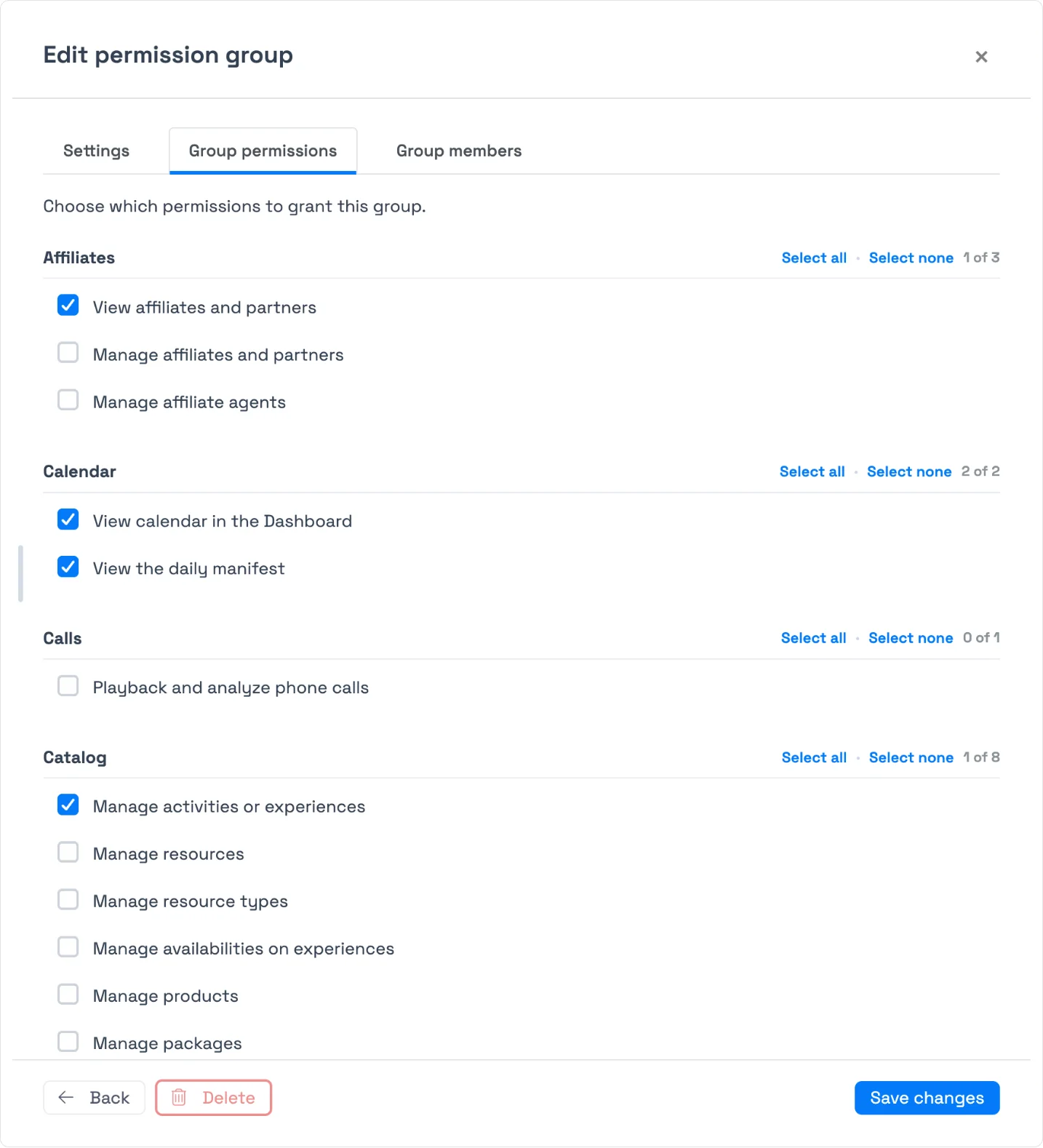
Go to Setup Your team Permission Groups and select New group. The editor opens as a drawer with three tabs:
- Settings: give the group a clear Name (required) and an optional Description ("What can this group do?").
- Group permissions: tick the permissions to grant. They're organized by area (Affiliates, Calendar, Catalog, and so on), each with Select all / Select none and an X of Y count so you can see coverage at a glance. Select all only turns on the permissions you're allowed to grant; anything above your level stays off and locked.
- Group members: add the people who should have this access. This is the same membership list you'd see on each person's profile, so you can build it from either side.
Select Create permission group to save. (When you edit an existing group later, the same button reads Save changes.) A new group is always a custom group, so you can edit its name, permissions, and members at any time.
You can only grant access you have yourself
This is the part the screen doesn't spell out, and it's the answer to most "why can't I…?" questions. TripWorks won't let you give a group more access than you hold. Concretely:
- Permissions above your own level appear locked (greyed out with a lock). You can't switch them on or off, and you can only manage the permissions you personally have.
- You can't add someone to a group that's more privileged than you are. The members list is only editable on groups whose permissions are a subset of yours.
- The super-admin permission is never assignable to any group.
The point is safety: no one can quietly escalate their own access (or someone else's) beyond what they've been given. If a permission you need is locked, ask an Owner or an admin who holds it to make the change.
Manage existing groups
The Permission Groups list shows every group with its member count and permission count; a Global tag marks the built-ins. Select any group to edit it.
- Custom groups: edit the name, permissions, and members anytime.
- Global groups: edit members only (name and permissions are locked).
- Delete: only custom groups can be deleted, and only ones within your permission level. Global groups can't be deleted. Removing a group doesn't delete its people; they simply lose the access that group granted.
Frequently asked questions
Why can't I edit this group's name or permissions?
It's a global group maintained by TripWorks (Owner, Manager, Analyst, Affiliate Agent, Reservations Agent). You can change who's in it, but its name and permissions are locked. To customize access, create your own group instead.
Why are some permissions greyed out when I edit a group?
Because they're above your own access level. You can only grant or remove permissions you personally hold, so no one can escalate access beyond their own. Ask an Owner (or an admin who has that permission) to toggle it.
How do I give someone access to a specific thing?
Add that permission to a group the person belongs to, or add the person to a group that already has it. Remember that access is additive: someone in multiple groups gets everything those groups allow.
What happens to people when I delete a group?
The people aren't deleted. They just lose the access that group provided, and the delete confirmation tells you how many members are affected. If they belong to other groups, that access stays. Only custom groups within your permission level can be deleted; global groups can't.
If someone is in two groups, what can they do?
They get everything either group allows. Access is additive: TripWorks combines the permissions from all of a person's groups, and there is no "deny" that overrides a grant. To reduce someone's access, remove the permission from every group they belong to, or remove them from the group that grants it.
Can I create a group with more access than I have myself?
No. You can only grant permissions you personally hold, so a group you build can never exceed your own access. Permissions above your level appear locked when you edit the group, and you can't add members to a group that's more privileged than you are. Ask an Owner or an admin who holds the missing permission to make the change.
Why doesn't one section have a Select all option?
Every permission in that section is above your access level, so there's nothing there for you to toggle. TripWorks hides Select all / Select none for a section when none of its permissions are editable by you. An admin with those permissions will see the controls.
Can I give a group super-admin access?
No. Super-admin is never assignable to any permission group, even by another super-admin, and it doesn't appear in the permissions list at all. It can't be bundled or handed out through a group.
Related
Built for attractions, tours & activities
Give everyone exactly the right access
See how attractions, tours, and activities control who can do what — without over-sharing — in one place on TripWorks. Book a demo and make the switch.