
Your AI Callbot can answer around the clock, but that isn't always what you want. If it takes a booking or promises a callback at 2 a.m. and nobody's there to follow up, that's a worse experience than no answer at all. Business hours let you tell the callbot exactly when it should handle calls itself and when it should hand off to a person instead. A manual override lets you force it on or off right now, regardless of the schedule, for things like a holiday closure or a quick test call.
In this article
Learn how to manage permission groups
How business hours work
Every callbot has a Business Hours section on its Configure panel, with two modes:
- Use account default business hours. The callbot follows the single open/close time set for your account, applied Monday through Friday. Weekends are always treated as closed under this mode. There's no separate weekend range at the account level, so if you need weekend coverage, switch that callbot to custom hours.
- Set custom hours for this callbot. You get a row for each day of the week, with its own open/closed toggle and start/end time. This is what you want for a callbot that keeps different hours than your account default: longer hours, a different closed day, or an overnight window.
Hours are always entered as wall-clock times in your account's timezone, shown at the bottom of the section (for example, "Times are in America/New_York").
Overnight hours are supported
If a day's end time is at or before its start time, TripWorks reads it as an overnight span rather than an empty window. For example, 22:00 to 02:00 means the callbot answers from 10 p.m. until 2 a.m. the next morning. The custom-hours grid flags this inline with a note like "overnight, closes 2:00 AM the next day" so it's clear that's intentional, not a typo.
What a new callbot starts with
A brand-new callbot's Hours tab pre-fills Monday–Friday as open, 9:00 AM–5:00 PM, with Saturday and Sunday closed (also 9:00 AM–5:00 PM, in case you flip them open). You can change any of this before or after creating the callbot.
Set custom hours
- Open the callbot's Configure panel and go to the Hours tab.
- Select Set custom hours for this callbot.
- For each day, turn it open or closed, and set a start and end time for the days you leave open. Closed days gray out their time pickers.
- Save. The new schedule takes effect for calls going forward.
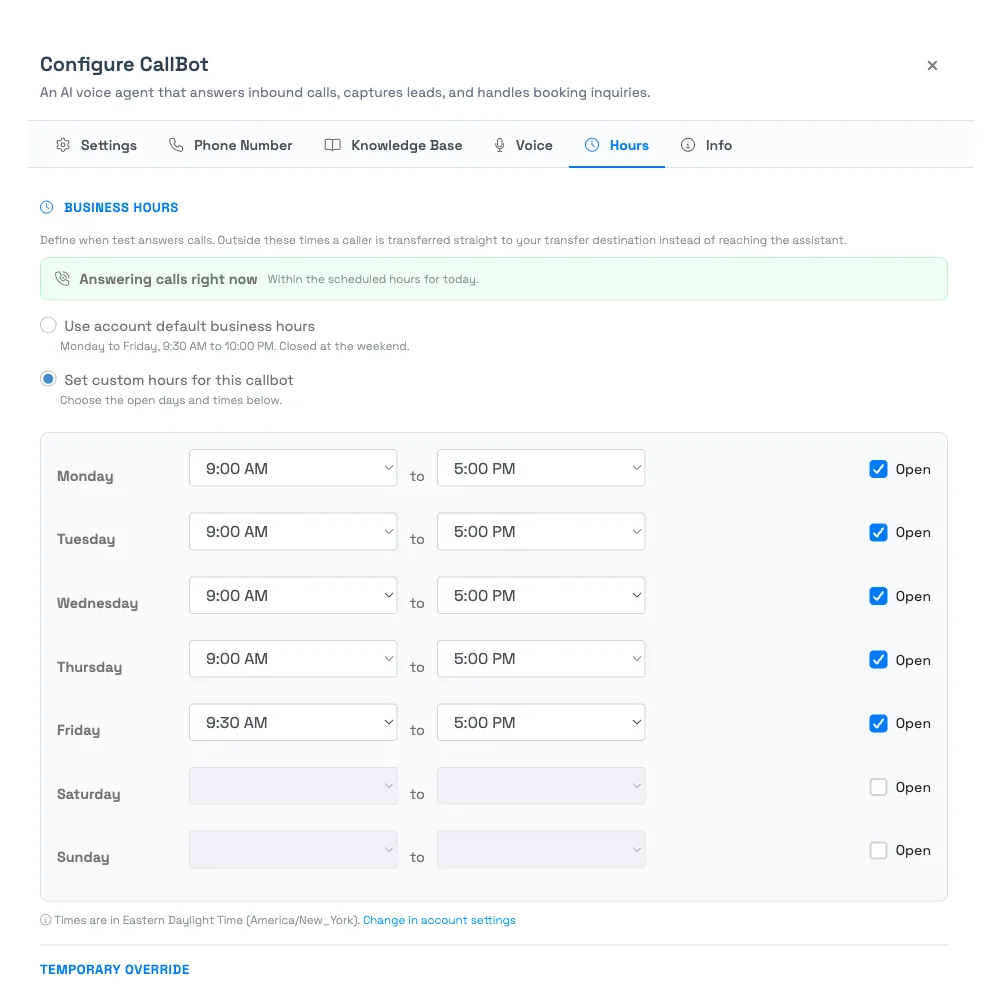
Once a callbot has been saved at least once, its Hours tab also shows a live badge, Answering now or Transferring now, so you can confirm at a glance whether it would pick up a call right this minute, and why (for example, "Today is outside the schedule" or "Outside the scheduled hours for today").
The manual override
Below Business Hours, a saved callbot has a Temporary Override section: "Force [callbot name] to answer, or to send every call to a human, regardless of the schedule." Use it to:
- Force it on even outside the configured hours. Useful for a one-off event or a day you're staffed later than usual.
- Force it off (every call transfers to a person) even during open hours. Useful for a holiday closure, a system you want to test manually, or any time you want a human on every call temporarily.
When you start an override, you choose:
- While the override is on: whether it forces every call to be answered by the bot or transferred to a human.
- How long it lasts: until the next scheduled change (the override lapses automatically the next time your regular schedule would have opened or closed), until a specific date and time you pick, or indefinitely (it stays on until you turn it off yourself).
While an override is active, the section shows an "Override on" badge, what it's currently doing ("The assistant is answering every call" or "Every call goes to a human"), how long it has left, and a Turn off override button to clear it early.
The override needs the callbot to already be saved. You can't start one from the Create Callbot panel before the callbot has an ID. Save the callbot first, then set the override from its Configure panel.
How this interacts with call transfer
The override, the schedule, and your callbot's on/off toggle all feed the same initialization check every call already goes through. There's one order of precedence:
- Is the callbot turned off entirely? If so, it never answers, no matter what the schedule or override say.
- Is a manual override active? If so, it wins over the schedule, forcing an answer even when closed, or forcing a transfer even when open.
- Otherwise, the schedule decides: open hours answer, closed hours (or a closed day) transfer.
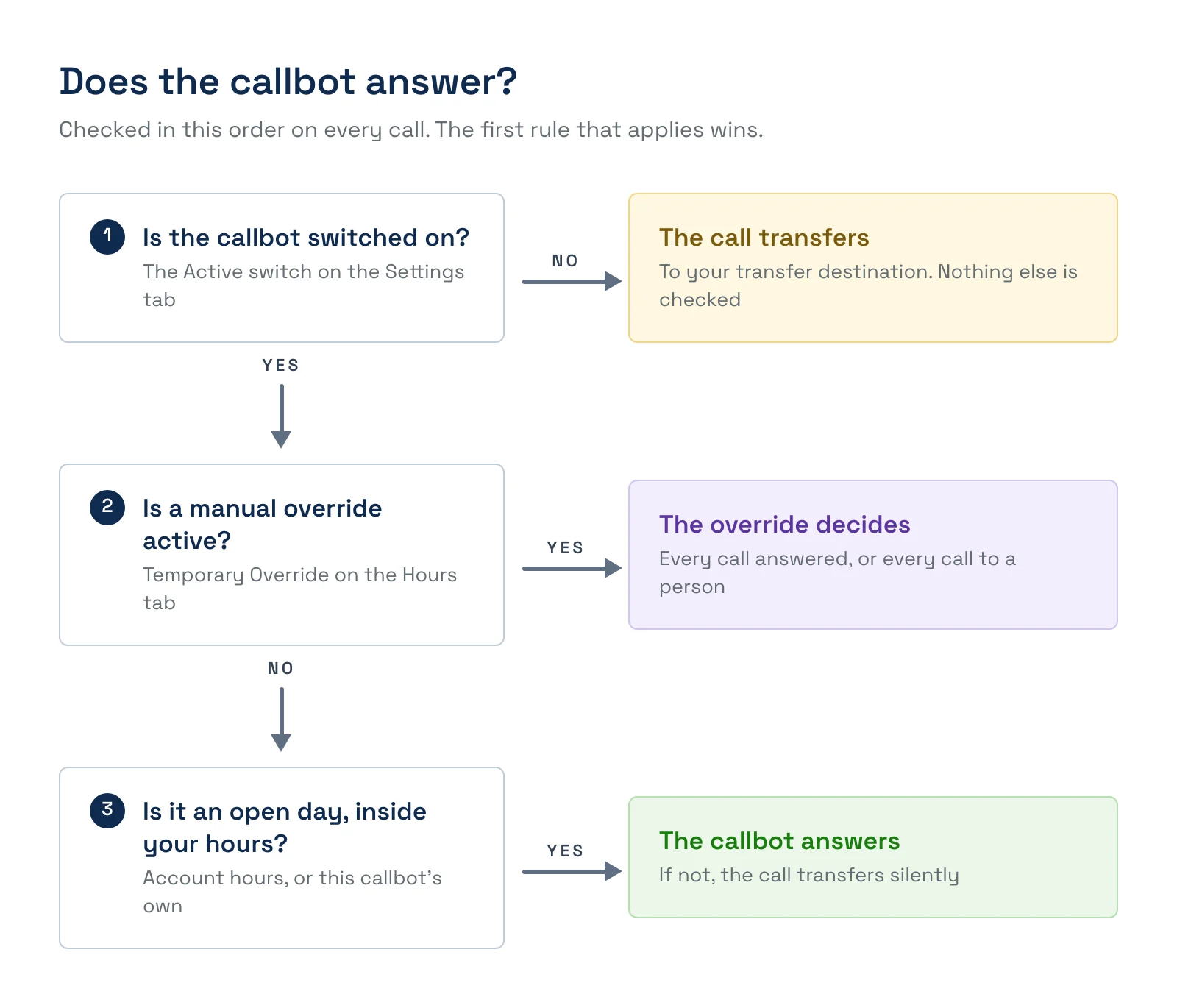
Whichever of these three says "don't answer," the call is handled exactly the same way a callbot that's simply switched off is handled: it's silently transferred to your Transfer Destination number, with no announcement to the caller. If you haven't set a Transfer Destination, the call doesn't ring anywhere: the bot apologizes and ends the call instead.
Example scenarios
- Set custom hours of 9 AM–6 PM Monday–Saturday, closed Sunday, for a callbot that covers a business open six days a week; the account default's Monday-Friday assumption wouldn't fit.
- Set an overnight window of 8 PM–1 AM for a callbot dedicated to a late-night attraction, and confirm the Hours tab flags it as an overnight span rather than reading it as empty.
- Force an override to transfer every call for the rest of the day when your team closes early for a staff event, without touching the saved schedule.
- Start an indefinite override to force the bot off while you test a new Transfer Destination number manually, then turn the override off when you're done.
- Check the live "Answering now / Transferring now" badge on a callbot's Hours tab right before a shift change to confirm the schedule is doing what you expect.
Frequently asked questions
What happens to a call outside business hours?
It's transferred silently to your Transfer Destination number, exactly the way a call is handled when the callbot is switched off entirely. There's no announcement to the caller; they're simply connected to your business line. If you haven't set a Transfer Destination, the callbot apologizes and ends the call instead of dialing nowhere.
Does a manual override outlast the day, or does it reset?
It depends on what you chose when you started it. "Until the next scheduled change" clears automatically the next time your regular hours would have opened or closed. A custom date and time clears exactly then. "Indefinitely" stays on until you select Turn off override yourself. It does not reset overnight or at any fixed point.
What if I don't set a Transfer Destination and a call falls outside hours?
The call doesn't ring anywhere. The callbot apologizes and ends the call rather than dialing a placeholder number. Set a real Transfer Destination on the Phone Number tab if you want out-of-hours (or off/overridden) calls to actually reach someone.
Can hours cross midnight?
Yes. If a day's end time is at or before its start time, TripWorks treats it as an overnight window — for example 10 PM to 2 AM means the callbot answers through 2 AM the next morning rather than the window reading as empty; the Hours tab labels it "overnight" so it's clear that's intentional.
What hours does a brand-new callbot start with?
Monday through Friday, 9:00 AM–5:00 PM, open; Saturday and Sunday closed. You can change any day's hours, or switch to account-default hours, at any point.
Do I have to use custom hours, or can I just follow my account's default hours?
Account-default hours work fine for most callbots and mean one setting to maintain in one place. Switch a specific callbot to custom hours when it needs to differ from that default: different days, longer hours, an overnight window, or weekend coverage, since the account default only applies Monday–Friday.
Does an override beat my schedule, or does my schedule beat the override?
The override wins over the schedule. It's meant for exactly that: forcing the bot to answer outside its normal hours, or forcing every call to a human during hours it would otherwise handle itself. The one thing that beats an override is the callbot's own on/off toggle: if the callbot is switched off entirely, it never answers regardless of any override.
Can I preview whether my callbot would answer right now before a call comes in?
Yes. Once a callbot has been saved, its Hours tab shows a live "Answering now" or "Transferring now" badge with the reason (for example, an active override, a closed day, or being outside today's hours), so you can confirm the current state without waiting for a real call.
Do business hours affect the website chatbot too?
No. Business hours and manual override are a Callbot (phone) feature, since they govern whether a call gets a live transfer. The website chatbot doesn't transfer to a human at all, so hours don't apply to it. See how your bot avoids guessing for how the chatbot handles questions it can't answer.
Related
- Set up your AI Callbot
- How your AI Chatbot and Callbot avoid guessing
- Review AI callbot calls & analytics
Built for attractions, tours & activities
Never promise a call your team can't answer
See how attractions, tours, and activities use TripWorks' AI callbot to answer calls only when someone can actually follow up. Book a demo and make the switch.