
Your Knowledge Base is the content your AI assistants draw from when they answer questions. To add text to your chatbot or callbot, create a Text knowledge base here, then assign it to the assistant. Both the AI chatbot (on your website) and the AI callbot (on your phone) use it, so this is the place to start.
In this article
You can create as many knowledge bases as you like and mix types — for example, one with your FAQ text and another that pulls from your website pages — then assign whichever ones you want to each assistant.
Learn how to manage permission groups
Your AI assistants already know your live experiences, availability, and pricing directly from your TripWorks account. The Knowledge Base is for everything else a guest might ask — policies, directions, what to bring, parking, FAQs.
Add a knowledge base
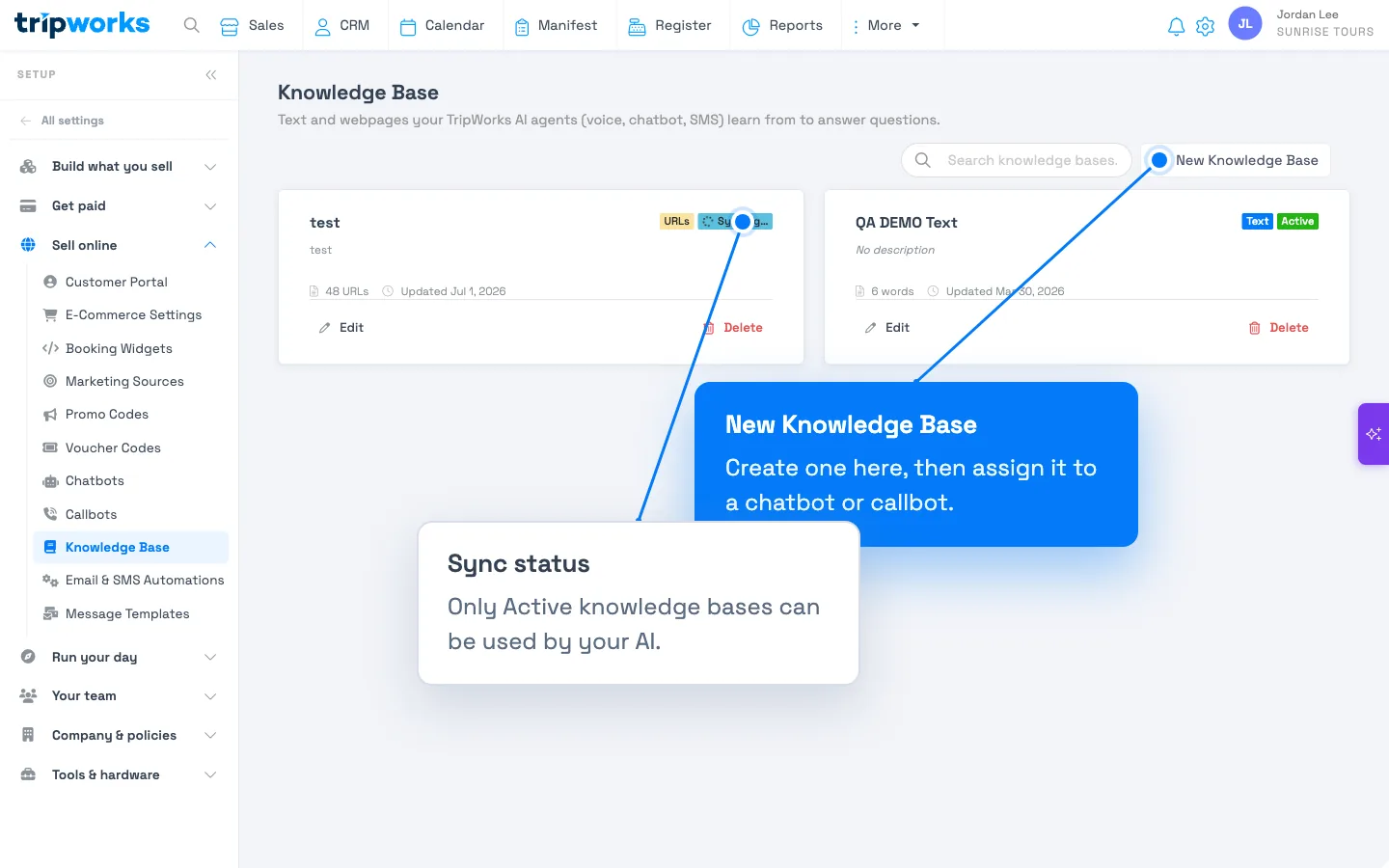
- Go to Setup → Sell online → Knowledge Base.
- Select New Knowledge Base.
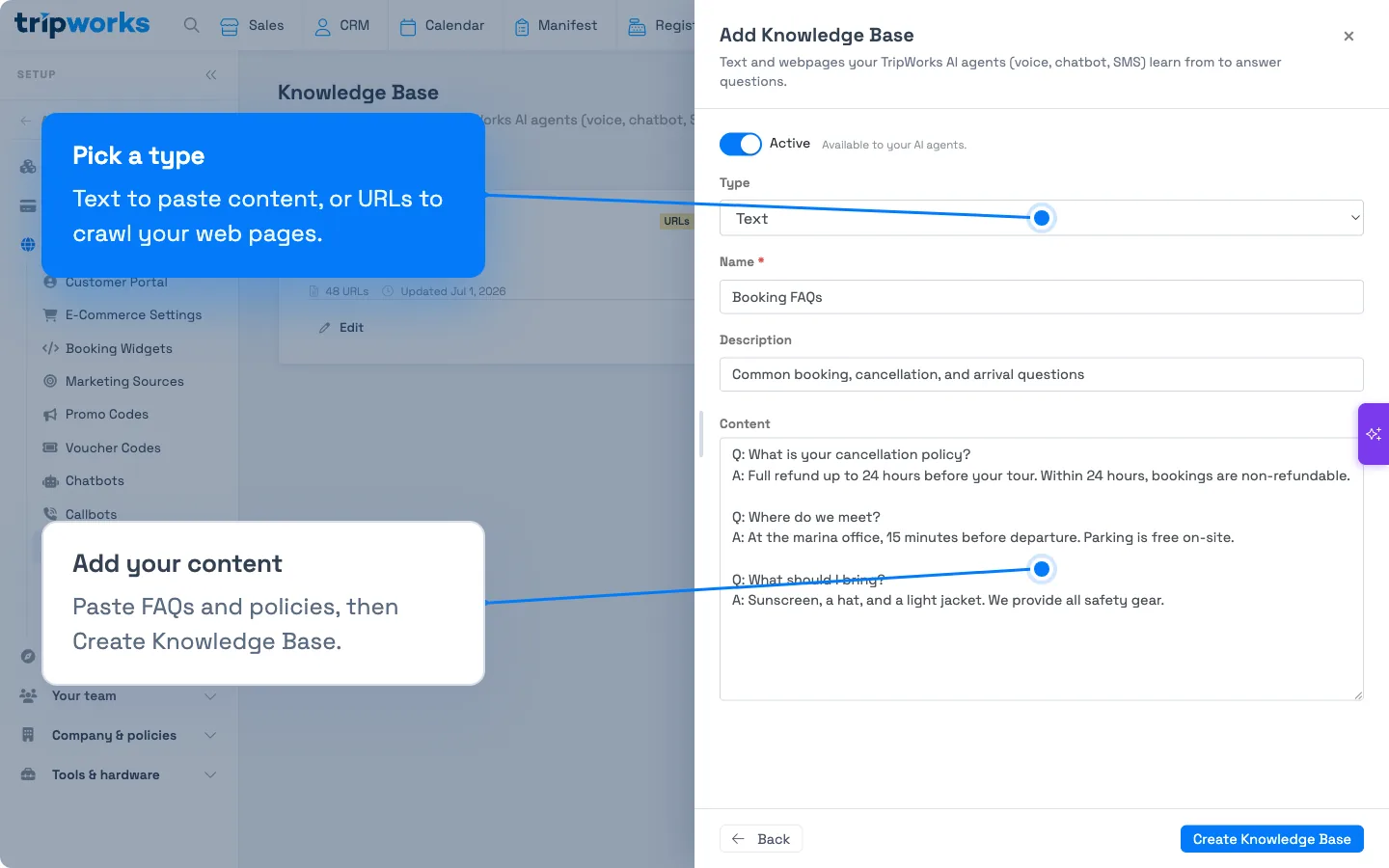
- In the Add Knowledge Base panel, choose a Type (see below), give it a Name (e.g. "Booking FAQs"), and an optional Description.
- Add your content.
- Leave Active turned on so your AI can use it, then select Create Knowledge Base.
Content types
| Type | What you enter | Good for |
|---|---|---|
| Text | Paste or type content directly (up to 500 KB) | FAQs, policies, pricing notes, directions, custom Q&A |
| URLs | One web address per line, up to 100 — TripWorks crawls each page | Your tour pages, About page, Contact page |
Watch the sync status
After you save, TripWorks syncs the content to your AI provider. Each knowledge base shows a status:
- Syncing… — TripWorks is processing the content. Give it a moment.
- Active — ready to use. Only synced knowledge bases can be assigned to a chatbot or callbot.
- Sync failed — something went wrong (for example, a URL that couldn't be reached). Open the knowledge base to see the error, fix the content, and save again.
A knowledge base that isn't fully synced shows a Not synced badge when you try to assign it — finish the sync first.
Keep it accurate
Your assistants are only as good as this content. Whenever your policies, hours, pricing notes, or FAQs change, open the relevant knowledge base, update it, and save — TripWorks re-syncs automatically. Reviewing your chatbot conversations is a great way to spot questions you should add.
Assign it to an assistant
A knowledge base does nothing on its own — assign it:
- Set up your AI Chatbot → Knowledge Base access
- Set up your AI Callbot → Knowledge bases
Related
Built for attractions, tours & activities
Give your AI the right answers
See how attractions, tours, and activities feed their own content to TripWorks' AI assistants so guests get accurate answers. Book a demo and make the switch.