
Once your AI callbot is answering calls, TripWorks logs each one so you can see how it's performing and what callers needed.
In this article
(This is the phone log. For website chat conversations, see Review AI chatbot conversations, a separate history.)
Learn how to manage permission groups
At-a-glance performance
Each callbot in your list shows headline stats so you can gauge its impact without digging in:
- Calls: how many calls it handled
- Bookings: how many turned into bookings
- Revenue: the value of those bookings
Open the call history
- Go to Setup → Sell online → Callbots.
- Find the callbot and select History.
- Review the dashboard, then select any call to open its details.
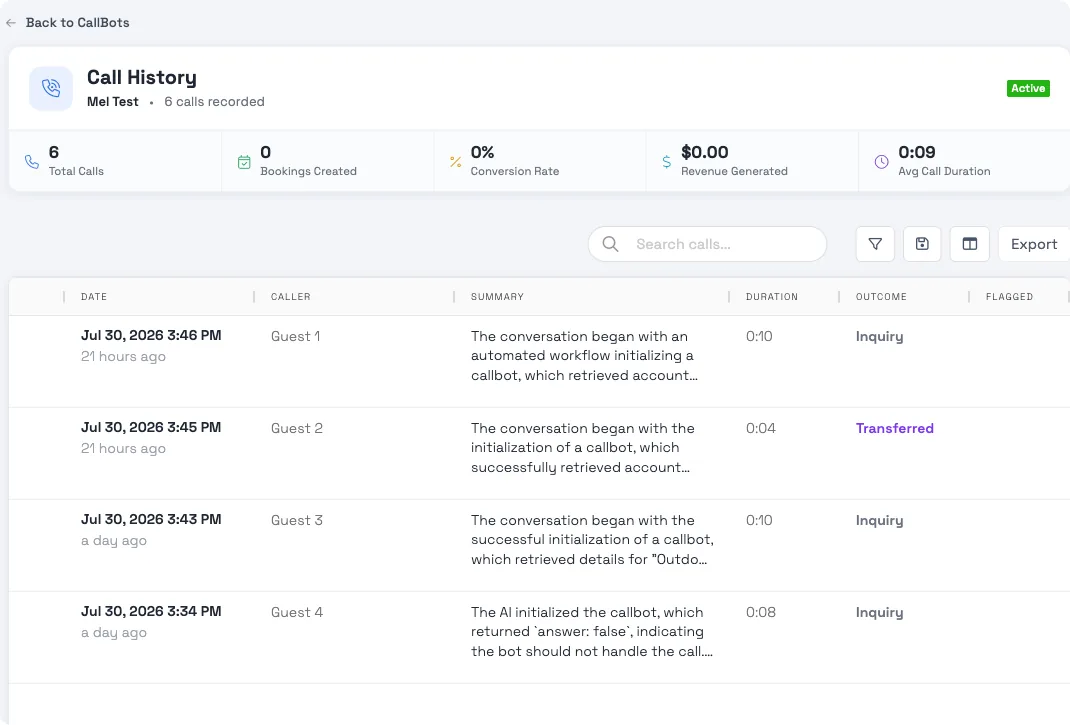
At the top you'll see Total Calls, Bookings Created, Conversion Rate, Revenue Generated, and Avg Call Duration. Below that, every call is listed with its caller, an AI summary, duration, outcome, and time. Use the quick search box, the Filter panel, or the column chooser to narrow the grid to exactly the calls you want: filter by date, by one or more outcomes, or by any other visible column, and save a combination as a view you can reuse later. Export downloads the currently visible set of calls as a CSV, and selecting a call opens its full detail and transcript, so you can confirm the callbot answered accurately, see how a booking came together, or understand why a caller didn't book.
Call outcomes
Every call is tagged with one outcome, based on what actually happened during the call:
- Booking: the caller completed a booking
- Lead: the caller's contact info was captured as a lead
- Message: the callbot took a message for your team
- Lookup: the caller only asked about availability, without booking, leaving a message, or being captured as a lead
- Inquiry: the caller talked with the bot, but nothing else applies
- Transferred: the call was handed off live to a member of your team before the bot could reach any other outcome
- No action: no useful conversation happened (for example, a call that disconnected immediately)
Transferred only appears when your callbot's workflow includes a live hand-off step and a caller actually reached it. It's a real, silent transfer to a human, not a failed or dropped call. Because nothing else can happen after a transfer, TripWorks always tags the call Transferred even if the caller had already been offered a lookup or asked a question first.
Read the transcript
Open any call to see its full transcript. Alongside what the caller and the callbot said, TripWorks now annotates the transcript with two things:
- Workflow step labels: if your callbot's workflow is broken into named steps (for example, "Collect party size" or "Confirm date"), the transcript shows which step the conversation was in at each point, using the same labels you set up in the workflow, not raw internal step names.
- Knowledge Base citations: when the callbot answers using your Knowledge Base, the transcript shows which article it pulled the answer from, right next to that turn.
This makes it much faster to spot exactly where a call went well or fell apart, and to confirm an answer actually came from your own content rather than the bot guessing.
Citations and answer-gating (how TripWorks decides whether the bot has a good enough source to answer, and what it does when it doesn't) are explained in full in Knowledge Base citations in AI conversations. The same behavior powers both the callbot and the chatbot.
Put it to work
- Fix weak answers. If callers ask things the callbot fumbled, add or clarify that content in your Knowledge Base — it re-syncs automatically.
- Follow up on leads. Callers who didn't book can be captured as leads (if you enabled that capability) so your team can reach back out.
- Track ROI. Use the calls / bookings / revenue figures to see what the callbot is contributing.
Example searches
- Find calls that ended in a live transfer to staff. Filter the Outcome column to Transferred to see every call the bot handed off to a person, so you can check how often callers need a human and whether your workflow's transfer step is triggering at the right point.
- Find calls where the bot answered from your Knowledge Base. Open a call's transcript and look for the citation next to each answer — if you're chasing down a wrong answer, the citation tells you which article to fix.
- Find callers who asked about availability but didn't book. Filter Outcome to Lookup to see calls that stalled after a price or date check, a good list to review for pricing or availability gaps.
- Find leads to follow up on. Filter Outcome to Lead, then export the results so your team can work the list outside TripWorks.
- Re-review a specific week's calls. Set a date range, filter to the outcome(s) you care about, and save it as a view so you don't have to rebuild the same filter next time.
FAQ
What does the "Transferred" outcome mean?
It means the call ended with a live, silent hand-off to a member of your team, rather than the bot completing a booking, capturing a lead, taking a message, or just answering questions. It only shows up if your callbot's workflow includes a transfer step and a caller actually reached it. Because a transfer ends the call, it always takes priority over any other outcome the call might otherwise have gotten.Can I tell which calls were transferred without opening each one?
Yes. Filter or sort the Call History grid's Outcome column to **Transferred**, or use the Filter panel to isolate just those calls.What are the workflow step labels and citations I'm seeing in a call's transcript?
They're annotations TripWorks adds to help you read the transcript faster. Step labels show which stage of your callbot's workflow the conversation was in at each point (using the labels you named in the workflow builder), and citations show which Knowledge Base article the bot pulled an answer from. See [Knowledge Base citations in AI conversations](https://help.tripworks.com/ai-assistants/knowledge-base-citations-in-ai-conversations) for the full explanation of how citations and answer-gating work.Why don't I see a step label or citation on every line of the transcript?
Step labels only appear where your workflow assigned a name to that step — a generic or unnamed step falls back to no label rather than showing an internal step id. Citations only appear on turns where the bot actually pulled from your Knowledge Base; plain conversational turns (like a greeting) won't have one.Can someone without Setup access see call details?
Yes, in a limited way. A user with just the View calls permission can open an individual call's details and transcript (for example, from a trip's Calls tab), but they can't see the full Call History dashboard, apply filters, export, or flag calls — those still require Manage company profile.Related
- Set up your AI Callbot
- Build your Knowledge Base
- How AI bookings work
- Knowledge Base citations in AI conversations
- Review AI chatbot conversations
Built for attractions, tours & activities
See what your phone agent is doing
See how attractions, tours, and activities track their AI callbot's calls, bookings, and revenue in TripWorks. Book a demo and make the switch.