
Your AI Callbot reads words aloud the way a text-to-speech voice guesses they sound. That works for most words, but it can stumble on the ones that matter most to your business: a brand name, a town, a harbor, a guide's name. Manage Pronunciations lets you fix those one at a time. For each word you add a respelling, a spelling that makes the voice say it correctly, and you can hear the result before you save.
In this article
The list is shared by every callbot on your account, so you fix a word once and all of your callbots say it the same way.
Learn how to manage permission groups
Add a word
- Go to Setup Sell online Callbots.
- Select Manage Pronunciations at the top of the page.
- Select Add a word.
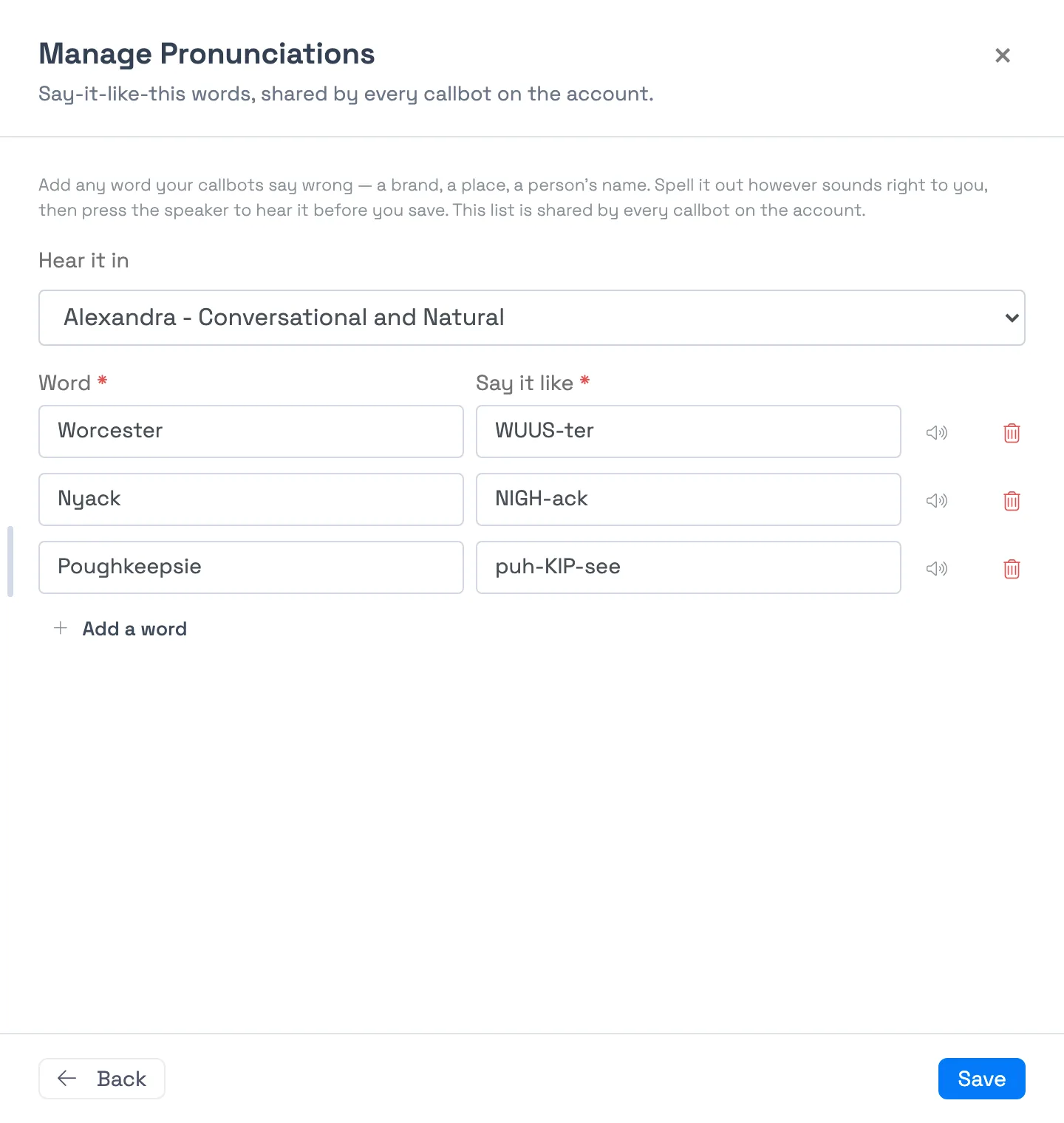
- In Word, type the word the way it's written in your own content, for example Worcester.
- In Say it like, type how it should sound, for example WUUS-ter.
- Press the speaker button to hear it (see below), adjust until it sounds right, then select Save.
How to spell what you want to hear
There's no special notation. Spell the word the way it sounds, in plain English letters, however makes the voice say it correctly. A few habits help:
- Break it into syllables with hyphens, like NIGH-ack for Nyack.
- Use capitals to show which syllable to stress, like puh-KIP-see for Poughkeepsie.
- Try a couple of spellings. The right one depends on the voice, so listen and adjust rather than guessing.
Hear it before you save
Above the list, Hear it in lets you pick which of the callbot voices to test with. Press the speaker button on a row and the voice says the respelling out loud, so you can tune it before it ever reaches a caller.
- Choose the same voice your callbot uses. The same respelling can sound slightly different on different voices.
- The speaker button turns on once the row has a respelling and a voice is chosen.
- To keep things fair, you can play a limited number of previews per minute. If you hit the limit you'll see a message asking you to wait a moment, then try again.
What's required
Each row is checked before it can be saved, and the form tells you what to fix:
- Both fields are required. A row can't have only a word or only a respelling.
- Each field must be at least 4 characters and no more than 120.
- Each word can appear once. Two rows that differ only by capital letters count as the same word.
- You can keep up to 50 words on the list. It's meant for the handful of words your callbot actually gets wrong, so add only those.
The Save button turns on when you've changed something and every row is complete. While it's saving, the button shows a spinner and can't be pressed again. If any row has a problem, nothing is saved, and the rows that need attention are marked so you can fix them all at once.
When a change takes effect
When you select Save, your list is stored for the account and then applied to all of your callbots. It takes effect on calls from that point on. A word matches regardless of capitalization, so one entry covers Nyack, nyack and NYACK.
Pronunciations change how the callbot speaks. They don't change what it knows or how it understands a caller. They apply to the phone callbot only, not to your website chatbot, which doesn't speak.
If a callbot doesn't seem to pick up a change, save the list again, which re-applies it to every callbot. If a word still doesn't sound right, try a different respelling. See Callbot troubleshooting.
Example scenarios
- Fix a town name. Add Worcester with the respelling WUUS-ter so callers asking about your Worcester departures hear it said correctly.
- Fix your own brand. Add your company name with a respelling if the voice keeps saying it wrong in the greeting or in answers.
- Fix a local landmark. Add Poughkeepsie as puh-KIP-see, then press the speaker to confirm the stress lands on the middle syllable.
- Fix a guide's name. Add a guide's unusual surname so the callbot says it right when it tells a caller who will meet them.
- Compare voices. Switch Hear it in between two voices and play the same respelling to see which one handles it better.
Frequently asked questions
Do I have to set pronunciations for every callbot separately?
No. The list belongs to your account and is shared by every callbot on it. Add a word once and all of your callbots use it.
Why won't Save turn on?
Save is available when you've changed the list and every row is complete. Check that each row has both a word and a respelling, and that each is at least 4 characters. A row with only one half filled in, or with spaces only, keeps Save off until it's fixed or removed.
Why does my respelling need at least 4 characters?
Very short entries are more likely to match parts of other words than the one you meant, which would change how the callbot says things you didn't intend. Four characters keeps each entry specific. If the word you want to fix is shorter than that, add it with a longer respelling, or leave it as the voice says it by default.
Does the speaker button cost anything or affect my callers?
No caller is involved. The speaker button only plays the respelling to you in the voice you chose. Previews are limited to a set number per minute, so if you've been testing a lot, wait a moment before trying again.
How do I remove or change a word?
Open Manage Pronunciations, edit the row, or select the trash button to remove it, then select Save. The saved list always matches what you see on screen, so a word you removed stops being applied to your callbots.
Can I add the same word twice with different spellings?
No. Each word can appear once, and words that differ only by capital letters count as the same word. If the first spelling doesn't sound right, edit that row instead of adding another.
Will this fix the callbot mishearing a caller?
No. Pronunciations change what the callbot says, not what it hears. TripWorks already gives the callbot your place names to help it recognize them when callers say them. See What your Callbot knows and where it gets its information.
Is there a limit to how many words I can add?
Yes, 50 per account. Keep the list to words the callbot actually gets wrong. A short, focused list is easier to maintain and keeps the callbot's speech natural.
Does this work for my website chatbot too?
No. Pronunciations are for the phone callbot, which speaks. The website chatbot answers in text, so there's nothing to pronounce.
Related
- Set up your AI Callbot
- What your Callbot knows and where it gets its information
- Callbot troubleshooting
Built for attractions, tours & activities
A callbot that says your name right
See how attractions, tours, and activities use TripWorks' AI callbot to answer calls in a voice that gets your place names and brand right. Book a demo and make the switch.