
TripWorks sends two kinds of guest messages: automatic ones that fire on their own when something happens to a booking, and manual ones you write and send yourself. This article covers the automatic messages — what each one is, when it sends, and where you switch it on or off.
In this article
An automated message is a template that TripWorks sends for you when a trigger occurs — a trip is reserved, an event is coming up, a cart is left behind. You don't send it by hand; you decide which template to use and whether the automation is on. Every message in this guide is built from a message template, and most can go out by email, SMS, or both.
Where automated messages are configured
Automation settings live in two places, and it helps to know which one you're in:
- Global — Email & SMS Automations. Account-wide switches at Setup Sell online Email & SMS Automations. Each row is an on/off toggle plus a template picker. This is where confirmations, gift-card confirmations, rebooking messages, and the abandoned-cart flow are turned on for your whole catalog.
- Per-activity — Email Automations. Settings on a single activity, at Setup Build what you sell Activity Settings → open an activity → Email Automations. This is the only place event reminders and event follow-ups live — they have no global switch — and where you can override the confirmation and abandoned-cart settings for that one activity. See Customize messages per activity.
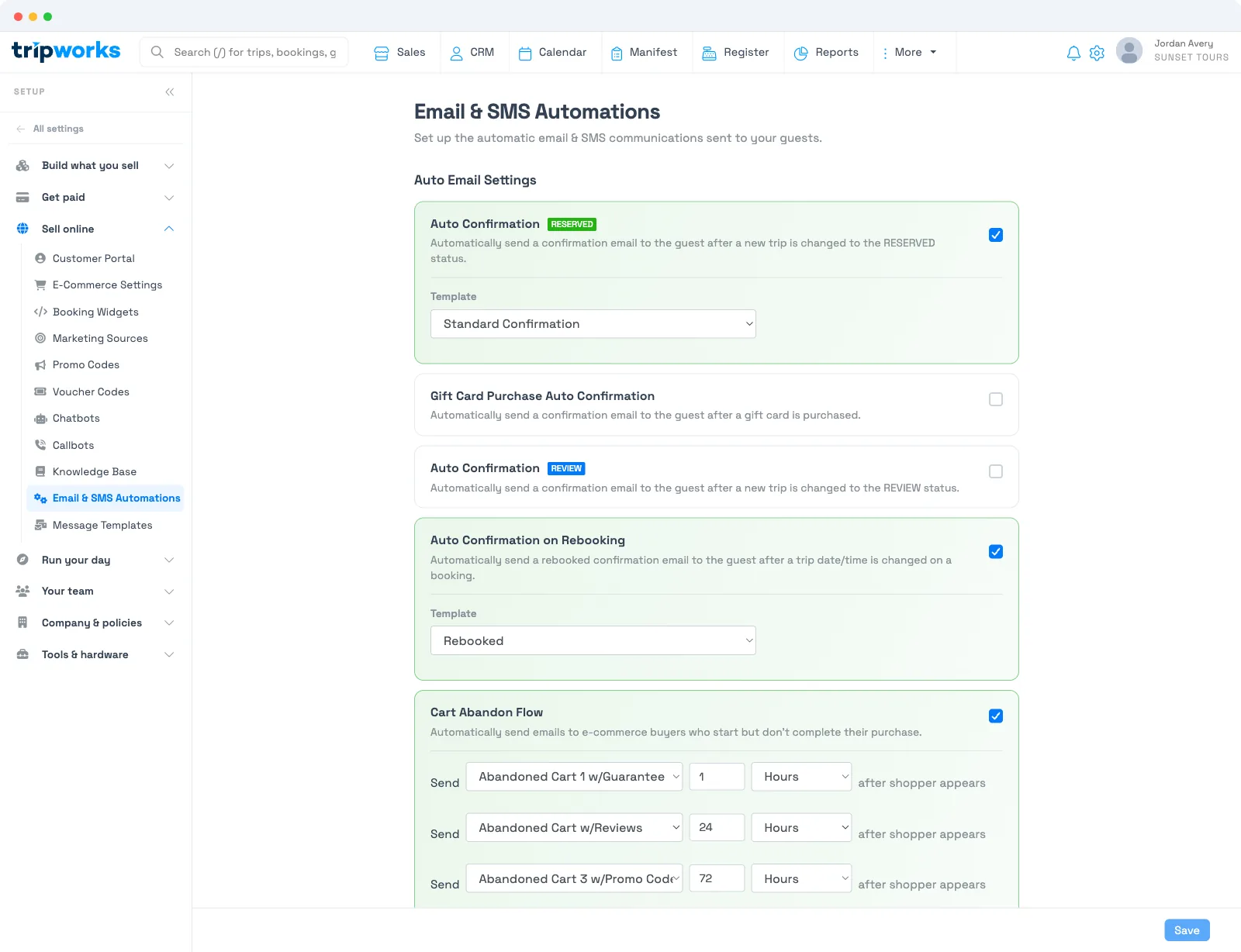
The automated message types
Each automated message has its own trigger, its own home in settings, and its own default state. Confirmation-type messages send immediately when their trigger happens; only the abandoned-cart flow, reminders, and follow-ups have timing controls.
| Message | Fires when | Where you configure it | Default |
|---|---|---|---|
| Order confirmation (Reserved) | A trip changes to the Reserved status | Global Automations, and per activity | On |
| Order confirmation (Review) | A trip changes to the Review status | Global Automations | Off |
| Rebooked | A booking's date or time changes | Global Automations (Auto Confirmation on Rebooking) | Off |
| Gift card confirmation | A gift card is purchased | Global Automations | Off |
| Abandoned cart | An online booking is started but not completed | Global Automations (3-step flow), and per activity | Whole-flow toggle |
| Event reminder | An event is coming up (up to 2 reminders) | Per activity only | Set per activity |
| Event follow-up | After the activity ends (up to 3 follow-ups) | Per activity only | Set per activity |
Automatic vs. manual messaging
The messages above send on their own. Everything else — a one-off note to a guest, a cancellation notice, a refund receipt — is a manual message you send when the situation calls for it. Choosing a template's category is what makes it eligible for an automation: a template must be in the Confirmation category to appear in a confirmation picker, Abandon Cart for the cart flow, and so on. If a template you expect isn't in a picker, its category is the reason.
Which messages a guest can receive
A single booking can trigger several automations in sequence: an order confirmation the moment it's reserved, one or two reminders before the event, and up to three follow-ups afterward. Each is independent — turning one off doesn't affect the others. Reminders and follow-ups are attached to the activity, so two activities on the same trip can send different reminder timing.
Frequently asked questions
What emails does TripWorks send automatically?
Out of the box, an order confirmation when a trip is reserved, plus any event reminders and follow-ups you've set on the activity. Rebooking, gift-card, and Review-status confirmations are off until you enable them. Abandoned-cart recovery runs when its flow is toggled on.
How do I turn off automatic emails?
For account-wide messages, switch the toggle off at Setup → Sell online → Email & SMS Automations. For reminders and follow-ups, open the activity's Email Automations tab and disable them there — they have no global switch.
Does TripWorks send an automatic email when a waiver is signed?
No. A signed waiver is not one of the automated messages. The automatic messages are confirmations, reminders, follow-ups, rebooking, gift-card confirmations, and the abandoned-cart flow.
Why isn't my template showing in an automation's dropdown?
The template is in the wrong category. Each picker only lists templates in its matching category — Confirmation, Abandon Cart, and so on. Open the template, set the right category, and it appears.
Related
- Order confirmation messages
- Event reminder messages
- Event follow-up messages
- Abandoned cart messages
- Customize messages per activity
Built for attractions, tours & activities
Put your guest emails on autopilot
See how attractions, tours, and activities confirm, remind, and follow up with every guest automatically on TripWorks. Book a demo and make the switch.