
The order confirmation is the message a guest gets the moment their booking is confirmed. It sends immediately, tells them the trip is booked, and doubles as the booking receipt — so it's the one automated message most operators leave on.
In this article
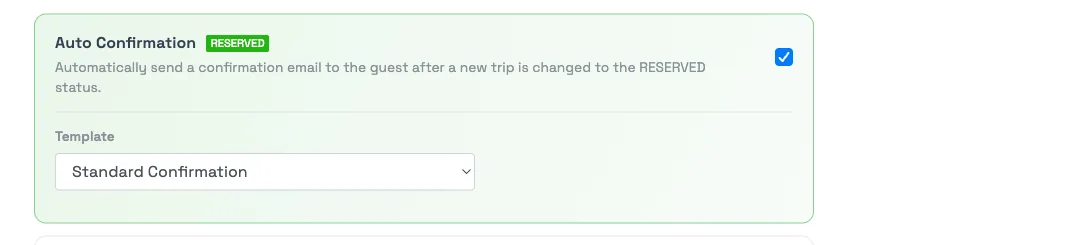
When it sends
The confirmation is a Confirmation-category message, and it fires the instant a trip reaches a confirmed status:
- Reserved (default). As soon as a trip changes to the Reserved status — whether a guest pays online or a team member marks it reserved — the confirmation sends. This is on by default.
- Review (optional). If an activity uses the Review trip status, you can also send a confirmation when a trip enters Review. This is off until you enable it.
It sends once, immediately — there's no delay to configure. Because it's also the receipt, a guest who pays gets their payment details in the same message.
Turn it on or off, and pick the template
- Go to Setup Sell online Email & SMS Automations.
- Find Auto Confirmation. Toggle it on to send confirmations when a trip becomes Reserved; toggle it off to stop them account-wide.
- To also confirm on the Review status, enable the Auto Confirmation (Review) row.
- Use the template picker on each row to choose which message goes out, then Save.
To confirm differently for one experience — a different template, or no confirmation at all — set it on that activity's Email Automations tab instead. See Customize messages per activity.
The confirmation is also the receipt
There's no separate "receipt" automation. The order confirmation carries the booking and payment details, so it serves as the guest's receipt. If you want a receipt-style layout, build it into the confirmation template — see Create a receipt email template.
If your template isn't in the picker
The picker only lists templates in the Confirmation category. If the template you want is missing, it's in another category. Open the template, change its category to Confirmation, and return to select it. See Create, edit & manage message templates.
Frequently asked questions
When exactly does the confirmation send?
The moment a trip changes to the Reserved status — from an online payment or a team member reserving it. If you've enabled it, a trip entering the Review status can also trigger a confirmation. It sends immediately, with no delay to set.
Is the confirmation the same as the receipt?
Yes. The order confirmation includes the booking and payment details, so it acts as the receipt. There's no separate receipt email — build the receipt layout into your confirmation template.
How do I stop confirmation emails for one activity?
Open that activity's Email Automations tab and set its Confirmation to off. The account-wide toggle keeps confirmations running for every other activity.
My confirmation template isn't in the dropdown — why?
Only templates in the Confirmation category appear. Open the template, set its category to Confirmation, then reselect it in the picker.
Related
- Automated messages: an overview
- Create a receipt email template
- Rebooked trip messages
- Customize messages per activity
Built for attractions, tours & activities
Confirm every booking the moment it lands
See how attractions, tours, and activities send instant, on-brand confirmations and receipts on TripWorks. Book a demo and make the switch.