
An abandoned cart is an online booking a shopper starts but never finishes. The abandoned-cart flow chases those shoppers back with a timed series of messages, each with a button that returns them to exactly where they left off — turning lost sales into completed bookings.
In this article
Learn how to manage permission groups
The three-step flow
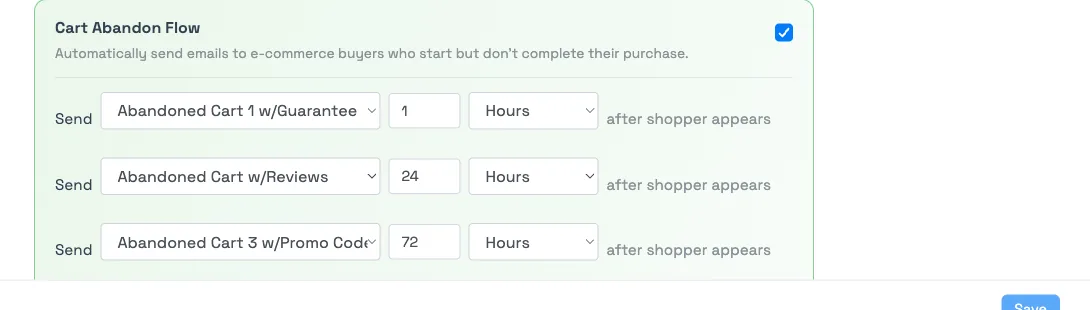
The abandoned-cart flow lives at Setup Sell online Email & SMS Automations under Cart Abandon Flow. It has three configurable steps. Each step is a message template plus a timing value — a number and Minutes, Hours, or Days after the shopper appears (the point they started booking). A common starting series sends about 1 hour, 24 hours, and 72 hours out.
- Open Cart Abandon Flow and toggle it on to run the series (off stops the whole flow).
- For each step, pick a template and set its timing after the shopper appears. Every step that's turned on needs a template, or the page won't save and flags the step.
- To skip a step, clear its checkbox.
- Select Save.
Only templates in the Abandon Cart category appear in the step pickers. If one is missing, change its category — see Create, edit & manage message templates.
Offering a discount
A common tactic is to sweeten a later step with a discount. That discount is applied through a promo code — the feature formerly called an "offer code." Create the promo code, then reference it in that step's template. See Promo codes.
Overriding the flow per activity
The Cart Abandon Flow is account-wide, but a single activity can behave differently — useful when a cheap add-on and a high-consideration experience shouldn't be chased the same way. On the activity's Email Automations tab, choose whether it uses the account default, runs its own timing, or turns cart recovery off. See Customize messages per activity.
This is not the monthly summary email
The abandoned-cart flow is what goes to shoppers. It's separate from the monthly abandoned-cart summary that reports recovery performance to you — see The monthly abandoned cart summary email.
Frequently asked questions
How many abandoned-cart messages send, and when?
Up to three, each timed relative to when the shopper started booking ("after shopper appears"). A common series is roughly 1 hour, 24 hours, and 72 hours out — but every step's timing is yours to set.
How do I add a discount to an abandoned-cart email?
Use a promo code (formerly "offer code"). Create the code, then reference it in that step's template so returning shoppers get the offer.
How do I turn abandoned-cart emails off?
Toggle Cart Abandon Flow off on the Email & SMS Automations page to stop the whole series. To turn it off for a single activity only, use that activity's Email Automations tab.
Can I skip one step in the series?
Yes. Clear that step's checkbox and it won't send while the rest of the flow continues. A step that's turned on with no template can't be saved, so turn it off rather than clearing its template.
Related
- Automated messages: an overview
- The monthly abandoned cart summary email
- Customize messages per activity
Built for attractions, tours & activities
Win back the bookings that slip away
See how attractions, tours, and activities recover abandoned carts automatically on TripWorks. Book a demo and make the switch.