
You build and change every guest email and SMS in the Message Templates Studio — the full-screen editor you reach by opening any template in your library. This article covers creating a template, editing it in the Studio, and managing it over time (clone, reset, and retire). For where templates live and how they send, see email & SMS message templates.
In this article
Templates control the content of a message. The sender name and reply-to address are set once for all your emails, not per template — see Can I change the "From" address on my emails?.
Create a template
- Go to Setup Sell online Message Templates and select New Template.
- Give the template a name. This is for your team only — guests never see it.
- Choose a category. The category sets what the template can do — whether and where it can auto-send — so pick the one that matches the message (Confirmation, Event Reminder, Event Follow-up, Payment Request, and so on). Choose User Defined Message for a template you'll only ever send by hand.
- Select Create to open the new template in the Studio.
The category is fixed once the template is created — you can't change it later. If you pick the wrong one, create a new template with the right category and clone your content across.
Edit a template in the Studio
Opening a template drops you into the Studio, where you build the message and see it render live.
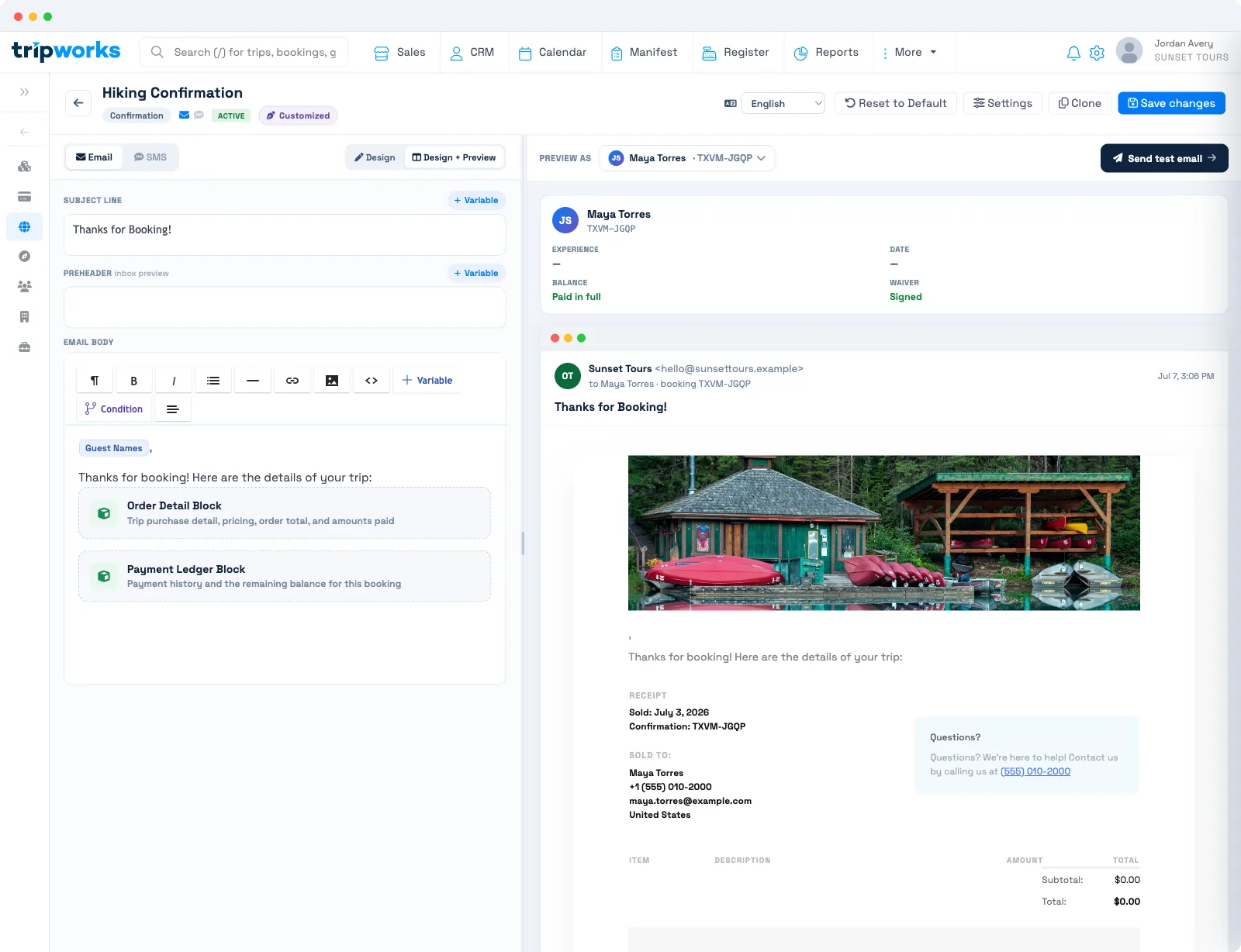
Subject line and preheader
Set the Subject line — what the guest sees in their inbox — and the Preheader, the short preview text that follows the subject in most inboxes. Each field has its own + Variable button, so you can personalize the subject ("Your booking is confirmed, #first_name#") the same way you personalize the body.
The body toolbar
Write the message in the body and format it with the toolbar: bold, italic, lists, a divider, link, image, and an HTML view for hand-editing the source. Three buttons do the heavy lifting:
- + Variable — insert a guest detail that fills in at send time (see below).
- Condition — wrap a section so it only shows when it applies to that guest. See show or hide email content with conditional blocks.
- Blocks — drop in a pre-built section rather than building it by hand.
Insert a variable
Variables (formerly called merge tags) pull each guest's own data into the message. Select + Variable to open the picker, grouped into:
- Customer — First name, Last name, Full name, Guest names, Email, Phone, Confirmation #.
- Experience — details of the booked activity.
- Pickup — pickup location and time.
- Payment & Refund — amounts paid, owed, or refunded.
- Company — your business details.
- Custom Fields — the answers guests give to your own custom fields.
Pick a variable and it drops in as a chip. When the message sends, TripWorks swaps it for that recipient's real value.
Insert a block
Blocks are ready-made sections you insert whole. Available blocks:
- Order Detail Block — the booked items and order summary.
- Payment Ledger Block — payments, refunds, and any balance.
- Passenger Detail Block — the guests on the booking, each with a check-in QR code (and an Add to Apple Wallet link for scheduled bookings).
- Pickup Location Block — the pickup point and time.
- Policy & Info Block — your policies and key info.
- Contact & Map Block — the activity address with an embedded map (see the FAQ).
- My Signature Block — your saved signature.
- Review Block — a prompt asking the guest to leave a review.
Text message length
On the SMS tab, a meter under the message shows how many characters it has and how many texts it sends as. A text message can be up to 2 texts (306 characters), and the template won't save until a longer one is shortened. See Text message length and international texts.
Preview and test
Use Preview as to render the template against a real booking so you see exactly what that guest would receive, variables and all. Then use Send test email to send yourself a copy before the template goes live.
Translations
If you serve guests in more than one language, use the language switcher to write versions in English, Spanish, Portuguese, French, and German. TripWorks sends each guest the version matching their language.
Template settings
Open the Settings drawer for the controls that govern the whole template:
- Status — Active or Archived. Archive a template to retire it from use (see below).
- Delivery — Email is always on; turn SMS on or off here. With SMS off, the message sends by email only.
- Attachments — attach a PDF such as a booking confirmation or a gift-card PDF to the email.
Your changes save on their own — the Studio shows Saved once your edits are stored.
Clone, reset, and retire a template
- Clone makes a copy you can adapt — the fastest way to start a new template from one that already works, or to move content into a template with a different category.
- Reset to Default returns a TripWorks-provided template to its original content. Your own edits are discarded, so use it when you want a clean slate.
- Archive retires a template from the send picker. Set Settings → Status → Archived and the template no longer appears when you choose a message to send by hand, while its history stays intact.
What archiving does and doesn't stop
Archiving hides a template from the list you pick from when sending a message yourself. It doesn't cancel anything already scheduled, and it doesn't switch off automations:
- Messages already queued still send. A confirmation, reminder, or follow-up that was scheduled before you archived goes out at its scheduled time, using the template's current content.
- Automations keep using it. If the template is still assigned to an automated message (for example, as an activity's event reminder or follow-up), it keeps sending for new bookings.
To stop a template from sending, first assign a different template (or none) wherever it's used for automated messages, then archive it. See automated messaging templates.
A template that has already sent a message can't be deleted — this protects your account history, since deleting it would remove those sent messages. Archive it instead. Only a template that has never sent can be deleted.
Frequently asked questions
Can I change a template's category after creating it?
No. The category is fixed at creation because it controls what the template can do. To switch categories, create a new template with the right one and clone your content into it.
How do I add a Google map to confirmation emails?
Insert the Contact & Map Block where you want the map to appear, then save. It embeds the activity's address and a map correctly for email — don't paste a Google Maps iframe, because most email clients block iframes and it won't render.
Where does the Contact & Map block get its address?
From the first activity in the booking. If a guest books several activities in one reservation, the block shows the location of the first one, so make sure each activity has an accurate address set.
Is there a way to hide QR codes in confirmation emails?
Yes, by changing the template. The QR codes in an email come from the Passenger Detail Block, which shows a check-in QR code for each guest. Remove that block from the template and the email no longer includes QR codes. The Order Detail Block lists the booked items without QR codes, so you can use it instead. There's no single on/off setting for QR codes, and the guest's customer portal still shows check-in QR codes. If the template attaches booking confirmation PDFs for vouchers, those PDFs include a QR code too, so turn off Attach booking confirmation PDFs in the template's Settings if you don't want it.
Why can't I delete this template?
Because it has already sent at least one message. Deleting it would erase those messages from your history, so TripWorks blocks it. Archive the template instead (Settings → Status → Archived) to hide it from the send picker. Archiving doesn't stop automations that still use the template, so reassign those first.
How do I send myself a test before it goes live?
Use Preview as to render the template against a real booking, then Send test email to receive a copy in your own inbox. Both show the message with variables filled in.
If I archive a message template, do messages that are already scheduled still send?
Yes. Archiving only hides the template from the send picker. Any message already queued with that template, such as a reminder or follow-up scheduled for an upcoming booking, still goes out at its scheduled time, using the template's current content. Automations that still have the template assigned also keep sending it for new bookings. To stop it, assign a different template wherever it's used for automated messages before you archive it.
Can I add an image to an email template?
Yes. Use the image button in the email body toolbar to upload a picture, such as a parking map, a photo of your meeting spot, or your logo, and place it anywhere in the message. Images are for the email version only; the SMS version is text and links. Adding a parking map to your confirmation template is the easiest way to get it in front of every guest, since your policies and notes fields don't take images.
Related
- Email & SMS message templates
- Add custom field answers to your emails
- Show or hide email content with conditional blocks
Built for attractions, tours & activities
Make every guest email your own
See how attractions, tours, and activities build branded confirmations, reminders, and follow-ups in minutes on TripWorks. Book a demo and make the switch.