
Most automated messages start from your account-wide settings, but a single activity can carry its own. An overnight trip might need a reminder days ahead; a quick walking tour might not want a follow-up at all. The Email Automations tab on an activity is where you set that — and it's the only place event reminders and follow-ups live, because they have no account-wide switch.
In this article
Before you begin
You configure these on the activity itself, so you need permission to edit activities. The account-wide toggles referenced here live at Setup Sell online Email & SMS Automations — see Automated messages: an overview.
Open an activity's Email Automations
- Go to Setup Build what you sell Activity Settings and open the activity you want to change.
- Select the Email Automations tab.
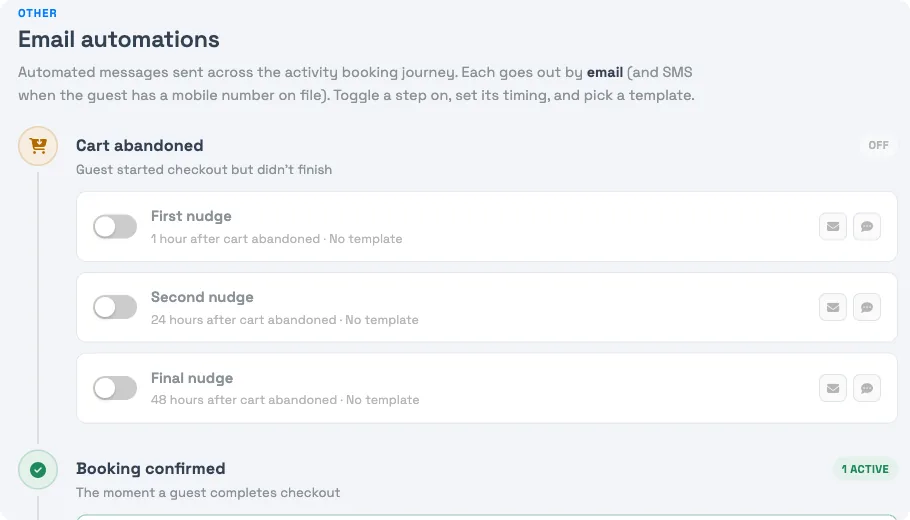
Everything lives on this one tab, laid out as a vertical timeline of four moments in booking order: Cart abandoned, Booking confirmed, Before the activity, and After the activity. Each moment's steps save independently — set what this activity needs and leave the rest on your account default.
Every step that's turned on needs a template. If you save without one, the step is marked Template needed, the missing template is listed at the top of the tab, and nothing saves until you choose one or turn the step off.
What you can set
Booking confirmed
Override whether this activity sends an order confirmation and which template it uses, instead of following the account-wide setting. Useful when one experience needs special instructions — parking, what to bring, a waiver link — that the standard confirmation doesn't cover. See Order confirmation messages.
Before the activity
Add up to 2 reminders before the event — First reminder and Second reminder. Each has its own toggle, a timing value (a number plus Minutes, Hours, or Days before start), and a template. A common setup is one reminder 24 hours out and a second 4 hours out. If a guest books after a reminder's send time has already passed, that reminder is skipped for them. See Event reminder messages.
After the activity
Add up to 3 follow-ups after the activity ends — First, Second, and Third follow-up. Each has a toggle, a timing value (number plus Minutes, Hours, or Days after the event), a template, and a Send to scope — every guest on the booking (All guests), or Lead guest only. Follow-ups are typically the review request; once a guest posts a review, their remaining follow-ups stop. See Event follow-up messages.
Cart abandoned
Add up to 3 nudges — First, Second, and Final nudge — for a guest who started checkout but didn't finish. Choose whether this activity uses your account-wide abandoned-cart flow, runs its own customized timing, or turns cart recovery off entirely. This matters when a low-cost add-on and a big-ticket experience shouldn't chase shoppers the same way. See Abandoned cart messages.
How per-activity settings interact with account defaults
A per-activity setting overrides the account default for that one activity, and nothing else. Every other activity keeps following your global settings. Reminders and follow-ups are always set here, never globally — so if a guest isn't getting reminders, check the activity, not the Automations page.
Frequently asked questions
Where do I set event reminders and follow-ups?
Only on the activity — open it under Setup → Build what you sell → Activity Settings and use the Email Automations tab. There is no account-wide toggle for reminders or follow-ups.
Can two activities send different reminders?
Yes. Reminders and follow-ups belong to the activity, so each one can have its own count, timing, and templates. Two activities on the same trip send whatever each is set to.
Does a per-activity setting change my other activities?
No. It overrides the account default for that single activity only. Everything else keeps using your account-wide settings.
Why don't I see the option I'm looking for on the tab?
The tab is a single timeline, top to bottom: Cart abandoned, Booking confirmed, Before the activity, then After the activity. Scroll to the moment you need — reminders live under Before the activity, follow-ups under After the activity.
Related
- Event reminder messages
- Event follow-up messages
- Order confirmation messages
- Automated messages: an overview
Built for attractions, tours & activities
Message every experience its own way
See how attractions, tours, and activities tailor confirmations, reminders, and follow-ups per experience on TripWorks. Book a demo and make the switch.