
A follow-up is an automatic message sent after an activity ends — most often the request that asks a guest to leave a review. You can send up to three follow-ups per activity, each with its own timing, recipients, and template.
In this article
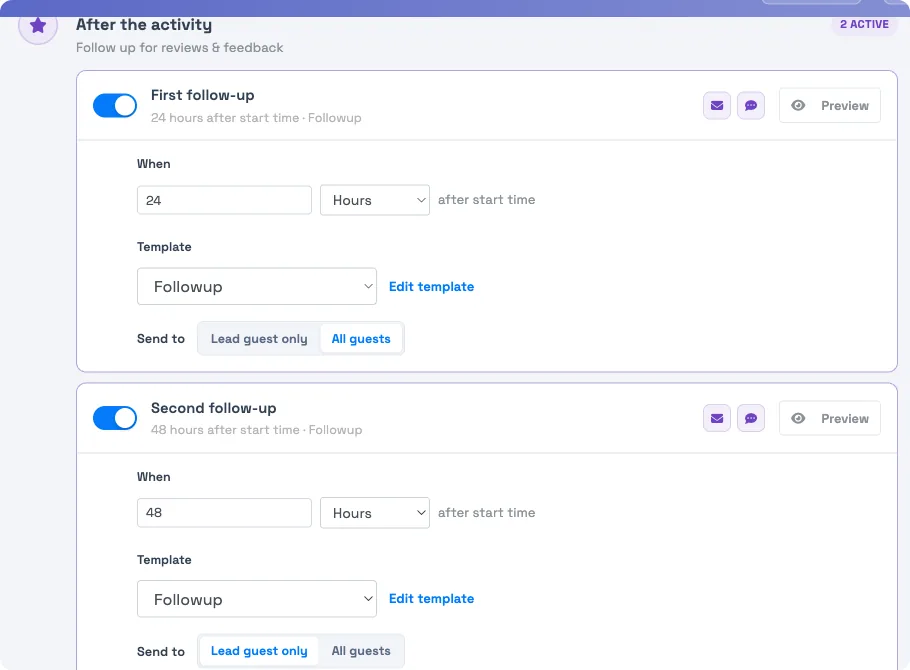
Follow-ups are set per activity
Like reminders, follow-ups have no account-wide switch — you configure them on each activity:
- Go to Setup Build what you sell Activity Settings and open the activity.
- Select the Email Automations tab and find the After the activity moment.
- Toggle on a follow-up, set its timing — a number plus Minutes, Hours, or Days after the activity — and choose its template.
- Set its Send to scope: All guests on the booking, or Lead guest only.
- Toggle on up to two more follow-ups the same way, then Save.
See Customize messages per activity for the full tab.
Follow-ups and reviews
Follow-ups are how TripWorks collects reviews: the template carries a review link, and the guest lands on a rating page. For the full guest-facing review flow and where reviews show up for you, see Collecting guest reviews.
Two behaviors matter here:
- They stop once a guest reviews. As soon as a guest posts a review, any remaining follow-ups scheduled to that guest are canceled — you won't keep asking someone who's already answered.
- A guest joins the queue when contact info is captured. A guest becomes eligible for follow-ups the moment an email or phone number is captured for them — at booking, or later on a waiver — as long as the message hasn't already sent.
No-shows pause follow-ups
If a booking is marked No-Show, TripWorks pauses that booking's scheduled follow-ups automatically — no setup needed — so guests who didn't attend don't get a "how was it?" email.
Removing the No-Show status later does not resume the paused follow-ups. If you clear a No-Show and still want the guest to get a follow-up, send it manually.
Frequently asked questions
How many follow-ups can I send, and to whom?
Up to three per activity. For each one you choose the timing after the event, the template, and whether it goes to every guest on the booking or the lead guest only.
What happens to follow-ups if a booking is marked No-Show?
TripWorks pauses that booking's scheduled follow-ups automatically. It's built in — no setup. Note that removing the No-Show later does not resume them; you'd send those manually.
Where do I set follow-up timing and recipients?
On the activity — Setup → Build what you sell → Activity Settings, open the activity, then the Email Automations tab, under After the activity. There's no account-wide follow-up setting.
How do I point the review button to my Google reviews?
Open the follow-up template, select the Write a Review button, and edit its link — replace the URL with your Google review link. Guests who tap the button then go straight to Google instead of the built-in review page. See Collecting guest reviews for the built-in flow.
Will a guest who already reviewed keep getting follow-ups?
No. Once a guest posts a review, their remaining follow-ups are canceled, so you don't ask twice.
Related
- Collecting guest reviews
- Customize messages per activity
- Event reminder messages
- Automated messages: an overview
Built for attractions, tours & activities
Turn happy guests into reviews
See how attractions, tours, and activities follow up automatically and collect more reviews on TripWorks. Book a demo and make the switch.