
A promo code is a word your guests type at checkout to earn a discount, such as a military rate, an off-season offer, or a marketing campaign like SUMMER20. Running promotions is one of the most direct ways to fill slower dates, reward returning guests, and give a partner or ad campaign something to point people at. In TripWorks, one code can be used by many guests (up to any limit you set), and the platform applies the discount automatically the moment someone enters a valid code, whether they book on your website, over the phone, or at your front desk. This article explains what a promo code is, how to create one, and how to control the discount, its usage limits, the dates it runs, and the parts of your catalog it applies to — so a code does exactly what your promotion intends and nothing more.
In this article
A promo code discounts a sale you are making, so you still collect the reduced payment from the guest. That is a different job from voucher codes, which redeem tickets already sold somewhere else. A guest buys through a reseller like Groupon or Travelzoo, the reseller keeps the money, and their single-use code comps the booking on your side. It is also different from seasonal pricing, which changes your rates automatically for a date range. A promo code only changes the price when a guest actually enters it.
Learn how to manage permission groups
How promo codes work
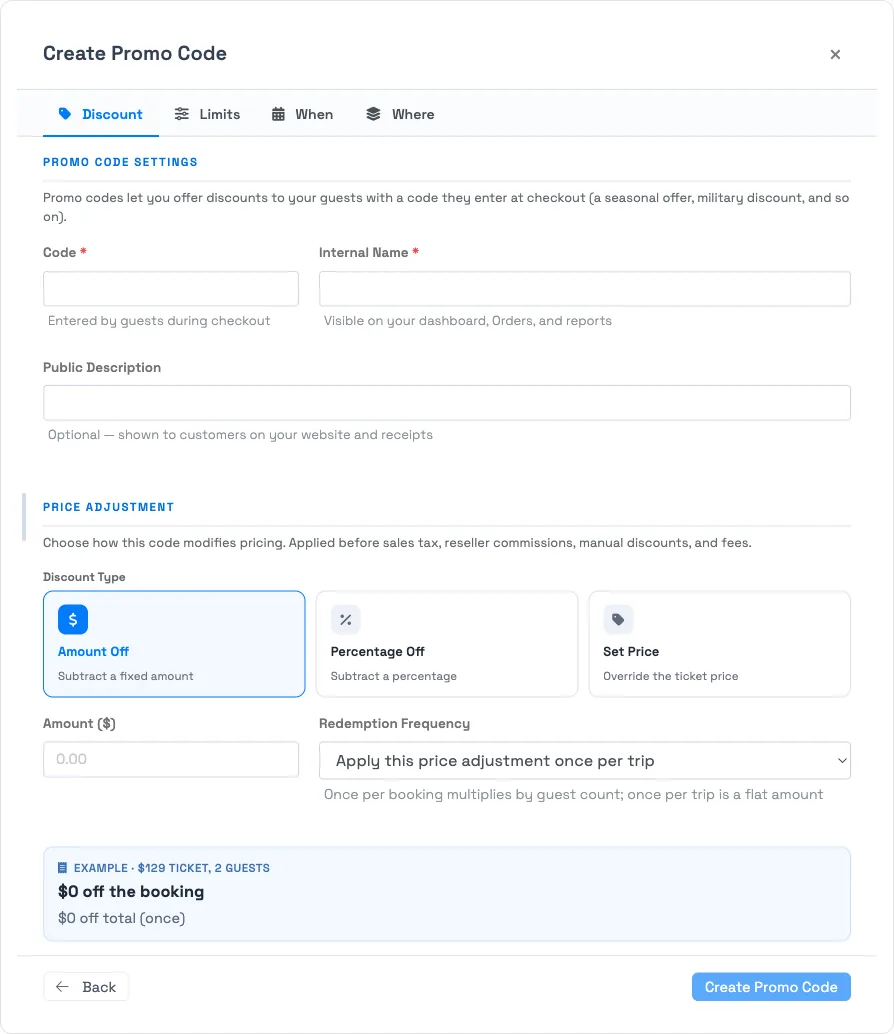
Every promo code is built from four tabs in the editor, and each tab controls one part of the promotion:
- Discount: the code guests type and the price adjustment it makes. See how promo code discounts are calculated.
- Limits: usage caps and the booking conditions a trip must meet. See promo code limits and usage rules.
- When: the dates the code is valid, a time of day for departures, and day-of-week blackouts.
- Where: the activities, ticket types, products, and gift cards the code applies to. See when and where a promo code applies.
The discount always comes off before sales tax, reseller commissions, manual discounts, and fees, so it reduces the taxable base rather than being taken off the final total. You only need the Discount tab to publish a working code; the other three narrow it down when you want to.
Create a promo code
Go to Setup → Sell online → Promo Codes and select New Promo Code. The Create Promo Code editor opens in a drawer with four tabs: Discount, Limits, When, and Where.
-
Fill in the code details on the Discount tab. Enter the Code guests type at checkout (up to 25 characters, such as
MILITARY10; codes are not case-sensitive), an Internal Name that appears on your dashboard, orders, and reports but never to guests, and an optional Public Description shown to guests on your website and receipts. -
Choose the Discount Type and set the amount. Pick one of three types — you can use only one per code:
Discount type What it does Amount Off Subtracts a fixed cash amount (for example, $10 off). Percentage Off Subtracts a percentage of the price (for example, 20% off). Set Price Overrides the per-ticket base price. It only ever lowers the price; if a ticket already costs less than the set price, the code leaves it alone. - Set the Redemption Frequency. Choose once per booking, which applies the discount to each guest and so multiplies by the guest count, or once per trip, which takes the discount off the booking one time as a flat amount. New codes default to once per trip.
- Set the Status and create the code. Leave Status on Available to make the code usable right away, then select Create Promo Code. Adjust the Limits, When, and Where tabs first if you want to cap or scope the code before it goes live.
The editor shows a live example (a sample ticket for two guests) that updates as you change the discount type and frequency, so you can confirm the math before saving.
A code must apply to at least one activity. New codes cover your whole catalog by default; use the Where tab to narrow a code to specific activities or ticket types.
Set limits, dates, and scope
The remaining three tabs are optional and let you tighten a code:
- Limits: cap the total redemptions (Maximum # of Uses, after which the code deactivates itself), cap how many tickets in one booking get the discount (Max Tickets per Booking), require a minimum lead time (Advance Booking Window), require a minimum or maximum number of bookings on the trip, and turn off online use with Prevent Online Use.
- When: allow or block the code over date ranges, measured by either the activity date or the booking date, and black out specific weekdays.
- Where: restrict the code to selected activities, specific ticket types, and whether it can apply to product purchases, add-ons, and gift card purchases.
Manage codes
The Promo Codes list shows each code's Code, Internal Name, Discount, Status (Available, Used, or Inactive), whether it can be used Online, and its total Uses.
- Edit: open any code to change its settings at any time.
- Deactivate: set Status to Inactive to stop redemptions while keeping the code and its reporting on file. This is how you retire an off-season code you plan to run again.
- Delete: only a code that has never been redeemed can be deleted. Once a code has been used it is part of order history, so deactivate it instead of deleting.
Frequently asked questions
Is the usage limit per guest or a total across all guests?
Does the Set Price discount ever raise a ticket's price?
Does the discount come off before or after tax?
What's the difference between "once per booking" and "once per trip"?
Can I offer more than 75% off?
Can one code work on some activities but not others?
Can I stop a code from being used without deleting it?
How is a promo code different from a voucher code?
Why is the promo code field greyed out on a trip?
Related
- How promo code discounts are calculated
- Promo code limits and usage rules
- When and where a promo code applies
- Apply a promo code to a booking
- Voucher codes
Built for attractions, tours & activities
Run promotions that actually convert
See how attractions, tours, and activities launch seasonal, military, and campaign discounts — with full control over where and when they apply — in one place on TripWorks. Book a demo and make the switch.