
When a caller reaches your AI Callbot, it isn't working from memory or from the open internet. It works from a specific set of information that TripWorks gives it at the start of every call, plus a few live lookups it can make while the call is going. Knowing what's in that set helps you answer the two questions operators ask most: why did it say that? and why didn't it know that?
In this article
This article lists everything the callbot draws on. To set the callbot up, see Set up your AI Callbot.
The short version
- Set up once, in your callbot settings: its name, greeting, voice, language, transfer number, capabilities and which knowledge bases it can use.
- Read fresh at the start of every call: your business details, the date, time and timezone, and your list of live activities with their next open dates.
- Looked up live during the call: availability and pricing, a caller's existing booking, and anything it books or sends.
- Written by you: your knowledge bases, which it answers general questions from.
If something isn't in one of those places, the callbot doesn't have it, and it is built to say so rather than guess.
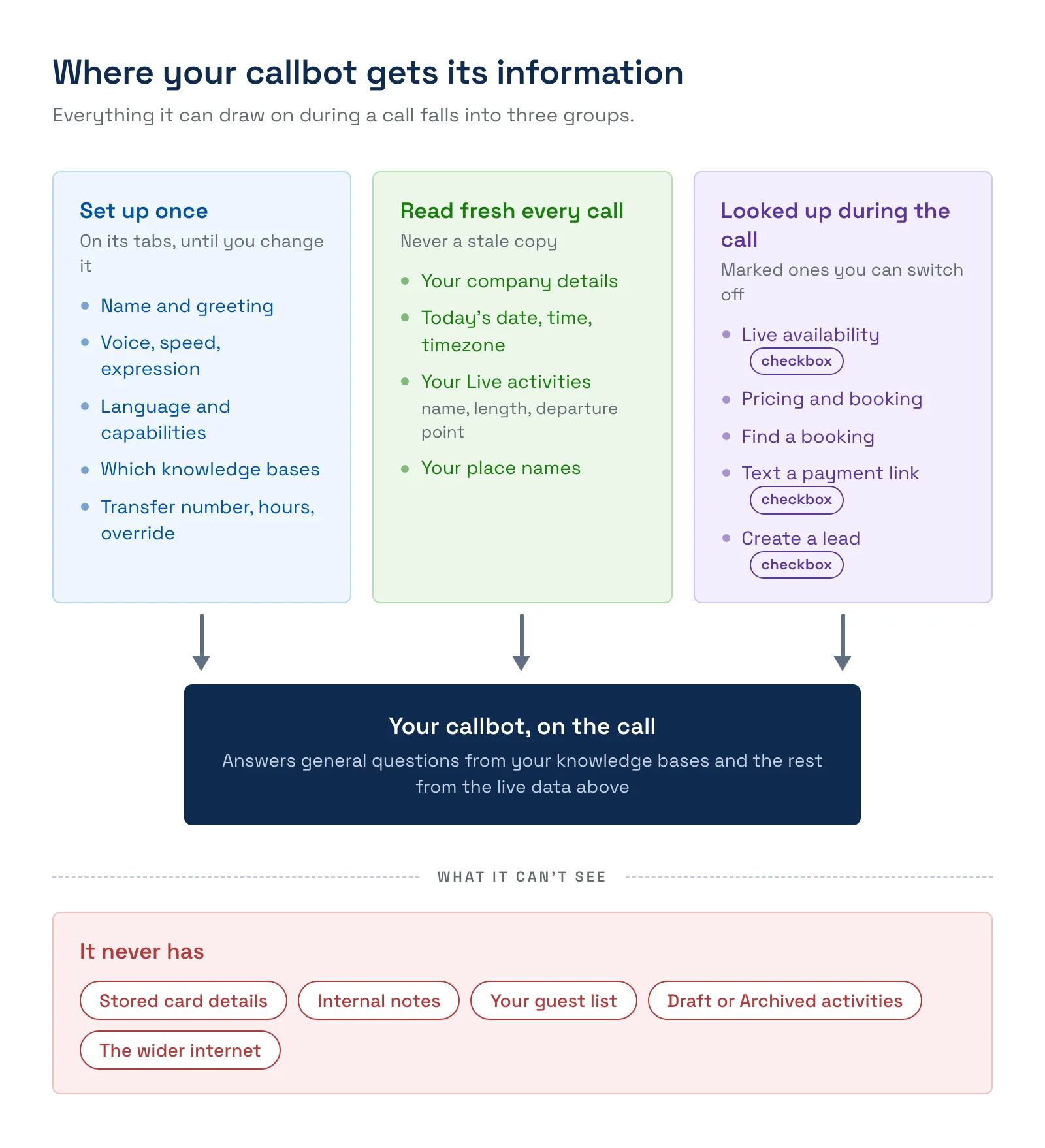
What it receives at the start of every call
The moment a call connects, TripWorks hands the callbot a fresh snapshot, so it never works from a stale copy.
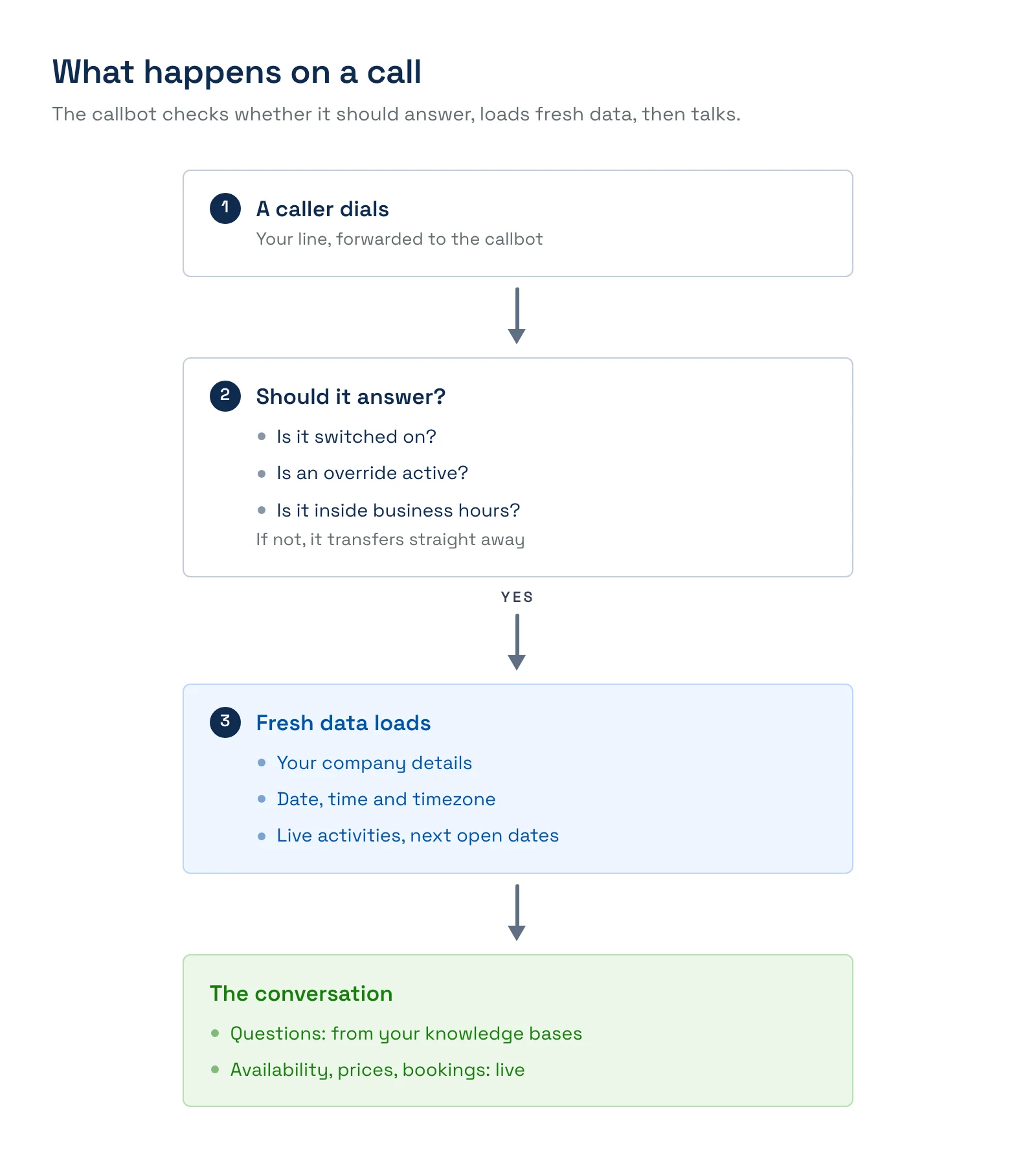
- Whether it should answer. The callbot checks that it's switched on, that no manual override applies, and that you're inside your business hours. If it shouldn't answer, the call is transferred straight away.
- Its name and greeting. From the Settings tab. The greeting is the first thing it says.
- Your business details. Your company name, business phone number, website and currency from your account settings. If you've set a custom reply-to email, it has that too, so it can point callers to it.
- Today's date, the time and your timezone. Taken in your account's timezone, so "tomorrow morning" and "this Saturday" mean what your guests mean.
- Your live activities. For each one, its name, how long it runs, the departure point, the location and the next date it has availability. This is what lets it say "we have a sunset kayak tour, and the next opening is Friday."
Only activities that are Live are included. Anything set to Draft, Unlisted or Archived is left out, so a caller is never offered an activity you've kept off your public site.
Place names and understanding callers
The callbot also receives the names of your departure points and locations. It uses them in two ways. It gives the phone system a hint about those words, so a caller saying a place name is more likely to be understood correctly. And if it isn't sure it heard a place right, it can check the name against your real list instead of guessing. This helps with names that sound like common words, but it can't make hearing perfect.
If the callbot says one of your words wrong, that's a different fix: see Teach your Callbot how to say your words.
What it answers from: your knowledge bases
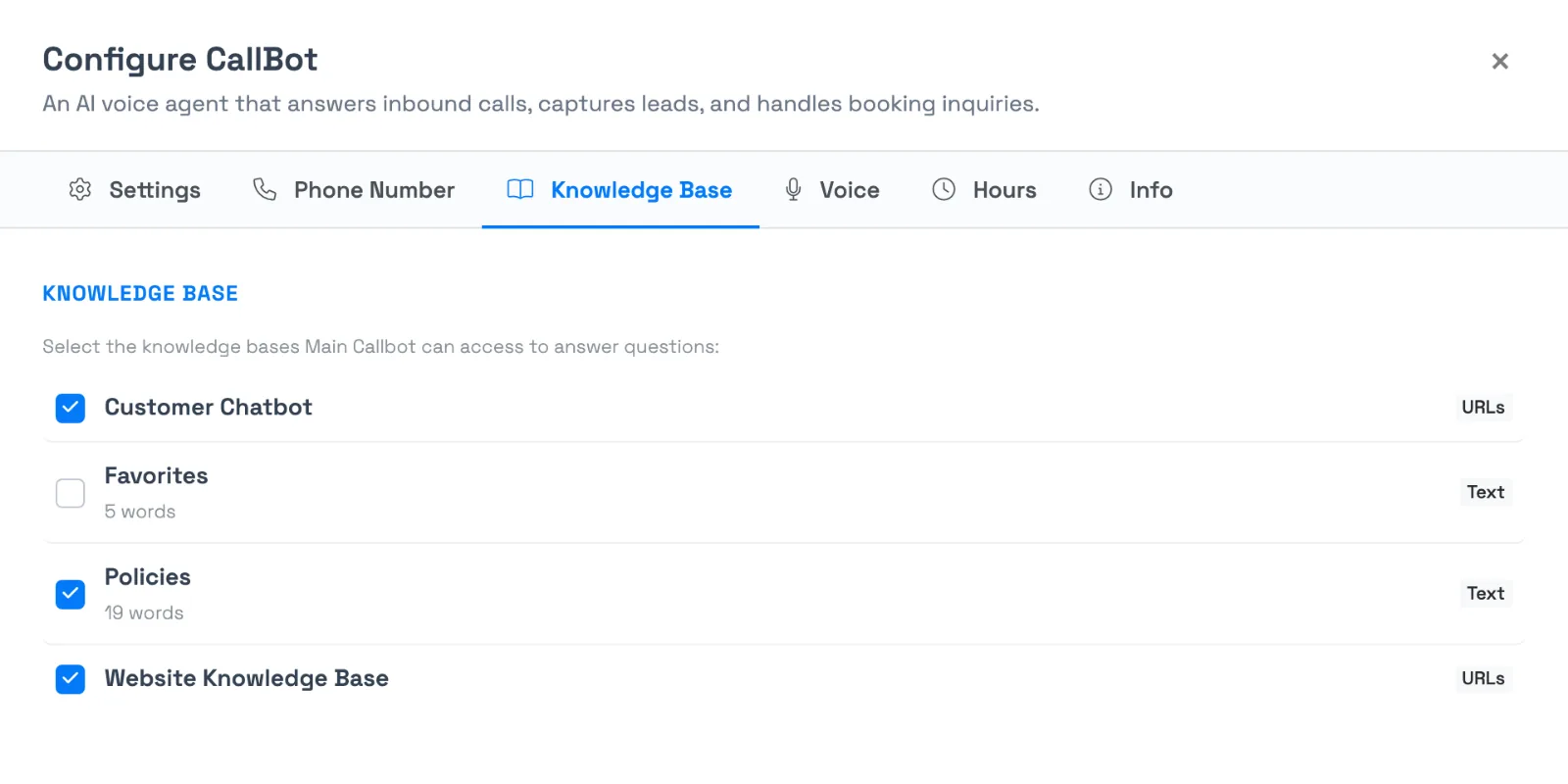
For "how does this work" questions, such as cancellation policy, what to bring, parking or accessibility, the callbot answers from the knowledge bases attached to it. You choose which ones on the callbot's Knowledge Base tab. A new callbot starts with every active knowledge base attached.
- It answers from what you've written, so a policy that isn't in a knowledge base is a policy the callbot can't quote.
- A knowledge base that shows Not synced isn't available to it yet.
- To change an answer, change the knowledge base, not the callbot.
See How your AI Chatbot and Callbot avoid guessing for how it keeps answers grounded in your content.
What it looks up live during a call
These are the actions the callbot can take mid-call. Three of them are the capability checkboxes on the Settings tab; the rest are always available.
- Check live availability (checkbox). Looks up real-time open spots for an activity on the dates a caller asks about. Turn it off and the callbot can't look up open times.
- Look up pricing. Reads the current price for the activity a caller asks about.
- Create a booking. Reserves the booking the caller asks for. See How AI bookings work for the full flow and its safeguards.
- Send booking payment links via SMS (checkbox). Texts the caller a link to pay for the booking. Turn it off and the callbot can't send one.
- Create leads in Lead Center (checkbox). Records callers who don't book so you can follow up.
- Find an existing booking. Looks a booking up by confirmation code, phone number or email address, so a caller can ask about or get a link for a booking they already made. It sees only a short summary, with no payment method details, add-on line items or internal notes.
- Take a message. When it can't help, it captures the caller's name, phone number, reason, preferred callback time and email, and texts that to your team. Who receives it is set under How should we notify you? on the Settings tab.
- Transfer to a person. Hands the call to your transfer destination.
What it doesn't have
- Your internal notes and guest records. It doesn't browse your customer list. It sees a booking only when a caller identifies it with a code, phone number or email.
- Payment details. It never sees stored cards or payment methods.
- Activities that aren't Live. Draft, Unlisted and Archived activities are left out.
- Anything you haven't written down. If it's not in your account settings, your activities or a knowledge base, it isn't known.
- The wider internet. It doesn't search the web.
Why it gave the answer it did
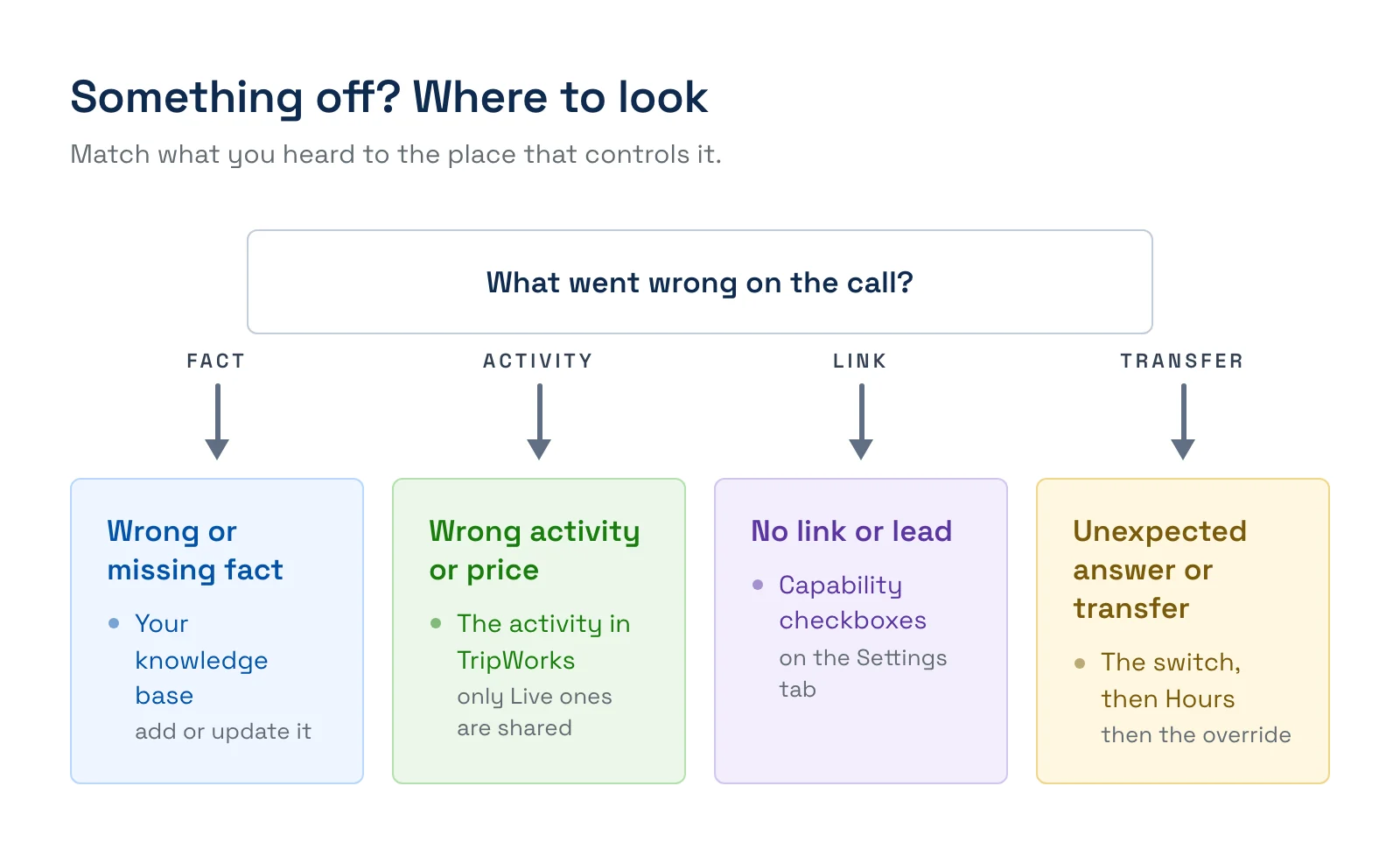
- A wrong or missing fact about your business usually means the knowledge base is missing it or out of date. Update the knowledge base.
- Wrong availability or prices come from live data, so check the activity's own availability and pricing in TripWorks.
- An activity it won't offer is probably not set to Live.
- It didn't offer to text a payment link or take a lead because that capability is switched off on the Settings tab.
- It transferred when you expected an answer because of the on/off switch, your business hours or an active override.
Example scenarios
- A caller asks about your cancellation policy. The callbot answers from the knowledge base that holds it. Add the policy there if it gives a vague answer.
- A caller asks what's open Saturday. It checks live availability for your Live activities and quotes the real openings.
- A caller asks about an activity you've set to Unlisted. It doesn't know about it, because only Live activities are shared. Set the activity to Live if you want it offered.
- A caller wants to resend a payment link for an existing booking. It finds the booking by confirmation code, phone number or email, then texts a link if payment links are switched on.
- A caller leaves a message after hours. The callbot takes their details and texts them to your team.
Frequently asked questions
Does the callbot see my whole customer list?
No. It looks up a single booking only when a caller gives a confirmation code, phone number or email that matches one, and it sees just a short summary of it. It can't browse your guests or read internal notes.
How current is the information it uses?
Your business details, the date and time, and your list of live activities are read fresh at the start of every call. Availability and pricing are looked up live when asked. Knowledge bases are what you've written and synced, so a new article needs to finish syncing before it can be used.
Why doesn't it offer one of my activities?
Only activities set to Live are shared with the callbot. If an activity is Draft, Unlisted or Archived, it won't be offered. Change its status if you want callers to hear about it.
Can I choose what the callbot is allowed to do?
Yes. On the Settings tab, three capabilities can be turned on or off: sending payment links by SMS, checking live availability, and creating leads. Looking up prices, creating a booking, finding an existing booking, taking a message and transferring a call are always part of how the callbot works.
Where do the messages it takes go?
They're texted to the recipients you picked under How should we notify you?: the main business number, one or more team members with a mobile number, or a custom number. If none can receive texts, the callbot can't deliver the message and tells the caller so.
Why did it say something that isn't in my knowledge base?
For questions about how your business works, it's built to answer from the knowledge bases attached to it and to say it doesn't know when the answer isn't there. If you hear something that isn't from your content, check which knowledge bases are attached and update the one that should cover it. If it keeps happening, contact TripWorks support with the callbot's Agent ID from its Info tab.
Does the callbot know a caller's name or history when they call?
TripWorks doesn't hand the callbot a caller's customer record when the call starts. To talk about an existing booking, the callbot searches for it when the caller asks, using a confirmation code, phone number or email.
Is the website chatbot the same?
They share your knowledge bases and answer the same kinds of questions, but they're separate features with their own settings. See the AI Chatbot and Callbot FAQ for how they differ.
Related
- Set up your AI Callbot
- Build your knowledge base
- How AI bookings work
- Teach your Callbot how to say your words
Built for attractions, tours & activities
A callbot that knows your business
See how attractions, tours, and activities use TripWorks' AI callbot to answer from live availability and your own content. Book a demo and make the switch.