
The TripWorks mobile app puts the tools you use most in your pocket. Check guests in at the dock, open a last-minute timeslot, take a booking, or check the day's numbers without opening a laptop.
In this article
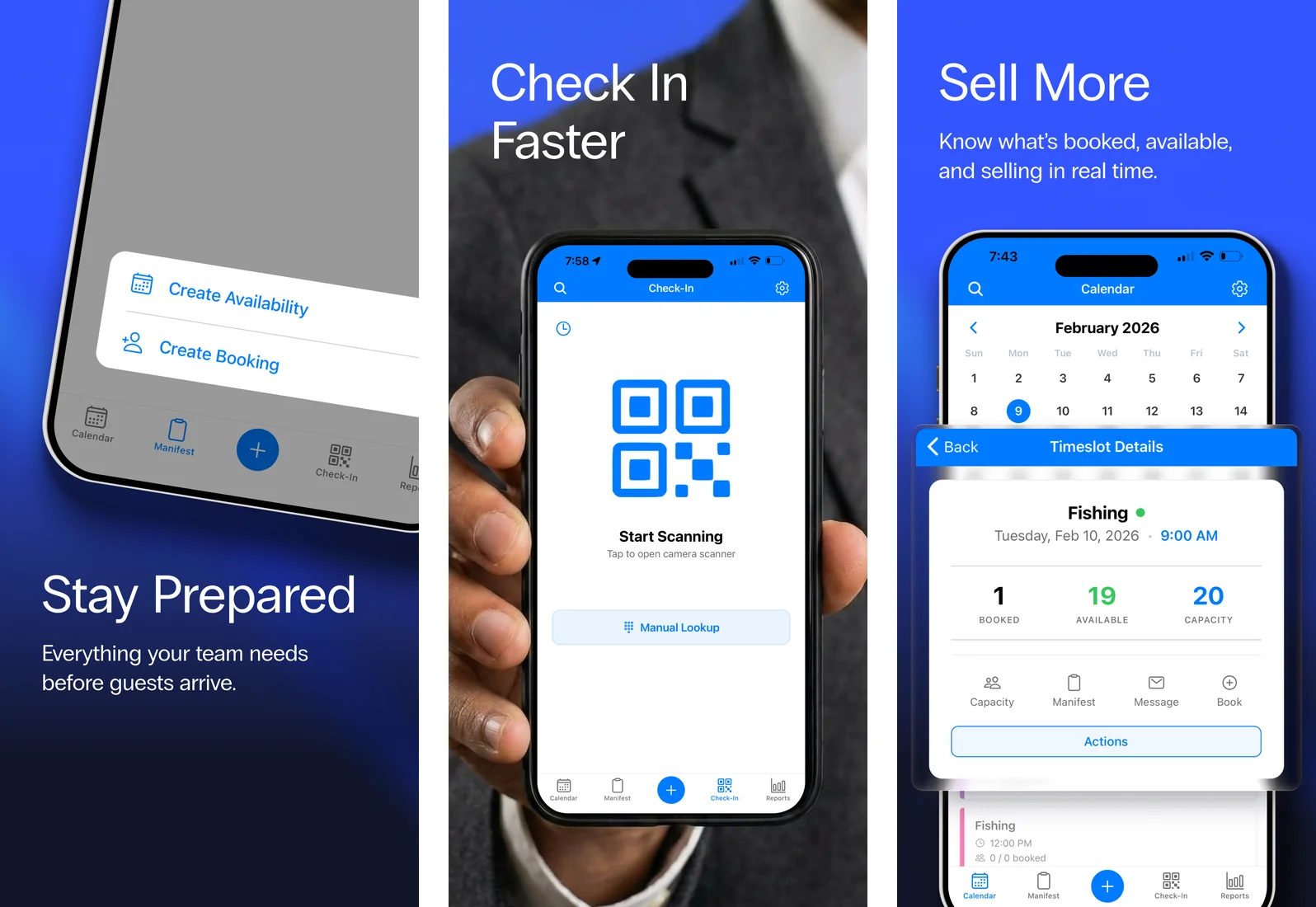
Get the app
Download TripWorks on the App Store for iPhone and iPad, then sign in with your usual TripWorks login. (For setup-heavy work like building activities and pricing, a desktop or tablet is still the easier tool.)
Getting around
The app is organized around a bottom navigation bar on every screen, with a central "+" button for quick-create actions. A search icon sits in the upper left and a settings menu in the upper right.
Calendar
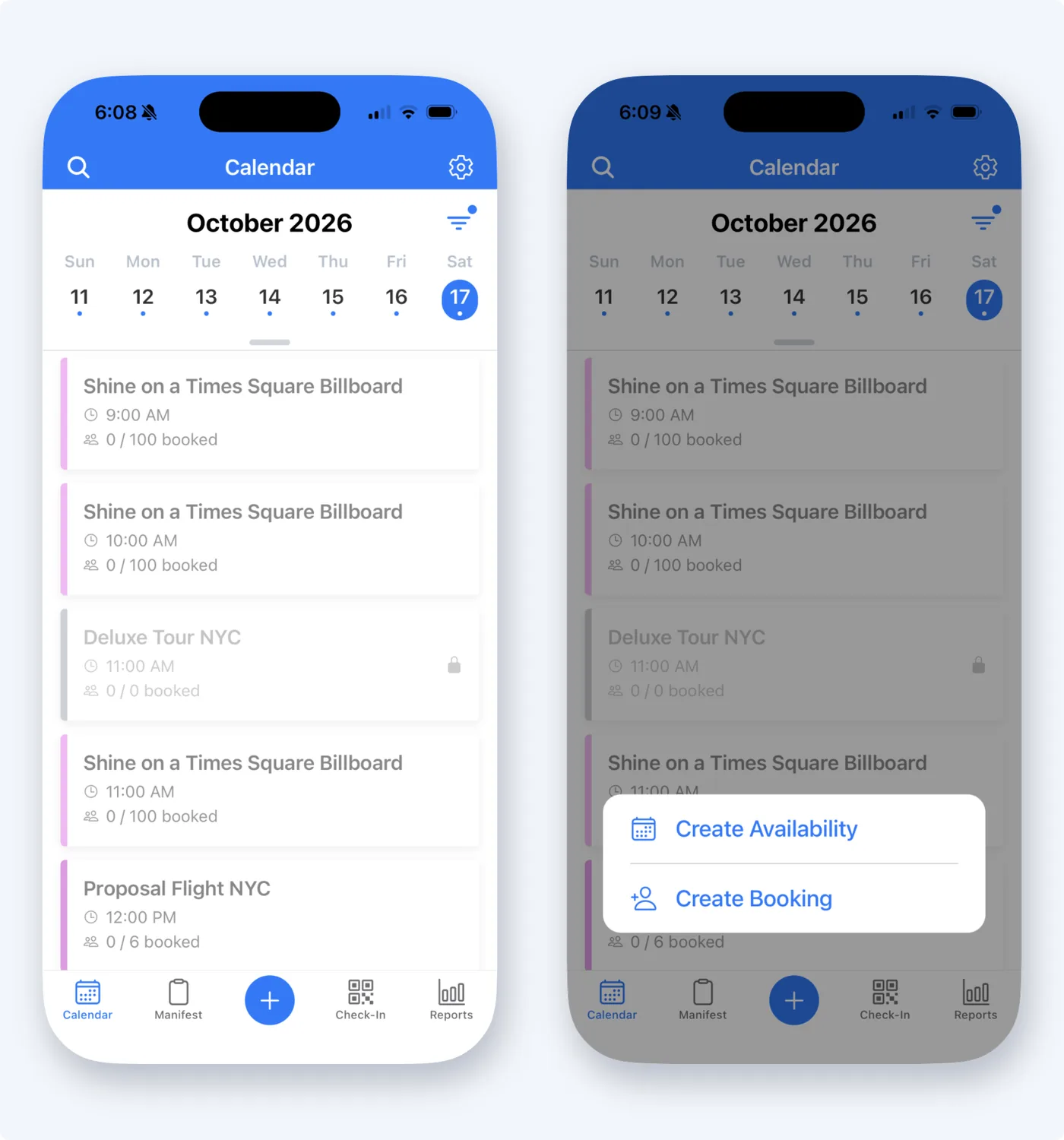
The Calendar is your day-at-a-glance view, and where the app opens by default. Tap a date in the strip at the top, then scroll to see the day's timeslots. To jump further ahead or back, tap the highlighted date or drag the small handle under the date strip down: the calendar expands to the full month, and tapping a day takes you to that day's timeslots. Each card shows the time, how many guests are booked, and any assigned resources or guides. Use the filter icon to hide empty, full, or closed timeslots.
Open an activity for its timeslot actions:
- Change status — set Open, Open Unrestricted, Open (Offline Only), or Closed. The app asks you to confirm each change.
- Notes — leave a note on the timeslot.
- Capacity — view only. To change a timeslot's capacity, use the web.
- View manifest — jump to the manifest for that slot.
- Message — email everyone booked on the timeslot from a template.
- Book — add a booking to the slot.
You can also assign guides from the timeslot's Guides section.
Manifest
The Manifest tab shows the day's bookings. Tap an activity to see its guest list and, if you use waivers, how many are signed.
Create availability and bookings
The central "+" opens Create Availability and Create Booking.
- Create Availability: choose an activity, a date, then a time and visibility. New availability starts as Private, so change its status to Open when you want guests to book it.
- Create Booking: opens the same booking flow as the web, so prices, fields and rules match.
Check in guests
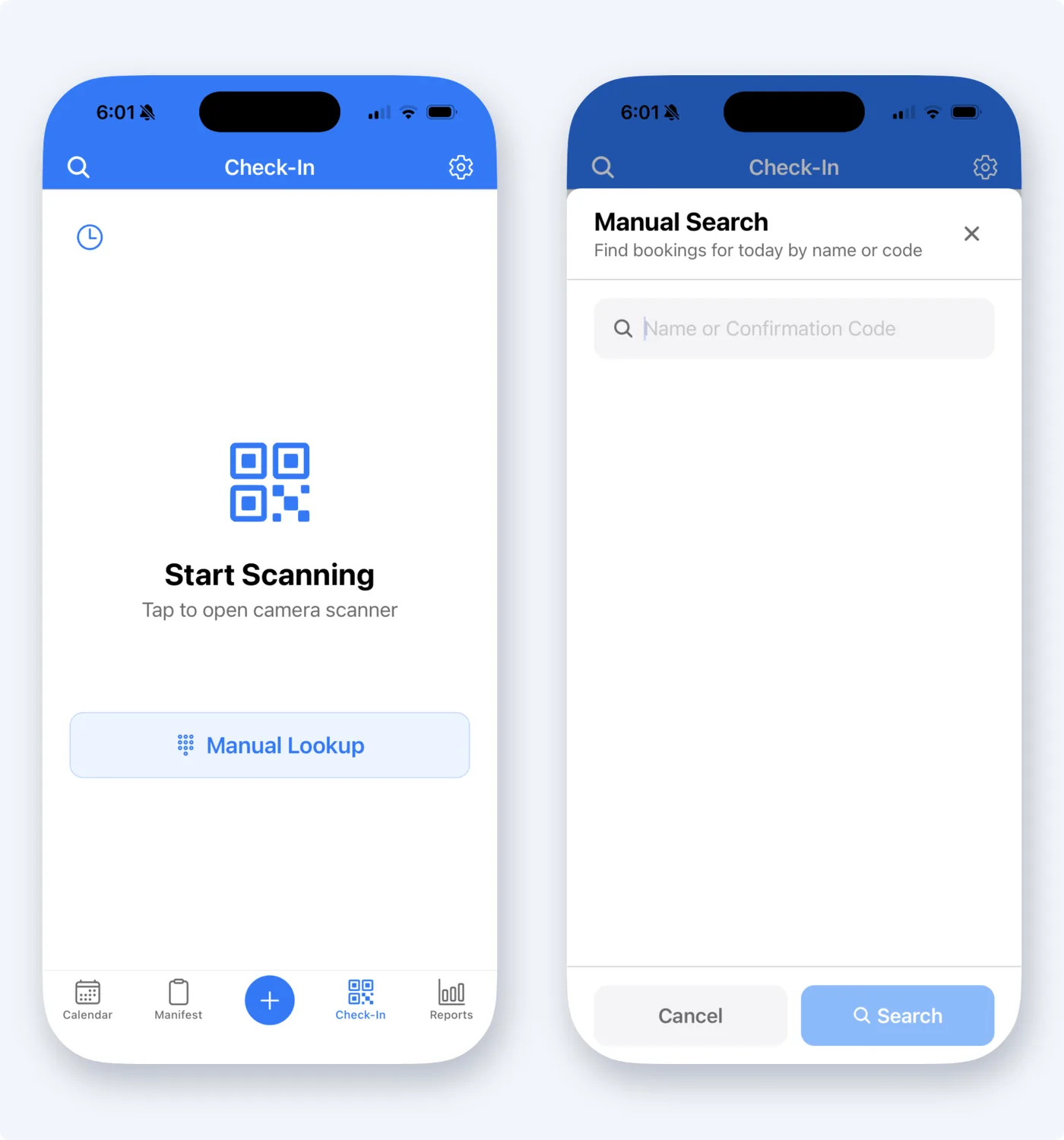
Check-In is its own tab. There are three ways to check a guest in:
- Manual lookup — tap Manual Lookup, type a guest's name or confirmation code, and tap the matching trip.
- QR code scan — tap Start Scanning to scan a guest's QR code with the camera.
- Bluetooth scanner — pair a compatible scanner to scan physical tickets or wristbands (see Recommended devices & browsers).
You can also check guests in from a timeslot's manifest.
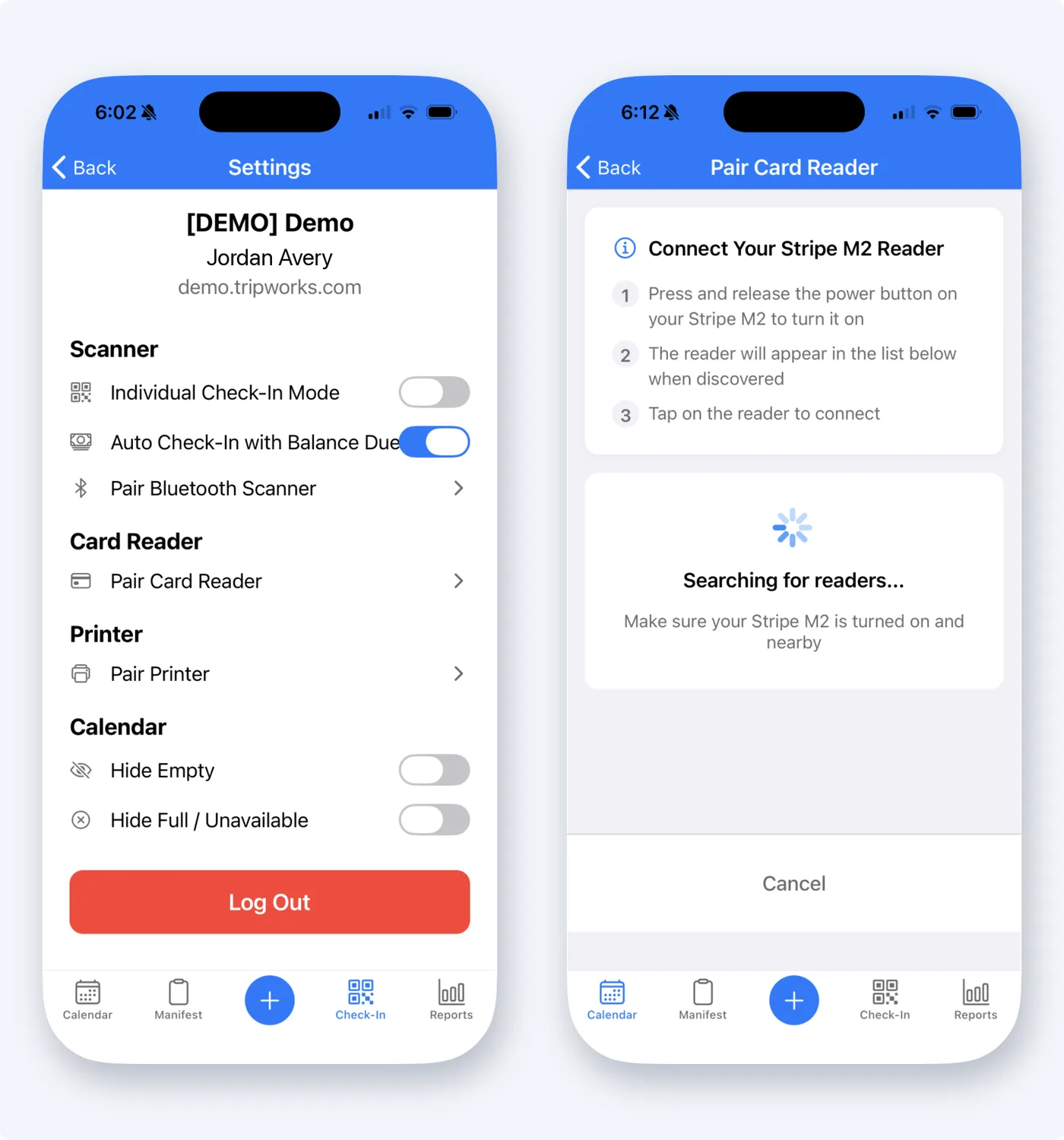
You can pair a Stripe M2 card reader to take in-person payments from the app, and a Star printer to print receipts.
Manage a reservation
Open a guest's trip to manage the reservation from your phone. From its Actions menu you can add a guest, reschedule, change the activity, set one ticket price for all guests, add or remove add-ons, refund, print a receipt, or cancel the trip. You can also edit the guest's contact details, add notes, send a templated email, see the trip history, and attach documents.
Documents: in the trip's Documents section, choose Take Photo to photograph an ID, a form, or equipment with your camera, or Choose from Library to upload a photo you already have. You can also open documents already on the trip, including PDFs. See Attach documents to a trip.
What to do on the web instead
The app covers day-to-day operations. Use TripWorks in a web browser for these:
- Changing a guest's ticket type on an existing reservation. The app can't switch a guest from one ticket type to another (for example, Adult to Child). In the app, you can remove the guest and add them back with the right ticket type instead.
- Opening a signed waiver. The app shows whether each guest's waiver is signed or unsigned, sends waiver reminders, and shows a QR code a guest can scan to sign. To open and read the signed waiver itself, use the web. See View signed waivers.
- Uploading PDFs or Word files. The app uploads photos only. Upload other file types to a trip from the web.
- Editing custom field answers on a booking.
- Setup work: activities, ticket types, pricing, add-ons, waivers, promo codes, gift cards, resellers, team members, and permissions.
- Changing a timeslot's capacity.
Quick Stats
The Reports tab opens on Quick Stats. Choose a timeframe (Today, Yesterday, This Week, Last Week, This Month, or Last Month) and whether to count by Date Created or activity date. The cards show:
- Total Sales: revenue for the period, with the change from the previous period.
- Passengers: guests booked.
- Avg Transaction: sales divided by transactions.
- Previous Period: the total for the period before.
Below the cards, Sales by Activity and the other charts break the numbers down.
Search & settings
The search icon (upper left) finds trips and guests fast. The settings menu (upper right) is where you tune the app to your operation:
- Check-in: turn on Individual Check-In Mode (one guest at a time) and choose whether Auto Check-In with Balance Due is on.
- Hardware pairing: pair a Bluetooth scanner, a Stripe M2 card reader, or a Star printer.
- Calendar display: hide empty or full/unavailable timeslots to cut clutter on busy days.
Step-by-step guides
- Check in guests with the TripWorks app
- Take payments, refunds, and print receipts in the TripWorks app
- Pair a scanner, card reader, or printer with the TripWorks app
Frequently asked questions
Where do I download the app?
From the App Store, for iPhone and iPad. Sign in with your normal TripWorks credentials.
Can I check guests in from my phone?
Yes — scan a QR code, look a guest up by name or confirmation code, or pair a Bluetooth scanner, all from the Check-In tab. You can also check in from a timeslot's manifest.
Can I do everything from the app?
No. The app focuses on day-to-day operations: calendar, manifest, check-in, bookings, managing a reservation, payments, refunds, timeslot actions, and quick stats. Use TripWorks in a web browser to change a guest's ticket type, open a signed waiver, upload PDF or Word files, edit custom field answers, change timeslot capacity, and for setup such as activities, pricing, add-ons, waivers, resellers, and team members.
Can I change a guest's ticket type on a reservation in the app?
No. The app can't switch an existing guest to a different ticket type. Change it from the trip in TripWorks on the web. If you need to do it from your phone, remove the guest and use Add Guest to add them back with the right ticket type. The app's Change Price action sets one price per ticket for all guests, but it doesn't change the ticket type.
Can I open a guest's signed waiver in the app?
No. The app shows each guest's waiver status (signed or unsigned), lets you send waiver reminders by email or text, and shows a QR code a guest can scan to sign on their own phone. To open and read a signed waiver, use TripWorks on the web. See View signed waivers.
Can I take a photo of a guest's ID and attach it to a trip from the app?
Yes. Open the guest's trip, go to Documents, and choose Take Photo to use your camera, or Choose from Library to upload a photo you already took. The app uploads photos only. To attach a PDF or Word file, use the web. See Attach documents to a trip.
Is there a TripWorks app for Android?
The TripWorks mobile app is for iPhone and iPad. On an Android phone, use TripWorks in your web browser, and add it to your home screen for one-tap access. See Use TripWorks on an Android phone.
Related
Built for attractions, tours & activities
Run your day from your pocket
See how attractions, tours, and activities operate on the go with TripWorks. Book a demo and make the switch.