
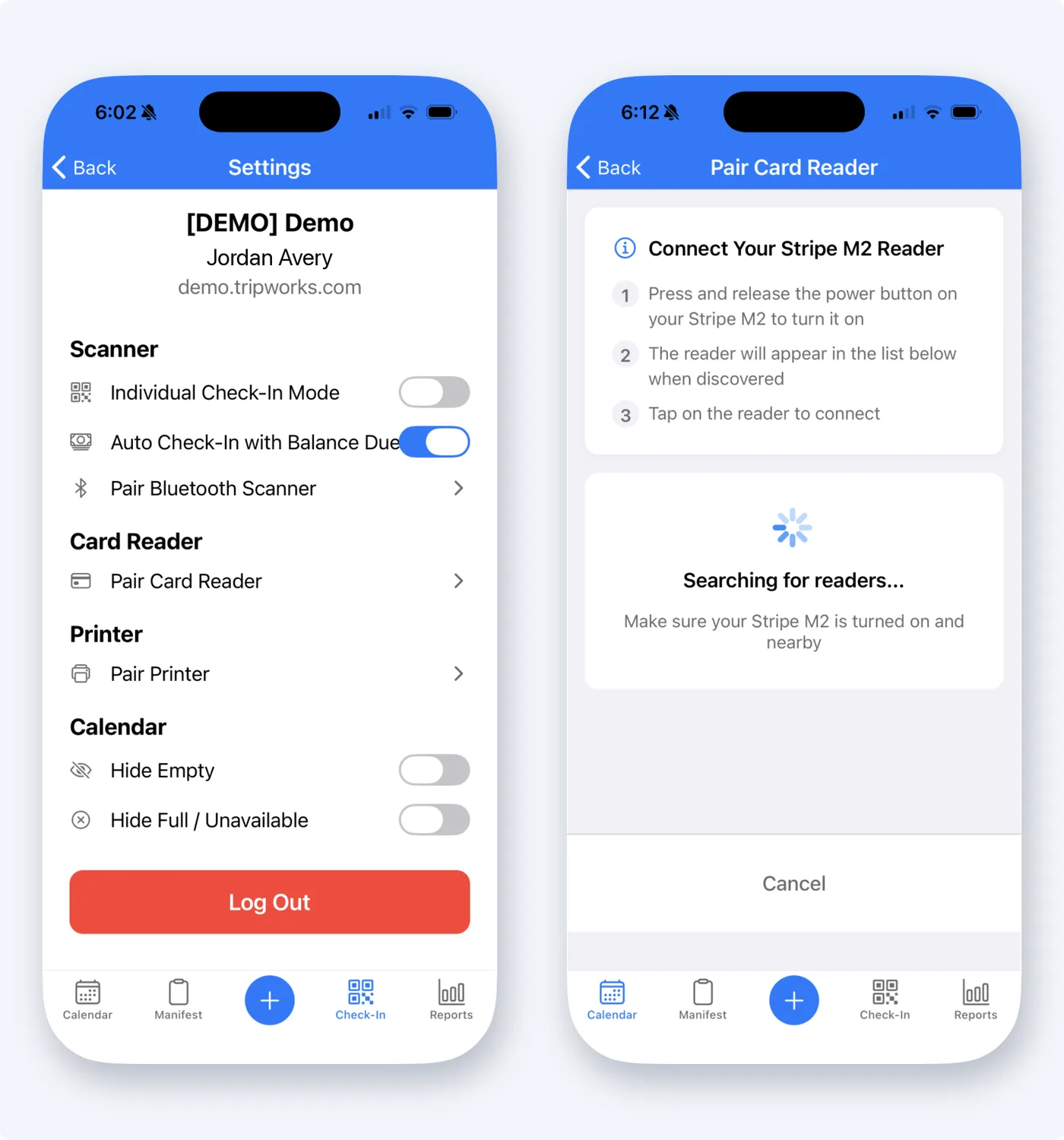
You pair each device once from Settings in the TripWorks app. Open Settings with the gear in the upper right.
In this article
Bluetooth scanner
- Turn the scanner on and put it in pairing mode.
- In Settings, under Scanner, tap Pair Bluetooth Scanner.
- Choose your scanner from the list.
The Check-In tab now shows Ready to Scan. To remove it, tap Forget. See Check in guests with the TripWorks app.
Which scanners work. The app connects directly to Bluetooth Low Energy (BLE) barcode scanners, including handheld and ring scanners. TripWorks doesn't certify specific models. When choosing one, check that it can run in Bluetooth Low Energy mode and can read QR codes (2D), since TripWorks tickets carry a QR code. Pair it from the app's Settings. If the scanner doesn't appear in the list, switch it to its BLE mode (see the scanner's manual) and try again.
On a computer. Scanning tickets to check guests in happens in the app. The web version of TripWorks doesn't have a scan-to-check-in screen, so a USB scanner plugged into a computer won't check guests in.
Card reader
The app pairs the Stripe M2 over Bluetooth.
- Under Card Reader, tap Pair Card Reader.
- Press and release the power button on your Stripe M2 to turn it on.
- When the reader appears in the list, tap it to connect.
If it isn't found, make sure the M2 is on and nearby. See Take payments and refunds in the TripWorks app.
Printer
Under Star Printer, tap Pair Printer. See Take payments, refunds, and print receipts in the TripWorks app.
Frequently asked questions
Do I have to pair every time I open the app?
No. Pair once. To switch devices, tap Forget and pair the new one.
Do I need to register the reader on the web?
No. The app pairs the M2 directly. Registering readers under Setup → Card Readers is for the web point of sale.
Which Bluetooth scanners work with the TripWorks app?
The app pairs with Bluetooth Low Energy (BLE) barcode scanners, such as handheld or ring scanners, that can read QR codes. TripWorks doesn't certify specific models. Put the scanner in its BLE pairing mode, then tap Pair Bluetooth Scanner in the app's Settings and choose it from the list.
Can I use a USB ticket scanner on a computer?
Not for check-in. Scanning tickets to check guests in works in the TripWorks app, with the device camera or a paired Bluetooth scanner. The web version of TripWorks doesn't have a scan-to-check-in screen; on a computer, check guests in from the manifest.
Related
Built for attractions, tours & activities
Connect your gear in a minute
See how attractions, tours, and activities connect scanners, readers, and printers to TripWorks. Book a demo and make the switch.