
The Calendar gives you a clear overview of your activities, bookings, and availability — the companion to the Manifest, which zooms into a single day's guests. Open it from Calendar in the top navigation.
In this article
What the Calendar is
The Calendar is your schedule in one place: every activity and timeslot, how many guests are booked on each, and how much room is left. Switch between a day, a week, or a month to zoom in for the day of departure or out to plan ahead.
Why it matters
Running an operation is mostly a scheduling problem. The Calendar shows you at a glance where you're busy, where you have room to sell, and where a timeslot still needs staff or equipment, so you can fix gaps before guests arrive instead of discovering them on the day.
What you do on the Calendar
- Check how full each timeslot is and spot your busiest and quietest days.
- Plan staffing. Assign guides and resources, and see who's off. See Assign a guide to a timeslot and See who's working and schedule guides.
- Open a timeslot to see its guests, or jump to the Manifest to run the day.
- Adjust availability, such as closing or reopening a timeslot. See Changing a timeslot's status.
The sections below cover the views and how to customize and filter them.
Choose your view
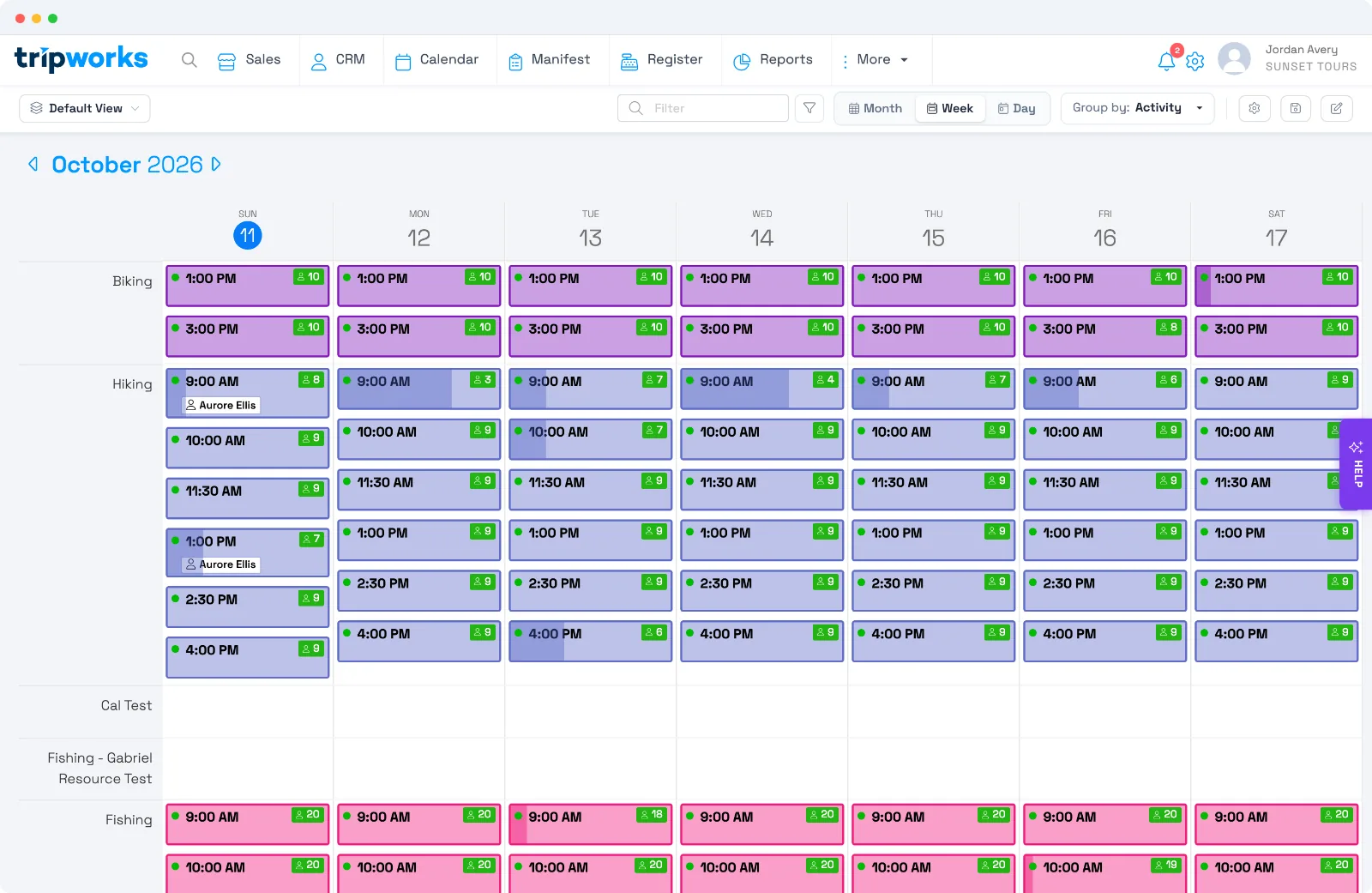
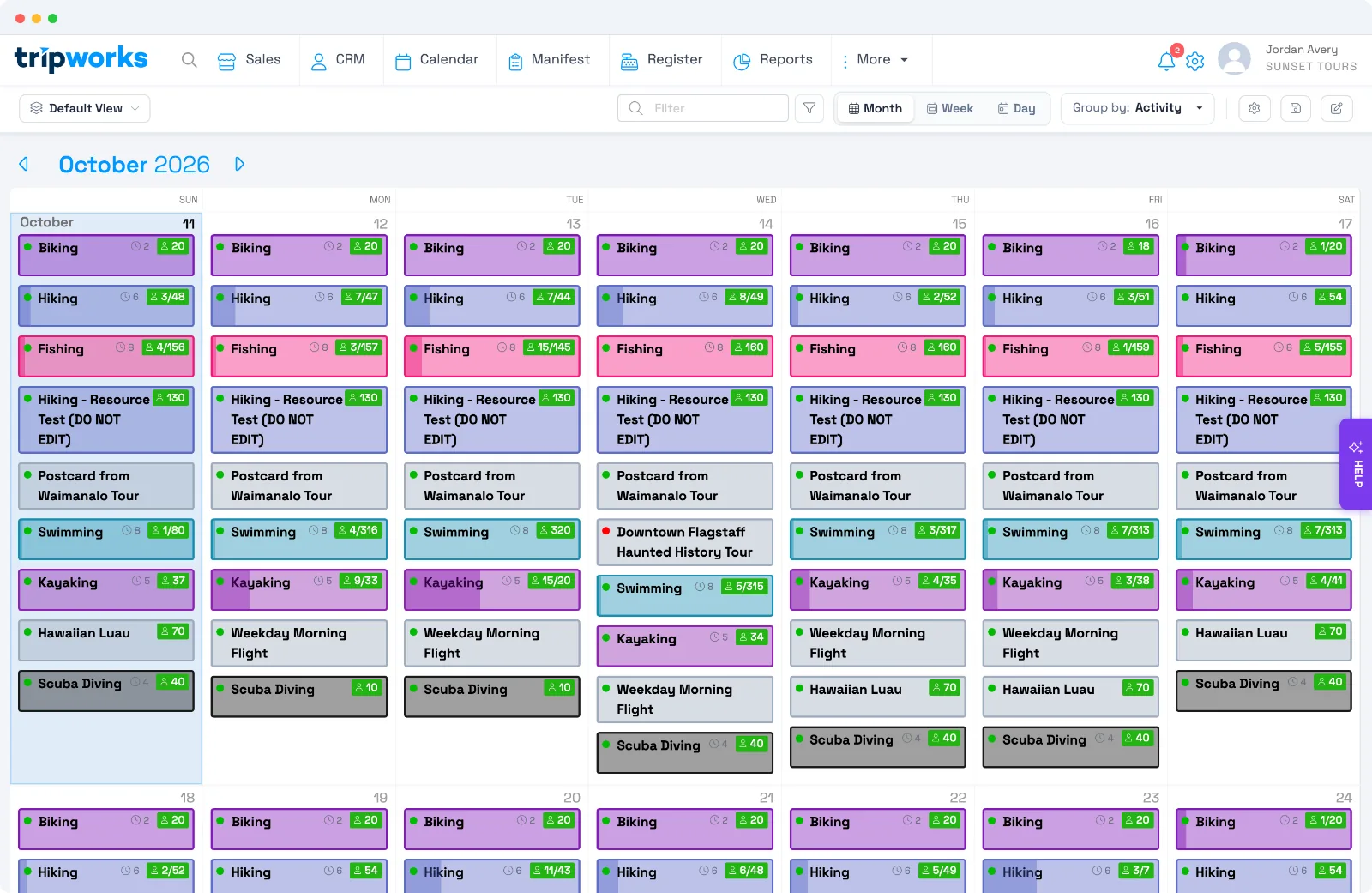
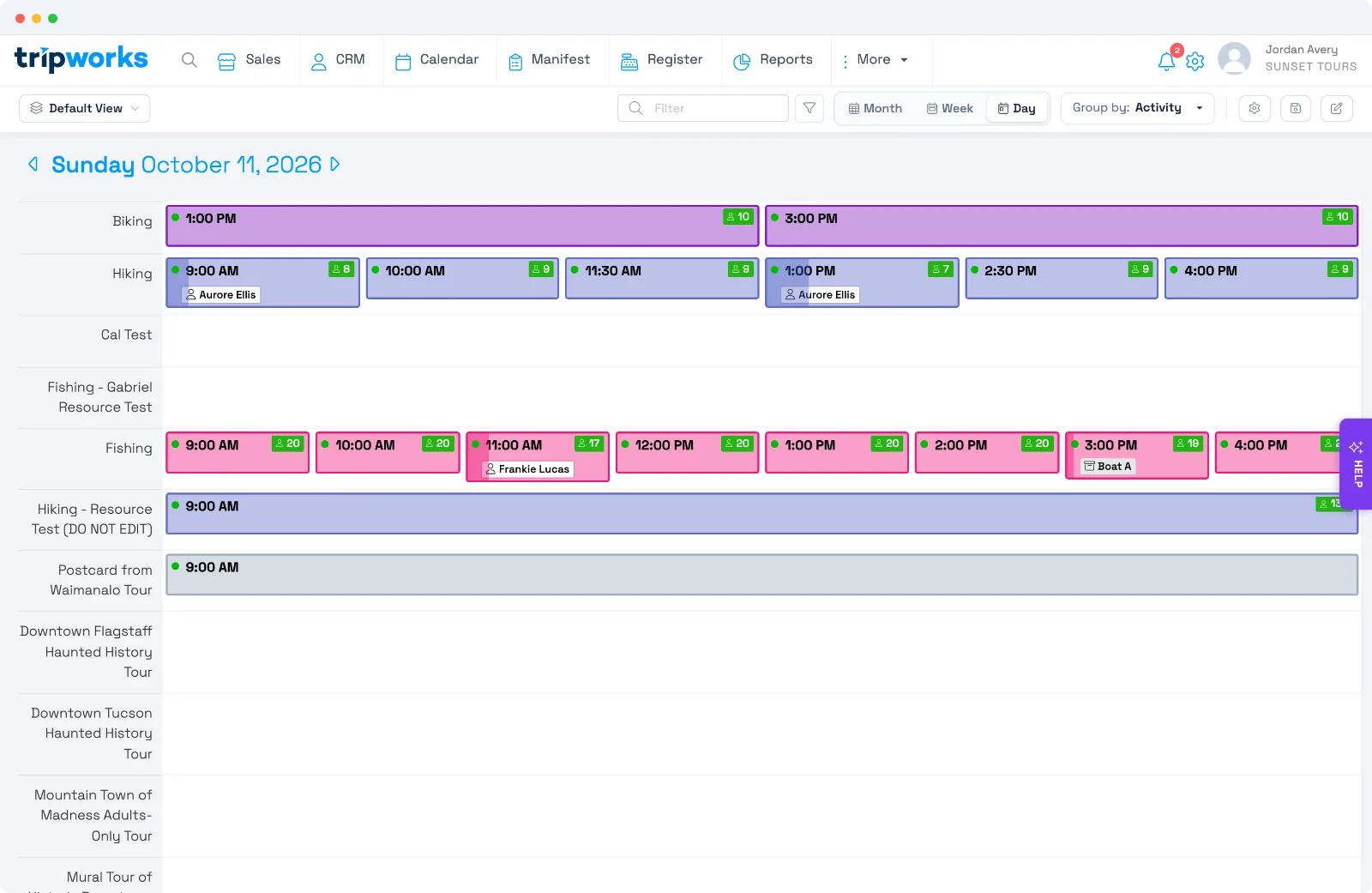
Switch between Day, Week, and Month in the upper right:
- Month — a high-level overview for long-term planning and spotting booking patterns.
- Week — balanced detail for day-to-day scheduling and resource management (this is the default).
- Day — the most granular view, ideal for managing the day of departure.
Customize what shows
Tailor the Calendar to your operation through its customization menu — control which information appears, how activities are organized, and which timeslots display based on staffing, resources, or availability. This keeps the view focused on what matters for the way you plan.
Filter by resource group
If you use resource groups to organize guides, instructors, vehicles, or equipment, filter the Calendar by resource group to see who's assigned to which activities and when they're available across the day, week, or month. Set up resource groups first — see Resources and resource groups — then click the Filter button (funnel icon, next to the search field) and choose Resource Group.
Filter by guide
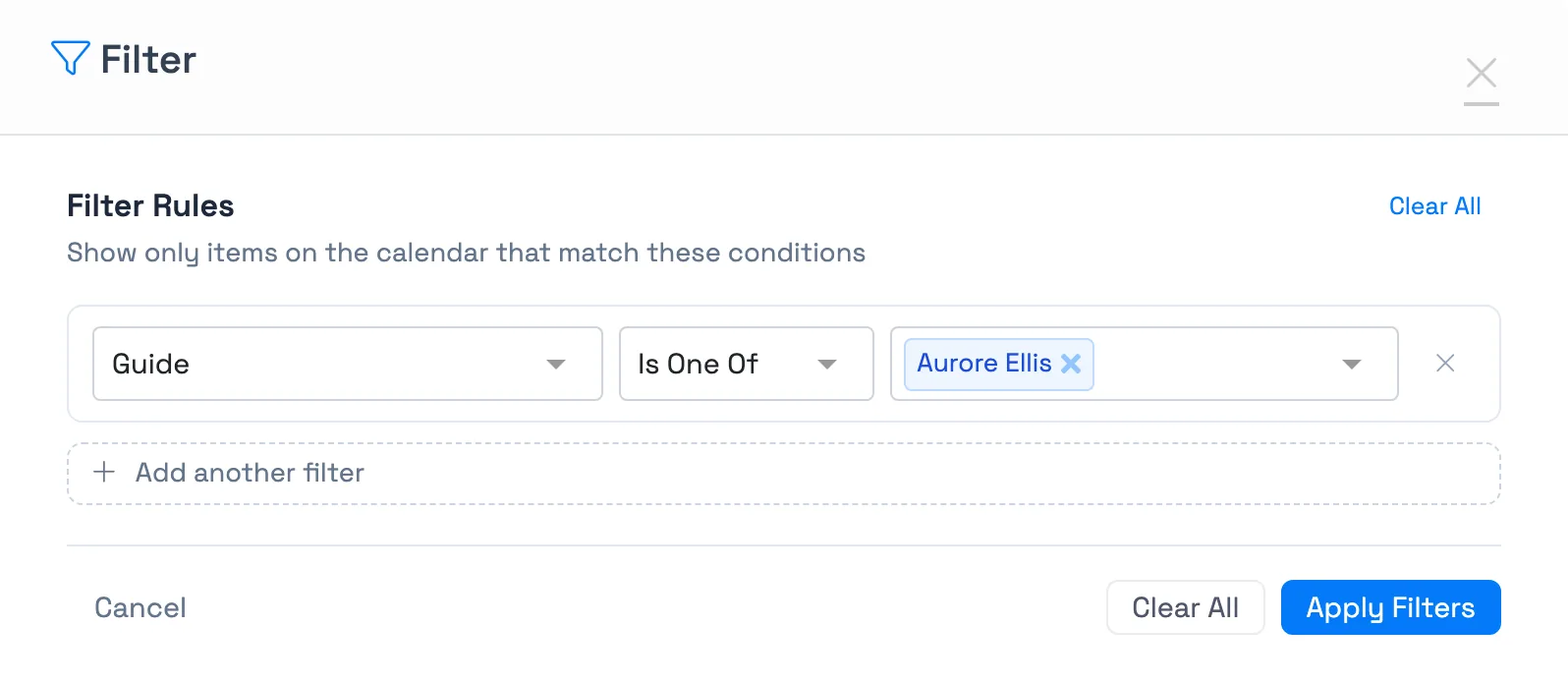
To see only the activities a certain guide is working, select the Filter button (funnel icon, next to the search field), choose Guide, and pick one or more guides. If your account renames guides, the option uses your term, such as Pilot. You can also use Has Guide assigned to find activities that don't have a guide yet. This is a view filter for focusing your own calendar, and it can be saved with the view. It doesn't change what anyone is allowed to see.
Multi-day activities
For activities that span several days, the Week and Day views are best — they show bookings and resource usage across the full span, so multi-day trips that share guides, vehicles, or equipment stay clear and organized.
Add a one-off timeslot
To add a single timeslot without creating a batch of dates, select Add timeslot on a day in the Month view, or the add button next to an activity in the Week or Day view. In the Add Timeslot form, choose the activity (labelled Experience), the date, the Start Time, and the Status, then save. To create many dates at once, use Add availabilities on the activity's Dates & Times tab instead.
Why the Book button is greyed out
On a day's timeslot card, Book is greyed out when that timeslot can't take a new booking. Hover the lock icon next to it to see why. The reason is one of these:
- The timeslot is in the past.
- It is past the booking cutoff.
- There is no availability left.
- The timeslot is closed or cancelled.
If there is no Book button at all, your permission group doesn't allow adding trips.
Frequently asked questions
What's the difference between the Calendar and the Manifest?
The Calendar is your schedule overview across days, weeks, or months. The Manifest is the detailed guest list for a single day's timeslots, where you check guests in and run operations.
Why don't I see any resource groups to filter by?
Resource groups must be set up first. See Resources and resource groups.
Related
Built for attractions, tours & activities
See your whole schedule at a glance
See how attractions, tours, and activities plan on TripWorks. Book a demo and make the switch.