
The TripWorks app checks guests in three ways: scan their QR code with the camera, scan with a Bluetooth scanner, or look them up by name or confirmation code. Every check-in updates the booking right away, the same as checking in from the manifest.
In this article
All three live on the Check-In tab. Get the app from the App Store for iPhone and iPad.
Scan a QR code with the camera
- Open the Check-In tab and tap Start Scanning.
- Point the camera at the QR code on the guest's confirmation or ticket.
- The app checks the booking, then shows the result. Tap Scan Next Guest for the next one.
The first time, iOS asks for permission to use the camera.
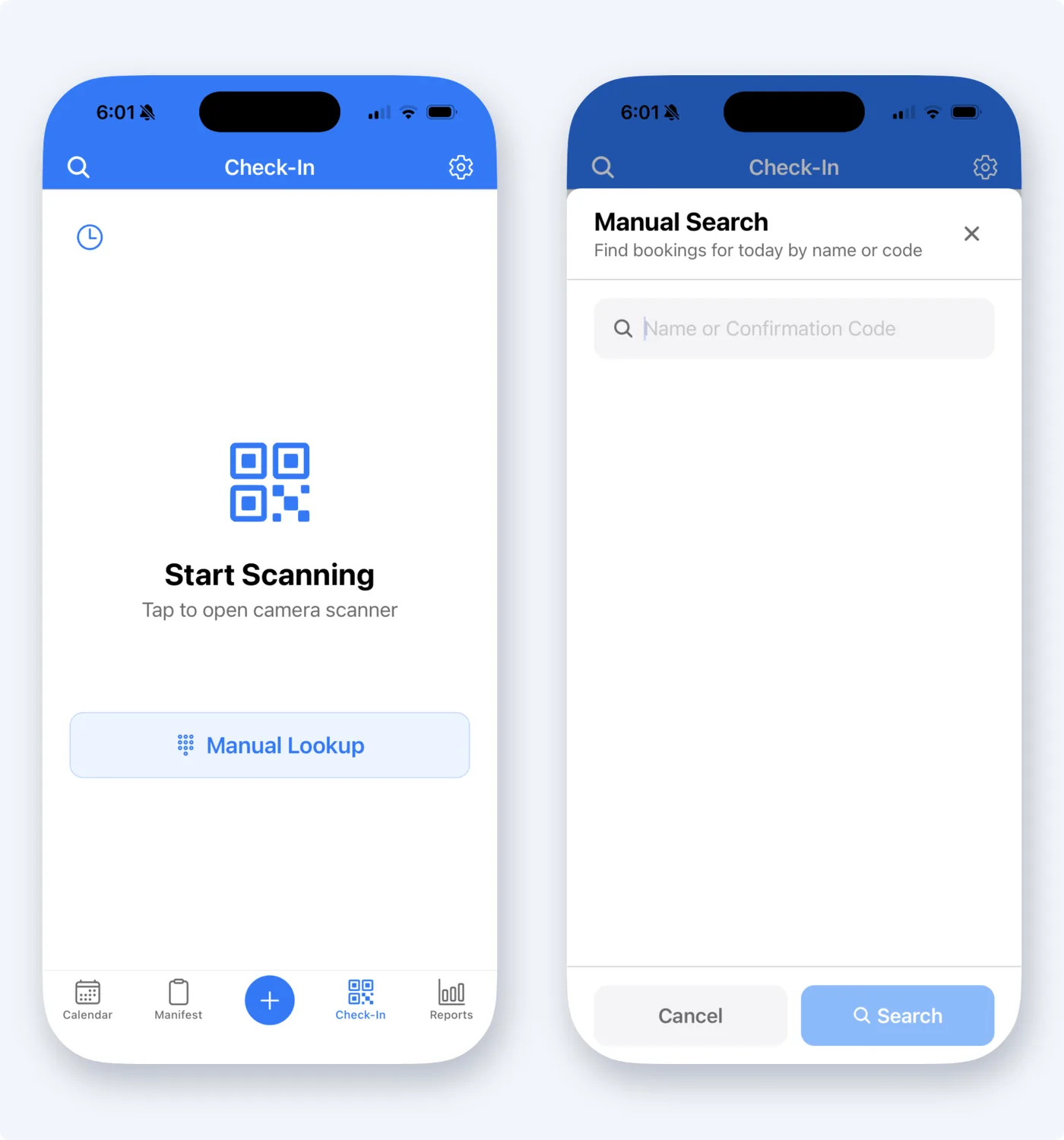
Look a guest up
Tap Manual Lookup, type the guest's name or confirmation code, and choose the matching trip. It searches today's bookings.
Scan with a Bluetooth scanner
Pair a compatible Bluetooth scanner once. After that the Check-In tab shows Ready to Scan, and you scan a ticket or wristband without touching the screen. See Pair a scanner, card reader, or printer with the TripWorks app.
What the result means
- A green check and a chime mean the guest is checked in.
- A red X and a different sound mean something stopped the check-in. The message says why, for example the booking is for another date or the guest is already checked in.
- A balance due shows as a warning. Whether the guest is checked in anyway depends on a setting, below.
Recent scans are listed in Scan History.
Choose how check-in works
Open Settings (the gear in the upper right):
- Individual Check-In Mode is off by default, so one scan checks in everyone on the booking. Turn it on to choose which guests are present.
- Auto Check-In with Balance Due is on by default. Turn it off if you want guests who owe money to stop for review.
Frequently asked questions
Do I need a separate scanning app?
No. Check-in is built into the TripWorks app. Use the Check-In tab.
Can I check in a whole group with one scan?
Yes. Group check-in is the default, so scanning one guest's code checks in everyone on that booking. Turn on Individual Check-In Mode to pick guests instead.
Can I check in without scanning?
Yes. Use Manual Lookup on the Check-In tab, or open the timeslot's manifest and check guests in from there.
Related
Built for attractions, tours & activities
Scan, and they're in
See how attractions, tours, and activities speed up check-in with the TripWorks app. Book a demo and make the switch.