
Anything you collect from guests with a custom field — a question at checkout, a note on the booking — can be dropped straight into your email and SMS templates. Each guest's own answer fills in automatically, so a confirmation can say "Hotel: The Grand" or "Shirt size: L" without anyone copying it over by hand.
In this article
Insert a custom field into a template
- Go to Setup Sell online Message Templates and open a template (or select New Template).
- In the email body — or the Subject line or Preheader — select + Variable.
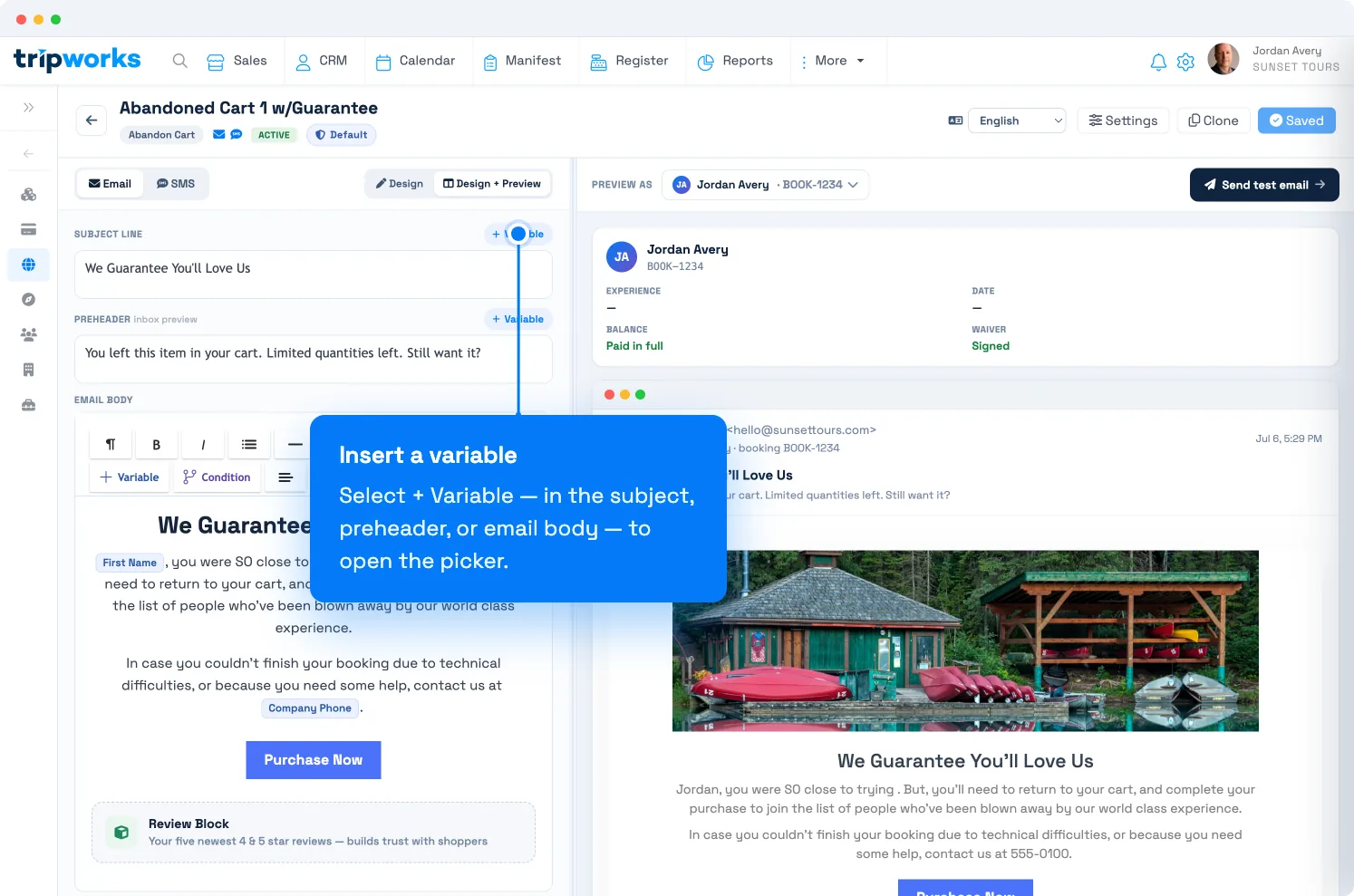
Select + Variable in the subject, preheader, or email body to open the picker. - In the Variables picker, look under the Custom Fields column and select the field you want.
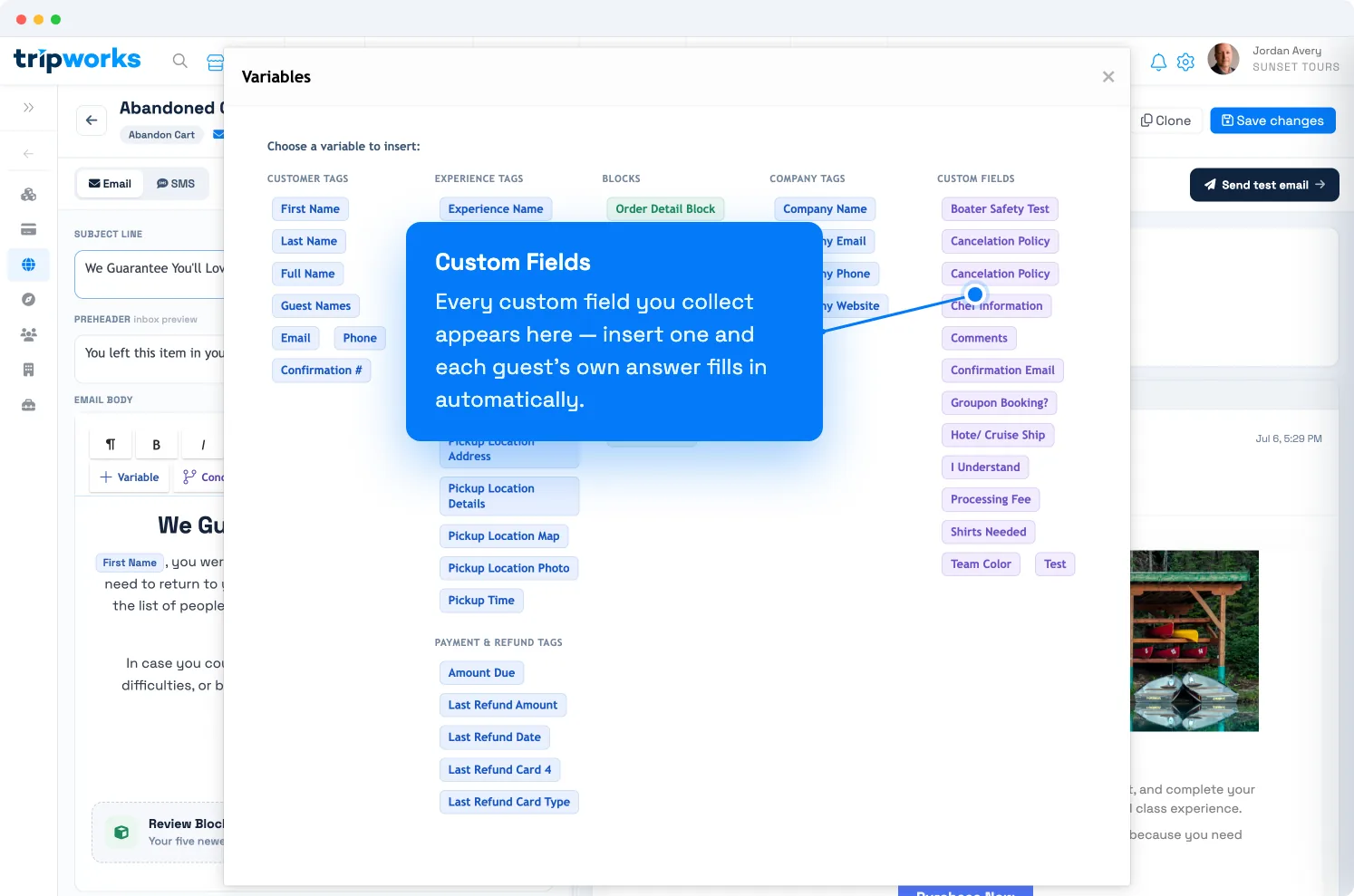
Your custom fields appear in their own column in the Variables picker, ready to insert like any other variable.
The variable drops in as a chip. When the message sends, TripWorks replaces it with that recipient's own answer.
How custom-field variables behave
A few behaviors that aren't obvious from the picker:
- Each recipient sees their own answer. The value is pulled from that guest's booking, so one template personalizes every email it sends.
- It works everywhere variables do — the subject line and preheader (each has its own + Variable button), the email body, and SMS.
- Blank when unanswered. If a guest didn't fill in that field, the variable comes through empty. For optional questions, lead with the label ("Hotel: …") or wrap it in conditional content so an empty answer doesn't leave an odd gap.
- Only booking-level custom fields appear — the ones collected on the booking or at checkout, not internal-only fields.
- If you delete a custom field a template uses, TripWorks flags the template ("references a custom field that has been deleted"). Open it and remove or swap that variable.
- URL custom fields can be links. A custom field that holds a URL can be used as a button or link destination, not just inline text.
Frequently asked questions
Where do the custom fields in the picker come from?
They're the custom fields you've set up to collect from guests — see add custom fields to an activity. Any booking-level field you collect shows up in the template Variables picker automatically.
What shows if the guest didn't answer the question?
The variable renders empty. Write the surrounding text so a blank reads fine (put the label before it), or use conditional content to hide that line when there's no answer.
Can I use a custom field in the subject line?
Yes. The subject line and preheader each have their own + Variable button — insert the custom field there the same way you would in the body.
I deleted a custom field that a template was using — what happens?
TripWorks flags the template as referencing a deleted field so the email doesn't send a broken value. Open the template and remove or replace that variable.
Related
- Add custom fields to an activity
- Create, edit & manage message templates
- Customer messaging: automated & manual messaging
- Customize confirmation, reminder, and follow-up emails per activity
Built for attractions, tours & activities
Put every guest answer to work
See how attractions, tours, and activities personalize confirmations and reminders with the details guests give at checkout — automatically, on TripWorks. Book a demo and make the switch.