
A custom field only appears where you assign it. Assigning fields to the right activities keeps each booking form focused — a food tour asks about dietary needs, a balloon ride asks for weight, and neither shows a question that doesn't apply.
In this article
Assign a field to activities
- Go to Setup Company & policies Custom Fields and open the field (or select New Custom Field to create one).
- Open the Where it shows section.
- Under Activities, select Add activities and choose the ones this field applies to — or leave it empty to apply the field to every activity.
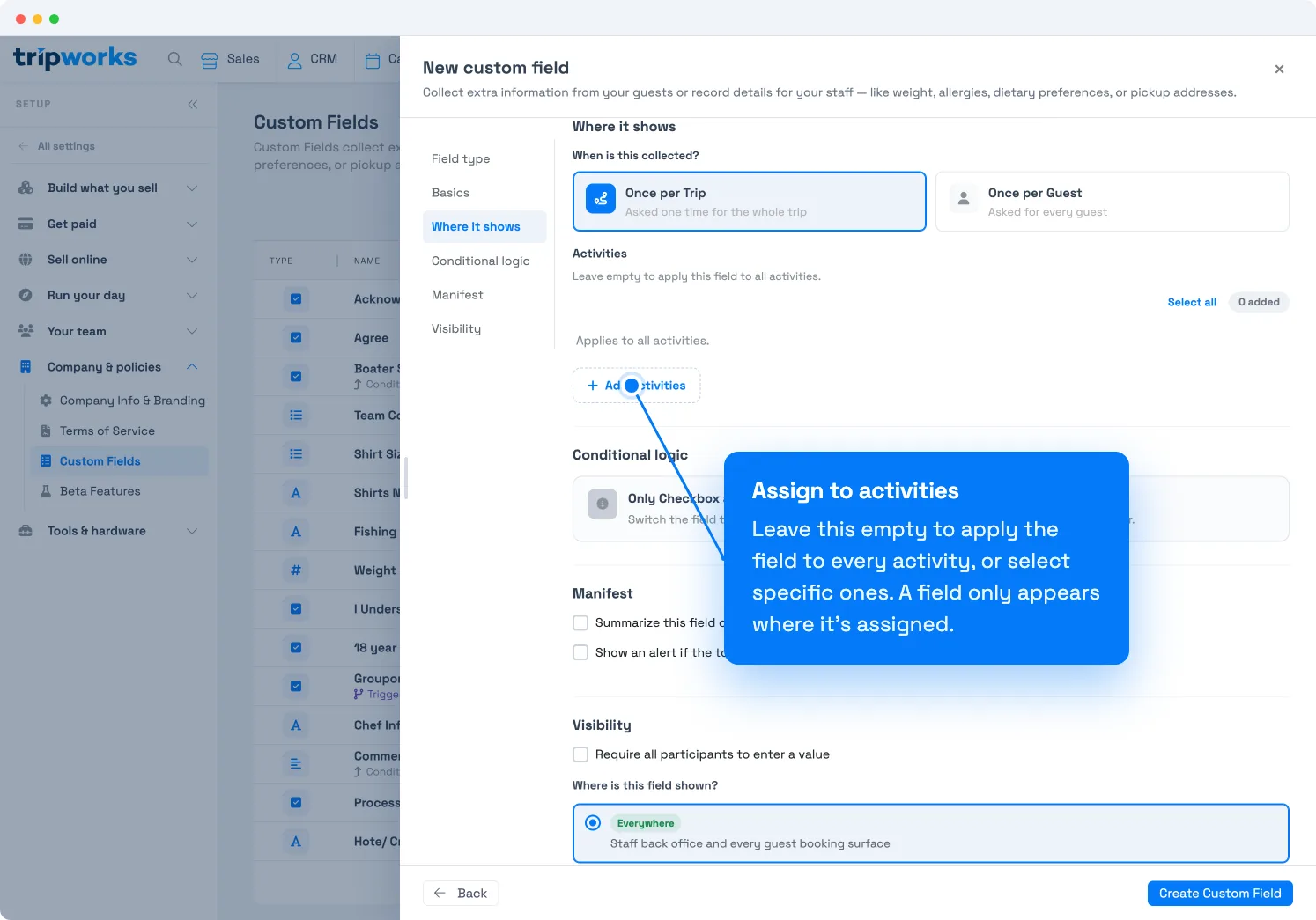
Leave Activities empty to apply the field everywhere, or pick specific activities. - Select Save changes.
The field now appears on the booking form for every activity you assigned it to. Assign the same field to as many activities as you like — a Weight or Height prompt might apply to several, while an Experience level prompt applies to just one.
Good to know
- Leave it empty to apply everywhere. A field with no activities selected shows on all of them. Add activities only when you want to limit where it appears.
- One field, many activities. Reuse a field across activities instead of recreating it — responses still report together.
- Assignment drives conditional logic. A parent and child field must share an activity for conditional logic to work.
Frequently asked questions
What happens if I don't assign any activities?
The field applies to every activity in your account. Assign specific activities only when you want to limit where the field appears.
Can one custom field appear on more than one activity?
Yes. Assign the same field to as many activities as you need. All the responses roll up together in reporting.
A conditional field isn't appearing — why?
Both the parent field and its child field must be assigned to the same activity. If the child is assigned but the parent isn't, the child shows unconditionally. See conditional custom fields.
Related
- What are custom fields?
- Set up custom fields
- Conditional custom fields
- Add custom field answers to your emails
- View & edit custom field responses
Built for attractions, tours & activities
Ask the right questions on every booking
See how attractions, tours, and activities tailor their checkout to each experience — collecting exactly what they need, nothing they don't — on TripWorks. Book a demo and make the switch.