
When you cancel a booking or activity, you can send the guest a cancellation message in the same step — so they know their trip is off and don't turn up for something that isn't happening. You choose the template right in the cancel dialog. This article is about that message. To write your cancellation policy itself, see Set your cancellation policy and account-wide notes.
In this article
The picker in that dialog lists templates from two categories: Cancellation and User Defined Message. So the templates you see there are your Cancellation-category templates plus any general-purpose ones you've built. If the only cancellation-style templates you've made are filed under User Defined Message, those are the only options you'll see — which is the usual reason a template you didn't expect appears to be the "default" and you feel you can't pick anything else. The fix is to give the template the right home: set its category to Cancellation (see below).
Send a cancellation message
- Open the trip and start the cancellation — on the booking's menu, choose Cancel this booking (or cancel the activity).
- In the Cancel Activity dialog, tick Notify lead guest of cancellation.
- Under Choose a template to send, pick your cancellation message.
- Add an optional note if you want to explain what happened, then confirm the cancellation.
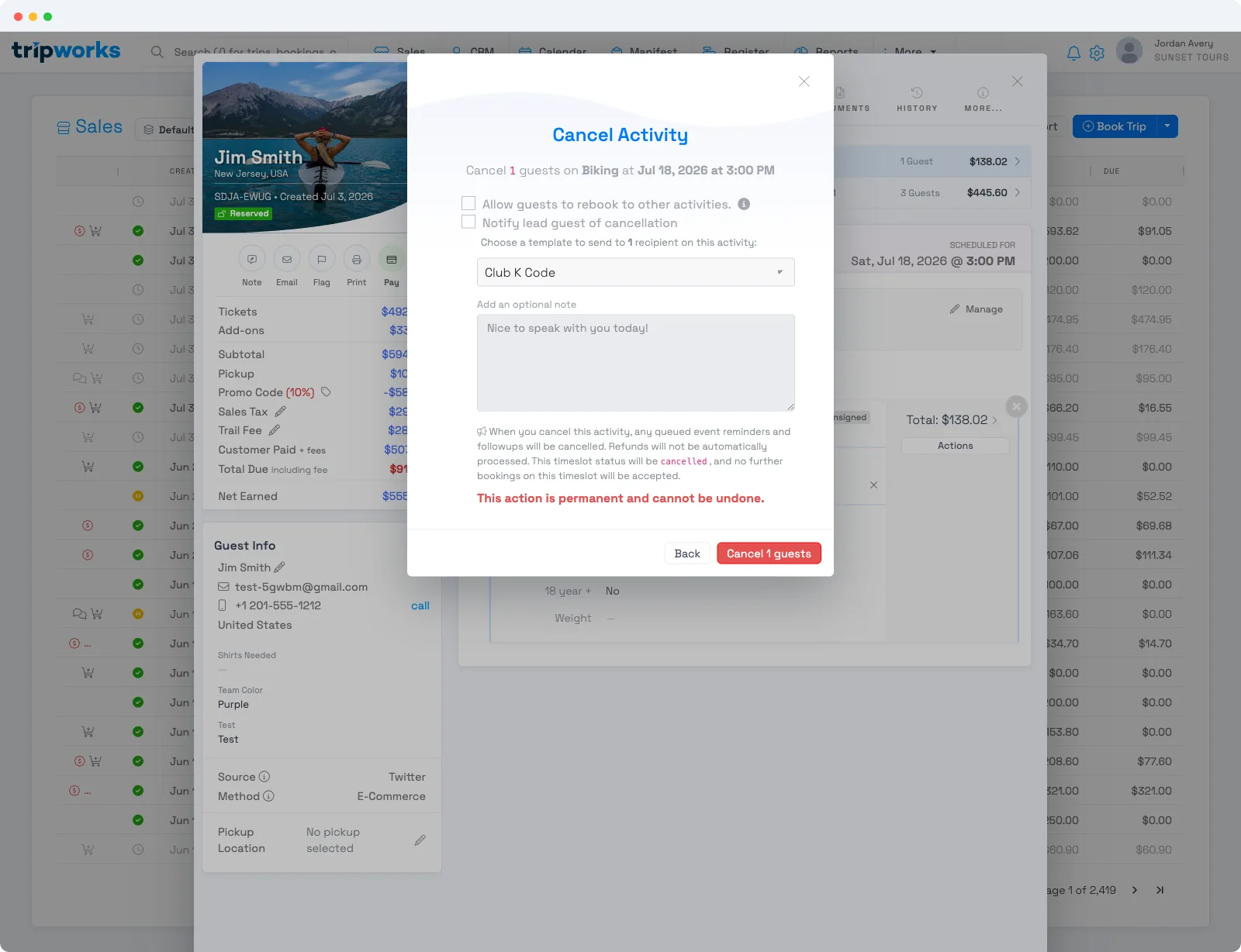
The guest gets the cancellation email (and SMS, if the template has an SMS version and they have a mobile number) as soon as you confirm.
Good to know
- Reminders and follow-ups stop automatically. Cancelling a booking cancels any of its queued reminders and follow-ups, so a cancelled guest won't get a "your trip is tomorrow" email.
- A refund isn't automatic. Cancelling doesn't refund the guest on its own — handle that separately (and its own refund message goes out when you do).
- Notifying is optional. Leave the box unticked to cancel quietly without emailing the guest.
- The template is a normal message template. Edit its wording under Message Templates. To have it show up as a proper cancellation option, set its category to Cancellation when you create or edit it. (Templates in the User Defined Message category also appear in the cancel picker, so a cancellation template accidentally filed there will still show — but categorizing it as Cancellation is what keeps your options organized and predictable.)
Frequently asked questions
Does cancelling a booking email the guest automatically?
Only if you tick Notify lead guest of cancellation in the cancel dialog and choose a template. Leave it unticked to cancel without sending anything.
The picker keeps defaulting to one template and I can't choose another — why?
The cancel picker only lists templates in the Cancellation and User Defined Message categories. If you've built just one cancellation-style template — or filed them all under User Defined Message — that's all you'll see, so it looks like a fixed default. Create a template (or edit an existing one) and set its category to Cancellation under Message Templates, and it will appear as an option in the picker.
Will a cancelled guest still get reminders?
No. Cancelling the booking cancels its queued reminders and follow-ups automatically.
Does cancelling refund the guest?
No — cancellation and refunding are separate. Process the refund yourself; a refund message goes out as part of that.
Related
Built for attractions, tours & activities
Keep guests in the loop, even on cancellations
See how attractions, tours, and activities handle cancellations cleanly on TripWorks — refunds, notifications, and records in one place. Book a demo and make the switch.