
Send a one-off email or text to a guest without waiting for an automated message to fire — a waiver reminder, a weather update, a personal thank-you. You send it from the trip itself, using one of your existing message templates, so it stays on-brand and personalized to that guest.
In this article
If the template you choose has an SMS version and the guest has a mobile number on file, TripWorks sends the text alongside the email in the same action.
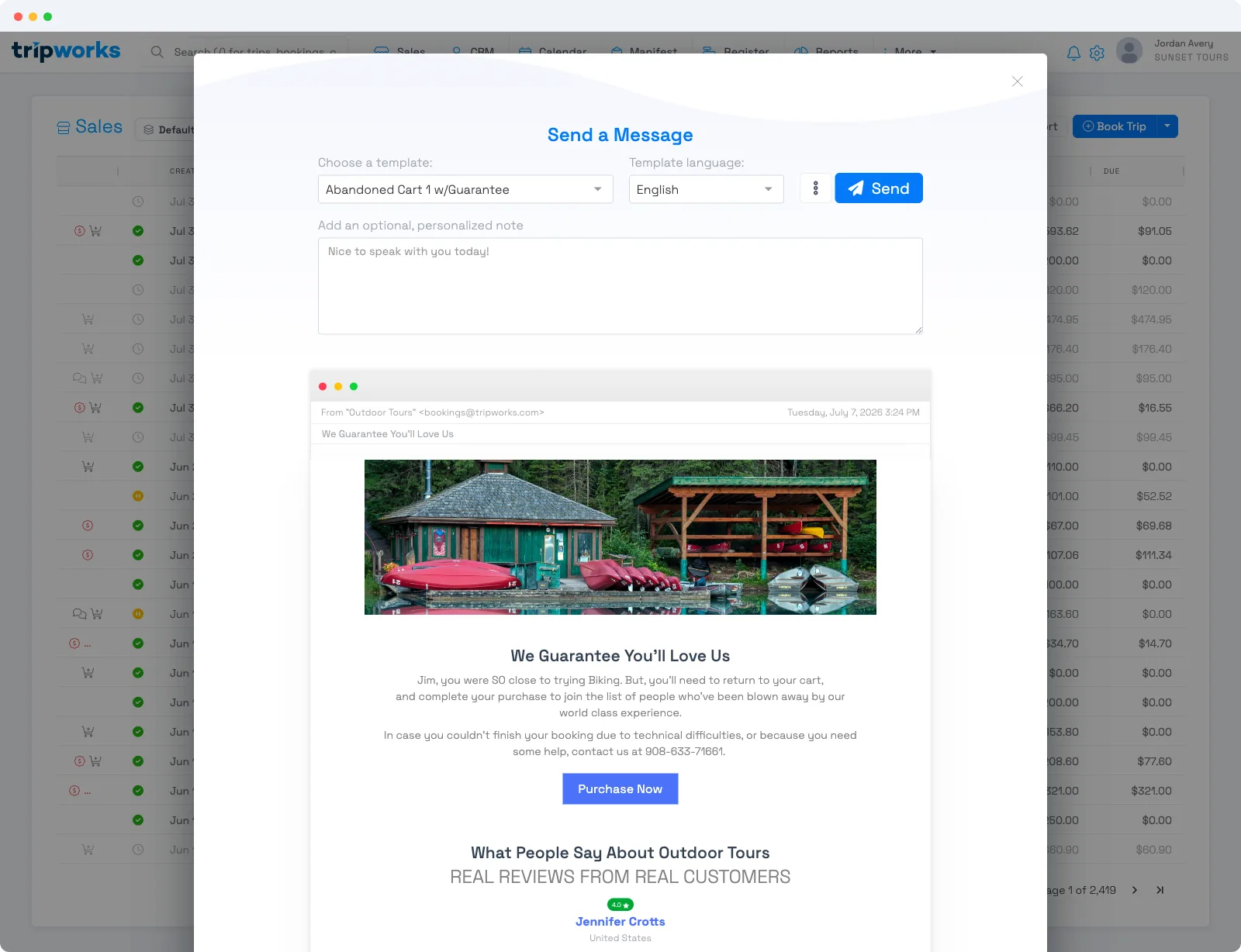
Send a message from a trip
- Go to Sales and open the trip you want to message.
- Select the Email action to open the Send a Message composer.
- Choose a template to send. If the one you need doesn't exist yet, create a new message template first, then come back.
- Choose the template language if the guest reads another language — TripWorks sends that translation of the template.
- Add a personalized note if you want to say something specific to this guest. The live preview updates as you type, so you see exactly what the guest receives.
- To copy someone else — a colleague or another guest on the trip — add them under CC.
- Select Send.
TripWorks sends the email to the guest, and — when the template has an SMS version and the guest has a mobile number — the text message too. The send is logged on the trip's Messages tab and in the account-wide Messages list.
Message every guest on a trip
To reach everyone on a trip at once — say, to tell the whole group a start time moved — open the trip's Manifest and use the message-all-guests action there. You pick a template the same way, and TripWorks sends to each guest with contact details on the booking.
How manual sending behaves
A few things worth knowing before you send:
- Email and SMS travel together. One send delivers the email and, if the template has an SMS version and the guest has a mobile number, the SMS. Guests without a mobile number get the email only.
- The preview is the real thing. The live preview renders the template with this guest's details and your note, so what you see is what sends — check it before hitting Send.
- CC reaches a second inbox. Use CC to loop in a teammate or another traveler; the primary guest is still the main recipient.
- There are send-rate limits. TripWorks caps how fast messages go out to prevent an accidental flood of duplicate sends. If you're moving quickly through several trips and a send is held, wait a moment and try again.
- Language follows the template. Switching the language sends that translation of the template — it doesn't machine-translate your personalized note.
FAQ
Does sending a message also send a text?
Yes, when two things are true: the template you pick has an SMS version, and the guest has a mobile number on file. In that case one Send delivers both the email and the text. If either isn't true, the guest gets the email only.
Can I send a message to more than one guest at once?
Yes. Open the trip's Manifest and use the message-all-guests action to send to everyone on the trip. To copy one extra person on a single guest's message, add them under CC in the composer instead.
Why was my message held or rate-limited?
TripWorks applies send-rate limits so a burst of sends can't accidentally spam your guests with duplicates. If a send is held, wait a moment and send again.
Where can I confirm the message went out?
Every manual send is recorded on the trip's Messages tab and in the account-wide Messages list, where you can see whether it was sent, delivered, and opened.
Related
Built for attractions, tours & activities
Reach every guest without leaving the booking
See how attractions, tours, and activities message guests straight from a trip on TripWorks — templates, SMS, and live previews built in. Book a demo and make the switch.