
TripWorks ships with a fixed set of information about every trip, booking, and guest: name, email, activity, date, party size, and so on. Every business collects more than that. A balloon ride needs each guest's weight. A food tour needs dietary notes. A whale-watching trip needs a hotel pickup address. A private tour operator wants an internal note field only staff can see.
In this article
Custom fields are how you extend that fixed data model to fit your business, without an engineer, a database change, or a support ticket. You define the field once in your account's field library, decide what kind of answer it collects and who can see it, then attach it to the activities where it applies. From there it behaves like any other piece of booking data: it shows up on the manifest, it can be inserted into emails, and it's part of the record for every booking that answers it.
Think of it as adding your own column to TripWorks' booking form and guest record, one you control end to end, without touching a single line of code.
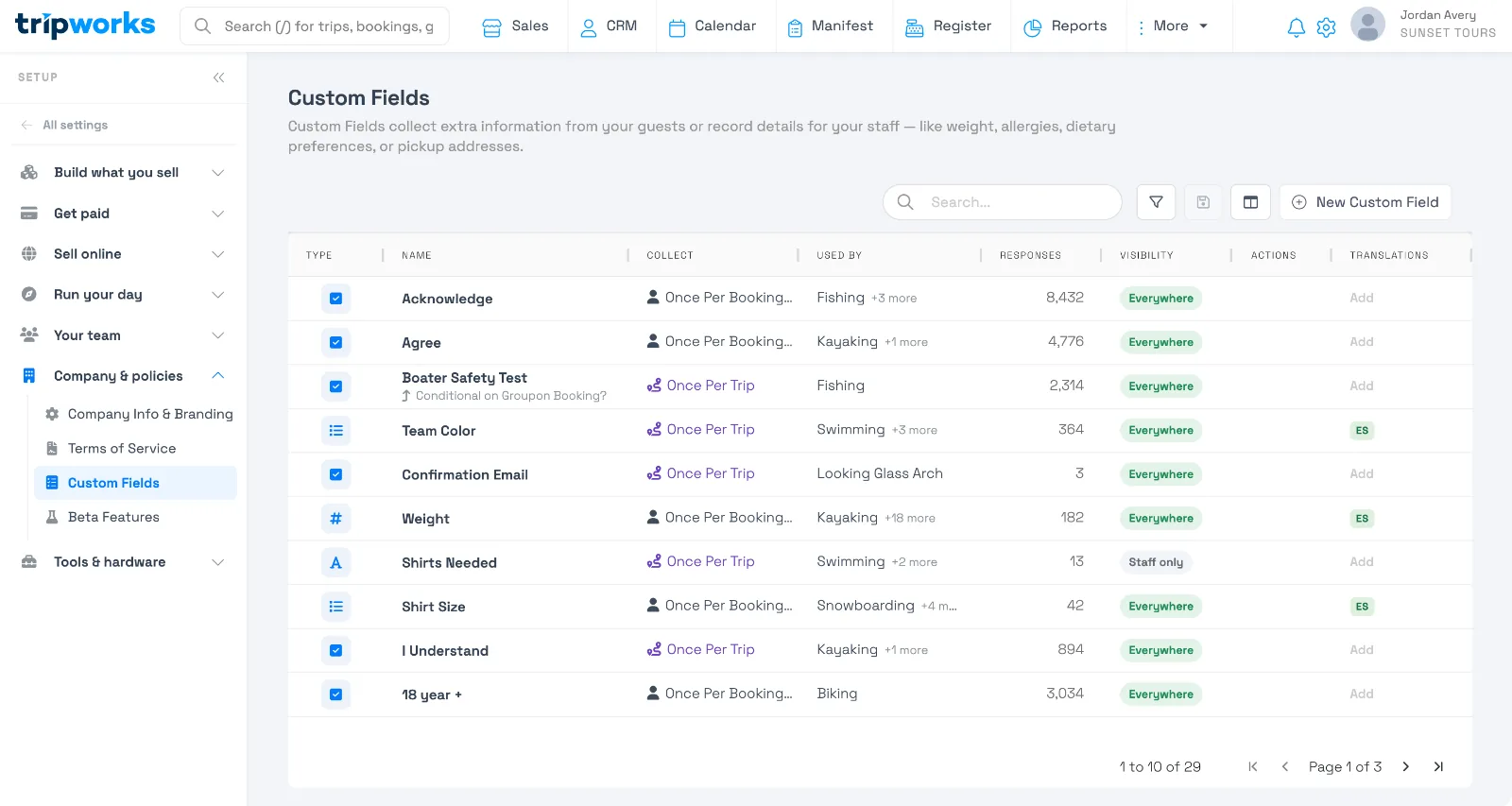
Build a reusable library of custom fields, attach them to activities, control who sees each one, and find the answers on the trip and manifest.
The building blocks
Every custom field is made of three decisions, and they're independent of each other:
- What it collects. The field type (a dropdown, a checkbox, a weight, an address, and so on). This shapes the input guests see and validates the answer automatically. See the full list in set up custom fields.
- Where it's asked. The activities it's attached to, and whether it's asked once per trip or once per guest. A field only appears on the activities you assign it to; see add custom fields to an activity.
- Who sees it. Its visibility: everywhere, staff-only (an internal note guests never see), or online-booking-only. This is the same setting that used to be called a "private" custom field.
Combine those three and you can model almost any extra piece of information your business needs, from a guest-facing waiver checkbox to a staff-only field for "assigned guide."
Where an answer can go
A custom field isn't just a question at checkout. Once a guest answers it, that answer becomes data you can use elsewhere:
- The manifest. Summarize answers for your guides, or set an alert range on a numeric field (like combined passenger weight) so a trip flags automatically when it's out of bounds.
- Email and SMS templates. Insert a guest's own answer as a variable in a confirmation or reminder message. See add custom field answers to your emails.
- Reports and the back office. Internal, staff-only fields show up wherever your team works, without ever reaching a guest-facing surface.
- Conditional follow-up questions. Reveal a second field only when the first is answered a certain way, so guests only ever see what's relevant. See conditional custom fields.
What custom fields don't do
Extending the data model isn't the same as extending it everywhere. A few honest limits worth knowing before you build:
A field only appears on the activities and surfaces you explicitly assign it to. Adding a field doesn't automatically add it to every checkout flow, every report, or every OTA/reseller channel; each surface has to be told to use it. If a field looks "missing" somewhere, check whether it was assigned there rather than assuming it should show up automatically.
- OTA and reseller bookings only fill a custom field automatically when the OTA's question wording matches the field. See why isn't my OTA booking data filling my custom fields?
- Waiver-specific guest details (like date of birth or license number collected through a waiver) are a separate mechanism from custom fields. See collect guest data with waivers
- Custom fields extend what you collect and store. They don't create new pricing logic, new booking rules, or new resource types; those are separate parts of the data model with their own setup.
Examples
- Collect a guest's weight for a balloon ride or zipline, with automatic lbs/kg conversion and a manifest alert if the group's combined weight is too high.
- Add a staff-only note field like "assigned guide" that your team fills in but guests never see.
- Ask a pickup address once per trip instead of once per guest, since the group shares one pickup point.
- Show a follow-up question only if a guest checks "dietary restrictions" so most guests never see the extra field.
- Drop a guest's custom field answer into a reminder email, so each guest's confirmed pickup time or hotel name appears automatically.
Frequently asked questions
How is a custom field different from a waiver field?
A custom field is a general-purpose question you attach to activities and reuse anywhere. A waiver field is specific to the waiver-signing flow and its own set of guest details (name, date of birth, license, insurance). Use waiver guest fields for what a waiver itself needs to capture; use a custom field for anything else.
Do I need to build a new custom field for every activity?
No. You build a field once in your account's field library, then assign it to as many activities as it applies to. A "dietary restrictions" field used on ten food-tour activities is one field, attached ten times.
Can guests see a custom field's answer after they book?
Only if the field's visibility is set to show on guest-facing surfaces. A field marked staff-only never appears to guests, in the customer portal, or in guest-facing emails — it's stored only for your team.
Does adding a custom field slow down checkout?
Every field you add is one more question a guest answers, so it's worth being selective. Use conditional custom fields to hide follow-up questions until they're relevant, and mark fields staff-only or once-per-trip when a guest doesn't need to see or repeat them.
Related
- Set up custom fields
- Add custom fields to an activity
- Conditional custom fields
- Add custom field answers to your emails
Built for attractions, tours & activities
Collect exactly what you need from every guest
See how attractions, tours, and activities collect waivers, weights, pickup details, and more at checkout — then put those answers to work on manifests and in emails — all on TripWorks. Book a demo and make the switch.