
Custom fields collect extra information beyond the standard booking details — a guest's weight for a balloon ride, dietary needs for a food tour, a hotel pickup address, or an internal note only your team sees. You build each field once in your account's field library, then reuse it across any activities where it's relevant. (For the concept behind them — extending TripWorks' data model to fit your business — see what are custom fields?)
In this article
Build a reusable library of custom fields, attach them to activities, control who sees each one, and find the answers on the trip and manifest.
Create a custom field
- Go to Setup Company & policies Custom Fields and select New Custom Field.
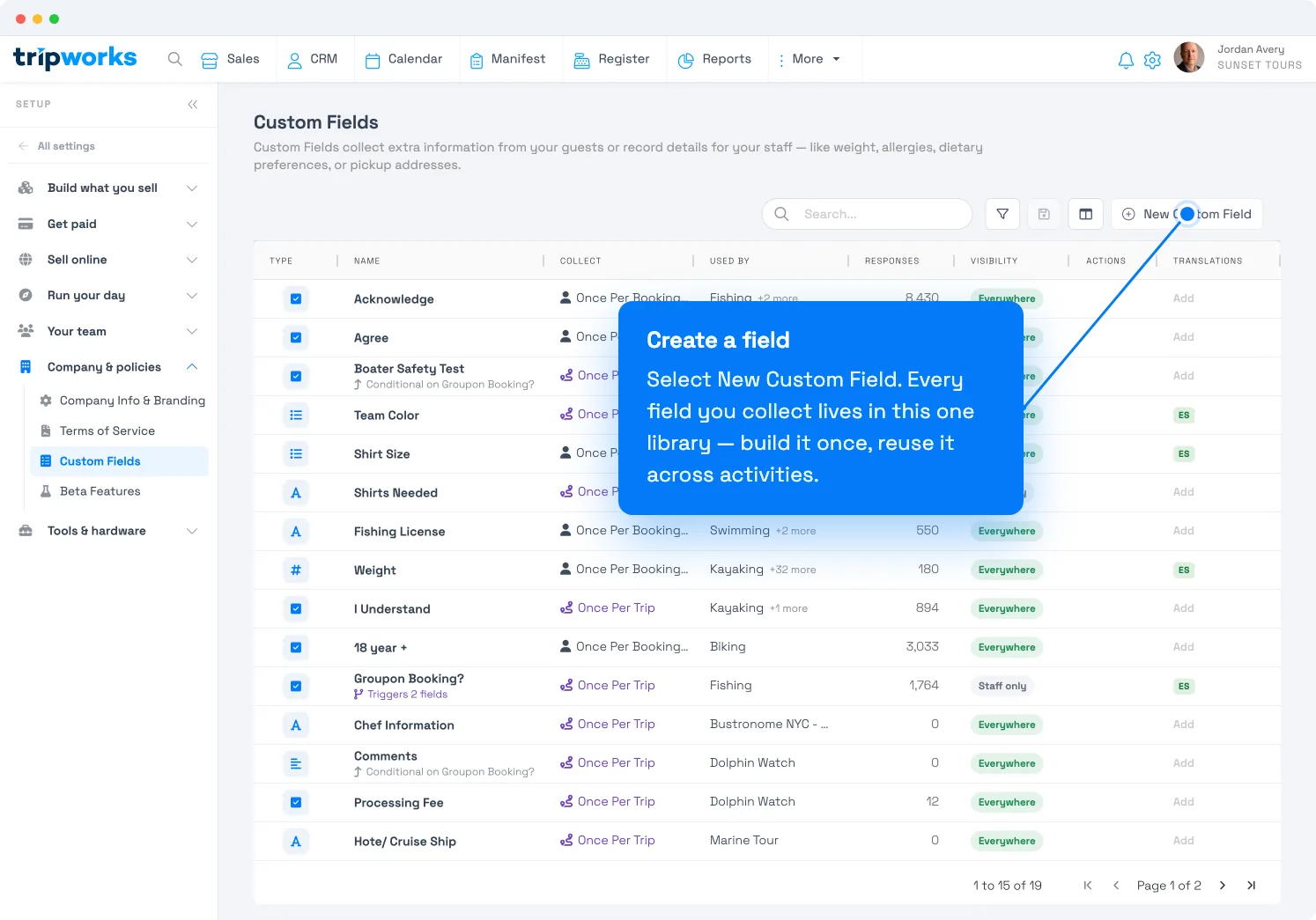
Every custom field lives in one library. Build a field once and reuse it across activities. - Choose a field type — this decides what kind of answer you collect and how it's validated (see the full list below).
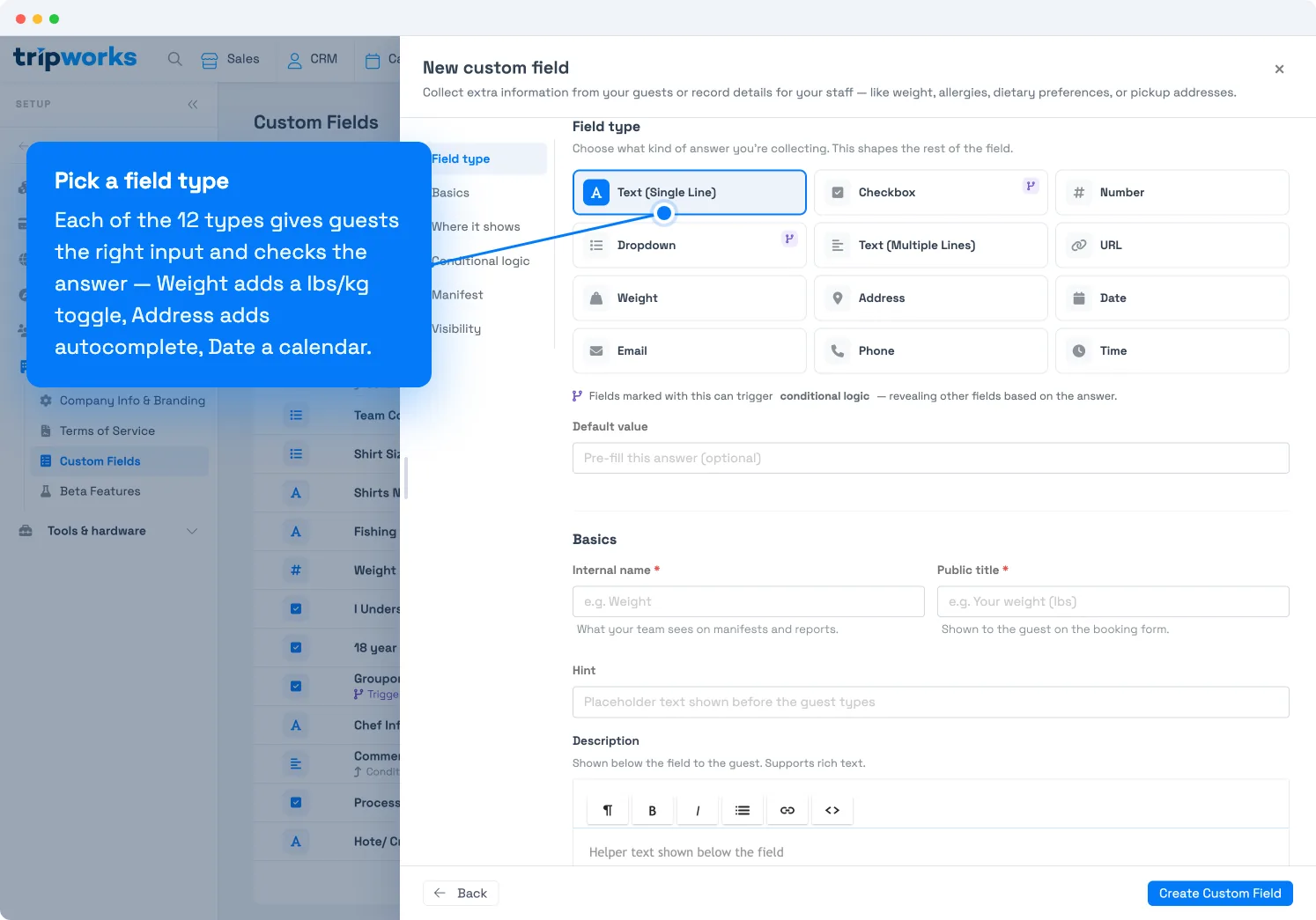
Pick the type that fits the answer. The field type shapes the rest of the form. - Enter an Internal name (what your team sees on manifests and reports) and a Public title (what the guest sees on the booking form). Add a Hint or Description if it helps the guest answer.
- Under Where it shows, set when the field is collected — Once per Trip or Once per Guest — and assign it to the right activities.
- Set Visibility: whether an answer is required, and where the field appears (see below).
- Select Create Custom Field.
The field is now saved to your library and appears on the booking forms for every activity you assigned it to.
Field types
Choose the type that matches the information you're collecting. Each type gives guests the right input and validates their answer automatically.
| Type | Use it for |
|---|---|
| Text (Single Line) | Short answers — names, hotel names, group names, brief notes. |
| Text (Multiple Lines) | Longer responses — special requests, comments, dietary details. |
| Checkbox | A yes/no toggle — acknowledgments, opt-ins, waivers. Can be checked by default. |
| Number | Numeric values with optional min/max — group size, age, quantity. |
| Dropdown | A pick-one menu — shirt sizes, skill levels, meal choices. |
| URL | A web address, validated and clickable in trip details. |
| Weight | A weight with a lbs/kg toggle and automatic conversion — balloon rides, ziplines, horseback tours. |
| Address | A structured address with Google Places autocomplete — pickup or mailing addresses. |
| Date | A calendar date picker — dates of birth, passport expiry, travel dates. |
| An email address with built-in validation. | |
| Phone | A phone number — day-of contact, emergency contact, WhatsApp. |
| Time | A time-of-day picker — flight arrival, transfer time, preferred pickup. |
Where a field shows
The Visibility section controls who sees the field and whether an answer is mandatory:
- Require all participants to enter a value — makes the field mandatory. Guests can't complete checkout until they answer.
- Everywhere — shows on every guest booking surface and in your staff back office.
- Staff only — internal back office only; guests never see it. Use this for details your team fills in, like an assigned guide. (This replaces what used to be called a private custom field.)
- Online booking only — shows to guests booking online, hidden from the staff back office.
Change a field's type
You can switch a field to a different type without losing data. For example, you may have collected passenger weight as a plain Number and now want the Weight type so guests get a lbs/kg toggle.
- Open the field from Setup Custom Fields and change the Field type.
- TripWorks runs a preflight check and tells you how many existing responses you have and whether they're compatible with the new type.
- If everything looks good, select Save changes.
Your existing responses migrate to the new type automatically, and conversion works in both directions.
Summarize on the manifest
Two options under Manifest help your team run the day:
- Summarize this field on the Manifest — rolls the field's answers up on the manifest so guides see them at a glance.
- Show an alert if the total value is outside a range — flags a trip when a numeric total (for example, combined weight) falls outside limits you set.
Frequently asked questions
What's the difference between "Once per Trip" and "Once per Guest"?
Once per Trip asks the question a single time for the whole booking (for example, a pickup address for the group). Once per Guest asks it for every participant (for example, each person's weight or waiver).
How do I make a field only my team can see?
Set its visibility to Staff only. The field appears in your back office but never on any guest-facing booking surface. This is the current version of what used to be called a private custom field.
Will changing a field's type affect existing bookings?
No. Existing responses are migrated to the new type and continue to display correctly. The preflight check warns you first if any values wouldn't convert cleanly.
Can I use a custom field answer in emails?
Yes. Any booking-level custom field can be inserted into email and SMS templates as a variable — see add custom field answers to your emails.
Related
- What are custom fields?
- Add custom fields to an activity
- Conditional custom fields
- Add custom field answers to your emails
- View & edit custom field responses
Built for attractions, tours & activities
Collect exactly what you need from every guest
See how attractions, tours, and activities collect waivers, weights, pickup details, and more at checkout — then put those answers to work on manifests and in emails — all on TripWorks. Book a demo and make the switch.