
Each waiver a guest signs can collect their contact and identity details at the same time. You choose which details to gather by turning fields on or off in the waiver's Guest fields tab, and you review the key contact details guests entered in the Waivers report.
In this article
The fields are a fixed set of toggles. You decide which of the built-in fields to collect, but you can't add your own custom questions to a waiver.
What a waiver can collect
First name and last name are always collected — you can't turn them off. Every other field is a toggle you switch on per waiver.
Guest fields you can turn on:
- Middle name
- Emergency contact & phone
- Email address
- Phone
- Date of birth
- Address
- City
- State/region
- Postal code
- Driver license ID # — a typed license number, not a photo or scan of the license
- Insurance carrier & policy #
Minor-specific fields (used when a signer is a minor):
- Date of birth
- Student or passport ID #
- Relationship to adult / guardian
- Minor must also sign
The identity fields collect a typed number. TripWorks does not photograph or scan an ID. See Minors & parental consent waivers for how the minor fields work.
Turn fields on or off
Each waiver has its own set of fields, so a general liability waiver and an activity-specific release can collect different details.
- Go to Setup Build what you sell Waivers.
- Open the waiver you want to edit, or select New Waiver.
- Select the Guest fields tab.
- Turn on each field you want that waiver to collect.
- Select Save.
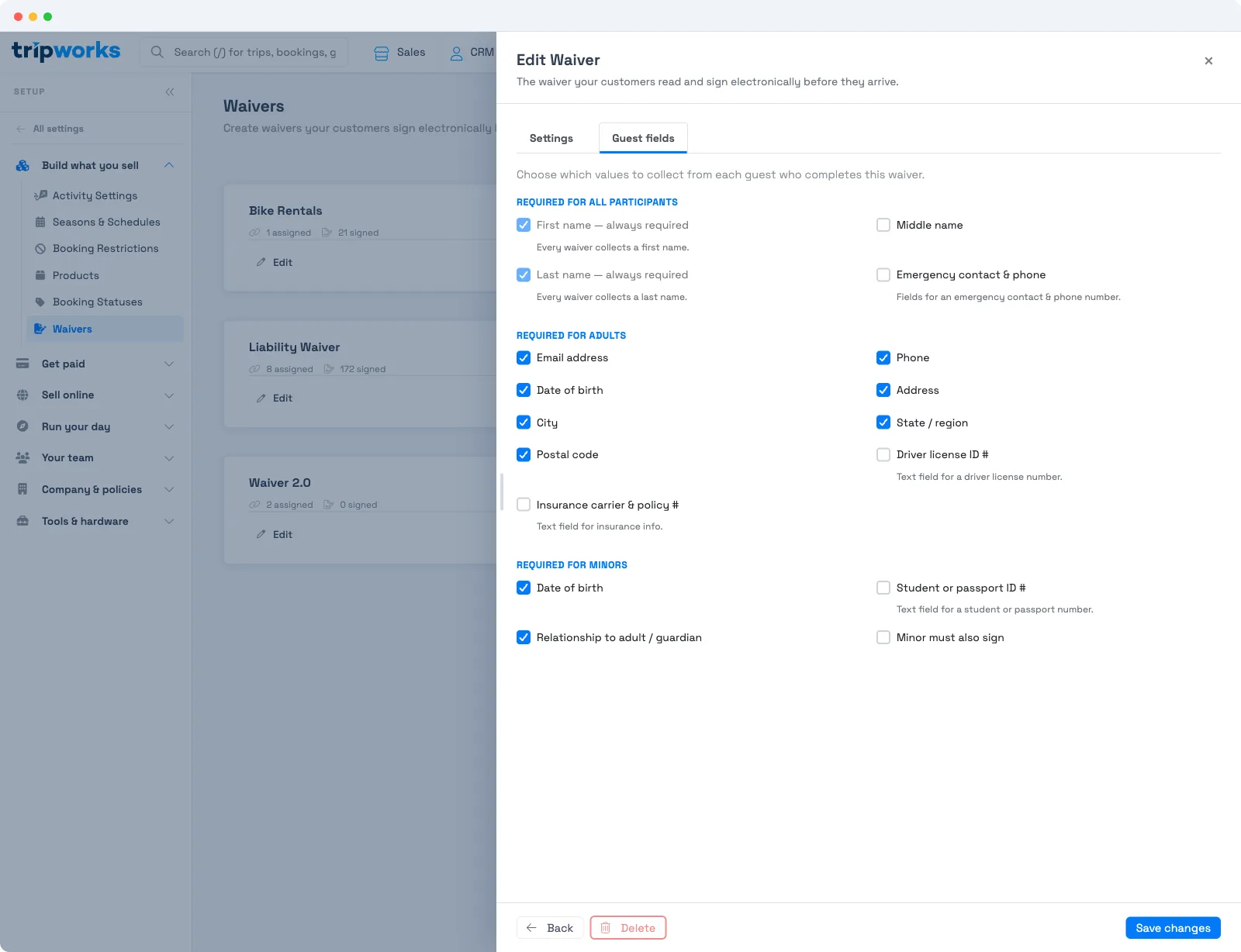
From then on, every guest who signs that waiver is asked for the fields you turned on. Ask only for what you need — each extra field is one more thing a guest fills in before they can sign.
Where the data goes
What a guest enters on a waiver attaches to that guest's record and enriches their contact details, so the information is available beyond the waiver itself.
Review guest details in the Waivers report
The Waivers report lists every waiver signed in a date range, one row per signer, so you can see who signed and how to reach them without opening each waiver.
- Go to Reports Operations Waivers.
- Pick a date range. The report includes waivers signed in that range, based on the date each guest signed.
- Run the report.
Each row shows:
- ID
- Signed (the date the guest signed)
- First and Last name
- Phone
- DOB (date of birth)
The Phone column shows the number the guest typed on the waiver. That can be different from the phone number on the booking, for example when one person books for a group and each guest signs their own waiver. If you want phone numbers here, turn on the Phone field in that waiver's Guest fields tab.
You can filter and sort any column, and download the report as a CSV to use in a spreadsheet or another tool. The other fields a waiver can collect, such as address, emergency contact, driver license and insurance, aren't columns in the report. To see those, open the signed waiver itself from More Waivers. See Viewing signed waivers.
Examples
- Find a guest who left something behind: filter the Waivers report by last name for that day, then call the number in the Phone column.
- Reach everyone who signed today when the weather changes: run the report for today and download the CSV to get each signer's phone and email.
- Confirm a guest's age before a minimum-age activity: search for their name and check the DOB column.
- Collect phone numbers for future waivers: turn on Phone in the waiver's Guest fields tab, and every guest who signs after that is asked for it.
Frequently asked questions
What guest information can a waiver collect?
First and last name (always), plus any of these you turn on: middle name, emergency contact and phone, email, phone, date of birth, address, city, state/region, postal code, driver license ID number, and insurance carrier and policy number. Minors add date of birth, student or passport ID number, relationship to the adult/guardian, and whether the minor must also sign.
Can I add my own custom questions to a waiver?
No. Waiver guest fields are a fixed set of built-in toggles. You choose which of those fields to collect, but you can't add arbitrary custom questions.
Does the driver license field capture a photo of the ID?
No. The driver license and student/passport fields collect a typed number. TripWorks does not photograph or scan an ID.
Which fields can't be turned off?
First name and last name are always required on every waiver. Every other field is optional and set per waiver in the Guest fields tab.
Where do I see the data guests entered?
Go to Reports, then Operations, then Waivers. The report shows each signer's name, email, phone and date of birth. For the other fields, such as address or emergency contact, open the signed waiver from More, then Waivers. The details also attach to each guest's contact record.
Why is the Phone column empty for some guests?
The waiver they signed didn't ask for a phone number. Turn on Phone in that waiver's Guest fields tab, and guests who sign from then on are asked for it. Waivers signed earlier aren't updated.
Is the phone number in the Waivers report the same as the one on the booking?
Not always. The report shows the number each guest typed when they signed their waiver. The booking keeps the number the person who booked gave at checkout, so in a group booking each guest's waiver can have a different number.
Can I export guest phone numbers from waivers?
Yes. Run the Waivers report for the dates you need and download it as a CSV. The file includes the Phone column along with name, email and date of birth.
Can I add a custom field or question to a waiver?
No. A waiver collects a fixed set of standard fields (the toggles on the Guest fields tab), and there's no custom-question builder on the waiver itself. To collect answers to your own questions, use custom booking fields on the activity instead.
Related
- Where can I get a waiver template?
- Minors & parental consent waivers
- Multiple waivers, additional signers & bulk actions
- Viewing signed waivers
- Reports overview
Built for attractions, tours & activities
Know your guests before they arrive
See how attractions, tours, and activities collect signed waivers and guest details in one step on TripWorks. Book a demo and make the switch.