
The AI Callbot Beta is a voice agent that answers your business phone line, so an inbound call never rolls to voicemail just because your team is busy with guests, out running your activities, or closed for the day. For most operators a missed call is a missed booking. The callbot exists to close that gap: it picks up in a voice and greeting you choose, understands what the caller is asking, and handles the request from start to finish.
In this article
It draws on the same sources your team does. For "how does this work" questions it answers from your knowledge base; for "do you have space Saturday morning" it reads your live availability, quotes what's open, and can take the booking right there on the call. You stay in control of the details: the voice, the greeting, the language and AI model it uses, and exactly when it answers, whether that's your account's regular business hours, a custom schedule per callbot, or a temporary override for a one-off closure or extra coverage.
This is the phone assistant. If you want the same thing on your website, set up the AI Chatbot instead. They are separate features, but they share the same knowledge base, so content you write once powers both.
Learn how to manage permission groups
Before you start, build at least one Knowledge Base so the callbot has your content to answer from.
How the callbot answers your calls
You don't replace your phone number. TripWorks gives the callbot its own dedicated number, and you forward your existing business line to it. Callers still dial your normal number; your carrier passes the call to the callbot. Whether it actually picks up depends on the hours you set for it (see Step 5). Outside those hours a caller goes straight to your transfer destination instead.
Step 1: Create the callbot and its basic settings
- Go to Setup → Sell online → Callbots.
- Select New Callbot.
- The Create CallBot panel opens with six tabs: Settings, Phone Number, Knowledge Base, Voice, Hours, and Info. Nothing is saved until you select Create Callbot at the bottom, so feel free to move between tabs in any order.
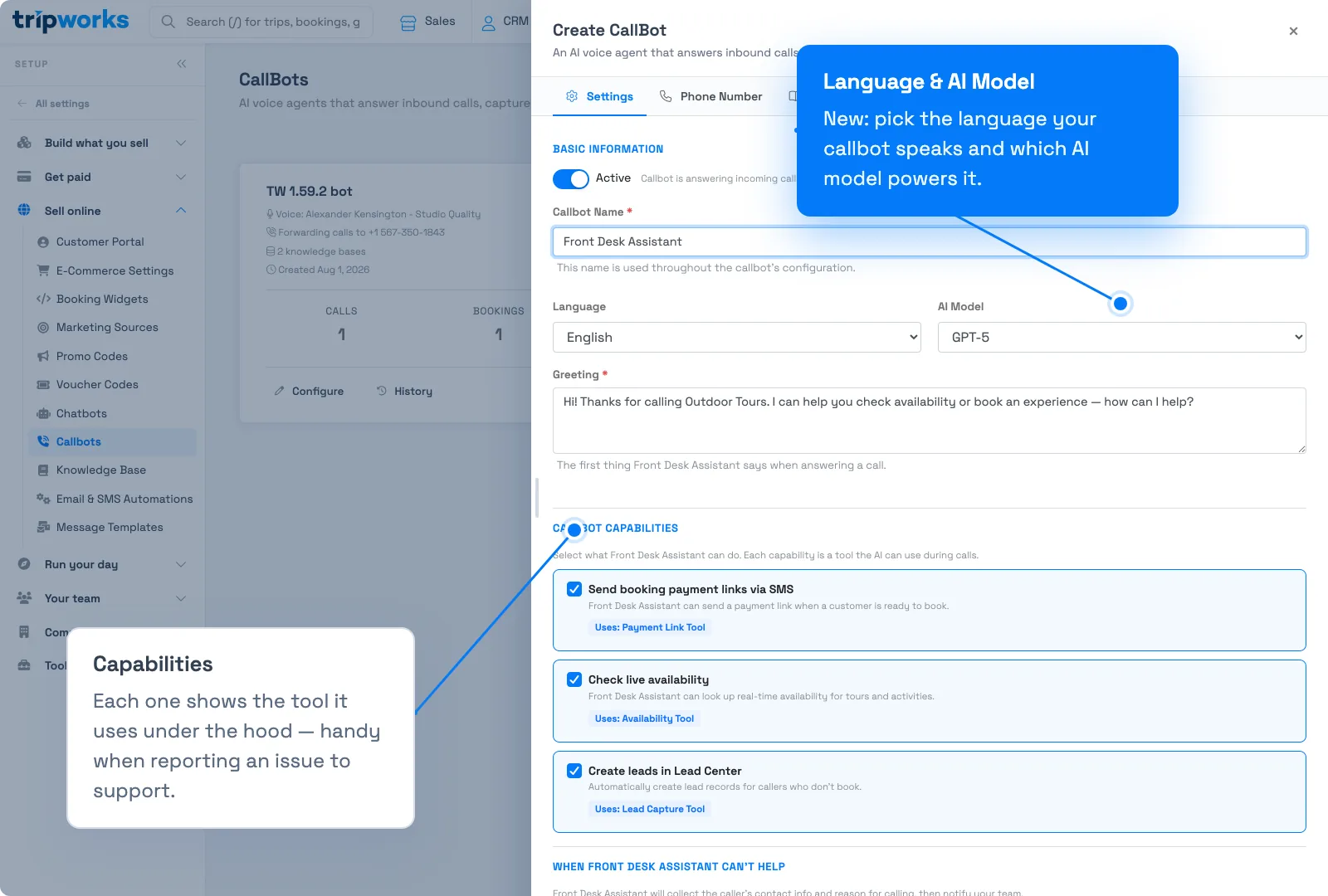
- On the Settings tab, fill in the basics:
Field What it's for Active Whether the callbot is currently answering incoming calls. Turn it off to pause it without deleting it. Callbot Name An internal label (e.g. "Annie"). Used throughout its configuration. Language The language the callbot speaks with callers. AI Model The AI model that powers its conversation. The default works well for most accounts; this is here for advanced tuning. Greeting The first thing the callbot says when it answers (e.g. "Hi! Thanks for calling. How can I help you today?").
Step 2: Choose what it can do
Further down the same Settings tab, under Callbot Capabilities, turn on what you want the callbot to do. Each one lists the tool it uses under the hood, which is handy if you ever need to describe an issue to support:
- Send booking payment links via SMS — the callbot texts the caller a payment link when they're ready to book. (Uses: Payment Link Tool)
- Check live availability — it looks up real-time availability and pricing for your activities. (Uses: Availability Tool)
- Create leads in Lead Center — it automatically creates a lead record for callers who don't book, so you can follow up. (Uses: Lead Capture Tool)
Step 3: Set up notifications
Still on the Settings tab, under When [Callbot Name] Can't Help, choose where TripWorks sends call notifications (like a new booking or lead):
- Text the main business number
- Text team member(s): pick who
- Text a custom number
Step 4: Add your phone number
Switch to the Phone Number tab:
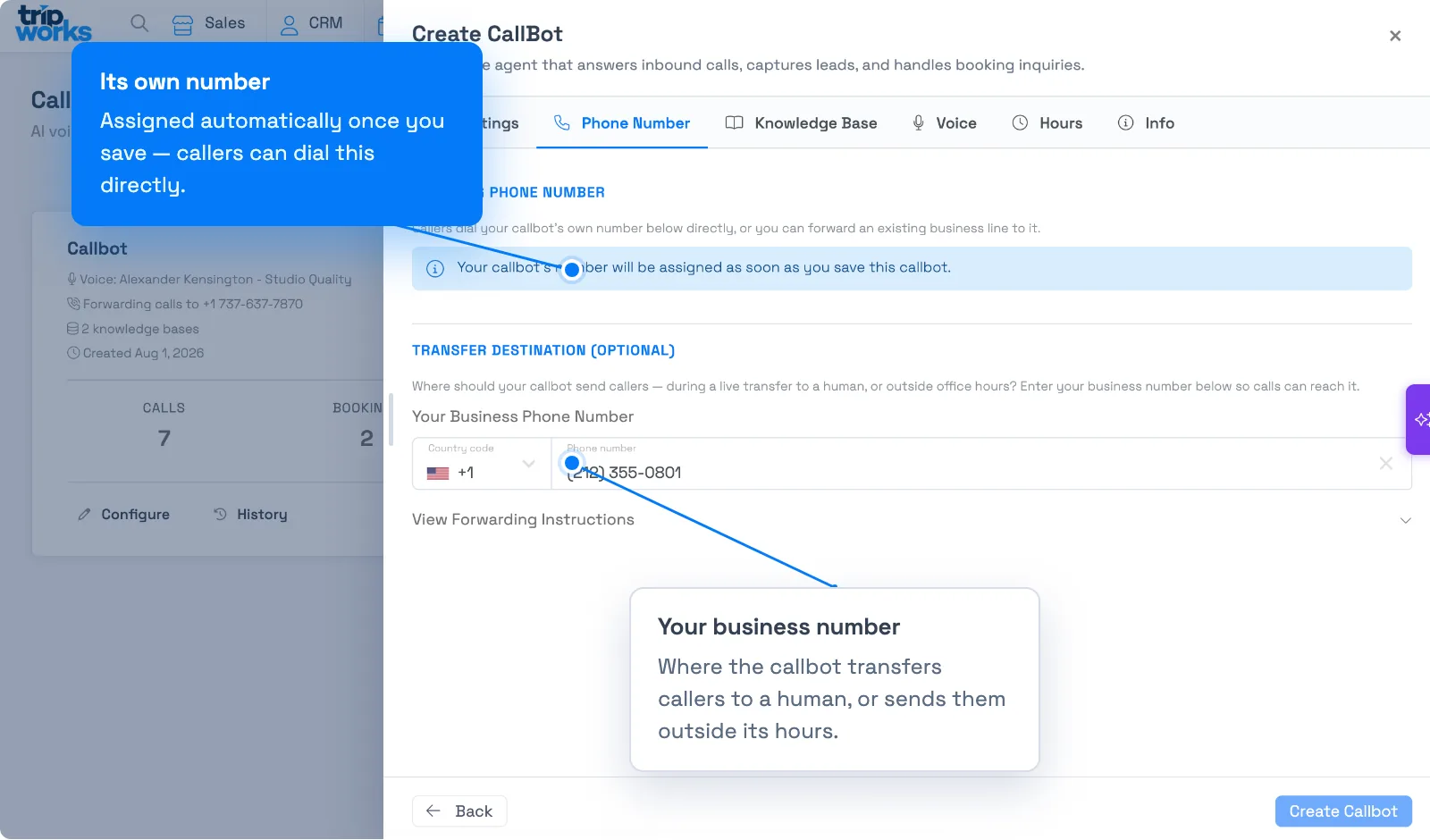
- Under Incoming Phone Number, note the callbot's own number. It's assigned automatically as soon as you save, and callers can dial it directly.
- Under Transfer Destination (Optional), enter Your Business Phone Number: where the callbot sends callers during a live transfer to a human, or whenever it's outside its hours.
- Once the number is assigned, forward your existing business line to it. Select View Forwarding Instructions for the exact dial codes for major carriers, for example:
-
Verizon:
*72then the forwarding number (all calls), or*71(when no answer) -
AT&T:
*21*then the number then#(all calls), or*61*…#(when no answer) -
T-Mobile:
**21*…#(all calls), or**61*…#(when no answer)
-
Verizon:
Step 5: Pick a knowledge base and a voice
On the Knowledge Base tab, select which of your knowledge bases the callbot may answer from.
On the Voice tab:
- Choose a voice from the list and select the play icon next to it to preview how it sounds before committing.
- Adjust Speaking Speed (slower to faster) and Expression Level (calm and professional to expressive and energetic) to match the tone you want callers to hear.
Step 6: Set its hours
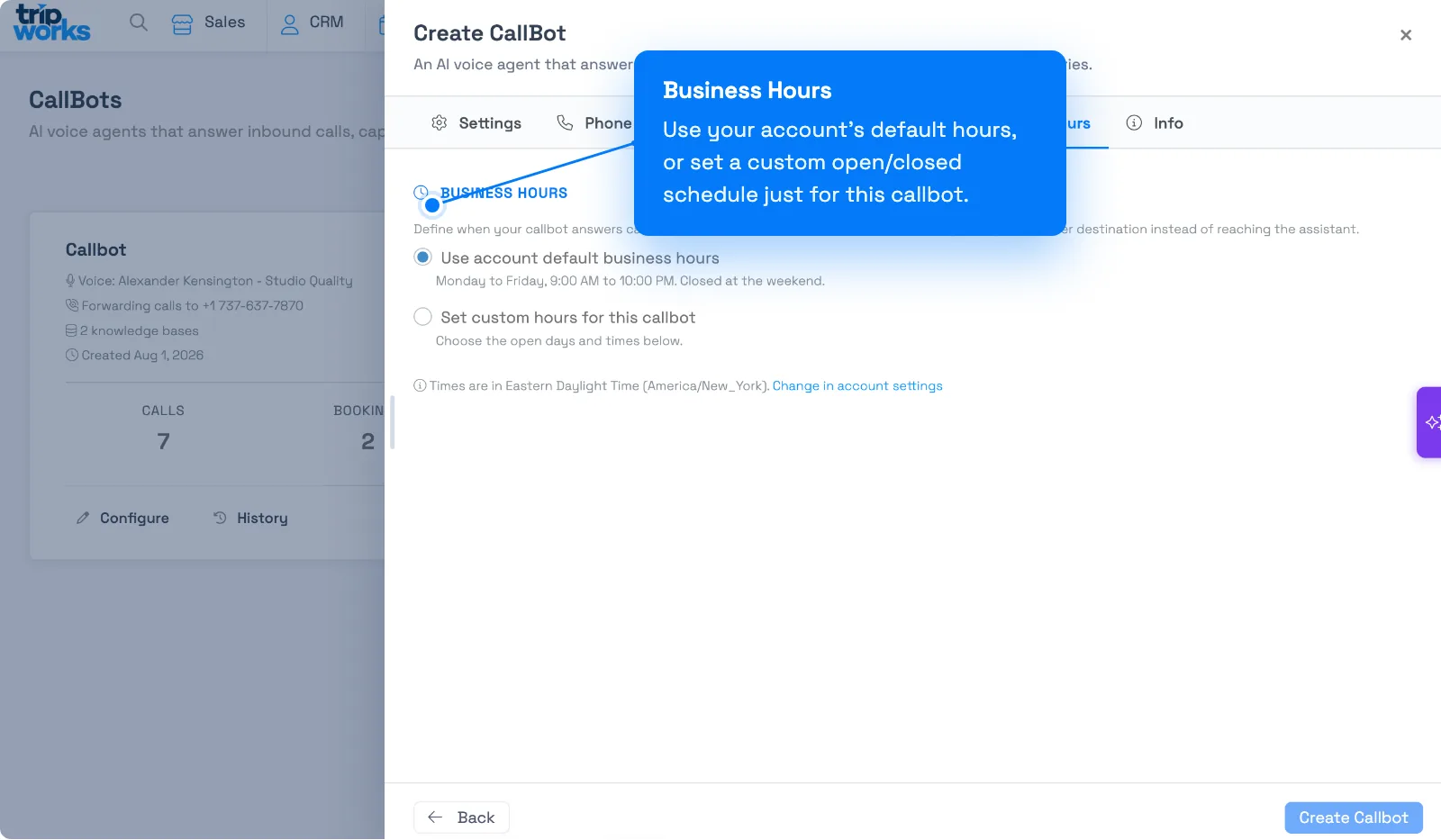
On the Hours tab, define when the callbot answers calls. Outside these hours, a caller is sent straight to your transfer destination instead of reaching the assistant:
- Use account default business hours — inherits the hours already set for your account.
- Set custom hours for this callbot — choose open days and times just for this callbot, including overnight windows (e.g. open until 2 AM the next day).
Step 7: Create it and test
Select Create Callbot. Once its number is provisioned and your line is forwarded, call your business number and talk to the callbot as a customer would: ask a question that's in your knowledge base and walk through a booking. Bookings it takes are tagged with the source AI Call Bot, and calls appear in the callbot's history. See Review AI callbot calls & analytics.
For the full booking-and-payment flow and its safeguards, see How AI bookings work.
The Info tab (on an existing callbot) shows reference details: Agent ID, when it was created, its voice, and how many knowledge bases it uses. Useful if you ever need to describe an issue to support. If TripWorks ships an improvement to the underlying callbot template, you'll also see an Upgrade Now prompt at the top of the Settings tab; select it to pick up the latest performance and reliability improvements.
Related
- Build your Knowledge Base
- Review AI callbot calls & analytics
- How AI bookings work
- Set up your AI Chatbot
Built for attractions, tours & activities
Never miss a call again
See how attractions, tours, and activities use TripWorks' AI callbot to answer the phone and take bookings when their team can't. Book a demo and make the switch.