
A promo code is a word your guests type at checkout to get a discount — a military rate, a seasonal offer, a campaign like SUMMER20. One code can be used by many guests (up to any limit you set), and TripWorks applies the discount automatically whenever someone enters a valid code.
In this article
A promo code discounts a sale you're making — you still collect the reduced payment. That's a different job from voucher codes, which redeem tickets already sold elsewhere: a guest buys through a reseller like Groupon or Travelzoo, the reseller keeps the money, and their single-use code comps the booking on your side. And unlike seasonal pricing, a promo code only changes the price when the guest enters it.
How promo codes work
Every promo code combines four things, one per tab in the editor:
- Discount — the code itself and the price adjustment it makes. See how promo code discounts are calculated.
- Limits — usage caps and booking conditions. See promo code limits and usage rules.
- When and Where — the dates it's valid and the catalog it applies to. See when and where a promo code applies.
The discount is applied before sales tax, reseller commissions, manual discounts, and fees.
Create a promo code
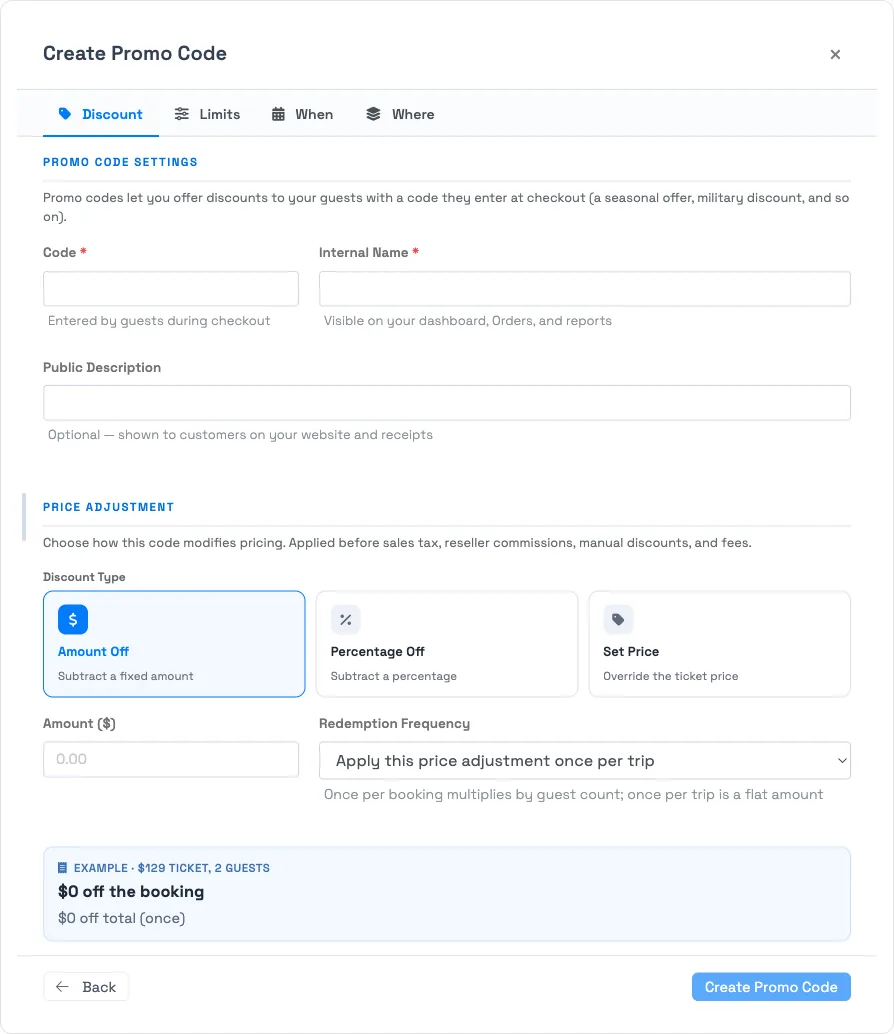
Go to Setup → Sell online → Promo Codes and select New Promo Code. The Create Promo Code window opens with four tabs — Discount, Limits, When, Where. On the Discount tab, fill in three labels:
-
Code — what guests type at checkout, like
MILITARY10. Codes aren't case-sensitive. - Internal Name — how the code appears in your dashboard, on orders, and on reports. Guests never see it.
- Public Description — optional text guests see on your website and receipts.
Set the price adjustment and a Status, then select Create Promo Code. The other three tabs are optional — leave them untouched to keep the code broad.
Manage codes
The Promo Codes list shows each code's discount, Status, whether it's usable Online, and its total Uses.
- Edit — open a code to change any of its settings.
- Deactivate — set Status to Inactive to stop redemptions while keeping the code and its reporting on file. This is how you retire a seasonal code you'll run again.
- Delete — only a code that has never been redeemed can be deleted; once used, a code is part of order history, so deactivate it instead.
Related
- How promo code discounts are calculated
- Promo code limits and usage rules
- When and where a promo code applies
- Apply a promo code to a booking
- Voucher codes
Built for attractions, tours & activities
Run promotions that actually convert
See how attractions, tours, and activities launch seasonal, military, and campaign discounts — with full control over where and when they apply — in one place on TripWorks. Book a demo and make the switch.