
You don't have to open TripWorks to know what's on the books. A calendar feed is a link you subscribe to from Google Calendar, Apple Calendar or Outlook. Once you add it, your trips show up next to the rest of your day, on your phone and your watch too. You choose what goes in each event: the pickup location, add-ons, products, the guide, even the notes your team left on the booking.
In this article
In this article
- Build a feed, copy its link and add it to your calendar.
- Choose which bookings, how far back and forward, how events are grouped, and what each event shows.
- Make a separate feed for each guide, boat, pickup spot or the front desk.
- Fix a calendar that shows too little, too late, or an expired link.
Learn how to manage permission groups
How calendar feeds work
- A feed is a link. Every option you choose is saved inside the link itself. TripWorks doesn't keep a list of your feeds, so there is nothing to save and nothing to delete.
- Changing a feed means making a new link. Pick the new options, copy the new link, subscribe to it, then remove the old calendar from your calendar app.
- Each link is personal to the person who made it. A feed never shows more than that person can see in TripWorks. If they can't see guest phone numbers, the feed can't either.
- It's one-way and read-only. Editing or deleting an event in your calendar app doesn't change anything in TripWorks.
Create a feed
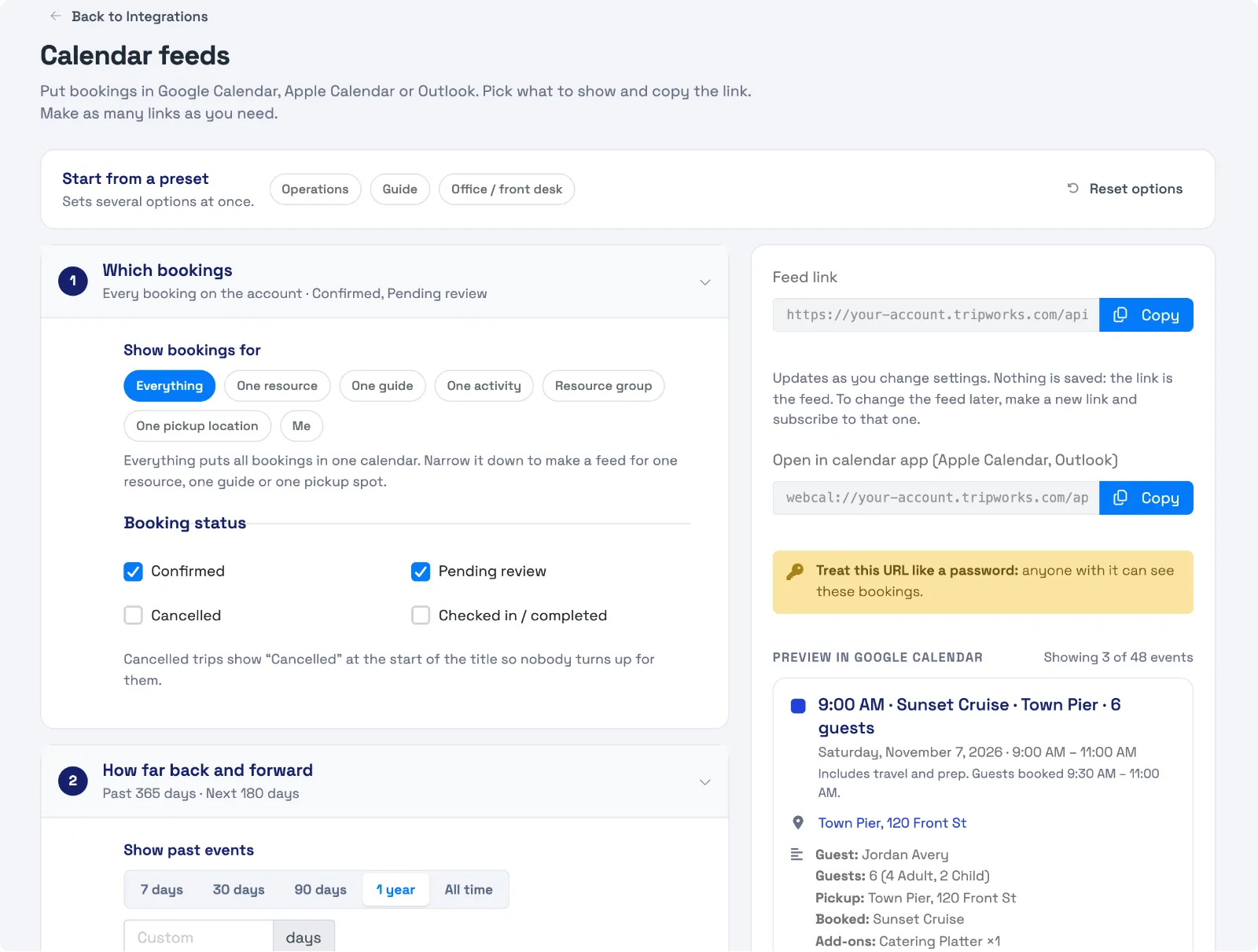
You build a feed by choosing what goes in it, checking the preview, and copying the link.
- Open Calendar feeds.
- Optional: start from a preset (Operations, Guide or Office / front desk). It sets several options at once, and you can change any of them.
- Work down the numbered sections. Each one shows a short summary of what you picked, so you can collapse it and move on.
- Check the preview on the right. It shows real events from your account as your calendar will display them.
- Copy the link, or use one of the buttons to add it straight to Google, Apple or Outlook. See Add the feed to your calendar.
Treat the link like a password. Anyone who has it can see the bookings it includes. Don't post it publicly, and share it only with people who should see that information.
Choose what goes in the feed
Your account may use its own words for some of these, such as boat for resource or captain for guide. The page uses whatever words your account uses.
1. Which bookings
- Everything puts all bookings in one calendar.
- One resource, one guide, one activity, a resource group or one pickup location narrows the feed to that one. This is how you make a calendar for a single boat, a single captain or a shuttle driver.
- Me shows only the trips you're assigned to.
- Booking status controls which bookings appear: Confirmed, Pending review (a booking waiting on your confirmation), Cancelled and Checked in / completed. Confirmed and Pending review are on by default. A trip where every guest has checked in counts as Checked in / completed, not Confirmed. Tick that status too if you want past trips to stay on the calendar. Cancelled trips show the word "Cancelled" at the start of the event title so nobody turns up for them.
2. How far back and forward
- Past events: 7 days, 30 days, 90 days, 1 year (the default), all time, or a number of days you type in (up to 3,650).
- Future events: 30 days, 90 days, 180 days (the default), 1 year or all.
- A very long window makes the feed bigger, and some calendar apps sync a big feed slowly. A feed holds up to 2,000 events. If you ask for more, the upcoming ones are always kept and the oldest past ones are dropped first.
3. One event per…
- Reservation makes one event for each reservation.
- Departure (the default) puts everyone on the same trip and resource into one event, with their bookings listed in the event notes. If three parties book the same boat at 4 PM, you see one event, not three.
- Guest makes one event per guest. These stack up fast and can push everything else off your day view, so TripWorks warns you how many events you'd get.
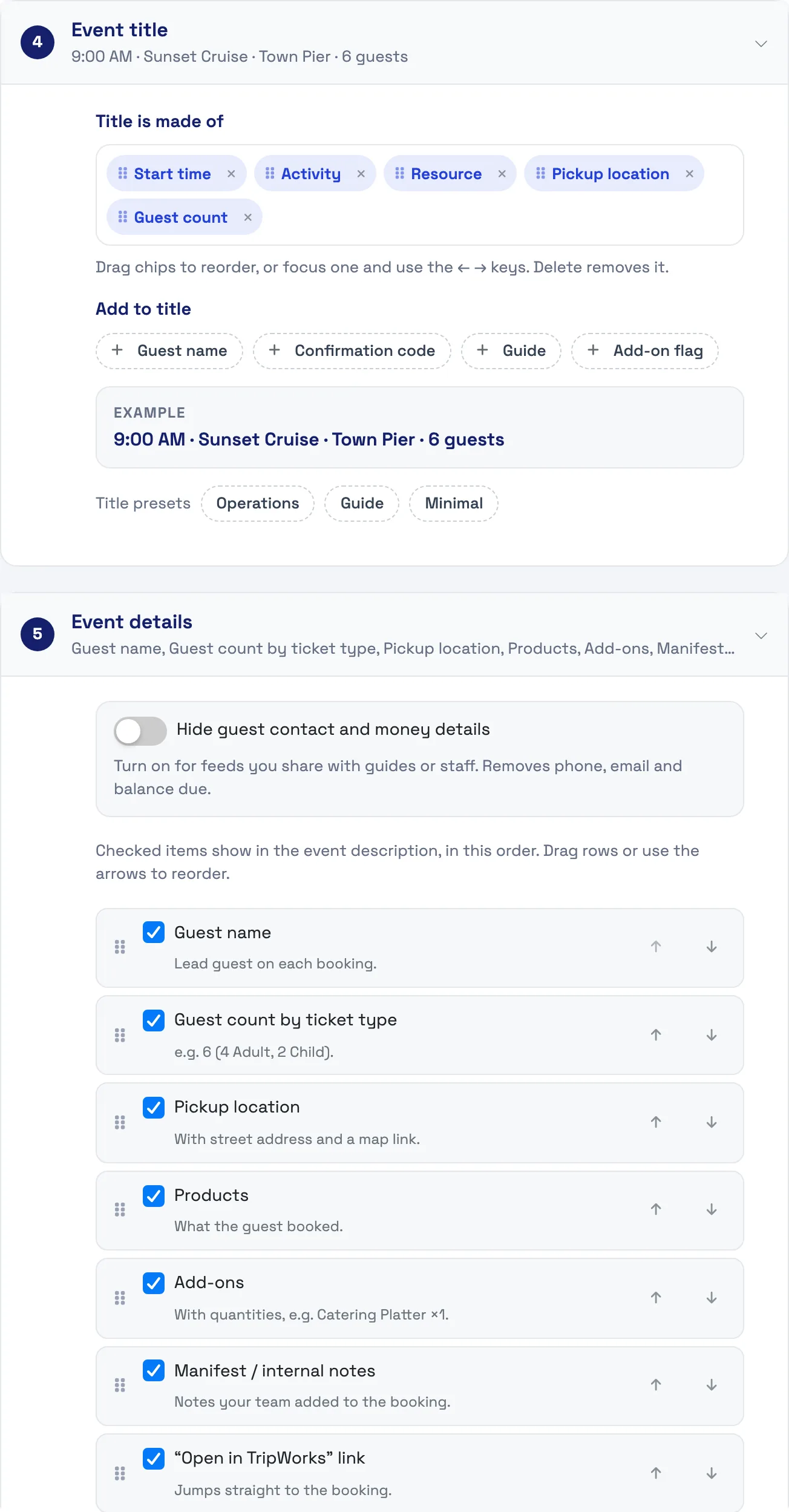
4. Event title
Build the title from pieces and drag them into the order you want. The pieces are start time, activity, resource, guest name, guest count, pickup location, confirmation code, guide and an add-on flag. The add-on flag is a star that shows when anything was added to the booking. Presets give you a quick start: Operations, Guide and Minimal. The example under the pieces shows how the title will read.
5. Event details
These are the lines in the event's notes, in the order you set. Tick the ones you want and drag to reorder.
- Guest name, guest count by ticket type, pickup location (with the address and a map link), products, and add-ons with quantities.
- Answers to your custom booking questions, manifest and internal notes, and the assigned guide.
- The confirmation code and a link that opens the booking in TripWorks.
- Guest phone, guest email and balance due are marked private. Hide guest contact and money details switches all three off in one tap. Turn it on for any feed you share with captains or crew. If you don't have permission to see guest contact or payment details, this switch is on and locked for you.
6. Location field
- Pickup location (the default) puts the booking's pickup spot in the event's location, so your phone can navigate to it. If a booking has no pickup, it falls back to the departure location.
- Departure location only always uses the place the trip leaves from.
- Leave empty adds no location.
7. Times
- Resource time (the default) uses the window the boat, vehicle or guide is actually committed, including travel and prep. If you collect a boat from another dock, this is the time that matters. If there's no resource time, it uses the booking time.
- Guest booking time uses the start and end time the guest booked.
8. Alerts
Optionally add a reminder to every event: 1 day, 2 hours, 1 hour or 30 minutes before. Some calendar apps, including Google Calendar, ignore reminders on subscribed calendars. If yours does, set a default notification for the whole calendar in the app.
Presets
- Operations is the owner's view: departures with pickup up front, guest phone, products, add-ons, notes, guide and balance, with a reminder an hour before.
- Guide is for one guide's calendar: the last 30 days and the next 90, with no guest contact or money, and a reminder 2 hours before.
- Office / front desk shows every reservation with every status, contact details and balance, using the time the guest booked.
- Driver / shuttle appears when you open the drawer from a pickup location. Each event leads with the activity's start time (not a separate pickup time) and the guest count. It uses the time the guest booked, hides contact and money, and covers the last 7 and next 30 days.
Add the feed to your calendar
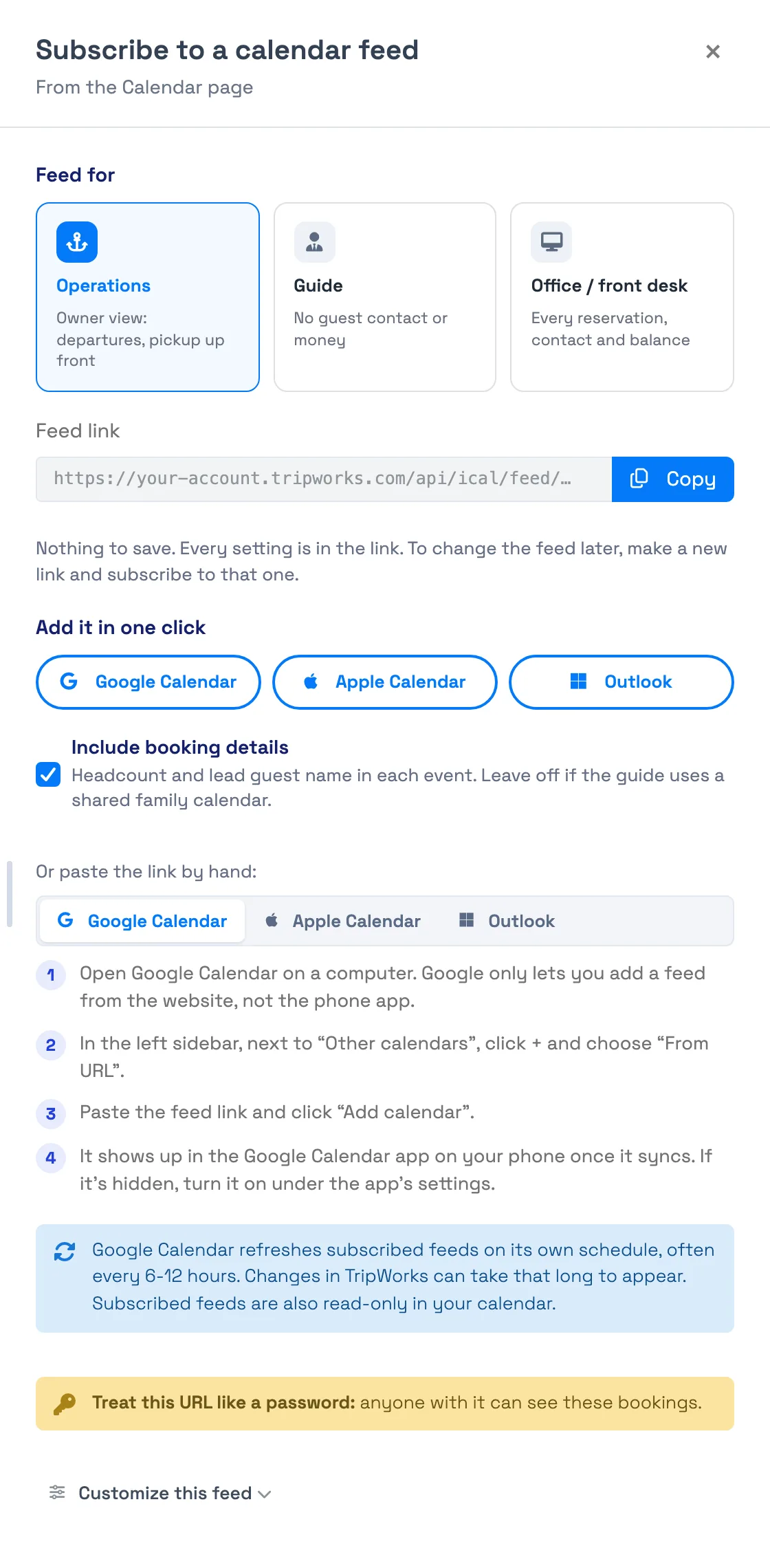
The quickest way is a button under Add it in one click. You can also paste the link yourself.
- Google Calendar, Apple Calendar and Outlook each open straight to the add-calendar step. Google lets you add a calendar from the website only, so use a computer. The calendar then shows up in the phone app after it syncs.
- Or paste the link by hand. The tabs under the buttons walk through it for Apple, Google and Outlook:
- Google (on a computer): select + next to Other calendars, choose From URL, and paste the link.
- Apple: on a Mac, choose New Calendar Subscription in the File menu; on an iPhone, use Add Subscribed Calendar in the Calendar section of the Settings app. Paste the link and save. Choose the most frequent refresh option.
- Outlook (on the web): choose Add calendar and Subscribe from web, then paste the link and click Import.
Make a feed from anywhere in TripWorks
You can start a feed from the page you're working on, already narrowed to that guide, boat or activity. Every one of these opens the same Subscribe drawer. The drawer has the presets, the link, the one-click buttons and a Customize this feed section with every option above.
- Calendar. Click Subscribe in the top bar. If the calendar has a single "is" filter on resources, guides or activities (for example, Guide is Sam), the feed starts with that filter. Other filters, or filters on more than one of those, don't carry over, and the feed starts with all bookings. If a filter carried over, Use all bookings instead switches it back to everything.
- Calendar, Guides view. Open a guide's menu in the sidebar and choose Share iCal link.
- A guide's profile, a resource, a pickup location and an activity's Dates & Times tab each have a Calendar feed row with a Subscribe button. The feed covers only that guide, resource, pickup location or activity.
- Your user menu. If you're set up as a guide, My schedule feed gives you a calendar of your own assignments.
Send a guide their link
You can send a guide their link by email or text without copying it. When the drawer is for one guide, and for My schedule feed, it offers Email link to and Text link to buttons. They're filled in with the guide's email and phone number from their profile. Tap one and your email or messages app opens with the link ready to send. If the guide has no email or phone, add one to their profile to send it from here. On a phone, Text link to opens a new text message with the link in it.
The Include booking details checkbox controls whether each event's description shows the guest name and the guest-count line. Leave it off if the guide uses a shared family calendar. The event title still shows how many guests are booked. To remove that too, open Customize this feed and take Guest count out of Event title.
Keep Guide selected under Feed for when you share a link with a guide. Office / front desk adds guest phone numbers, emails and balances to every event.
Try this
- Find every pickup for tomorrow's shuttle. Open the pickup location, choose Subscribe, and use the Driver / shuttle preset. Each event leads with the activity's start time and guest count, and the pickup spot fills the event's location.
- Give each captain their own calendar. From the Guides view, choose Share iCal link for each guide. They see only their trips, with no guest contact or money.
- See catering orders on your phone. Use the Operations preset and keep Add-ons ticked in event details. Add the add-on flag to the title so any trip with extras stands out.
- Give the front desk everything. Use Office / front desk, which includes cancelled bookings and balances, and keep that link to your office staff.
- Keep a year of history. In How far back and forward, choose 1 year or All time for past events. Then tick Checked in / completed under Booking status so trips where everyone checked in stay on.
- Stop trips from stacking. Choose Departure in One event per… so a full boat is one event, not six.
If it isn't showing what you expect

- One event says "This calendar link has expired." The link has stopped working. A link made on the Calendar feeds page stops when the person who made it changes their password, is deactivated, or loses permission to see those bookings. Make a new link and subscribe again. The expired event contains no booking information.
- You changed an option and nothing changed. The options live in the link, so a changed option is a new link. Subscribe to the new link and remove the old calendar.
- A booking is missing. Check that its status is ticked and that its date falls inside your past and future window. A trip where every guest has checked in only shows if Checked in / completed is ticked. The preview on the Calendar feeds page shows what the link will contain.
- A booking shows up late. Your calendar app decides how often to refresh, not TripWorks. Google can take 6 to 12 hours. Apple lets you set it as often as every 15 minutes.
What to expect
- Refresh timing belongs to your calendar app. A brand-new booking can take hours to appear in Google, which is a Google limit and not something TripWorks can speed up.
- Links you copied before this update keep working. They still show the older, fixed content (the activity and guest count, with booking details in the notes). Make a new link to get the options on this page.
- There's no button to turn off a single link. A link made on the Calendar feeds page stops working when the person who made it changes their password or is deactivated. Older links don't stop when a password changes; they stop only when that person is deactivated or the account closes. A feed made from your own login never shows more than you can see.
- Events are read-only in your calendar app. To change a booking, change it in TripWorks and your calendar picks up the update on its next refresh.
Frequently asked questions
How do I put my TripWorks bookings in Google Calendar?
Open Calendar feeds, choose what to include, and click Google Calendar under Add it in one click. Use a computer, because Google only adds calendars from its website. Google asks you to confirm, and your bookings appear in the Google Calendar app on your phone once it syncs.
Can I show the pickup location, add-ons or products in the calendar event?
Yes. Pickup location, products and add-ons are ticked by default in Event details, and the pickup also fills the event's location so your phone can navigate to it. You can also put the pickup location or an add-on flag in the event title so it's visible without opening the event.
Can I give each guide their own calendar?
Yes. Choose Share iCal link from the guide's menu on the Guides tab of the Calendar, or use the Calendar feed row on their profile. The feed shows only that guide's trips, and the Guide preset leaves out guest phone, email and money. Use Email link to or Text link to to send it to them.
Why do new bookings take so long to show up in my calendar?
Your calendar app decides when to refresh a subscribed calendar, not TripWorks. Google Calendar can take 6 to 12 hours, while Apple Calendar can be set to refresh as often as every 15 minutes. The booking is already in the feed. Your calendar hasn't fetched it yet.
Can I change a feed after I've subscribed?
Not in place. Every option is part of the link, so a changed option means a new link. Open Calendar feeds, pick the new options, copy the new link and subscribe to it, then remove the old calendar from your calendar app.
What does "This calendar link has expired" mean?
The link no longer works. A link made on the Calendar feeds page stops when the person who made it changes their password, is deactivated, or no longer has permission to see those bookings. Your calendar shows a single event with that message and no booking details. Open Calendar feeds, copy a new link, subscribe to it and remove the old calendar.
How far back can a feed go, and is there a limit?
Past events can go back 7 days, 30 days, 90 days, 1 year, all time, or a number of days you choose up to 3,650. A feed holds up to 2,000 events. If a feed would be bigger, TripWorks always keeps the upcoming events and drops the oldest past ones first.
Can I edit a booking from my calendar app?
No. A feed is read-only. Editing or deleting the event in your calendar app doesn't change anything in TripWorks. Make the change in TripWorks and your calendar picks it up the next time it refreshes.
Is it safe to share a feed link?
Treat it like a password. Anyone who has the link can see the bookings it includes. For links you share with captains or crew, turn on Hide guest contact and money details (or use the Guide preset) so phone numbers, emails and balances are never included.
What happened to my old calendar links?
They keep working. They still show the older, fixed content, with the activity and guest count and booking details in the notes. To get pickup locations, add-ons and the other options, make a new link on Calendar feeds and subscribe to it.
Can I turn off a link I've already shared?
There isn't a button to turn off one link. If a link made on the Calendar feeds page has gone to someone it shouldn't have, ask the person who made it to change their password. That stops every link they made there, so they then make and share new ones. Older calendar links, made before the Calendar feeds page, don't stop when a password changes. They stop only when the person who made them is deactivated or the account closes. If one of those gets out, contact support.
Related
Built for attractions, tours & activities
Your bookings, in the calendar you already live in
See how attractions, tours, and activities keep their schedule in sync with TripWorks. Book a demo and make the switch.