
TripWorks keeps a record of the messages you send to guests so you can confirm they went out, spot the ones that failed, and see what's queued to send later. There are two places to look: the account-wide Messages list for everything at once, and a Messages tab on each trip for that guest's history.
In this article
Both show outbound messages only — the emails and texts you send, automated or manual, sent or scheduled. They do not show replies or other messages guests send back to you.
The account-wide Messages list
Go to More → Messages to open the list of every outbound message across your account. Use it to confirm a send, track delivery, find one specific message, or triage the ones that didn't go through.
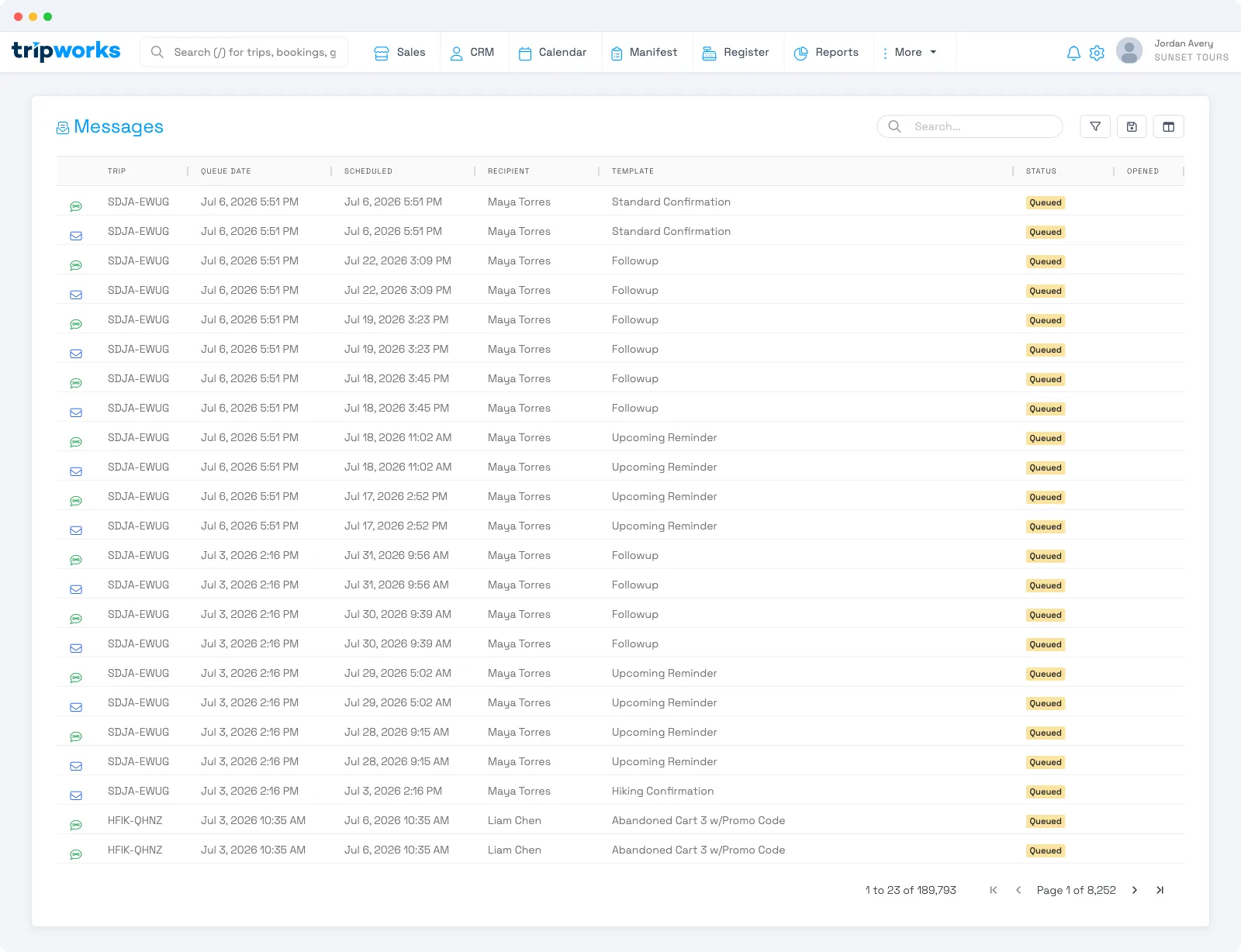
Each row is one message. The columns cover:
- Channel — whether it went out as an email or an SMS.
- Trip — the trip the message belongs to, so you can jump straight to it.
- Queue Date — when the message entered the send queue.
- Scheduled — when it's set to send (for anything not yet sent).
- Recipient — the guest the message is addressed to.
- Template — which message template produced it.
- Status — where the message is in its life: Queued, Sent, Undeliverable, Error, Cancelled, Skipped, or Paused.
- Opened — whether the recipient opened it.
Search, filters, saved views, and a column chooser work the same way here as in every other TripWorks list, so you can build a view like "everything undeliverable this week" and keep it one click away.
What the statuses mean
The Status column tells you why a message did or didn't reach the guest:
- Queued — accepted and waiting to send (a scheduled message sits here until its time).
- Sent — handed off to the guest's email or phone provider.
- Undeliverable — the provider rejected it, usually a bad address or an invalid mobile number.
- Error — something went wrong while sending; check the guest's contact details and try again.
- Cancelled — someone cancelled it before it sent (see Cancel a scheduled message).
- Skipped — TripWorks intentionally didn't send it (for example, the guest had no valid address for that channel).
- Paused — sending is on hold.
The Messages tab on a trip
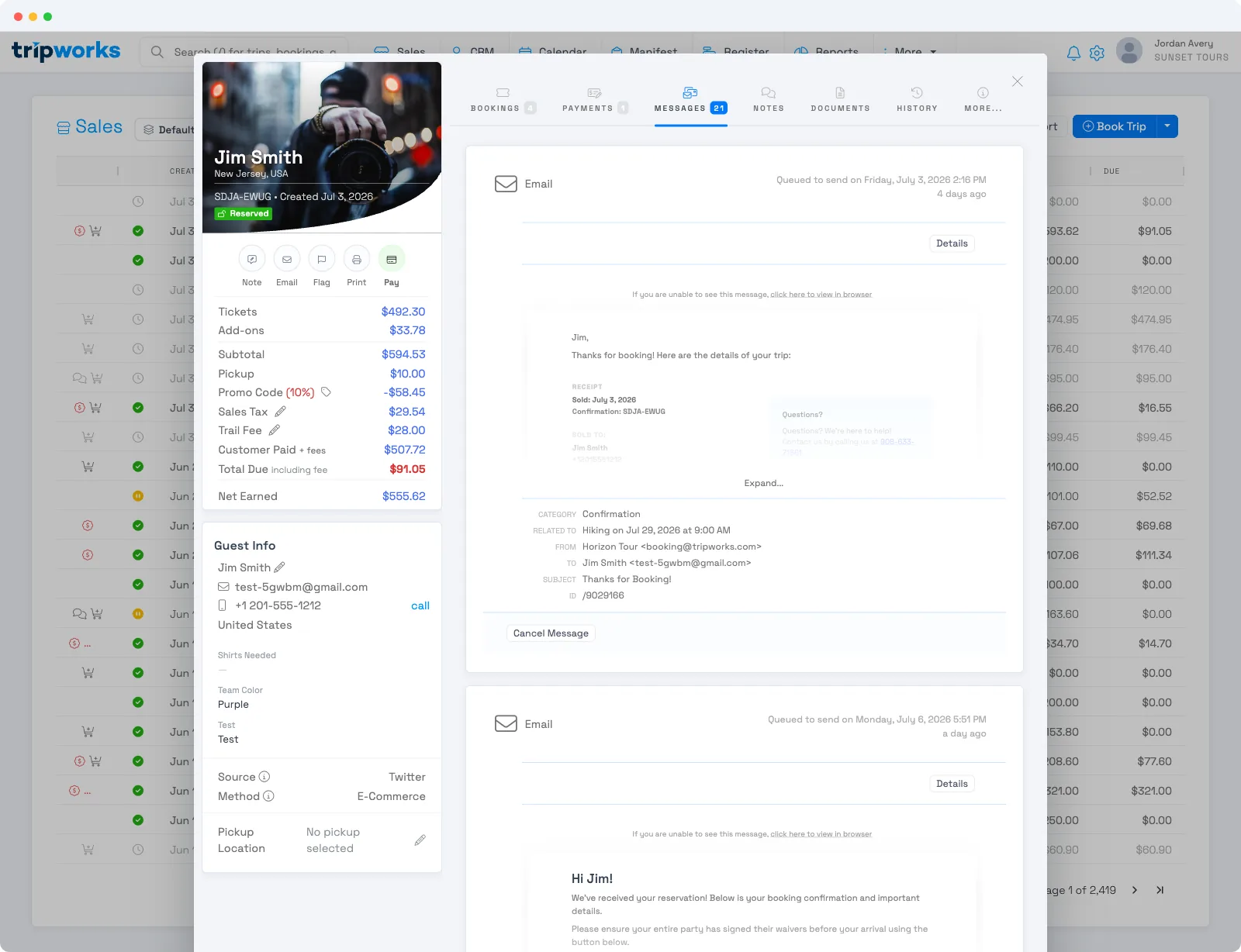
To see just one guest's history, open the trip and select the Messages tab. It lists every email and text sent to that customer, with the same delivery status, in one place. Cancelled and skipped messages are tucked behind a Show … toggle so the list stays focused on what actually went out — flip it on to see the full record.
Manual and automated messages both appear here, and group messages sent from the trip's manifest show up alongside the individual ones.
FAQ
Does the Messages list show messages guests send to me?
No. Both the account-wide Messages list and a trip's Messages tab show outbound messages only — what you send to guests, sent or scheduled. Incoming replies aren't listed here.
How do I check whether an email was delivered or opened?
Look at the Status column for delivery (Sent, Undeliverable, Error, and so on) and the Opened column to see whether the recipient opened it. Both appear on the account-wide list and, per guest, on the trip's Messages tab.
Where do I find messages that haven't sent yet?
Filter the Messages list by Status = Queued or sort by the Scheduled column. Both surface everything still waiting to go out, which you can then cancel if needed.
Why don't I see cancelled messages on a trip?
Cancelled and skipped messages are hidden by default on a trip's Messages tab to keep it focused on what actually sent. Turn on the Show … toggle to include them.
Related
Built for attractions, tours & activities
Know exactly what reached every guest
See how attractions, tours, and activities track every email and text they send on TripWorks — delivery, opens, and what's scheduled next. Book a demo and make the switch.