
Most trips have messages lined up to send later — a reminder before the activity, a review request after it. If one shouldn't go out (the guest cancelled, the details changed, the plan is off), you can stop it before it sends.
In this article
You cancel a message from the trip it belongs to. You can only cancel a message that hasn't sent yet — once it's gone, there's nothing to stop.
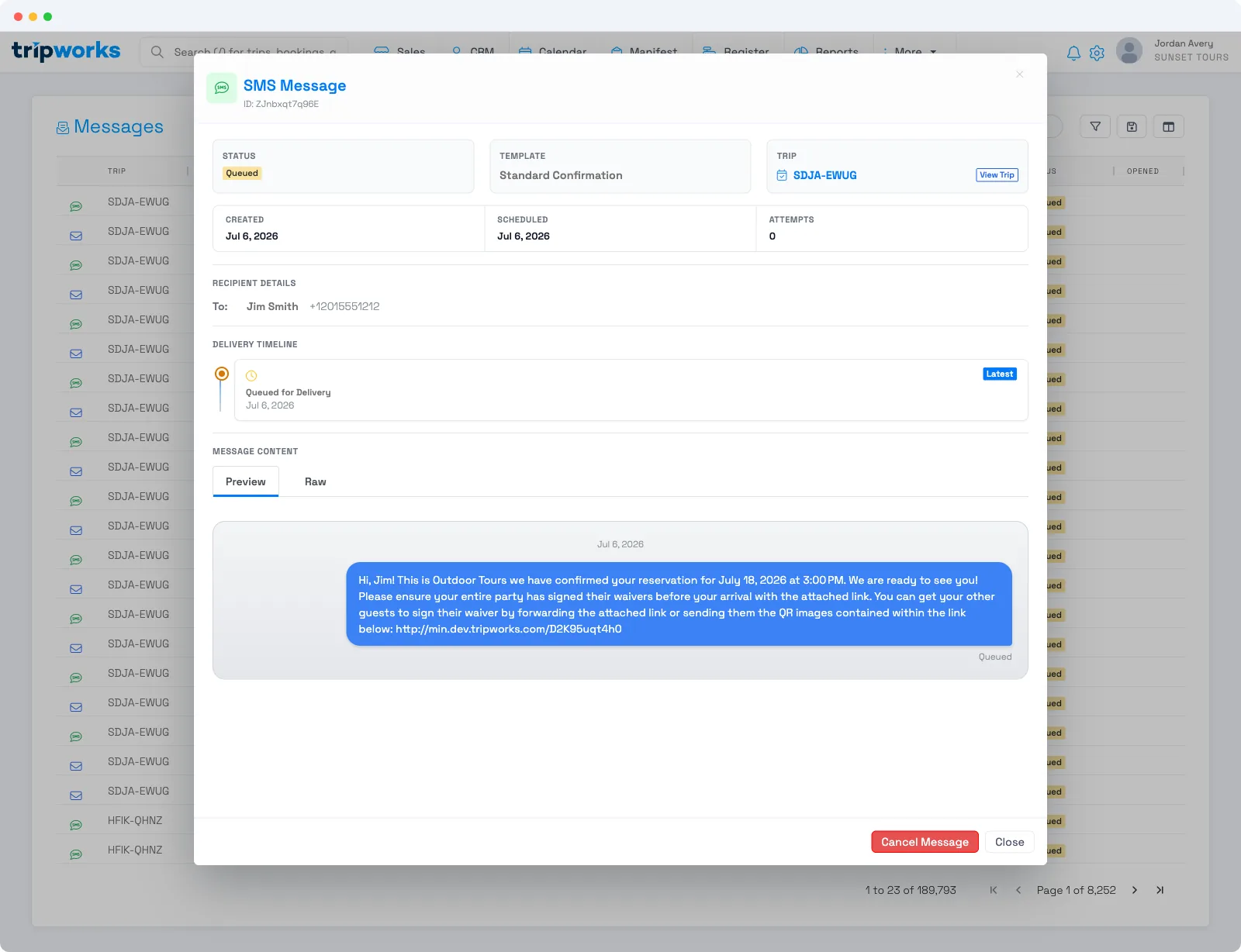
Cancel a scheduled message
- Open the trip and select the Messages tab.
- Find the message you want to stop — a scheduled one shows a Queued status and its send time.
- Open the message and choose Cancel Message.
The message won't send, and its status changes to Cancelled. Because a trip's Messages tab hides cancelled messages by default, turn on the Show … toggle if you want to confirm it's there afterward.
What you can and can't cancel
- Only before it sends. Cancelling works while a message is queued or scheduled. There's no way to recall a message that already went out — send a follow-up instead.
- Cancelling is per message. You're stopping this one scheduled send, not turning off the automation. If the same reminder is scheduled on other trips, cancel it on each, or adjust the template's automation settings to change it everywhere going forward.
- You can watch what's coming. Use the account-wide Messages list to see everything still queued across your trips, so nothing surprising slips out.
FAQ
Can I cancel a message that already sent?
No. Once a message has sent it can't be recalled. You can only cancel a message that's still Queued or scheduled. If a sent message was wrong, send a follow-up to correct it.
Where is the Cancel Message option?
On the trip's Messages tab. Open the queued message and choose Cancel Message. Cancelling is done from the trip, not from the account-wide Messages list.
Does cancelling one message turn off the automation?
No. It stops only that single scheduled send. The automation keeps running for other trips. To change it everywhere, edit the template's automation settings.
Related
Built for attractions, tours & activities
Stay in control of every send
See how attractions, tours, and activities schedule and manage guest messaging on TripWorks — and stop a send before it goes out. Book a demo and make the switch.