
The Documents tab on a trip holds the paperwork for that booking: a guest's ID, a signed waiver, an insurance card, a rental agreement. When you upload a file, TripWorks reads it, tells you what it is, shows its key details, and, for IDs, offers to fill in blank details on the guest's profile. Nothing on a guest's profile changes until you select Add to profile.
In this article
Learn how to manage permission groups
Upload documents
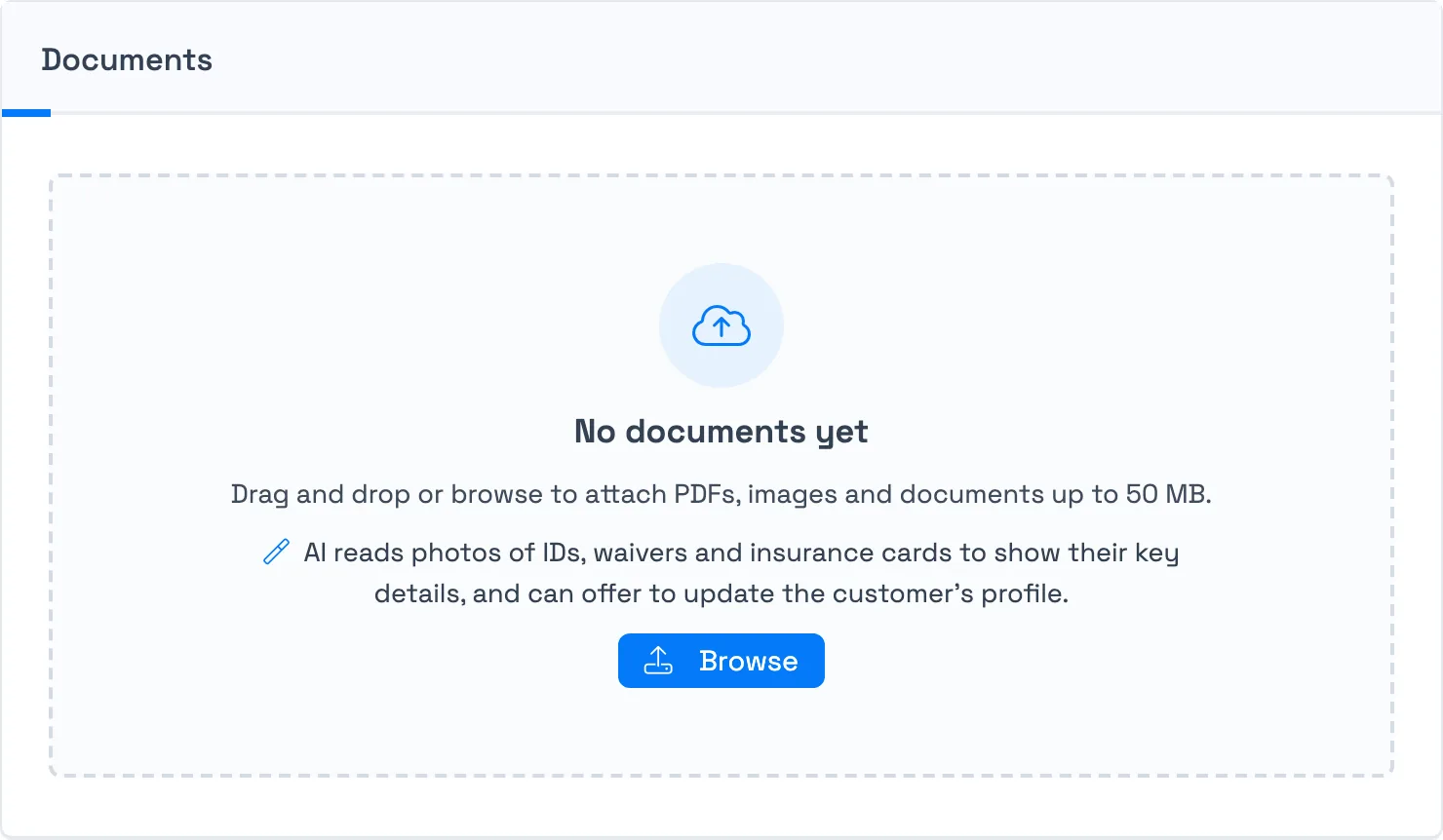
- Open the trip and select the Documents tab. The tab shows a badge with the number of documents on the trip.
- Drag files into the upload area, or select Browse to pick them from your computer.
- Select several files at once if you have them. Each file uploads on its own, with a progress bar and a Cancel button while it uploads.
You can upload JPG, JPEG, PNG, HEIC, HEIF, PDF, and DOCX files, up to 50 MB each. If a file is the wrong type or too large, TripWorks lists it above the upload area with the reason, for example "File size exceeds the 50 MB limit." The other files in the same batch still upload.
What TripWorks reads and shows
Once a file is uploaded, the card shows Reading document... while TripWorks reads it. Reading usually finishes within a minute, and the card updates on its own, so you don't need to refresh the page.
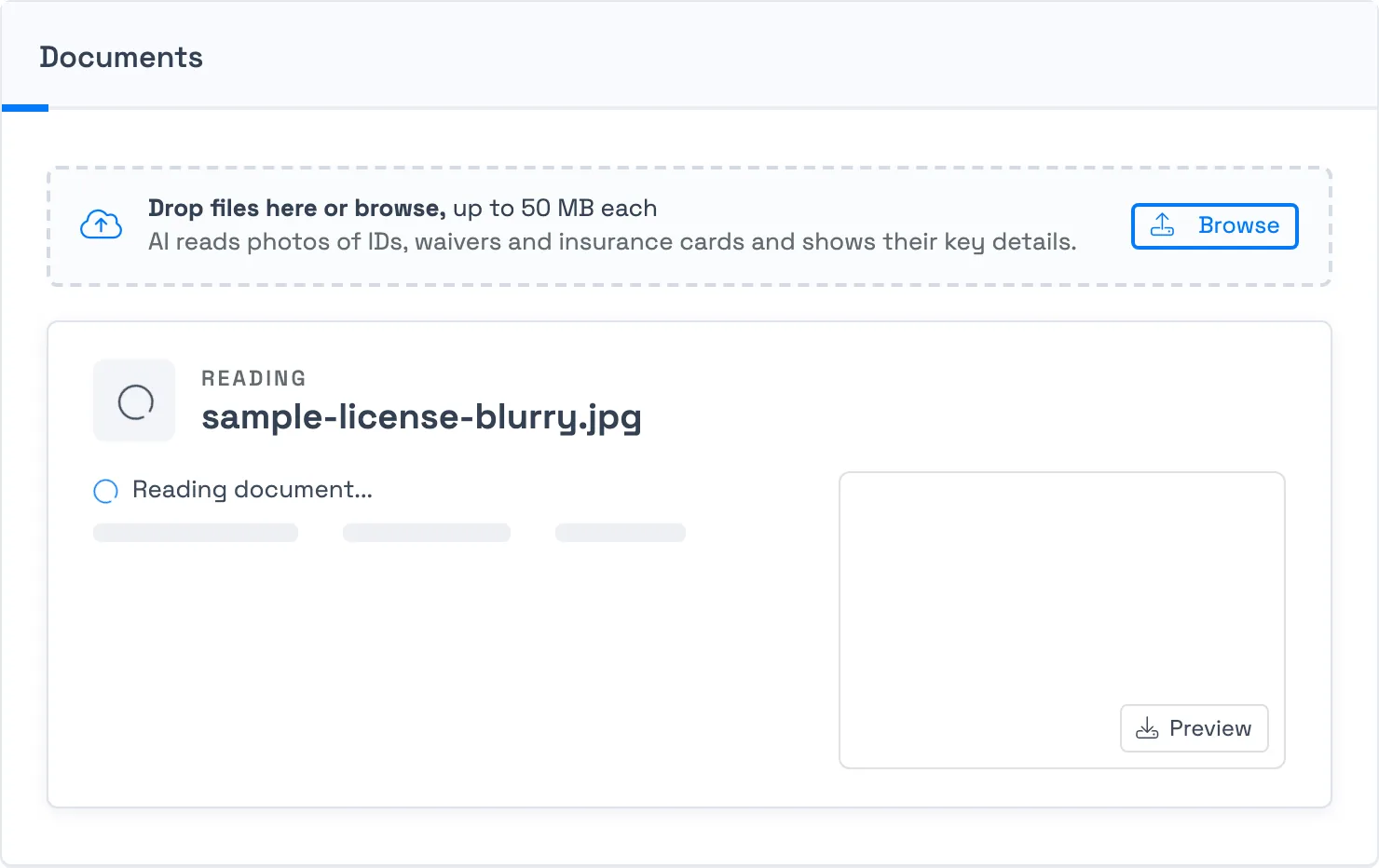
TripWorks can read photos (JPG, PNG, HEIC, and HEIF), PDFs, and Word (DOCX) files, up to 15 MB each. For a PDF, it reads the first page. For a Word file, it reads the text at the start of the document. A larger file is still saved on the trip. It isn't read.
Each file is sorted into a document type, and the card shows the details that matter for that type:
- Driver's license (Identity): name, date of birth, expiry date, and state.
- ID card (Identity): name, date of birth, expiry date, and state.
- Passport (Identity): name, date of birth, expiry date, and country.
- Signed waiver (Waivers and forms): who signed, the date signed, and the form title.
- Insurance card (Vehicle): insured name, policy start and end dates, and the vehicle (year, make, model).
- Vehicle registration (Vehicle): registered owner, expiry date, and the vehicle.
- Equipment photo (Photos): a one-sentence description of what the photo shows.
- Payment card (Other): no details, only a warning (see below).
- Anything else (Other): a one-sentence description when it is a photo.
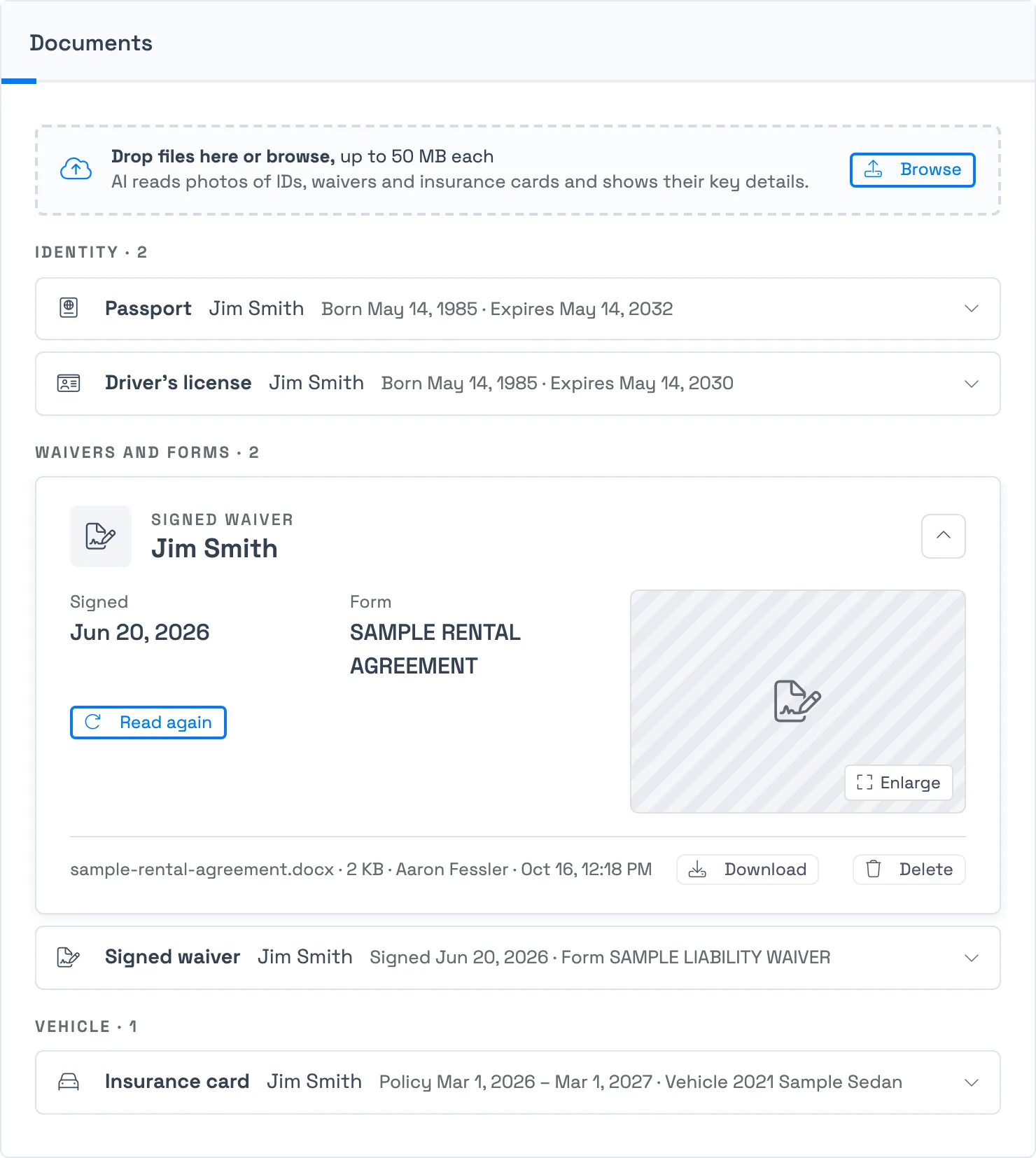
Documents are grouped under Identity, Waivers and forms, Vehicle, Photos, and Other. A trip with a single document opens it in full. On a trip with several, select a row to open it and the arrow to collapse it again.
A card can also show badges:
- Expired appears when the expiry date, registration date, or policy end date has passed.
- Needs review appears when TripWorks wasn't sure about its reading (see the next section).
- Card details appears on a payment card.
What TripWorks doesn't read
TripWorks never reads or stores a license number, an ID number, a phone number, or a payment card number. If a photo shows a payment card, the card shows Shows card details. Delete it once you are done with it. with a Delete button, so the number doesn't stay on the trip.
Documents you upload are sent to an AI service to be read. The result is saved with the document on the trip, and the file itself is stored privately.
How TripWorks checks its own reading
A photo can be blurry, rotated, or cut off, so TripWorks doesn't trust a single reading. It reads each file twice and compares the two. Dates are read exactly as printed on the document, and TripWorks works out the actual date itself.
TripWorks marks a card Needs review when something doesn't add up:
- The two readings disagree.
- A date can't be read clearly.
- A birth date would make the holder younger than 14 or older than 110.
- An expiry date is before the issue date, or more than 15 years away.
- An issue date or signed date is in the future.
- An insurance policy ends before it starts.
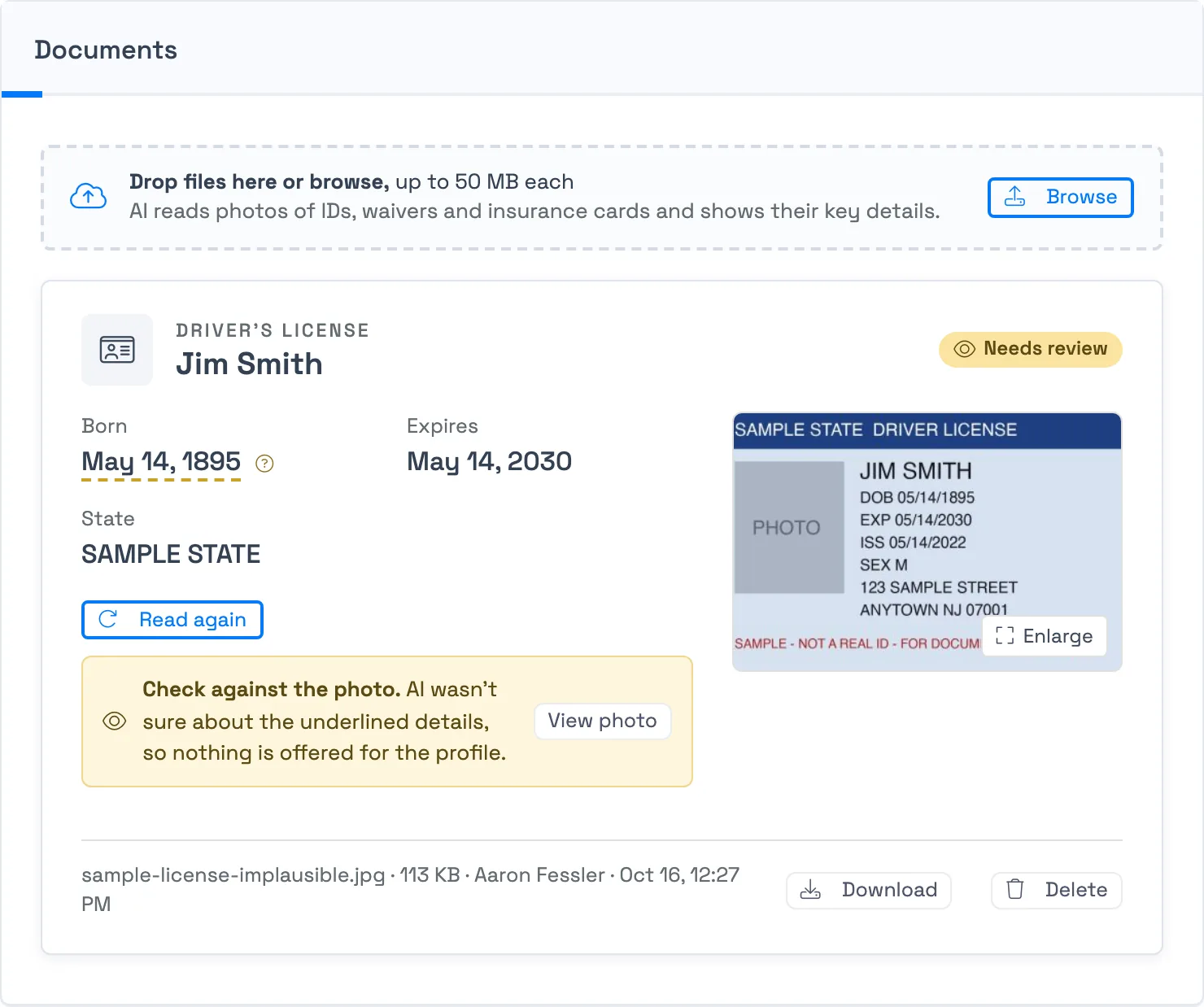
On a Needs review card, TripWorks underlines the details it wasn't sure about and offers nothing for the guest's profile. Select View photo (or Enlarge) and compare the details with the document. If the reading was wrong, select Read again, or enter the guest's details yourself on their profile.
Even without a Needs review mark, a reading can be wrong. Check a detail against the photo before you rely on it, especially a birth date.
Update a guest's profile from an ID
When you upload a driver's license, ID card, or passport, TripWorks can offer to add what it read to the matching guest's profile. This saves typing a birth date and address from a card that is already in front of you.
How TripWorks finds the guest
TripWorks compares the name on the ID with the trip's lead guest and every guest booked on the trip. It ignores the order of the names and accents, so "Loïc Jégou" matches "Loic Jegou", and "Smith, Jim" matches "Jim Smith". It offers an update only when:
- The name on the ID has at least two parts.
- The last name matches in full, and at least one first name matches.
- Exactly one guest on the trip matches. If two guests could match, or none do, TripWorks shows no prompt.
- If the guest's profile already has a date of birth, it matches the one on the ID.
If you upload an ID before you add the guest to the trip, no prompt appears. Add the guest, then select Read again on the ID.
What TripWorks can add
The prompt lists only the details that would change the profile:
- Date of birth goes to the guest's date of birth, which the profile header shows as an age.
- Address, City, State, Postal code, and Country go to the Contact tab, under Physical Address.
- Gender goes to the guest's gender, from the sex printed on the ID (male or female).
TripWorks fills blank details only. If the guest already has an address, a city, a country, a gender, or a date of birth on their profile, that detail isn't offered, and TripWorks never overwrites it. If the profile has a date of birth that differs from the one on the ID, TripWorks assumes the ID may belong to a different person with the same name and offers nothing at all. To change a detail that is already filled in, edit it yourself on the guest's Contact tab. TripWorks never changes a guest's name, email address, or phone number.
Street names and cities printed in capital letters are saved in normal capitalization, for example "4125 SW 10th Dr". TripWorks leaves a detail out if its two readings of it disagree.
Add the details to the profile
- Open the trip's Documents tab and open the ID card. If it is the only document on the trip, it is already open.
- Compare the details on the card with the photo. Select Enlarge to see the photo at full size.
- Read the prompt. It names the guest and lists each detail it would add.
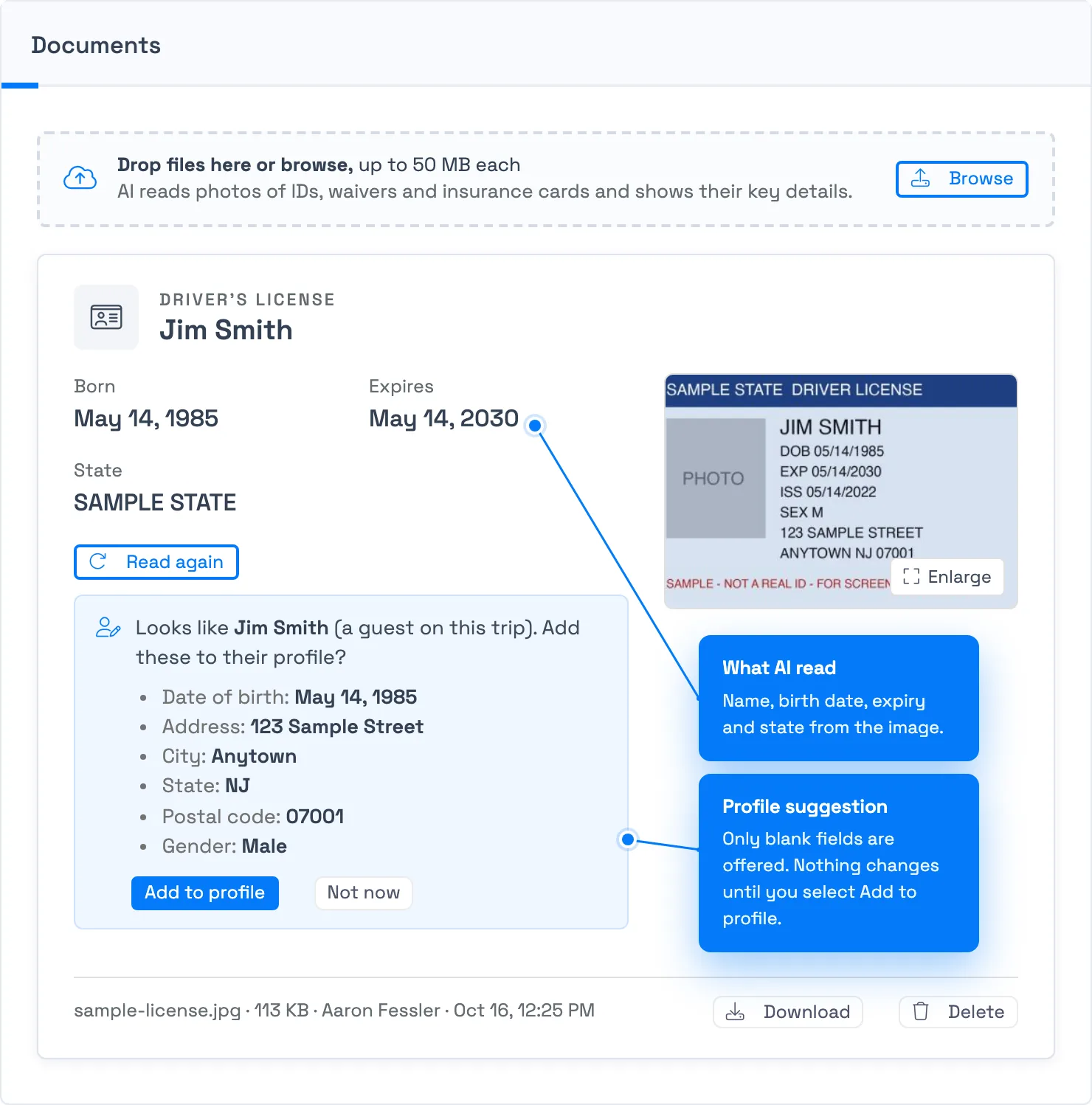
The profile prompt on a read driver's license. - Select Add to profile to save the details, or Not now to skip them.
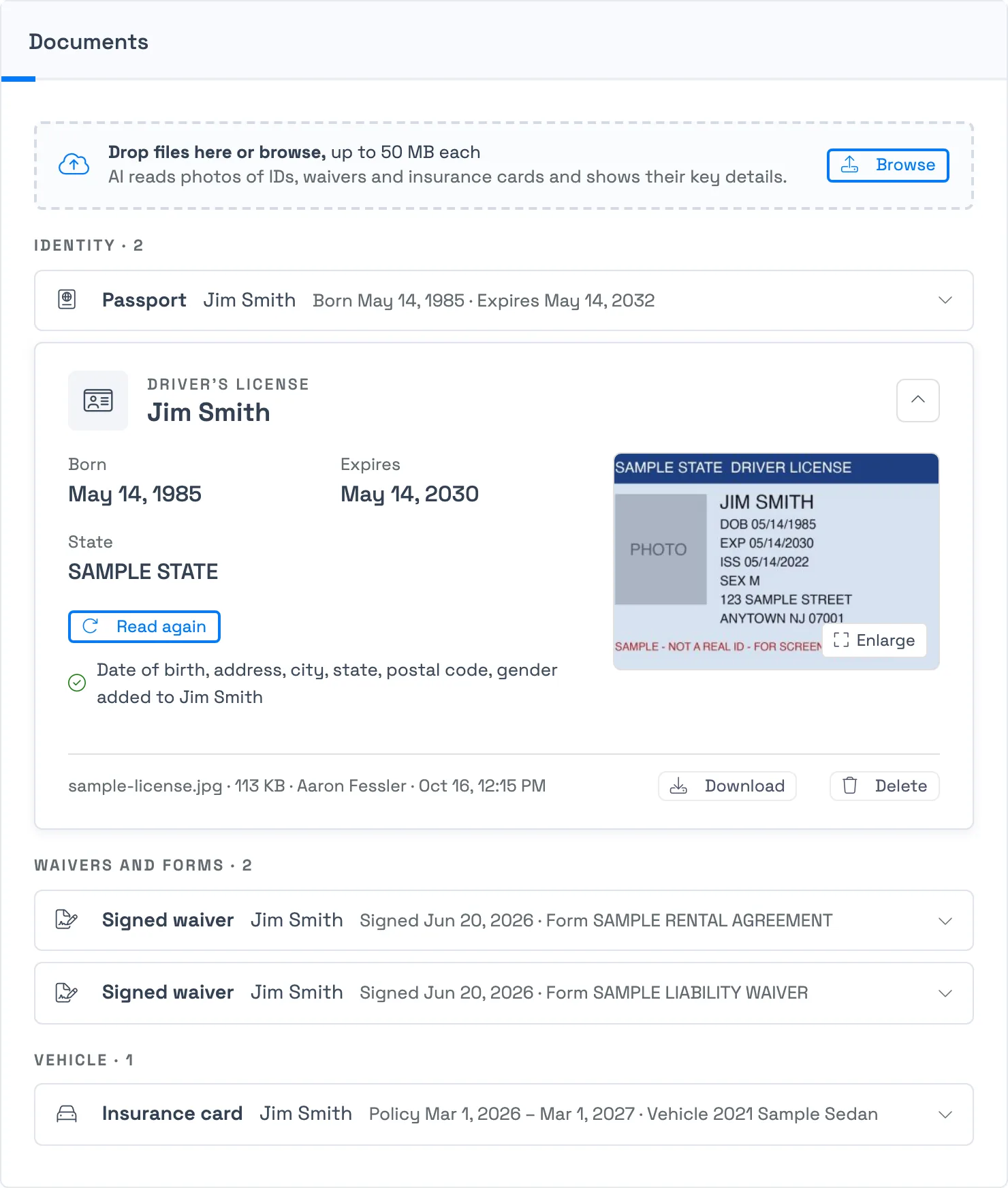
The card now shows which details were added, for example Date of birth, address, city, state, postal code, gender added to Jim Smith.
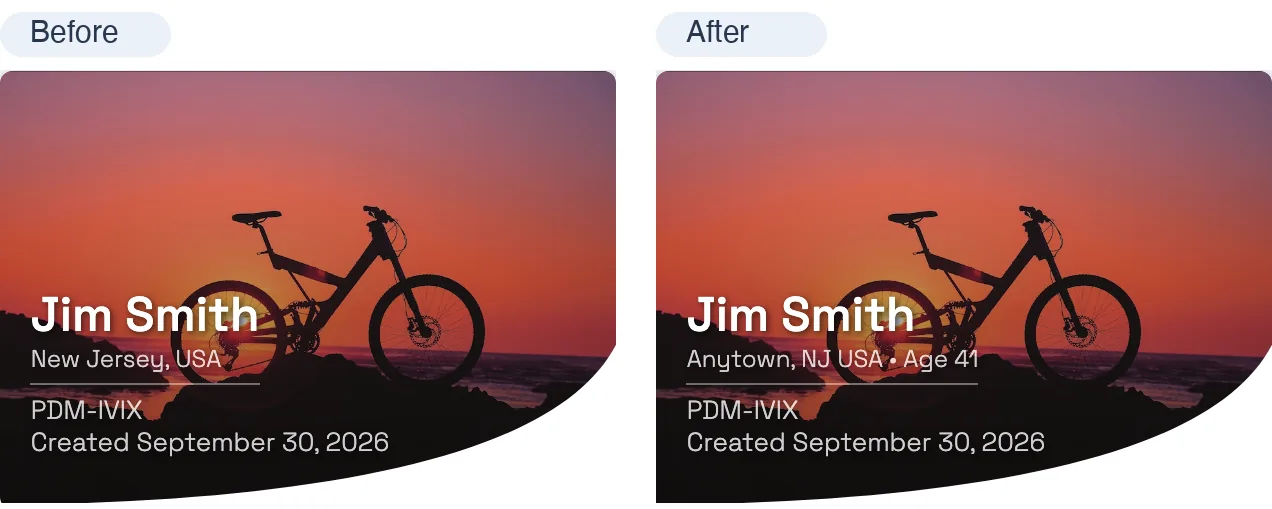
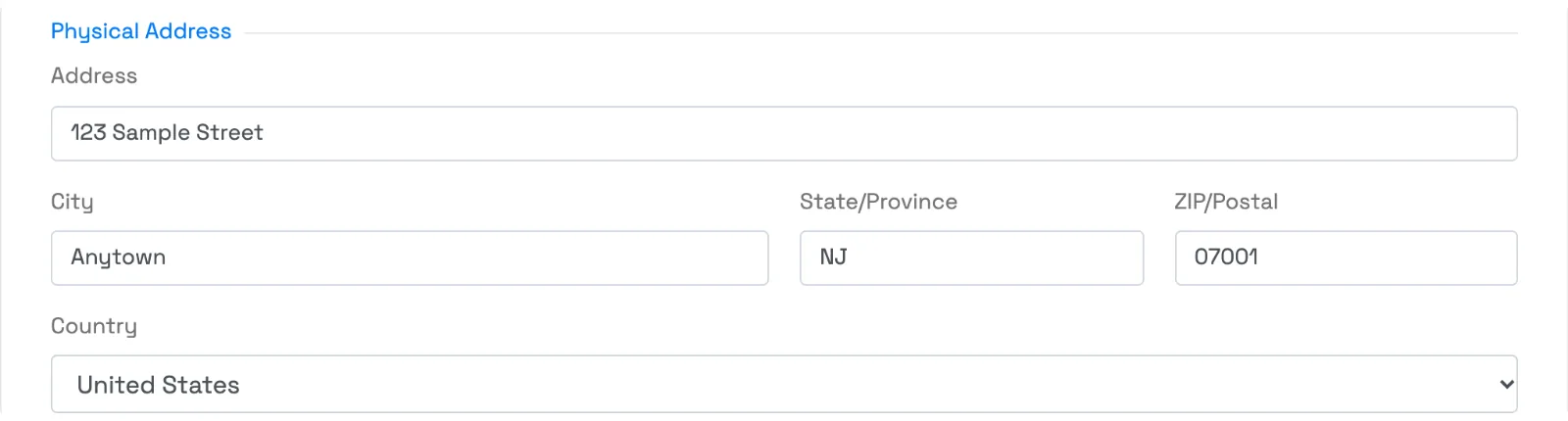
Select Not now if you don't want the details added. TripWorks remembers your choice for that document and doesn't ask again. Select Read again on the card to bring the prompt back.
Read again, and documents that weren't read
Select Read again on a read document to have TripWorks start over: it clears the earlier reading, reads the file again, and looks for the matching guest again. Use it when you added a guest to the trip after uploading their ID, or when you want a fresh reading after a Needs review mark.
Other messages you may see on a card:
- This document hasn't been read. The file wasn't read yet, for example because it was uploaded before TripWorks could read documents. Select Read with AI to read it now.
- AI couldn't read this document. Download it to check the contents. TripWorks tried and couldn't read the file. Download it to check it yourself, or select Read again.
- Taking longer than usual. A reading that has been going for more than a minute shows a Cancel button. Select it to stop the reading and keep the file on the trip.
Files that TripWorks can't read at all, such as a file over 15 MB, are saved on the trip as plain cards you can still open, download, and delete.
View, download, and delete documents
- Enlarge opens a photo at full size. HEIC photos and files that a browser can't display open as a download instead.
- Download saves the original file. Each download uses a temporary link that expires after an hour, so an old link can't be reused later.
- Delete asks you to confirm, then removes the file from the trip for good. This can't be undone.
Trip documents are a staff tool. Guests never see them, including in the customer portal and in confirmation emails. Anyone with the View Trips permission can open the Documents tab and download files. Uploading, deleting, and re-reading require Change existing trips.
Examples
- Find a guest's birth date before check-in: upload a photo of their driver's license and read it off the card.
- Do a rental desk check: upload the renter's license and the rental agreement, and see the license expiry and the signed date side by side.
- Fill in a new guest's address: upload their ID, then select Add to profile to save the address on their profile.
- Keep a vehicle's paperwork together: upload the insurance card and registration to see the policy dates and the registration expiry in one place.
- Spot an expired ID: look for the Expired badge on an identity card before a guest rents equipment.
- Handle a scan from a third party: upload a signed waiver sent as a PDF and check the signer and date on the card.
Frequently asked questions
Does TripWorks change a guest's profile automatically when I upload an ID?
No. TripWorks only shows what it read and offers to add the details. Nothing on the guest's profile changes until you select Add to profile.
Which documents can TripWorks read?
TripWorks reads JPG, PNG, HEIC, and HEIF photos, PDFs (first page), and Word (DOCX) files, up to 15 MB each. It recognizes driver's licenses, ID cards, passports, signed waivers and forms, insurance cards, vehicle registrations, equipment photos, and payment cards. Other photos get a short description. Any file type you can upload is saved on the trip, even when it can't be read.
Why didn't TripWorks offer to update the guest's profile?
The most common reasons: the document isn't a license, ID card, or passport; the card is marked Needs review; the name on the ID doesn't match exactly one guest on the trip; the guest's profile has a different date of birth than the ID; or the profile already has every detail the ID shows. Check the name and the guests on the trip, then select Read again. You also need the Edit customers in the dashboard permission to save the update.
Can TripWorks overwrite details already on a guest's profile?
No. TripWorks fills blank details only. Addresses, cities, countries, genders, and birth dates that are already filled in are never offered or changed. If the guest's profile has a different birth date than the ID, TripWorks offers nothing at all, in case the ID belongs to someone else with the same name. To change an existing detail, edit it yourself on the guest's Contact tab.
What does TripWorks do with a license number or a card number?
TripWorks doesn't read them. It never reads or stores a license number, an ID number, a phone number, or a payment card number. A photo of a payment card gets a warning and a Delete button, so you can remove it once you've used it.
How accurate is the reading?
TripWorks reads each file twice and flags cards where the readings disagree or a date looks wrong, but it can still make mistakes on a blurry or unusual document. Check the details against the photo, especially a birth date, before you rely on them. A Needs review card never offers a profile update.
Why is my ID flagged as Needs review?
TripWorks flags a card when the two readings disagree, a date is unclear, a birth date would make the holder younger than 14 or older than 110, or the dates don't make sense together (for example an expiry before the issue date). Select View photo to compare, then select Read again or enter the details yourself.
Can I read a document that was uploaded before this feature existed?
Yes. Open the trip's Documents tab and select Read with AI on the card. The file is read and the details appear on the card, and a profile prompt appears if it is an ID that matches a guest.
Are my documents shared with guests?
No. Trip documents are internal. Guests never see the Documents tab, and attached files aren't included in confirmation, reminder, or any other guest-facing email.
Is this the same as attaching a file to an email or SMS template?
No. Trip documents live on the trip for your team's reference. Attachments on a message template go out to the guest as part of that message. See Creating a message template for that.
Related
- The Manifest view
- Checking in guests
- Viewing signed waivers
- Collecting guest waivers
- View your Guest Contacts report
- Managing permission groups
Built for attractions, tours & activities
Keep every trip's paperwork in one place
See how attractions, tours, and activities manage bookings on TripWorks. Book a demo and make the switch.