
Booking statuses let you track who has arrived, who's a no-show, and anything in between — so your team always knows the state of the day. You check guests in right from the Manifest.
In this article
Check in from the Status column
- Open Manifest from the toolbar.
- Select the status under the Status column for the trip.
- In the popup, update the status for all guests at once or each guest individually — for example, from Booked to Checked In, or to No-Show.
Quick check-in with the Actions column
For groups, the Actions column lets you check in the whole booking with a single click. Turn it on:
- Open Manifest, select the ellipsis next to any trip, and choose Customize Columns (switch dates if no trips are listed).
- Under General Fields, enable Actions.
The Actions column appears at the start of each trip, so you can update a whole group's status in one click — much faster than opening each booking at a busy front desk.
When a guest still owes a balance
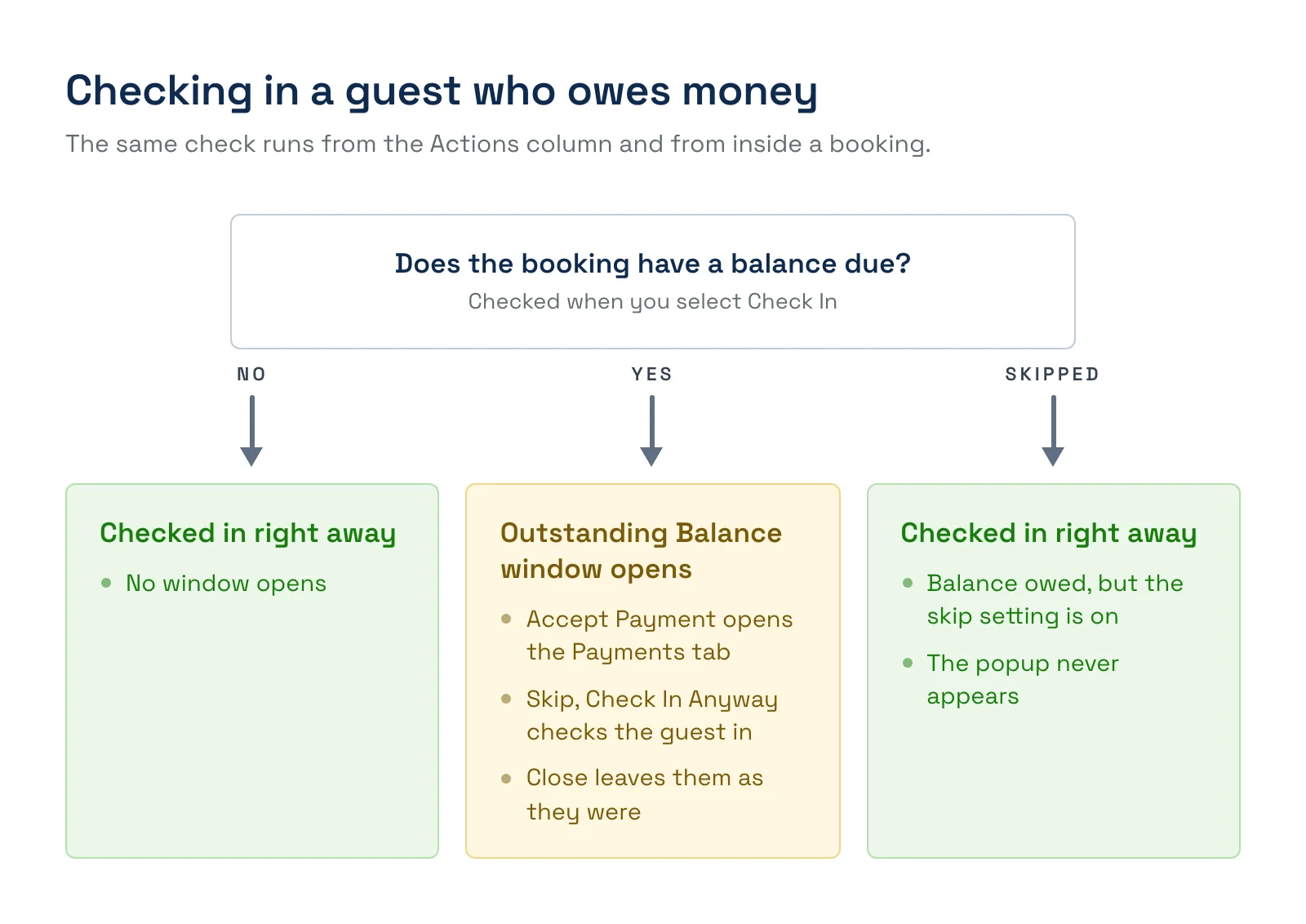
If the booking has a balance due, TripWorks stops the check-in with an Outstanding Balance window that names the booking and the amount owed. It appears when you check in with one click from the Actions column and when you select Check In from inside the booking itself. Choose one of three buttons:
- Accept Payment opens the booking's Payments tab so you can collect the balance.
- Skip, Check In Anyway checks the guest in without collecting.
- Close leaves the guest as they were.
Anyone who can check in guests sees the window. If you collect balances after the trip, you can turn the window off for the whole account: see Skip the balance-due popup at check-in.
Custom booking statuses
Beyond the built-in statuses, you can create custom booking statuses to match how you work — for example, "Checked Out" or "Order Fulfilled." Applied statuses show on the Manifest and flow through to the Activity report, so you can filter and re-market accurately (for instance, sending review requests only to guests who actually attended).
Frequently asked questions
Can I check in a whole group at once?
Yes — either choose "all guests" in the Status popup, or enable the Actions column for one-click group check-in.
Why did a balance warning appear when I checked someone in?
The booking has an amount still due, so TripWorks opens the Outstanding Balance window before checking the guest in. Select Accept Payment to collect it, or Skip, Check In Anyway to check the guest in and collect later. Checking in from inside the booking warns the same way as the Actions column does.
Can I turn the balance warning off?
Yes. Turn on Skip balance-due popup during check-in in your company settings and check-in goes through without the window, wherever you check guests in. The setting applies to the whole account. See Skip the balance-due popup at check-in.
Can I create my own statuses?
Yes. Custom booking statuses let you track states specific to your business, and they appear on the Manifest and in the Activity report.
Is there a faster way to check in with a scanner?
Yes. Scan guests' QR codes with the TripWorks app on your iPhone or iPad. See Check in guests with the TripWorks app.
Related
Built for attractions, tours & activities
Check guests in without the friction
See how attractions, tours, and activities run check-in on TripWorks. Book a demo and make the switch.