
There are three places to check whether guests have signed, depending on what you're doing:
- The manifest — waiver status for everyone on a given day, at a glance.
- A trip — waiver status for the guests on one booking.
- The Waivers list — every signed waiver in your account, in one place.
On the manifest
Open the Manifest and check the Waiver column to see who's signed for that day. To change the day, pick a date from the calendar at the top.
If you don't see the column, turn it on in your manifest settings — see Customize the manifest view.
On a trip
Open the trip and look at the Bookings — each guest row shows a waiver badge next to the ticket type (for example, All Signed, or 1/3 when a guest has more than one waiver to sign). See Multiple waivers, additional signers & bulk actions for what the counts mean.
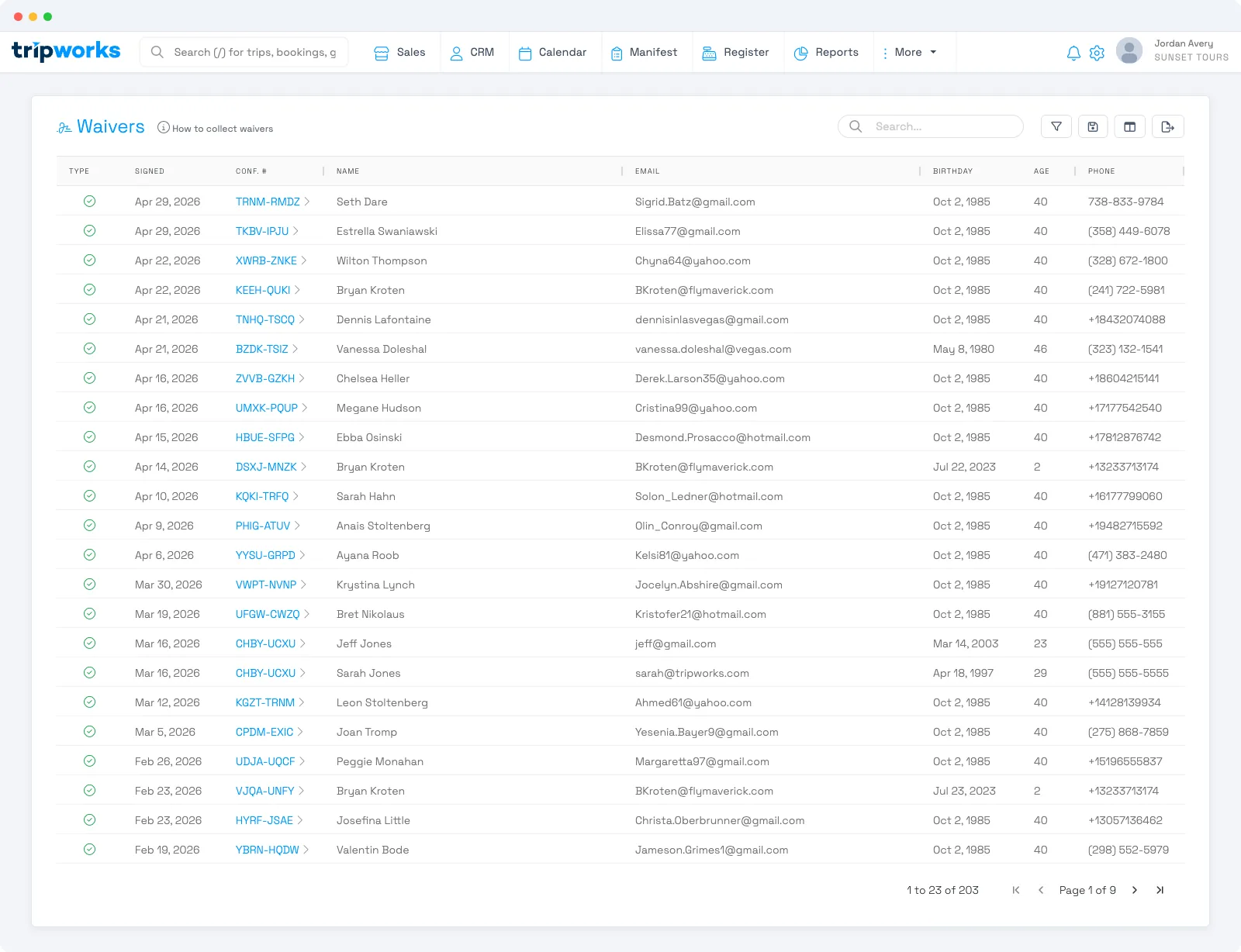
The account-wide Waivers list
Go to More → Waivers for every signed waiver across your account — searchable, with the guest, confirmation code, and signing date. Open any one to read, download, or print it.
Frequently asked questions
Where do I see every signed waiver at once?
Go to More → Waivers. It lists every signed waiver in your account; open any one to read, download, or print it.
The Waiver column is missing from my manifest — why?
It's turned off in your manifest settings. Enable the Waiver column there — see Customize the manifest view.
Related
- How do I download a signed waiver?
- How do I print a signed waiver?
- Multiple waivers, additional signers & bulk actions
- Attaching and reading documents on a trip
Built for attractions, tours & activities
Every waiver, signed and on file
See how attractions, tours, and activities collect and track signed waivers on TripWorks. Book a demo and make the switch.