
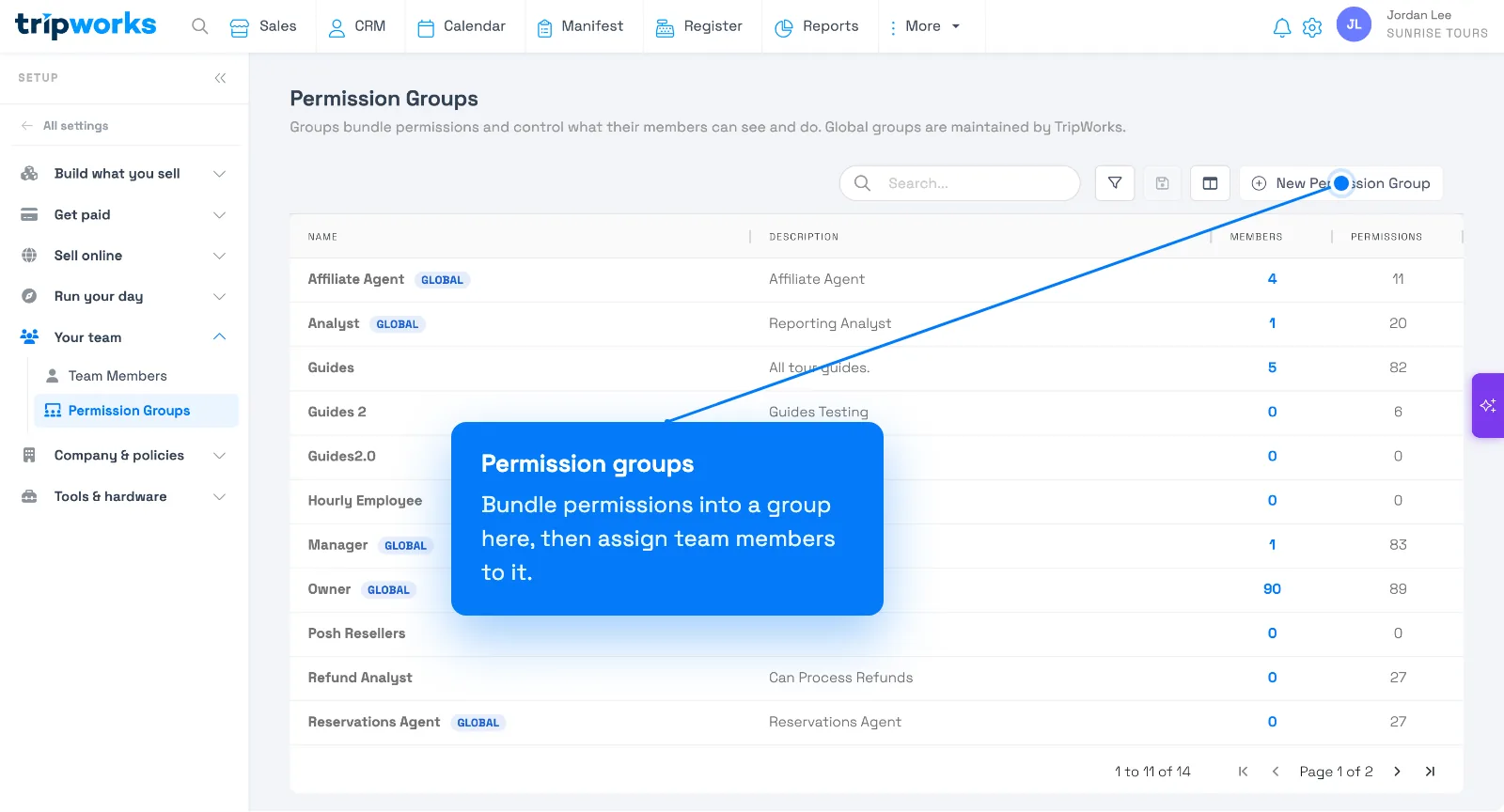
In TripWorks, what a team member can do is controlled by permissions. You don't assign permissions to people one by one — you bundle them into a permission group and assign the group to each team member. A team member can only do what the permissions in their groups allow, and permissions are additive (someone in two groups gets the combined set).
In this article
The tables below explain what each permission actually unlocks, grouped by area, so you can build groups that grant exactly the right access. To put them to work, see Permission groups and Add & manage team members.
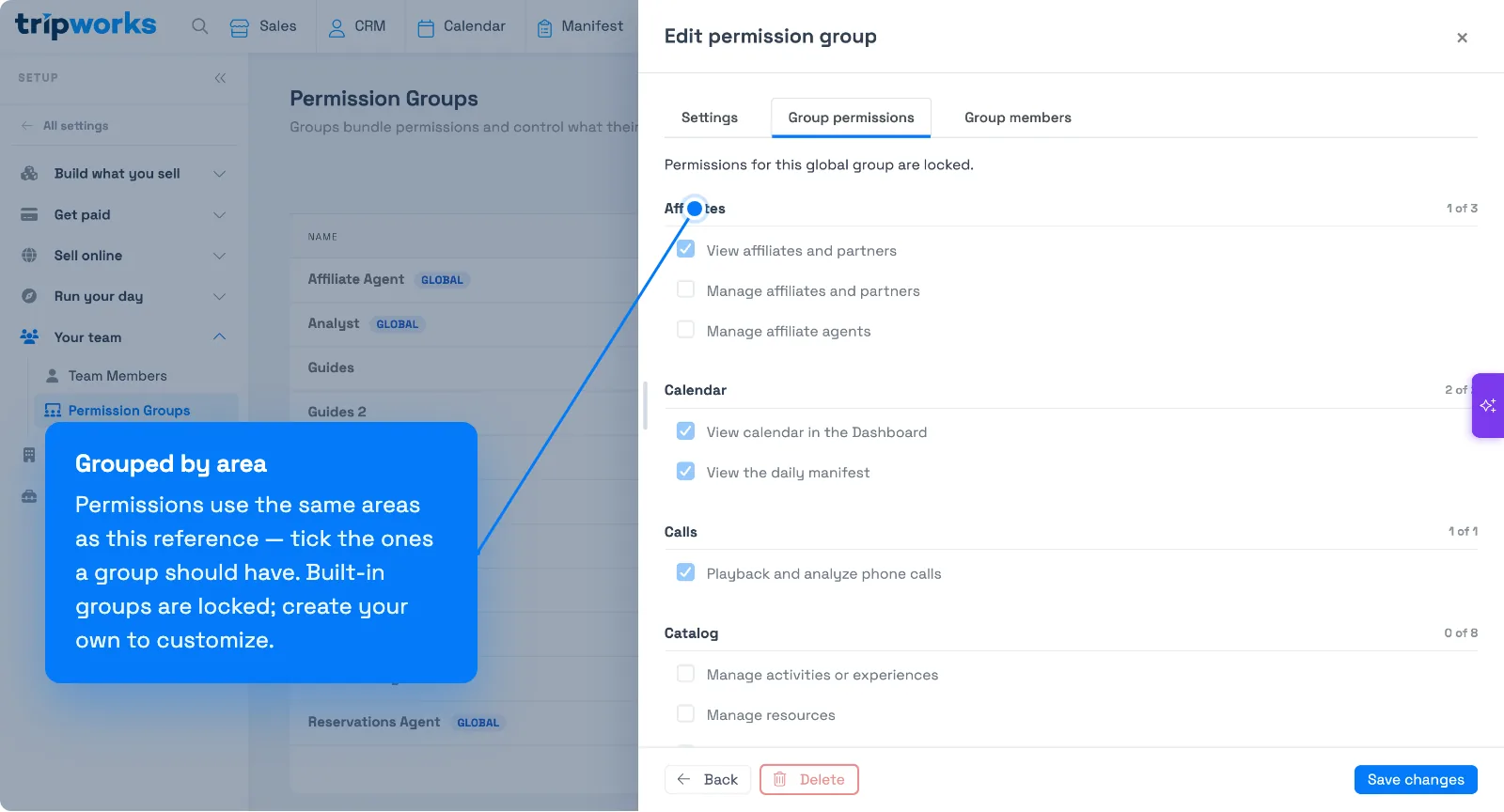
You set all of this under Setup → Your team → Permission Groups: each group bundles a set of permissions, and you assign team members to groups.
Start from the least access that lets someone do their job, then add more. View Trips and View reports module are the "front doors" — most other permissions in those areas only do something when the user can also view.
Trips & Bookings
| Permission | What it lets a user do |
|---|---|
| View Trips | Read a trip and its bookings, waivers, documents, resources, seat maps, messages, and customer info. The foundation for the Sales area — most other trip permissions only matter alongside it. |
| Create new trips | Use the "New Trip / Sale" buttons (dashboard, calendar, manifest, Quick Sale register). Adding a booking onto the trip is the next permission. |
| Create new bookings on trips | Add an experience/booking to a trip ("Add Experience"). Without it the add buttons are hidden and the request is rejected. |
| Change existing trips | The broad edit permission: contact/pickup details, documents, assigned guide, removing bookings, inventory, seat maps, and more. It also covers editing the customer's info on the trip and adding comments. |
| Edit bookings on trips | Modify existing bookings — booking fields, add-ons, and edits from the manifest row. |
| Rebook guests | The Rebook action (move a booking to another date, time, or activity). Checked on its own, so full edit rights don't include it. Only while the trip is a draft/reserved and unlocked. |
| Edit custom field values on Trips & Bookings | Answer/change your custom booking-field values on a trip. (Defining the fields is Manage custom fields & values under Setup.) |
| Add comments to Trips | Post internal notes — useful as comment-only access for staff who shouldn't fully edit. |
| Flag a trip to another team member | Flag a trip to a colleague (with a note) and clear it — routes a sale to someone's attention. |
| Apply offer codes to Trips | Enter and apply a promo/offer code on a trip. Hidden without it. |
| Add complimentary bookings | "Comp Guest" a booking or whole order (free), and convert comped items back to paid. Comping an order also frees its products/add-ons. Unlocked Experience trips only. |
| Override individual prices on items | Change a ticket's or order's price ("Change Ticket Price", "Change Group Price"). Experience trips only; blocked on locked trips. |
| Change Tax & Surcharge Exemption on Trips | Toggle tax/surcharge exemptions (pencil icons on each tax line). Also controls the Deposit Due override. Hidden on locked or import-review trips. |
| Change Taxes | Open the tax setup screen to create/edit tax rules. Configuration — separate from per-trip exemptions. |
| Allow underpaid/unpaid Trips to be Reserved | Move a trip to Reserved without full payment. Otherwise the Reserve button is hidden and the request is rejected. |
| Allow trips to be booked on today's past timeslots | Reveal and book earlier-today slots that already passed. Same-day only; earlier dates stay blocked. |
| Allow trips to be unlocked | Unlock a locked trip to edit it again (makes the locked badge clickable). |
| Reserve tickets that require other ticket types | Bypass "required companion ticket" rules — e.g. book a child ticket that normally requires an adult, on its own. |
| Book without enforcing activity restrictions or group minimums | Book below minimum-participant or party-size rules (a warning still shows). Staff only — never reseller or customer-portal. |
Catalog & Availability
| Permission | What it lets a user do |
|---|---|
| Manage activities or experiences | The core catalog permission — the full activity editor (details, descriptions, photos, capacity, ticket types, policies, waivers) plus activity categories, pickup locations, seat maps, and the bulk timeslot creator. |
| Manage availabilities on experiences | Create, edit, cancel, and re-capacity individual timeslots, right from the calendar, manifest, dashboard, and trip builder. This is what lets someone change a slot's Capacity — see Edit capacity for a single date or multiple dates. Viewing the calendar isn't enough. |
| Manage products | The Products and Product Categories setup screens. (Adding a product to a trip while booking isn't gated, so agents can still upsell.) |
| Manage resources | The Resources screen (guides, vehicles, equipment) and resource-group management. |
| Manage booking restrictions | The Booking Restrictions setup screen and the per-activity restriction editor. |
Payments & Refunds
Money-handling permissions — grant these carefully.
| Permission | What it lets a user do |
|---|---|
| Charge credit cards | Take card payments (swipe, manual entry, saved card, point-of-sale). Without it those methods are hidden and charging is blocked. |
| Apply manual discounts to Trips | Override a booking's price on a trip. Without it, price fields are read-only (unless a product is separately price-editable). |
| Apply Gift Cards as payments on Trips | Show and use "redeem gift card" in the payment modal. |
| Apply vouchers as payments on Trips | Show and use the voucher entry/apply controls on a trip. |
| Refund payments back to customers | Show the refund action and allow refunds. High-trust — often limited to managers. |
Customers
| Permission | What it lets a user do |
|---|---|
| View customers in the dashboard | Open the Customers area, profiles, and history (and read a customer's message history). |
| Edit customers in the dashboard | Save changes to a customer record (create, update, delete). |
| Merge duplicate customers | Show the merge-duplicates controls on the Customers screen. |
Calendar, Manifest & Calls
| Permission | What it lets a user do |
|---|---|
| View calendar in the Dashboard | Open the booking calendar. Does not allow editing capacity (that's Manage availabilities on experiences). |
| View the daily manifest | Open the daily manifest for check-in and operations. |
| Playback and analyze phone calls | Open the Calls screen and see call info/links on a trip — including AI callbot calls. |
Reports
Report access is split into the permissions below.
| Permission | What it lets a user do |
|---|---|
| View reports module | The gate to the Reports area, required before the specific families do anything. It also includes the Finance reports: Payments, Payouts, Transfers, Tips, and Taxes & Surcharges. |
| View dashboard reports | The metrics dashboard (date-range picker and sales/booking widgets). Without it, a user who can still book sees a lighter task view. |
| View and run Booking, Product, and Add-on reports | Activities/bookings, products, and gift-card sold/redeemed reports. |
| View and run Sales reports | The Executive Summary and the Sales family (Summary, Detail, Underpaid, by Team Member, by Method). |
| View and run Marketing reports | Conversions, Sources, Promo Codes, Voucher Redemptions, campaign/keyword reports, and Reviews. |
| View & run customer CRM reports | The Customers report family (customer/contact lists and Flags). |
| View, create & edit custom reports | The custom report builder — build and save your own reports. |
| View & run reseller reports | The Resellers family (Summary, Detail, Commissions). |
| View & run Guide and Resource reports | Resource/guide utilization (Resource Summary and Asset Detail). |
| Access Smart Insights Dashboard | Switch the home screen to the AI Smart Insights (BI) dashboard. Also requires the Smart Insights feature enabled on your account. |
Setup & Configuration
Account-wide configuration — usually for admins/owners only.
| Permission | What it lets a user do |
|---|---|
| Manage company profile | The broadest setup permission: company profile, point-of-sale settings, ticket printing, payment settings, data import/export, the knowledge base and chatbot/callbot setup, booking widgets, e-commerce, and the customer portal. |
| Manage company locations | The Locations setup screen. |
| Manage custom fields & values | Define the custom booking fields themselves. |
| Manage offer codes | The Promo Codes screen and campaign/reseller codes (Groupon, Travelzoo, etc.). |
| Manage gift cards | Gift-card setup and designs — and the Vouchers page (voucher program + designs are enforced by this permission). |
| Manage bank accounts & payouts | Connect/configure the bank account that receives payouts. Very sensitive. |
| Manage Trip marketing sources | The "How did you hear about us?" source list. |
| Manage Email/SMS templates & workflows | CRM settings, message templates, and automation workflows. |
| Set up integrations catalog | Connect and configure third-party integrations (OTAs, tools). |
| Manage pricing seasons | Seasonal date ranges that drive seasonal pricing. |
| Manage pricing rules, add-on pricing & product pricing | The ticket/add-on/product price tabs inside the activity editor. |
| Manage iPad & Tablet Devices | Register and manage waiver-signing devices. |
| Set up card readers for credit card payments | Pair and manage physical card readers. |
| Can set up voucher program | Shows the Vouchers link in Setup. Grant Manage gift cards alongside it — that's what unlocks the page. |
Affiliates & Partners
| Permission | What it lets a user do |
|---|---|
| View affiliates and partners | Open the Affiliates/Resellers and Invoices areas and their read screens. |
| Manage affiliates and partners | Create and edit affiliates, partners, and their invoices (viewing needs the permission above). |
Waivers
| Permission | What it lets a user do |
|---|---|
| View signed waivers | Open and view the waivers guests have signed. |
| Set up Waivers | Create and edit waiver templates and attach them to activities. |
Users & Security
The keys to the account — grant only to trusted admins.
| Permission | What it lets a user do |
|---|---|
| Create and manage other users | Add, edit, disable, and remove team members (and the Guides management area). |
| Manage user permission groups | Create permission groups and change what each grants — i.e. control everyone's access. The most powerful permission here. |
Related
Built for attractions, tours & activities
Give everyone exactly the access they need
See how attractions, tours, and activities control who can do what on TripWorks with granular permission groups. Book a demo and make the switch.