
Open any call from the Calls list to see the whole conversation two ways at once: a recording you can play and a full transcript you can read, kept in sync.
In this article
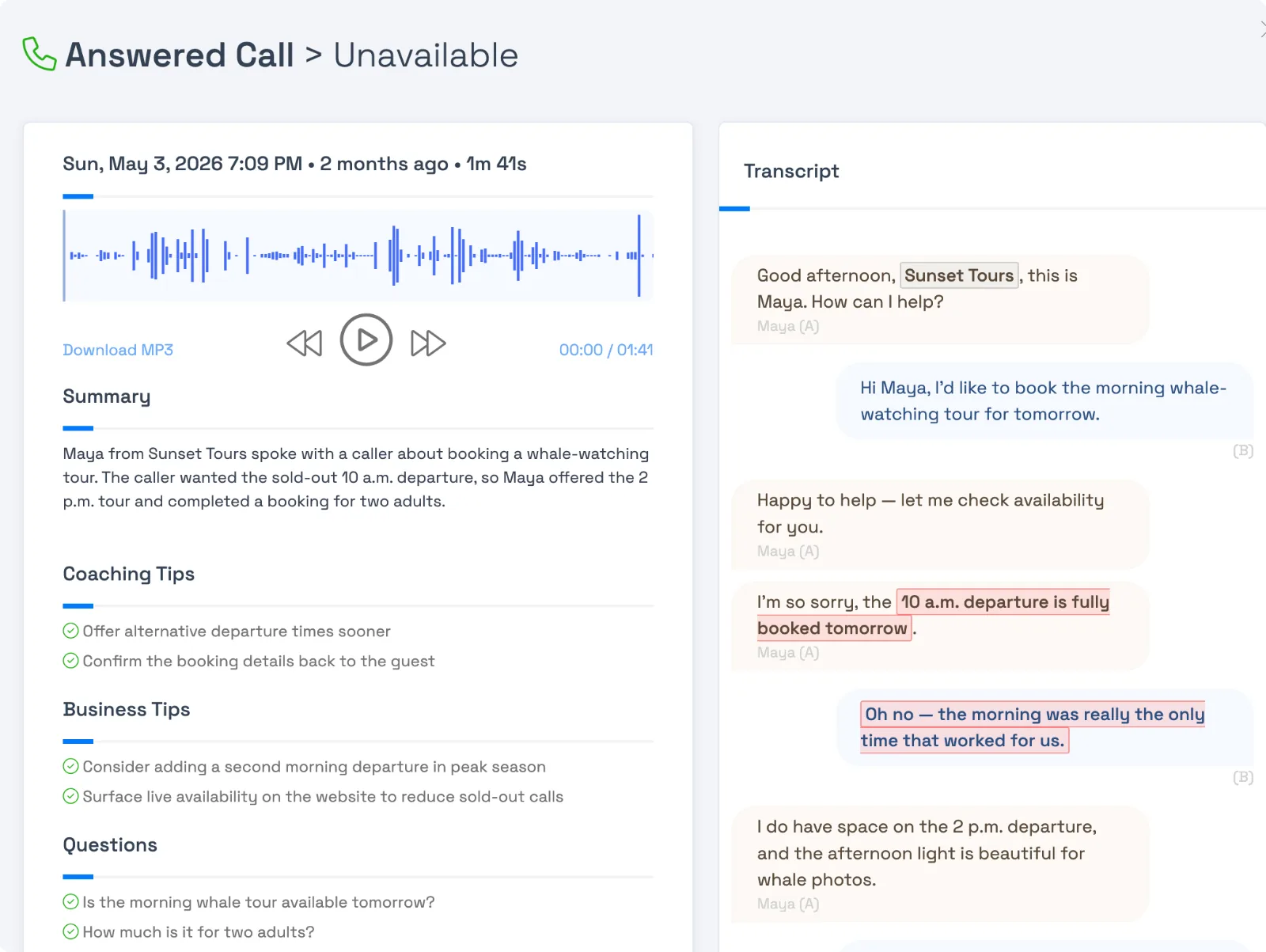
Reviewing a call the old way meant sitting through the whole recording in real time, hoping the part you needed came up. TripWorks gives you both the audio and the text side by side and links them together, so you can read a call in seconds and listen only to the moment that matters.
Play the recording
The recording plays on a waveform player, so you can literally see the shape of the conversation — where the talking was dense, where the pauses were. From the player you can:
- Play and pause, and skip back or forward 15 seconds to move quickly through a call.
- See your current position and the total duration at all times.
- Download the MP3 to save the recording or share it with a teammate.
Read the transcript
Alongside the player is a complete transcript of the call, split into turns and labeled by speaker — your agent on one side, the caller on the other — so it reads like a script and it's always clear who said what.
The transcript and the audio are tied together, which is what makes this fast:
- As the recording plays, the transcript auto-scrolls and highlights the line currently being spoken, so you never lose your place.
- Click any line and the audio jumps straight to that moment. Want to hear exactly how the agent quoted the price? Click that line and listen — no scrubbing back and forth.
This is the fastest way to get to the part of a call that matters. Skim the text, spot the line you care about, click, and hear it.
You often won't need to do either
At the top of the call sits the AI summary — a plain-English recap of the whole conversation. For most calls, that's all you need: you read three sentences and you know what happened, who the caller was, and how it ended. The recording and transcript are there for when you want to go deeper — a dispute, a coaching moment, a "what exactly did we promise them?" — but the summary means you're not listening to calls just to find out what they were about.
What you can do with a recording
- Settle a "he said / she said." When a guest insists they were quoted a different price or told a different policy, the recording is the record.
- Coach with the real thing. Play a great call — or a rough one — back to your team as a concrete example.
- Hand off with context. Share the MP3 or point a colleague to the exact line so they can pick up a situation without starting from scratch.
Frequently asked questions
Can I jump to a specific moment in the call?
Yes — click any line in the transcript and the recording jumps to exactly that point. The transcript also auto-scrolls to follow playback.
Can I download or share a recording?
Yes. Use Download MP3 on the call to save the audio file.
How does it know which speaker is which?
TripWorks separates the two speakers and identifies which is your agent and which is the caller, then labels the transcript accordingly.
Related
Built for attractions, tours & activities
Read the call in seconds, or listen in one click
See how attractions, tours, and activities review calls without the busywork on TripWorks. Book a demo and make the switch.