
The Calls screen lists every call your business has taken, each already summarized and scored — so you can skim what happened without listening to a single recording.
In this article
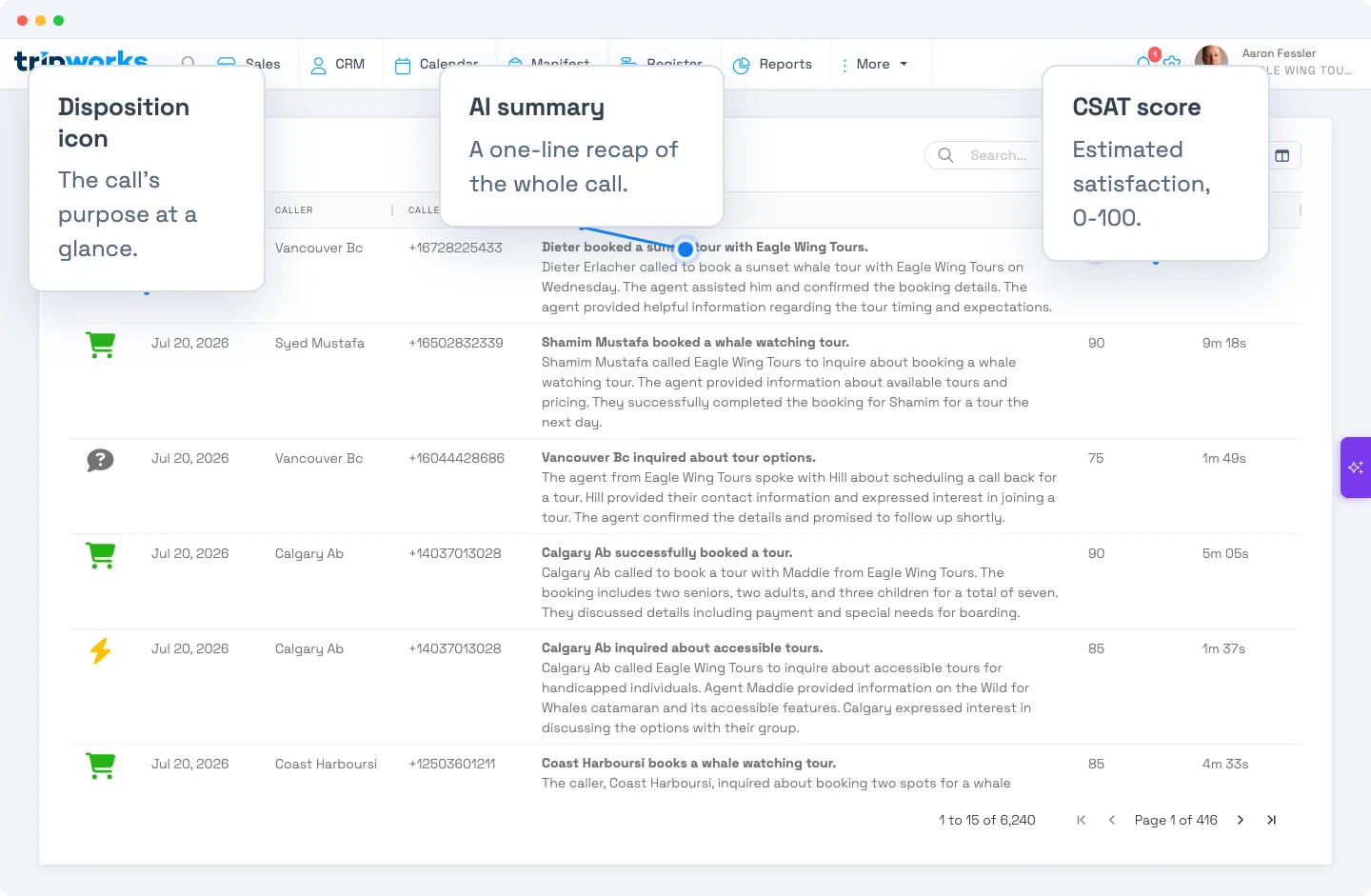
Think of it as your call log, except every entry has already been listened to and written up for you. A quick scroll tells you how the day went on the phone — who was buying, who was frustrated, who needs a call back — before you've opened a single recording.
What each row shows
- Intent icon — a quick visual for the call's purpose (a sale, a booking change, a question, a complaint, a voicemail…), so you can spot the important calls at a glance.
- Caller & number — who called, with their location filled in from the number.
- AI summary — a one-line, plain-English recap of the whole call.
- CSAT — an estimated satisfaction score, so a rough or unhappy call stands out immediately.
- Duration — how long it lasted.
Only fully-analyzed calls appear here, so every row already has its summary and score — there are no "pending" or blank rows to wade through.
Reading the list at a glance
Because each call is already scored and tagged, patterns jump out:
- A run of low CSAT scores on the same day points to a busy, stressed shift — or a problem worth investigating.
- A cluster of sales-intent calls you didn't convert is money left on the table.
- Repeated question calls about the same thing signal a gap on your website (see Caller questions = friction points).
- A pile of voicemails or unanswered calls tells you when you're missing the phone — and losing bookings.
You get this read without listening to anything. When one call deserves a closer look, open it.
Find the calls you want
The list is built to be sliced. Three tools sit above it: Filter, Save this view, and Choose columns.
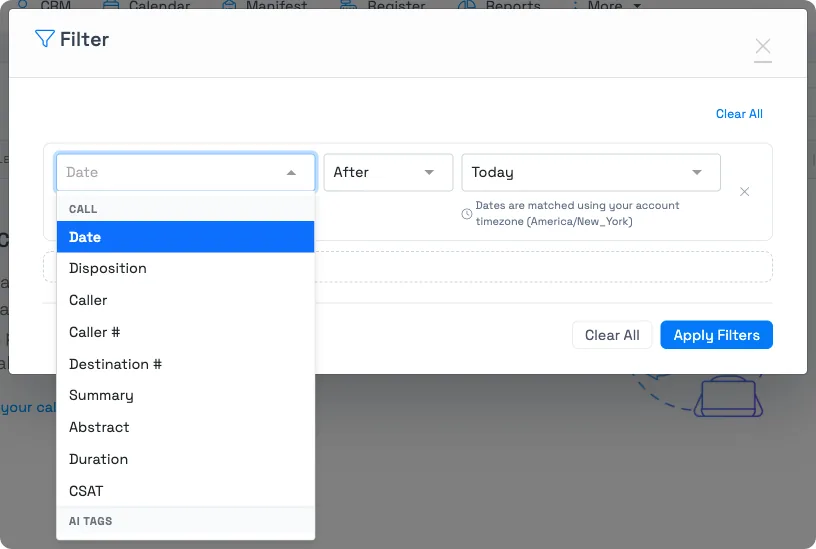
Filter by any of these fields, grouped the same way in the filter dialog:
- Call — Date (date range), Disposition (multi-select: Sale Complete, Sale Intent, Info, Booking Change, Operations, Voicemail, Unanswered, Complaint, Other), Caller, Caller #, Destination #, Summary, Abstract, Duration, and CSAT (both numeric range filters).
- AI Tags — Questions, Coaching Tips, Business Tips, and Topics — text search over what the AI extracted from the call.
- Location — Caller City, Caller State, Country.
There's also a quick Search box above the list for a fast text search across caller name, number, and the call's summary and transcript — type at least 3 characters.
Sort by clicking any column header; CSAT is the one most people reach for, to put the roughest or best calls at the top. Every column except Topics and the disposition icon is sortable.
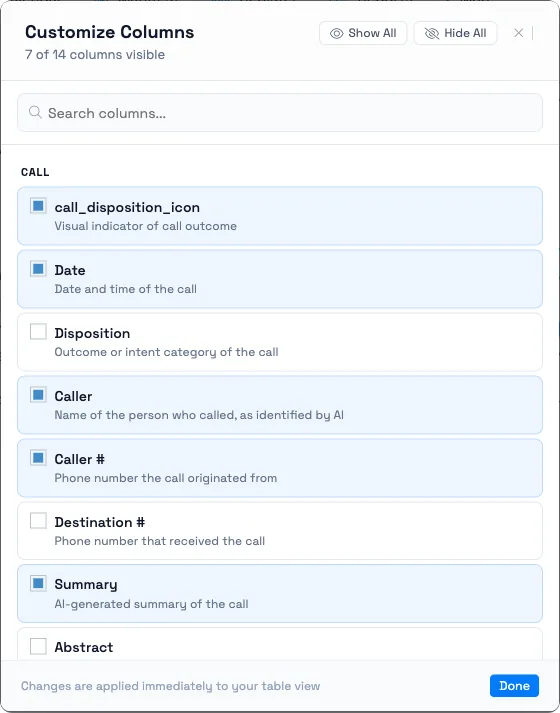
Choose columns to show only the fields your team cares about. Seven of the fourteen available columns show by default; the column chooser lists what each one means.
Save this view once your filters and columns are set the way you want, and choose whether to keep it to yourself or share it with your team.
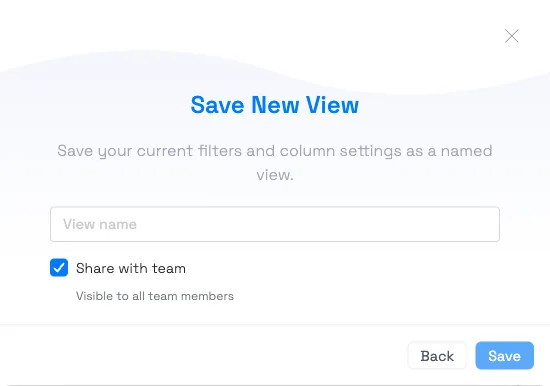
For example, save a "Needs follow-up" view filtered to low-CSAT Sale Intent calls, or a "Missed" view of Voicemail and Unanswered calls from the weekend, and share it so the whole team opens straight into it.
Select any call to open it, where you can listen, read the transcript, and see the full analysis. See Recording, playback & transcript.
The list filters calls by their fields. To search inside the conversations — by what was actually said — use global search with semantic matching. See Search across everything.
Frequently asked questions
Why don't I see a call I just took?
Calls appear once they've been transcribed and analyzed, which takes a short while after the call ends. Very short calls are skipped entirely.
Can I save a filtered view for my team?
Yes. Filter and choose columns, then save the view. "Share with team" is checked by default, so it's visible to everyone; uncheck it to keep a view private to you.
What can I filter on besides intent and date?
Caller name and number, destination number, summary, abstract, duration, and CSAT, plus AI-extracted fields like Questions, Coaching Tips, Business Tips, and Topics, and location fields (caller city, state, country). The filter dialog groups all of these for you.
Can I sort by satisfaction to find rough calls?
Yes. Sort by the CSAT column to bring your lowest-scoring calls to the top for follow-up — or your best calls, for training examples.
What if I want to search what was said, not just filter?
Use global search with semantic matching — it searches inside the transcripts by meaning. See Search across everything.
Related
Built for attractions, tours & activities
Every call, at a glance
See how attractions, tours, and activities review calls in seconds with TripWorks. Book a demo and make the switch.