
Capacity settings tell TripWorks how many spots an activity can sell and how to count them. Pick the model that matches how you actually operate — a flat headcount, a limit per ticket type, or a number driven by the boats, guides, or rooms you have — and TripWorks handles the availability math from there.
In this article
Open the Capacity tab
- Go to Setup Build what you sell Activity Settings and open the activity.
- In the left menu, under Availability, select Capacity.
- Choose a capacity model and fill in its fields (each is covered in its own article below).
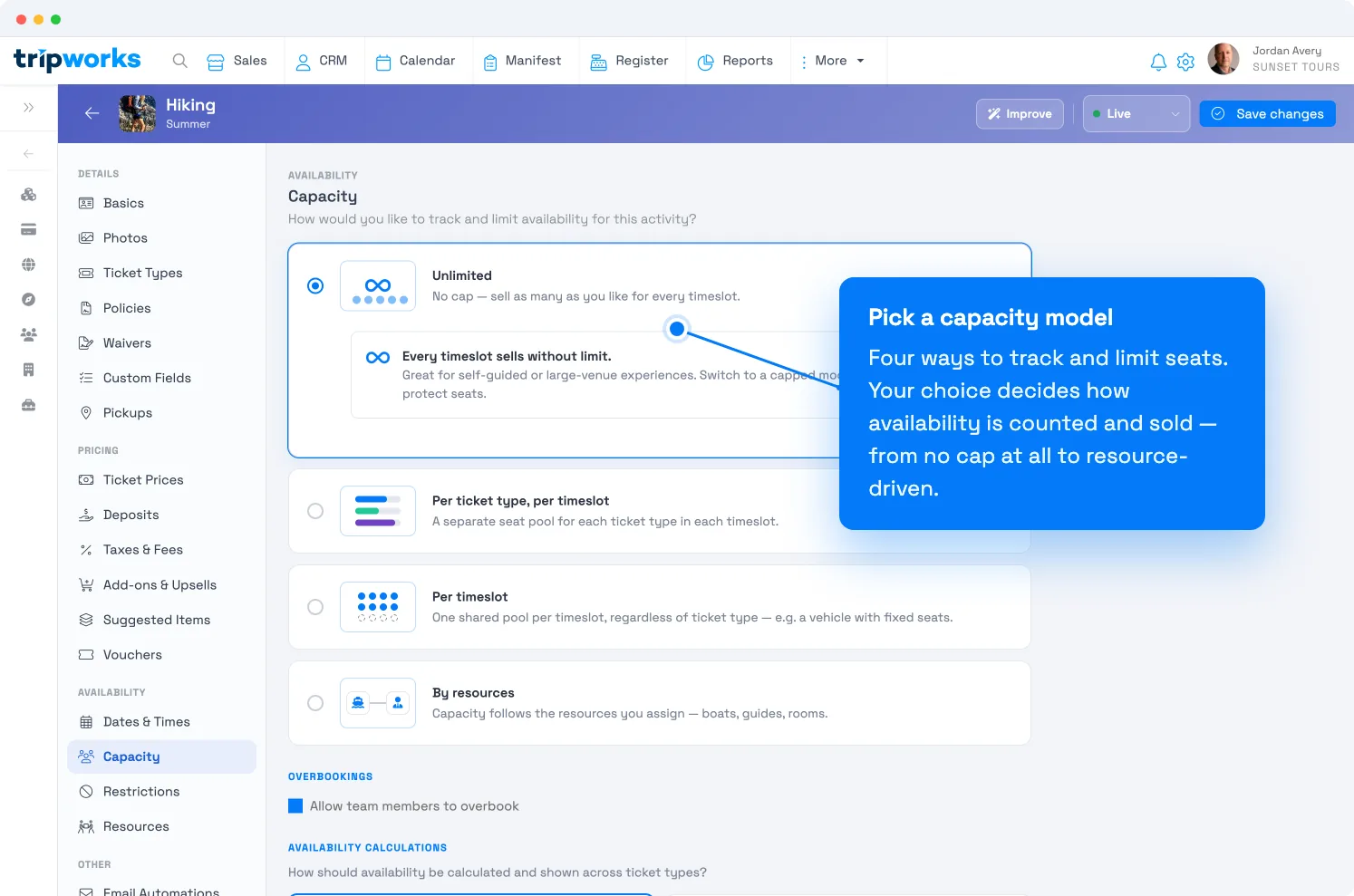
Four capacity models. Your choice decides how seats are counted and sold. - Select Save changes.
You can change the model later, even on an activity that already has bookings. Changes to a capped model apply to timeslots created after the change — existing timeslots keep their current capacity (see the FAQ below).
Choose a capacity model
| Model | What it does | Reach for it when… |
|---|---|---|
| Unlimited | No cap — every timeslot sells without limit. | You have plenty of room and no resources to hand out — self-guided visits, large venues. |
| Per timeslot | One shared pool of seats per timeslot, any ticket mix. | A fixed headcount is your limit — a 50-seat theater, a 12-seat van. Adds optional per-channel caps. |
| Per ticket type, per timeslot | A separate seat pool for each ticket type. | Different types have different limits — "10 adults but only 5 kids," a bus with 10 seats + 2 wheelchair spaces. |
| By resources | Capacity follows the resources you assign. | Bookings consume real things — boats, kayaks, guides, rooms — and you want availability to track them. |
Let staff overbook (optional)
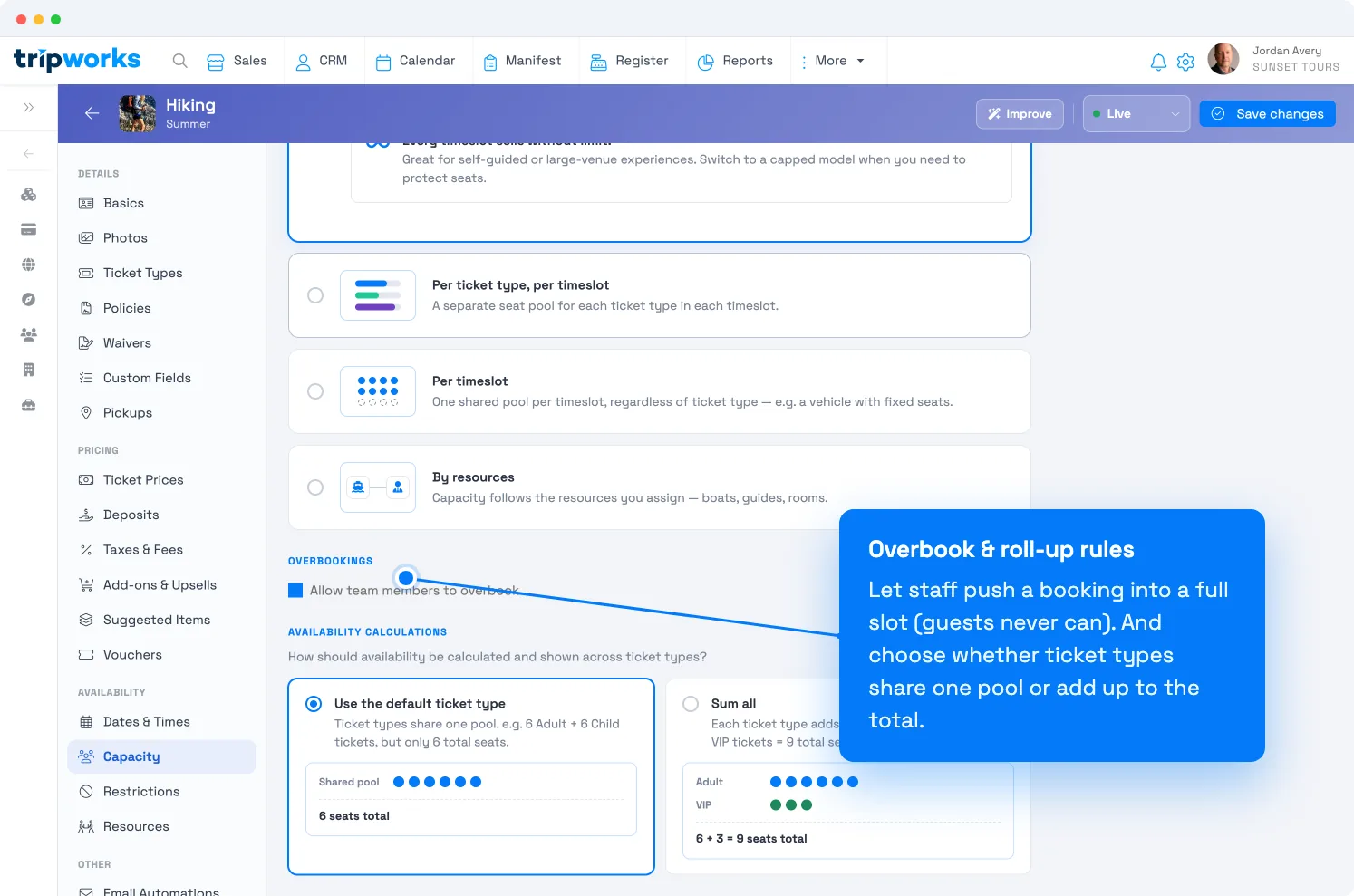
Under Overbookings, turn on Allow team members to overbook to let your logged-in staff complete a booking even when the selected timeslot is sold out — for walk-ups, VIPs, or a phone booking you don't want to turn away. Guests booking online can never overbook; this only ever applies to your own team.
How availability rolls up across ticket types
Under Availability calculations, choose how the seats you show add up when an activity has several ticket types:
- Use the default ticket type — all ticket types draw from one shared pool. Example: you list 6 Adult and 6 Child, but there are only 6 total seats — selling an Adult leaves 5 for anyone.
- Sum all — each ticket type adds to the total. Example: 6 Adult + 3 VIP = 9 total seats.
Pick "use the default ticket type" when types share the same physical seats; pick "sum all" when they're genuinely separate inventory.
Watch for booking restrictions
If you or a guest can't add as many tickets as your capacity should allow, the culprit is usually a booking restriction (for example, a default "max 25 per transaction" rule) — not capacity. Capacity sets the ceiling for a timeslot; a booking restriction limits a single transaction. See why can't I add more tickets to a booking during checkout?
Is there a waitlist for a sold-out time?
No. TripWorks doesn't have a waitlist. A full time shows as sold out on your booking calendar, along with your sold-out message if you've set one, such as a number to call. See Booking restrictions.
Frequently asked questions
Which model is the default?
Unlimited. A new activity sells without a cap until you choose another model.
Will changing the model affect timeslots I've already published?
Changes to the capped models apply only to timeslots created after the change — existing timeslots keep their current capacity. TripWorks shows a "Heads up" note on those settings for this reason. To change an existing date, edit capacity for that date.
Can I set a different capacity for one busy weekend?
Yes — override capacity for a single date or a range without changing the activity's default. See edit capacity for specific dates.
Related
- Availability vs. capacity
- Capacity: unlimited
- Capacity: per timeslot
- Capacity: per ticket type, per timeslot
- Capacity: by resources
Built for attractions, tours & activities
Protect your seats, sell the rest
See how attractions, tours, and activities cap the right way — by seat, by ticket type, or by the boats and guides they actually have — on TripWorks. Book a demo and make the switch.