
Different jobs need different information. A front-desk agent checking guests in wants names, waivers, and balances. A guide wants resources and pickup times. You can show only the columns each person needs, then save the layout as a view and switch to it in one click.
In this article
Learn how to manage permission groups
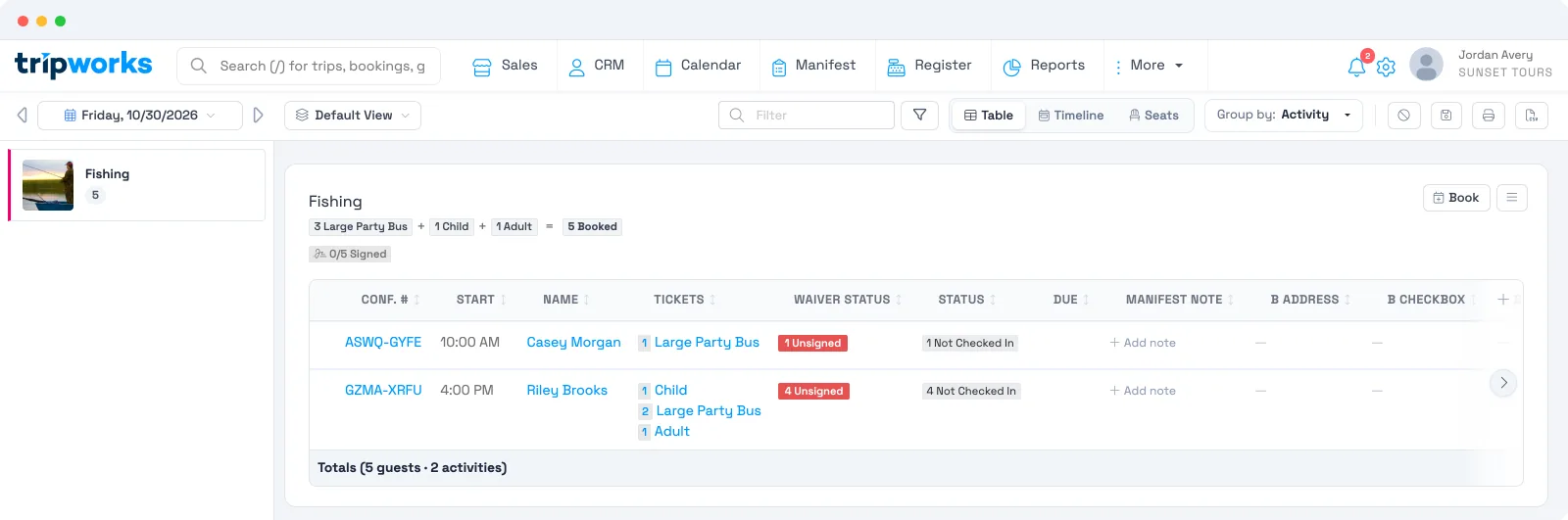
Choose your columns
- Open Manifest and choose a day.
- Select the + at the right end of the table header, titled Customize columns. You can also open the menu on a timeslot or activity header and choose Customize Columns...
- Tick a column to show it, or untick it to hide it. The window reads N of M columns visible and changes apply right away. Use Show All, Hide All, or the Search columns... box to move faster.
- Select Done.
Columns are grouped under General Fields, Custom Fields, and Addons / Upgrades, each sorted A to Z. The icon column and Full Name are marked Required and always show.
Columns you can add
The table starts with Confirmation Code, Start Time, Full Name, Guest Summary, Status, Amount Due, and Manifest Note. You can also add:
- Contact: Phone and Email.
- Booking source: Reseller, Agent, Voucher, and Promo Codes.
- Guests and waivers: Guest Names and Waiver Status.
- Logistics: Resources, Products, and the pickup columns (Pickup Location, Pickup Point, Pickup Time) when pickup locations are on for your account.
- Money: Amount Paid, Tip, and Amount Due.
- Notes and files: Manifest Note, Diary Notes, and Documents.
- Timing: End Time and the date the trip was created.
- Your own fields: one column per custom field, and one per add-on.
Under Resources, a Show resource times option appears once Resources is on. It shows when each resource goes out and comes back. See Show resource times on the manifest.
Two columns, Write-in Notes and Write-in Signature, are blank on screen and print as empty boxes for paper notes and signatures. See Print the Manifest.
Reorder, resize, and sort
- Reorder: drag a column header to a new spot.
- Resize: drag the right edge of a header. Double-click the edge to reset it to automatic width.
- Sort: select a header to sort by it. Actions, the icon column, Products, and Pickup Point can't be sorted.
Save a layout as a view
- Change the columns or grouping until the Manifest looks the way you want. The save icon in the top bar turns on once your layout differs from the default.
- Select the save icon. The window is titled Save New Layout.
- Type a name, up to 45 characters, and select Save.
Open the view chooser (the layers icon next to the date) to switch. It lists Default Layout first, then your saved views from A to Z, with a check mark on the active one. Select the pencil to rename a view, or the X to delete it.
How saved views behave
- Views are shared with the whole account. Everyone sees and can use every saved view. Only the person who created a view can delete it.
- A saved view updates as you work. While a saved view is active, changes to its columns, order, and widths save automatically. Filters are the exception: they're saved only when you select the save icon, titled Update this saved view.
- Your browser remembers your last view. The next time you open the Manifest on the same browser, it opens on the view you used last.
- No extra permission is needed to save, rename, or switch views.
Because views are shared, changing a saved view changes it for everyone. If you want to experiment, save your own copy under a new name first.
Examples
- Find who still owes money before a trip leaves: add Amount Due and sort by it, then save the view as "Balance check".
- Find which guests need pickup: add Pickup Location and Pickup Time to a "Pickup run" view for the driver.
- Find waivers that aren't signed: add Waiver Status to a "Front desk" view next to Status.
- Find a guest by any name on the trip: turn on Guest Names, so search matches every guest and not just the lead.
- Hand a guide a clean sheet: show only Full Name, Guest Summary, Resources, and Manifest Note.
Frequently asked questions
Can each team member have their own Manifest layout?
Yes, in practice. Create a view for each role and each person picks theirs from the view chooser, and their browser remembers it. The list of views is shared, so name them clearly.
Can I make a view private?
No. Saved Manifest views are visible to the whole account. Only the creator can delete one.
Why doesn't my view open automatically on another computer?
The Manifest remembers your last view in your browser, not on your account. On a new browser, pick it once from the view chooser.
Can I freeze a column so it stays put while I scroll?
No. The table header stays in view as you scroll down on larger screens, but columns can't be frozen.
Why can't I find the Activity column?
It appears in the chooser only when the Manifest is grouped by Time + Pickup.
Do column changes affect what guests see?
No. Columns only change your own Manifest screen and what you print.
Who can open the Manifest?
Anyone with the View manifest permission. No extra permission is needed to change columns or save views.
Related
- The Manifest view
- Table and Timeline views on the Manifest
- Print the Manifest
- Set your default Manifest and Calendar view
Built for attractions, tours & activities
Run your day from one screen
See how attractions, tours, and activities run operations on TripWorks. Book a demo and make the switch.