
Connect your Google listing once, and TripWorks brings in your existing Google reviews, then checks for new ones every day. They appear in your Reviews list next to the reviews you collect from guests, each labeled Google, so you can read, filter and follow up on all of them in one place.
In this article
Learn how to manage permission groups
Your business needs a Google Maps listing that guests can leave reviews on. If you can find your business on Google Maps and see its reviews, you're set.
Connect Google to TripWorks
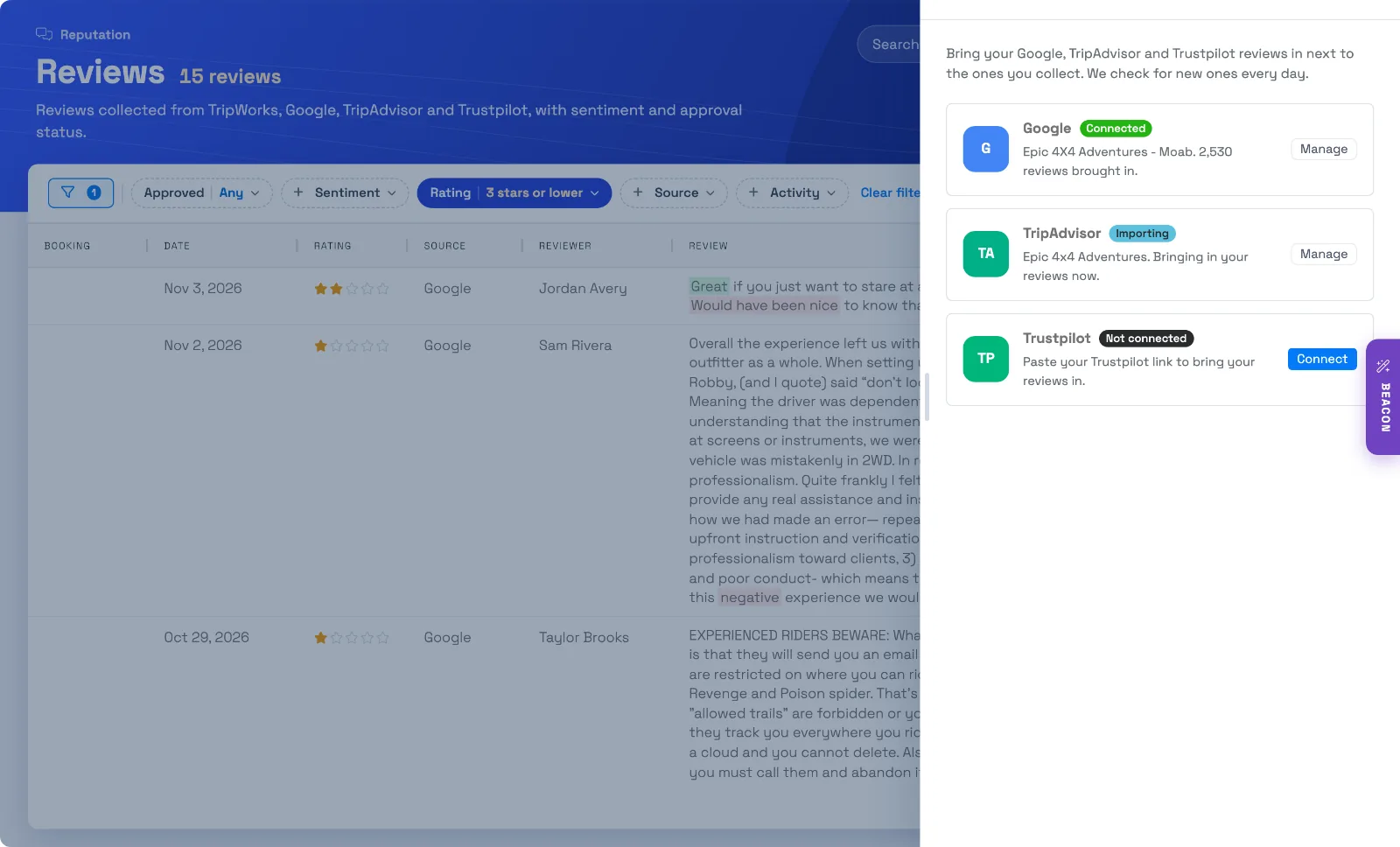
- Go to Setup Integrations and select Google Reviews. You can also open Reviews, select Review sources, then Connect next to Google.
- Open Google Maps and search for your business name.
- Select your business, then select Share.
- Select Copy link. The link usually starts with
maps.app.goo.gl. The full address of your Google Maps page works too. - Paste the link into the Google Maps link field and select Find my business.
- TripWorks shows your business name, address, star rating, and total number of reviews. Select Yes, connect this if it's your business, or No, try again to paste a different link.
- TripWorks starts the first import. The page shows Importing and a count that climbs as reviews arrive. You can leave the page and come back, since the import keeps going without you.
What TripWorks brings in
- The first import. TripWorks asks Google for as many of your reviews as it can, newest first, up to about 4,490. If your listing has more than that, the newest 4,490 come in. A listing with thousands of reviews can take around ten minutes.
- Daily checks. Once a day, TripWorks looks at your newest Google reviews and adds any it doesn't have yet.
- For each review. The reviewer's name, star rating, review text, the date it was posted on Google, and a link back to the original. TripWorks also scores the sentiment of the text, the same way it does for reviews you collect.
- Rating breakdown. Google doesn't share a star breakdown, so TripWorks works it out from the reviews it has brought in and says so under the bars.
Where your imported reviews show up
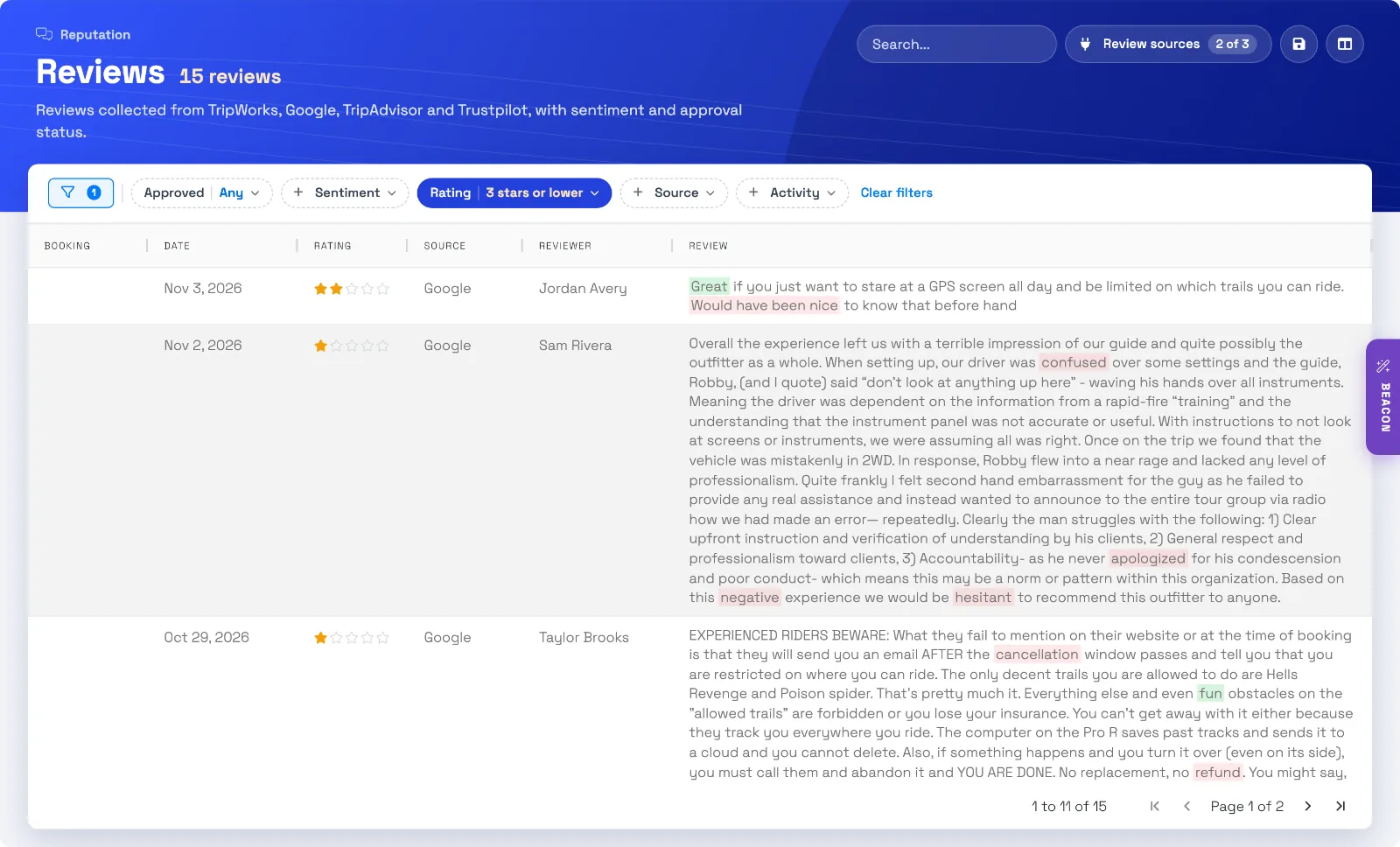
Open Reviews. Imported reviews sit in the same list as the reviews you collect from guests, newest first, with the source in the Source column.
- Use the Source filter to show only Google, or leave it off to see everything together.
- Use the Rating filter to find 5-star reviews, 4 stars and up, or 3 stars and lower.
- Select a review and choose View original review to open it on Google.
Manage the connection
On the Google Reviews page:
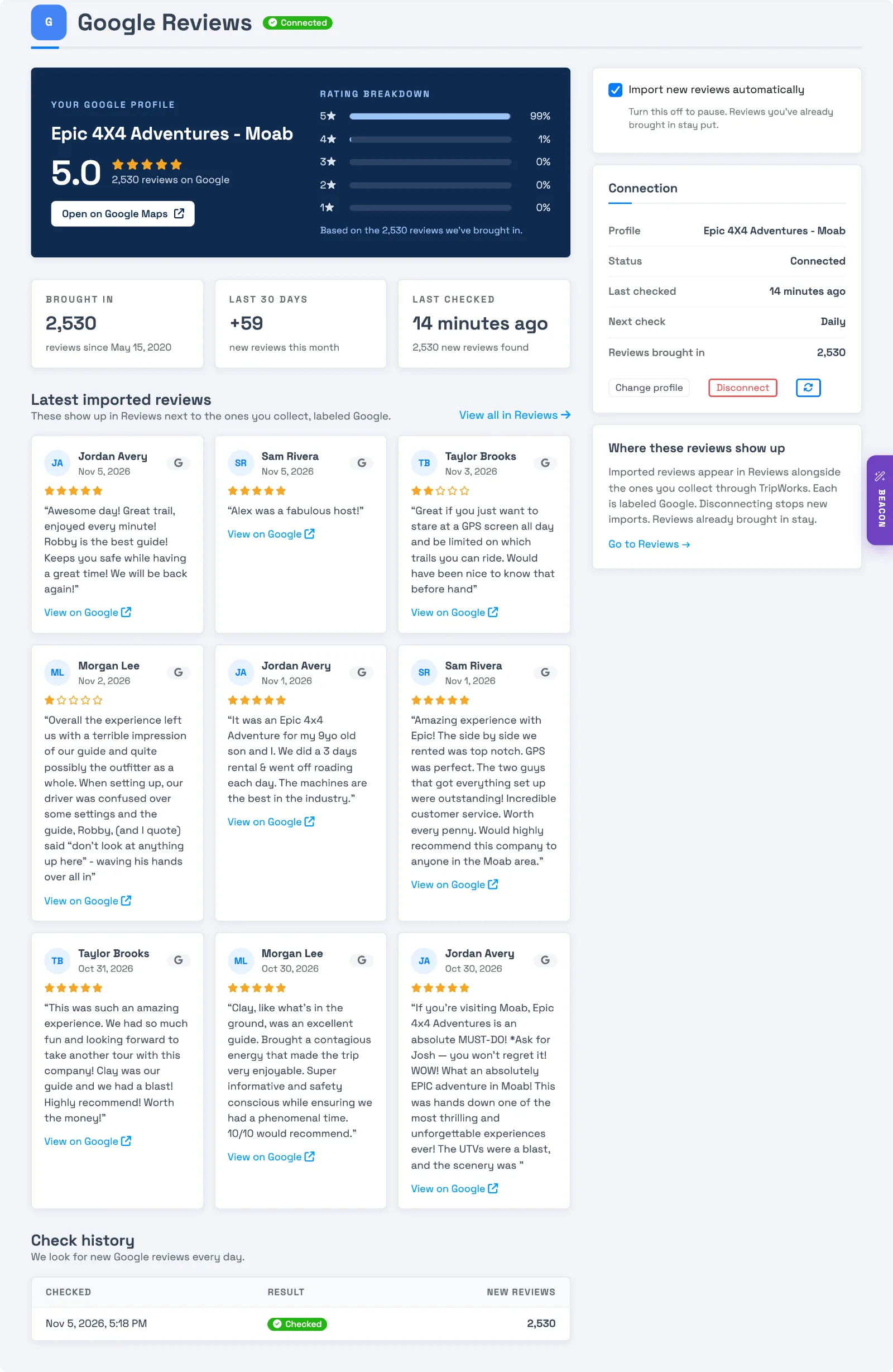
- Import new reviews automatically pauses the daily checks when you turn it off, and starts them again when you turn it on.
- The refresh button checks for new reviews right now instead of waiting for the daily check.
- Change profile connects a different Google page. You'll confirm the new business before anything changes.
- Disconnect stops new reviews from coming in. The reviews you already have stay in your Reviews list.
- Check history lists every check with its time and how many new reviews it found. If a check couldn't reach Google, the status shows Needs attention, and Retry tries again.
What TripWorks can't do
- Google reviews can only be answered on Google. Reply from your Google Business Profile.
- If a reviewer edits or deletes their review on Google after it's imported, the copy in TripWorks stays as it was imported.
- Imported reviews aren't linked to a booking, since they come from the public page.
Example: what this looks like in practice
- Find your lowest Google ratings — open Reviews, choose the Rating filter, and select 3 stars or lower to see the reviews that need a reply on Google.
- Find what guests say about a specific guide — type the guide's name in the Reviews search box to see every imported Google review that mentions them.
- Find the newest reviews first — the Reviews list sorts newest first, so the review a guest posted this morning is at the top.
- Open the original on Google — select a review, then View original review to jump to it on Google and reply there.
Frequently asked questions
Can I connect more than one Google listing?
Not yet. Each account connects one Google listing.
The link I pasted wasn't accepted. What should I use?
Use the link Google Maps gives you under Share → Copy link. If TripWorks says it couldn't reach Google, try again in a moment. That message means Google was slow to answer, not that your link is wrong.
How often does TripWorks check Google for new reviews?
Once a day. Each check looks at your newest Google reviews and adds any that aren't in TripWorks yet. The Check history table on the integration page lists every check with its time and how many new reviews it found.
Will I get an email or notification for every imported Google review?
No. Imported reviews don't trigger a notification each. Reviews from the past week can appear in your weekly review summary email.
Can I reply to or remove a Google review from TripWorks?
No. Google reviews can only be answered on Google. Reply from your Google Business Profile. See Can I remove or respond to a review?
What happens to my imported reviews if I disconnect Google?
They stay in your Reviews list. Disconnecting only stops new reviews from coming in. If you connect again later, TripWorks recognizes the reviews it already has and doesn't duplicate them.
Can I pause importing without disconnecting?
Yes. On the integration page, turn off Import new reviews automatically. Nothing new comes in until you turn it back on, and the reviews you already have stay put.
What if a Google review is edited or deleted after it's imported?
If a reviewer edits or deletes their review on Google after it's imported, the copy in TripWorks stays as it was imported.
Who can connect and manage review sources?
Anyone with the Setup integrations catalog permission. See Manage permission groups.
Related
- Import your TripAdvisor reviews into TripWorks
- Import your Trustpilot reviews into TripWorks
- Collecting guest reviews
- Can I remove or respond to a review?
- Third-party integrations
- Manage permission groups
Built for attractions, tours & activities
See every Google review next to your guest reviews
See how attractions, tours, and activities keep every review in one place on TripWorks. Book a demo and make the switch.