
Adding your TripWorks booking widget link to your Google Business Profile lets people who find you on Google Search or Maps book directly from your profile, without navigating away to your website first. Fewer steps between "found you" and "booked" means fewer people drop off along the way.
In this article
Learn how to manage permission groups
You need an active, claimed Google Business Profile before you can set this up. If you don't have one yet, see Google's guide to signing up for a Business Profile.
Step 1: Copy your TripWorks booking widget URL
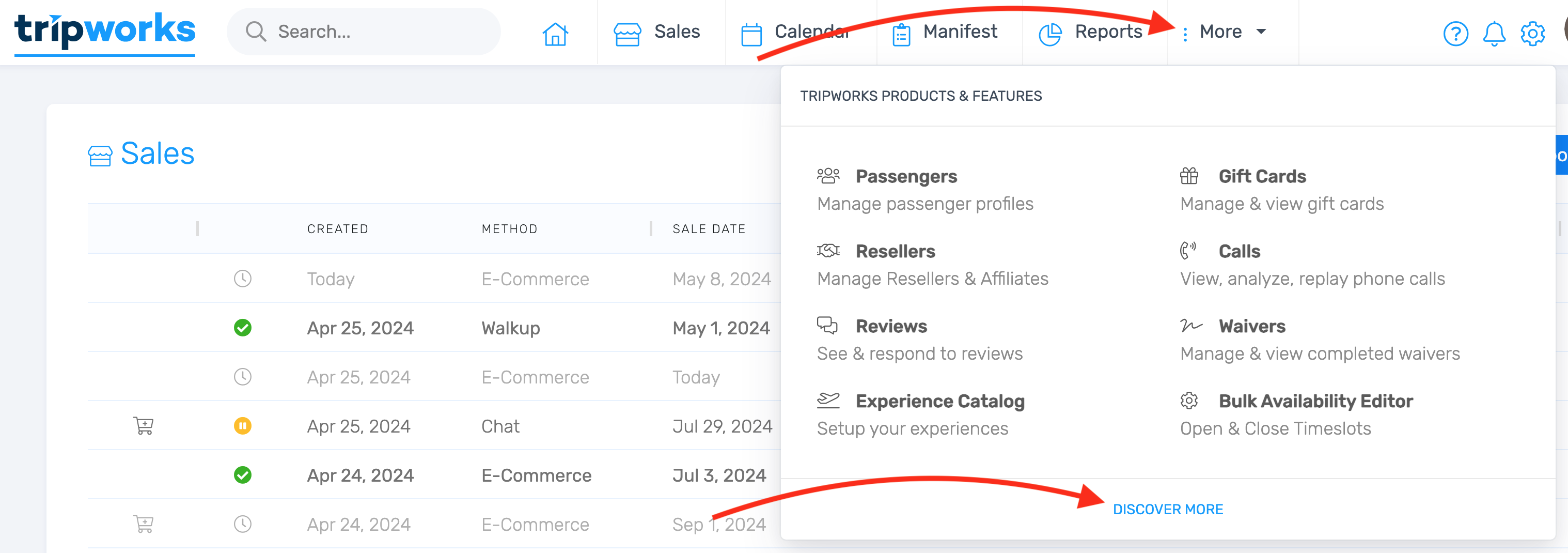
- Go to Setup Integrations and select Google Business.
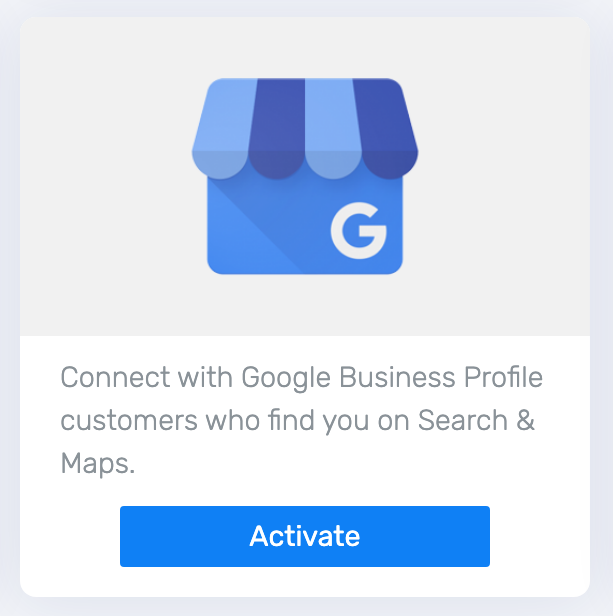
- Select Activate next to the Google Business integration.
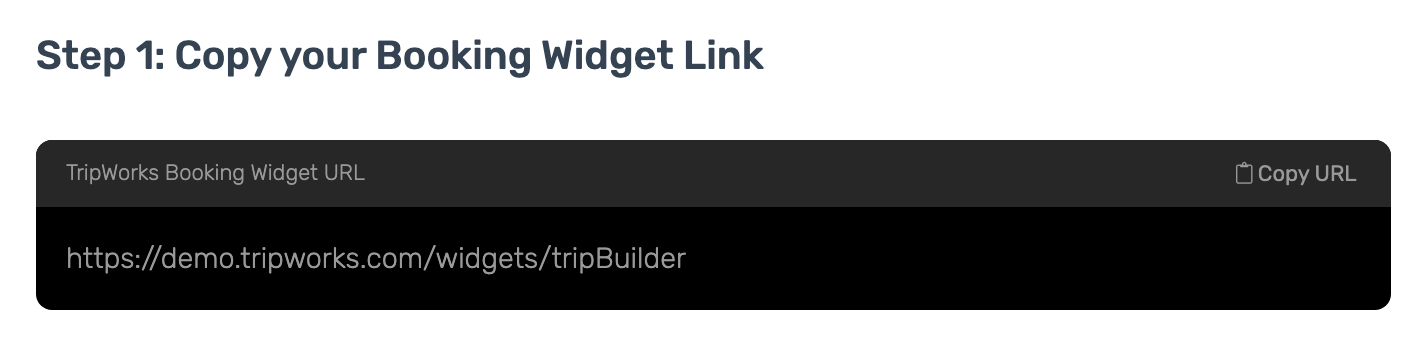
- Copy your TripWorks Booking Widget URL — this is the link you'll add to your Google Business Profile.
Step 2: Add the link to your Google Business Profile
-
Log in to your Google account, then open your Business Profile Manager.
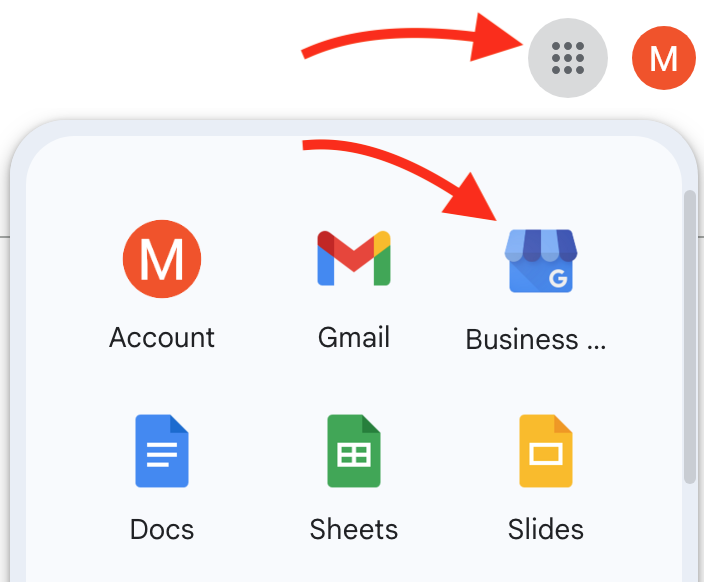
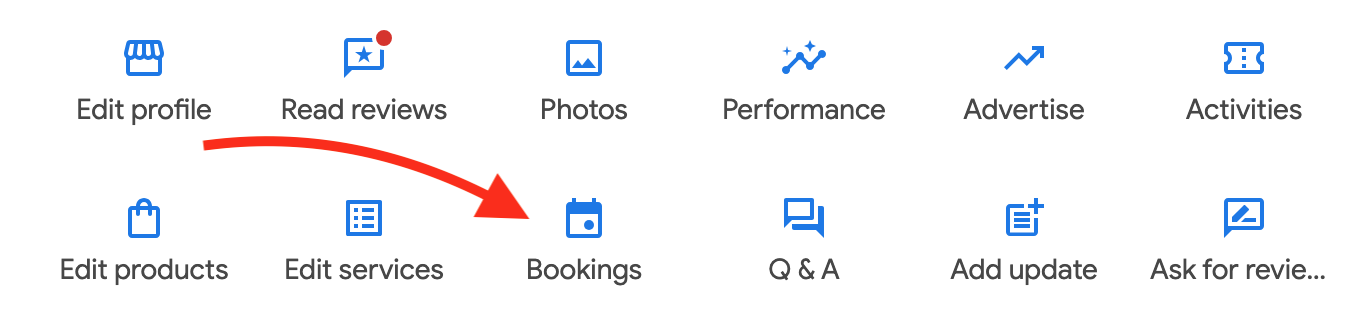
- Select the Bookings icon.
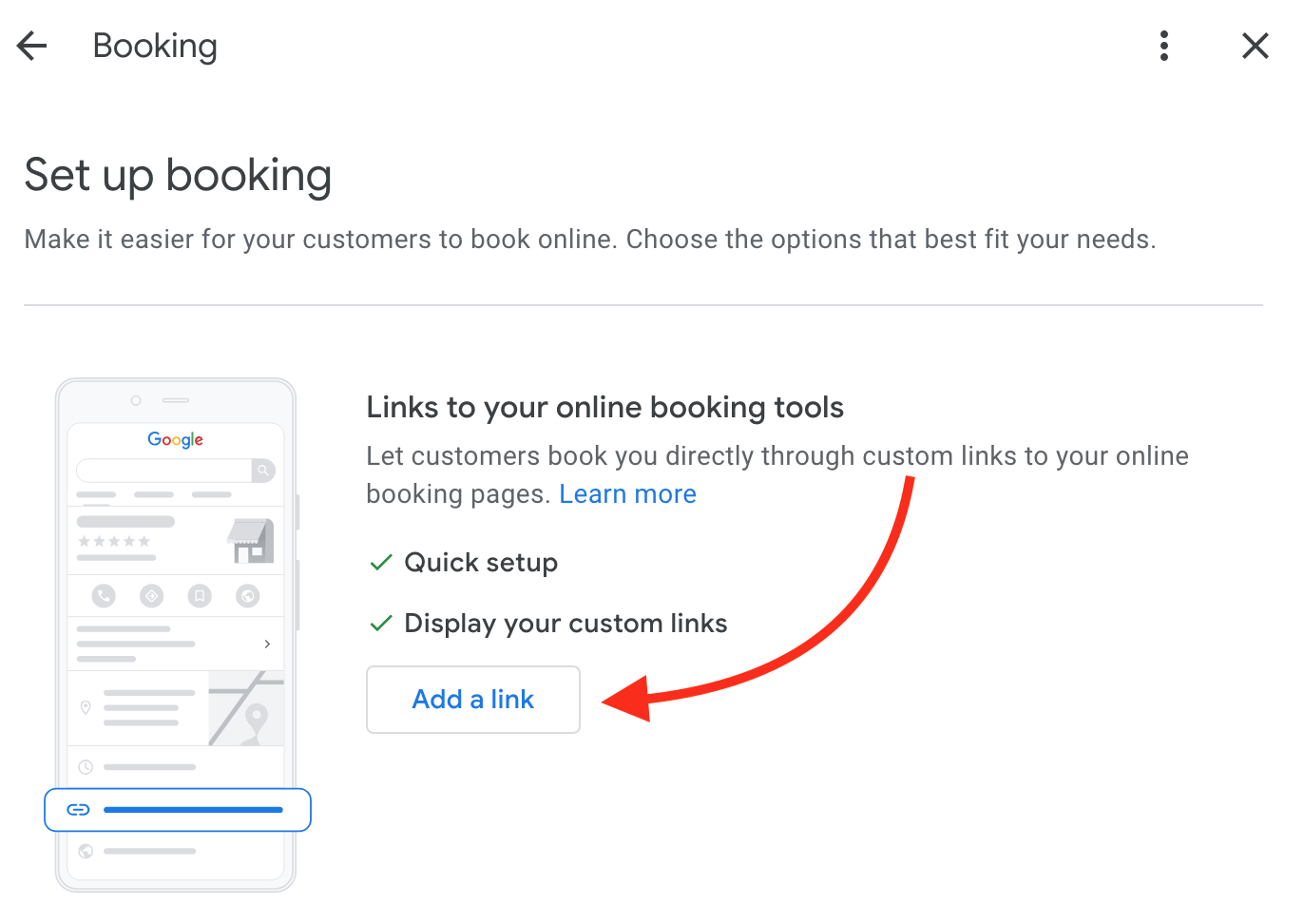
- Select Add a link.
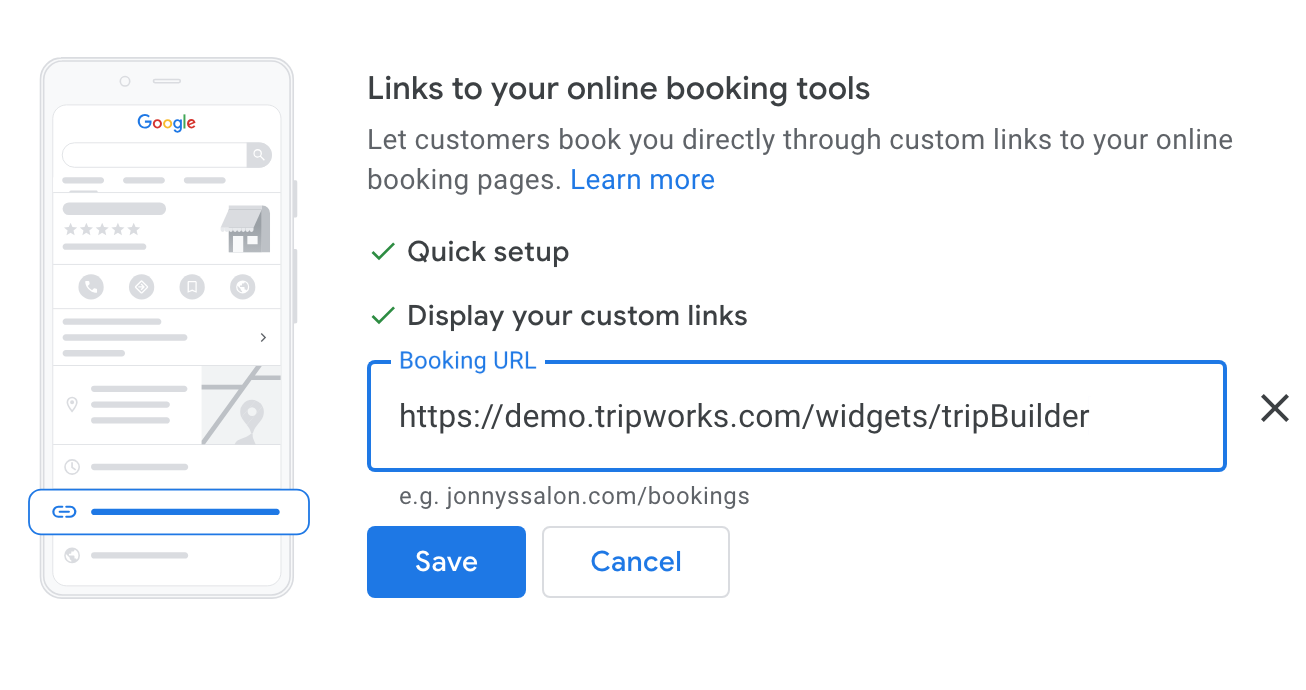
- Paste your TripWorks booking widget URL into the Booking URL field, then save.
Changes to your Google Business Profile, including adding a booking link, can take several days to appear. That delay is on Google's side, not TripWorks's — there's nothing broken if it doesn't show up right away.
Example: what this looks like in practice
- Someone searches your activity name on Google — instead of landing on a plain listing with just your phone number, they see a "Book" button right there in the search result or Maps listing.
- A guest is comparing operators on Google Maps — the one with a working booking link is one tap away from a reservation; the one without it means a trip to their website, or worse, a phone call during business hours only.
- Your booking widget stays in sync automatically — since the link points at your live TripWorks widget, availability and pricing shown after the click are always current, with nothing to keep updated manually on the Google side.
Frequently asked questions
Do I need a Google Business Profile already?
Yes, an active and claimed one. If you don't have one, set it up first using Google's guide, then come back to add the booking link.
Why isn't my booking link showing up on Google yet?
Google can take several days to process changes to a Business Profile, including new booking links. If it's been under a week, it's likely still processing rather than broken.
Where do I find my TripWorks Booking Widget URL again?
Under Setup → Integrations → Google Business, once the integration is activated.
Related
Built for attractions, tours & activities
Let Google searchers book without leaving Google
See how attractions, tours, and activities turn Google searches into bookings on TripWorks. Book a demo and make the switch.