
Connect Claude to TripWorks and you can ask about your guests, activities, locations, and phone calls in plain English, and have Claude make changes for you after showing a preview. This works in Claude.ai and Claude Desktop. The connection uses MCP, an open standard for linking AI assistants to the tools you already use. For the full picture of what MCP is and how it compares with the REST API, Zapier, and webhooks, see Connect TripWorks to your AI assistant (MCP).
In this article
Learn how to manage permission groups
In this article
- What you need before you connect Claude
- The steps to connect, from turning on MCP to your first question
- Example requests to try
- How permissions keep the connection safe
What you need
- AI Assistants turned on for your account. Someone with the Setup integrations catalog permission does this once, in step 1 below.
- Your own TripWorks login on a live account. You approve the connection by signing in as yourself.
- A Claude account on a plan that supports custom connectors.
-
The TripWorks server URL:
https://mcp.tripworks.com/mcp. It's the same for every account.
Connect Claude to TripWorks
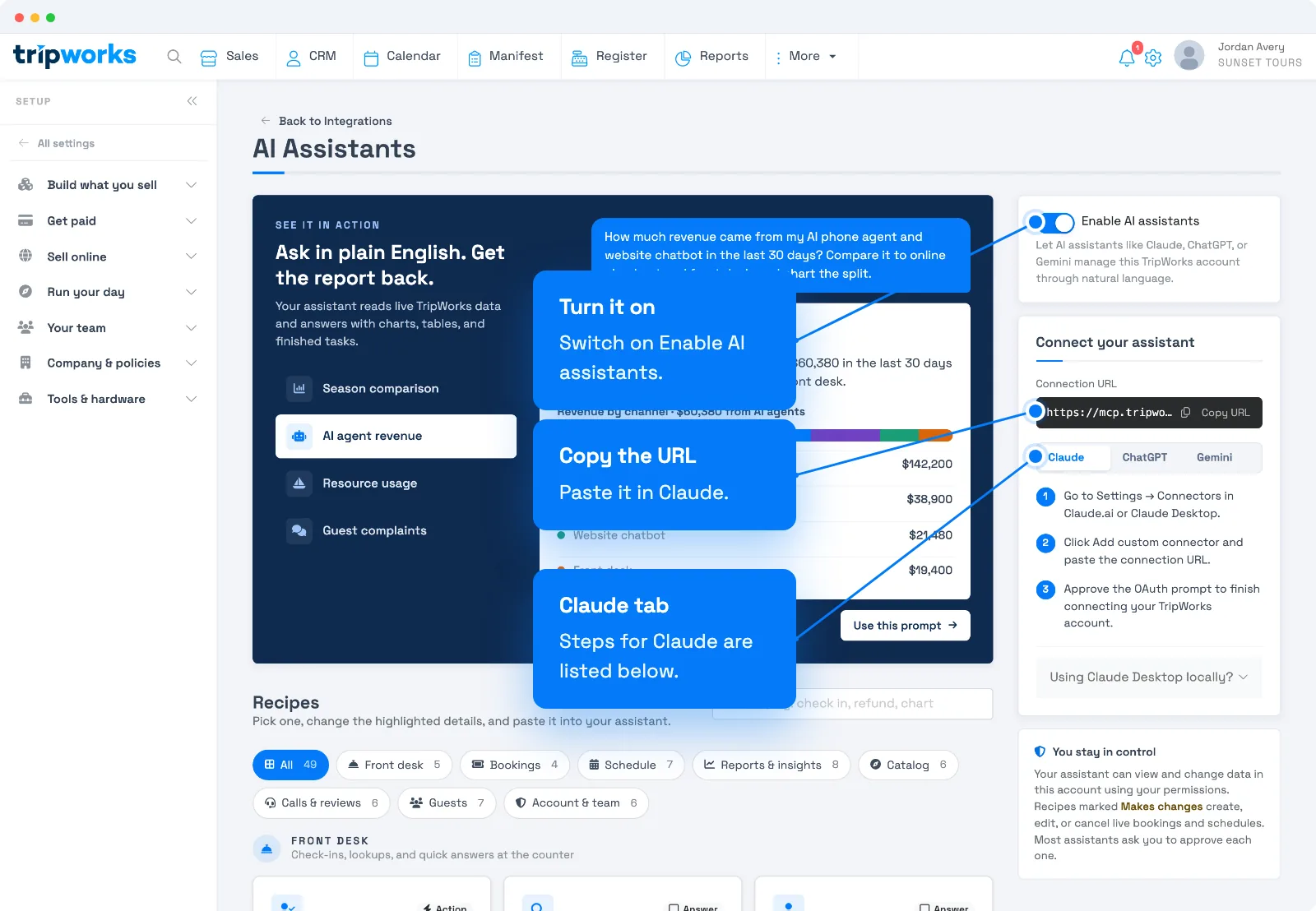
- In TripWorks, go to Setup Integrations, open the AI Assistants card, and switch on Enable AI assistants. (Skip this if it's already on.)
- Select Copy URL next to the Connection URL.
- In Claude.ai or Claude Desktop, go to Settings Connectors.
- Select Add custom connector and paste the URL.
- Claude opens a TripWorks page in your browser. Sign in if asked, then choose the account to connect.
- Choose Read access, Write access, or both, then select Approve.
- Start a new chat in Claude and ask, "List my experiences." If Claude answers with your real activities, you're connected.
Not sure about write access? Connect with Read access only. You can connect again later and approve write access when you're ready.
Connect Claude Desktop with a local bridge
Claude Desktop can also run a small local bridge instead of using the cloud connector. Add this to your claude_desktop_config.json file, then restart Claude Desktop:
{
  "mcpServers": {
    "tripworks": {
      "command": "npx",
      "args": ["mcp-remote", "https://mcp.tripworks.com/mcp"]
    }
  }
}
You'll still approve the connection with your TripWorks login the first time. This route needs Node.js installed on your computer, so most people should use the connector steps above.
What Claude can do once it's connected
With Read access, Claude can look up trips and bookings with their guests, the day's manifest, trip notes, your experiences, locations, customers, booking restrictions, resellers, reviews, phone calls, and the audit log. It can run reports, and search across trips, bookings, customers, gift cards, payments, resellers, and voucher codes. With Write access, it can also check guests in or change a booking's status, mark waivers signed, add or remove guests on a trip order, add trip notes, assign resources, create and edit experiences, locations, customers, and booking restrictions, and edit resellers. Every change is shown as a preview first. See everything your assistant can do.
Example requests
Try these in a new chat once you're connected:
- Find guests named Rivera. Claude searches trips, bookings, and customers and lists the matches with their contact details.
- Find customers with a gmail address and count them. Claude filters your customer list by email and gives you the total.
- Find the phone calls from last week. Claude lists recent calls, including AI callbot calls, with what TripWorks recorded.
- Find who changed our zoo's family-pass experience yesterday. Claude reads your audit log and shows what changed, when, and which team member made the change.
- Do add a location called Riverside Kayak Launch. Claude shows a preview of the new location and creates it only after you say yes.
Security and permissions
Claude runs as you. It can see and do only what your permission group already lets you see and do, and never more. On the approval screen you choose Read access, Write access, or both, which narrows what that one connection can do. Turn Enable AI assistants off under Setup Integrations AI Assistants and every connected assistant stops working right away. Learn more in how security and permissions work and the User permissions reference.
Only turn on Write access for people you'd trust to make the same edits by hand. Deleting a customer or experience can't be undone.
Frequently asked questions
What is the TripWorks server URL?
https://mcp.tripworks.com/mcp. It's the same for every account. You can copy it from the AI Assistants page under Setup Integrations.
Can Claude see everything in my account?
No. Claude runs as you, so it sees only what your own permission group allows, further limited by the Read and Write choices you made when you approved the connection. See how security and permissions work.
Can Claude change things without asking me?
No. Every create, edit, and delete starts as a preview, and nothing is saved until it's confirmed. If you approved Read access only, it can't make changes at all.
I approved Read access only. How do I add Write access?
Remove the TripWorks connector in Claude and add it again with the same URL. On the approval screen, check both Read access and Write access.
How do I disconnect?
To stop every connected assistant at once, turn off Enable AI assistants under Setup Integrations AI Assistants. You can also remove the connector inside Claude.
I can't find Add custom connector in Claude.
Custom connectors depend on your Claude plan and on your organization's settings. If you don't see the option, check Claude's help for custom connectors, or ask whoever manages your Claude account.
Built for attractions, tours & activities
Ask your booking data a question
See how attractions, tours, and activities look up guests, check numbers, and update their catalog in plain English with TripWorks. Book a demo and make the switch.