
TripWorks can connect to AI assistants like Claude, ChatGPT, and Gemini, so you can look things up and make changes in your account by typing a plain-English request instead of clicking through screens. Ask "How many guests have we added this month?" or "Which of our kayak tours have a group minimum?" and your assistant goes and gets the answer from your real TripWorks data.
In this article
- What MCP is
- The TripWorks server URL
- Which assistants you can connect
- What you need
- Turn on MCP and connect your assistant
- What your assistant can do
- Start from a recipe
- Example requests
- Choosing between MCP, the REST API, Zapier, and webhooks
- How security and permissions work
- Frequently asked questions
The connection uses MCP (the Model Context Protocol), an open standard for securely linking AI assistants to the tools you already use. You turn on AI Assistants once, copy a connection URL into your assistant, and approve the connection with your normal TripWorks login.
Learn how to manage permission groups
In this article
- What MCP is and what your assistant can do once it's connected
- The server URL, and which assistants you can connect
- What you need before you start, and the setup steps
- How to choose between MCP, the REST API, Zapier, and webhooks
- How permissions work: your assistant can only see and do what you can
What MCP is
MCP is a shared language that lets an AI assistant talk to another system in a controlled way. When you connect TripWorks, your assistant gains a set of tools, each one a specific thing it can do in your account, such as "search for a guest," "list my experiences," or "update a location."
You don't pick tools yourself. You describe what you want, and the assistant chooses the right tool, runs it, and explains the result. Because it reads live data, the answer reflects your account as it is right now.
Connecting an assistant is your choice, made account by account. Nothing is shared with any AI platform until you turn on AI Assistants and approve a connection.
The TripWorks server URL
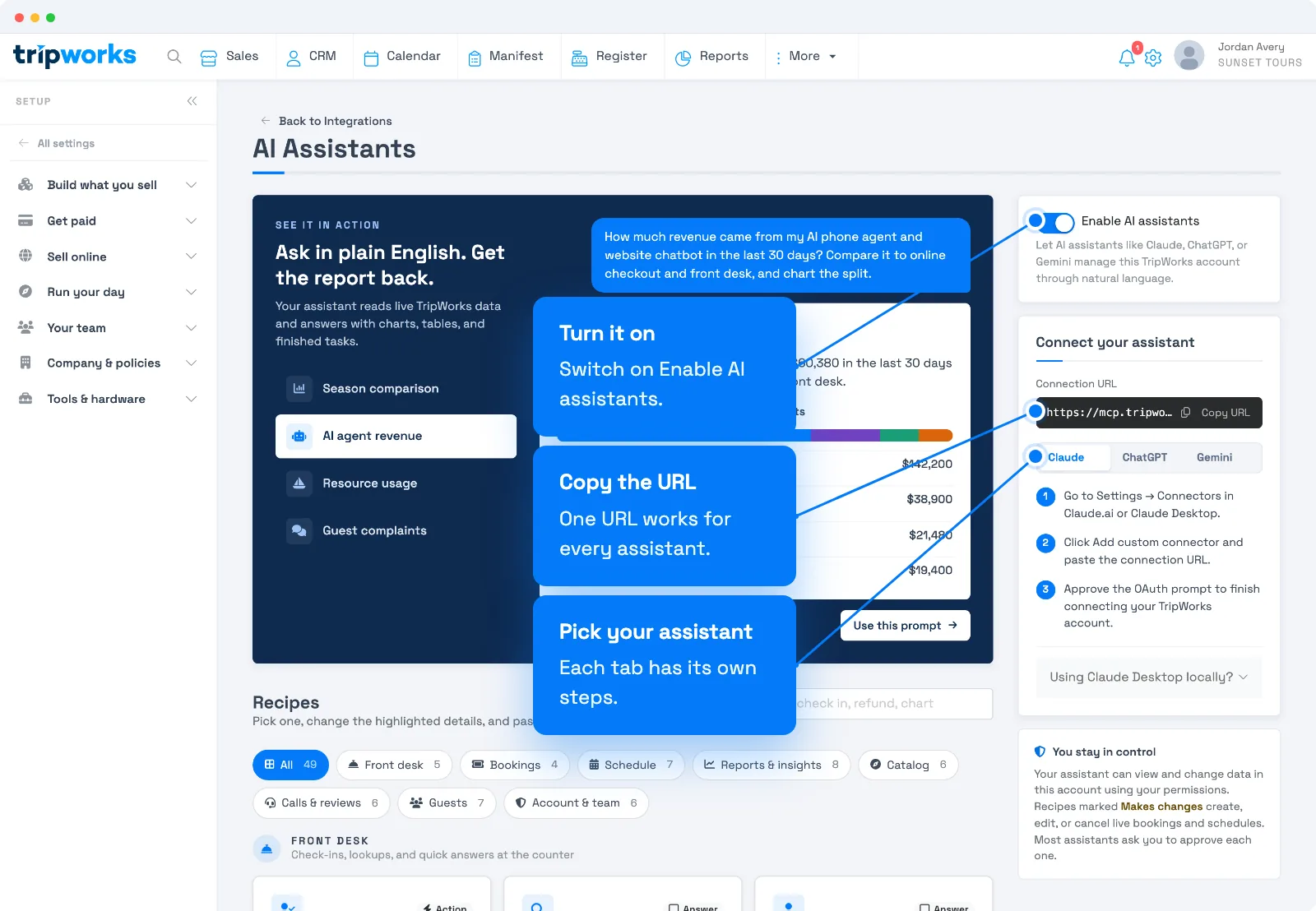
Every assistant connects to the same address. You'll find it, with a copy button, on the AI Assistants page in TripWorks, where it's labelled Connection URL:
https://mcp.tripworks.com/mcp
Paste this address wherever your assistant asks for a server URL, connector URL, or custom connector. It's the same URL for every account, because the account you're connecting is chosen when you approve the connection, not in the address.
Which assistants you can connect
Any AI assistant that supports MCP custom connectors can connect to TripWorks. The AI Assistants page has ready-made steps for the first three. Antigravity has its own article:
- Claude (Claude.ai and Claude Desktop): add a custom connector and paste the server URL. See Connect Claude to TripWorks.
- ChatGPT: add a custom connector in ChatGPT's settings and paste the server URL. See Connect ChatGPT to TripWorks.
- Gemini: add a custom app in the Gemini web app and paste the server URL. See Connect Gemini to TripWorks.
- Google Antigravity: add TripWorks to its MCP server config with the server URL. See Connect Google Antigravity to TripWorks.
People who prefer a command-line assistant can use the same URL. The AI Assistants page shows a local setup snippet for Claude Desktop and for the Gemini CLI, and points ChatGPT users to the Codex CLI.
The exact menu names in each assistant change from time to time, and some plans don't include custom connectors. If you can't find where to add one, check your assistant's own help for "custom connectors" or "remote MCP servers."
What you need
- AI Assistants turned on for your account. Someone with the Setup integrations catalog permission does this once (see the steps below).
- Your own TripWorks login on an account that's live. You approve every connection by signing in as yourself.
- The permissions for what you want to do. Your assistant can do only what your own permission group allows. See How security and permissions work.
- An AI assistant account on a plan that supports custom connectors.
Turn on MCP and connect your assistant
- In TripWorks, go to Setup Integrations and open the AI Assistants card.
- Switch on Enable AI assistants. It takes effect right away, with no Save button. Until it's on, no assistant can connect to your account.
- Under Connect your assistant, select Copy URL next to the Connection URL.
- Choose the Claude, ChatGPT, or Gemini tab for the exact clicks, then add a custom connector or app in that assistant and paste the URL.
- Your assistant opens a TripWorks page in your browser. Sign in if asked, then choose the account to connect.
- Choose what to allow: Read access (view your data), Write access (create and edit), or both. Then select Approve.
- Back in your assistant, start a new conversation and ask something like "List my experiences." If the answer comes back with your real activities, you're connected.
Not sure about write access? Connect with Read access only. You can connect again later and approve write access when you're ready.
What your assistant can do
Once connected, your assistant can work with these parts of your account. Read access lets it look things up; Write access lets it create and change the items marked below.
| Area | What your assistant can do |
|---|---|
| Trips and bookings | Look up trips with their orders and guests, and look up a booking's products, add-ons, waivers, and custom fields. Check guests in or change their status, mark waivers signed, and add or remove guests on a trip order |
| Trip notes | Read a trip's notes and add a new one |
| Day-of manifest | See who is booked on each departure, with check-in and waiver status |
| Reports and analytics | Run a report and download the result, and ask for counts, totals, averages, and comparisons across periods |
| Experiences (activities) | Look up, create, edit, and delete |
| Locations | Look up, create, and edit |
| Customers | Look up, create, edit, and delete |
| Booking restrictions | Look up, create, and edit |
| Resources | Assign and unassign resources on departures, and create or clear blackouts |
| Resellers | Look up and edit |
| Reviews | Look up guest reviews |
| Phone calls | Look up calls and tags, and read a call's summary, transcript, and the questions and tips found in it |
| Promo codes, trip sources, team members | Look up and review |
| Audit log | Review what changed and when, and which team member made the change |
| Account settings | Read your account's settings and guest policies |
| Search | Find trips, bookings, customers, gift cards, payments, resellers, phone calls, trip notes, and voucher codes by keyword |
A few things worth knowing about how it works:
- Filtering. When your assistant lists customers, experiences, phone calls, and other records, it can filter by fields such as email, name, or date, so "customers with a gmail address" works as you'd expect.
- Totals. Your assistant can count, add up, and average values across matching records, and compare one period with another, which is how it answers "how many" and "what's the average" questions.
- Preview before it changes anything. Every create, edit, and delete shows you a preview of the change first. Nothing is saved until the assistant repeats the request with your confirmation, so you always see what will happen before it does.
Start from a recipe
The AI Assistants page has a Recipes library of ready-made prompts. Search it, or browse by category: Front desk, Bookings, Schedule, Reports & insights, Catalog, Calls & reviews, Guests, and Account & team. Open one, change the highlighted details, and paste it into your assistant.
Each recipe is labelled Read-only or Makes changes, so you can see at a glance whether it only looks things up. Recipes are starting points. Your assistant can only do what its connected tools allow, so a recipe may need rewording, and some tasks may not be possible yet.
Example requests
Try these in a new conversation once you're connected. Each one shows what your assistant does behind the scenes.
- Find guests named Rivera. The assistant searches trips, bookings, and customers and lists the matches with their contact details.
- Find the booking for confirmation code 4F7K2. The assistant searches by code and opens the matching trip.
- Find customers with a gmail address. The assistant filters your customer list by email and shows who matches.
- Count how many customers we have in total. The assistant runs a total across your customer records and gives you the number.
- List every experience at our downtown aquarium location. The assistant reads your experiences and locations and groups them for you.
- Find phone calls from last week. The assistant lists recent calls, including AI callbot calls, with the details TripWorks recorded.
- Who's booked on tomorrow's 10:00 AM departure? The assistant reads the manifest and lists the parties, with check-in and waiver status.
- What are callers asking about most? The assistant reads the questions and tips found in your recent calls and summarizes the themes.
- Run a sales report for last month. The assistant starts the report and gives you a download link. The link expires after 15 minutes, so ask again if you need it later.
- Find who changed the museum's timed-entry experience yesterday. The assistant reads your audit log and shows what changed, when, and which team member made the change.
- Do add a new location called Riverside Kayak Launch. The assistant shows a preview of the new location. Nothing is created until you say yes.
- Do add a note to a trip. The assistant shows the note and waits for your go-ahead before saving it.
- Do update a customer's email address. The assistant previews the change to that record and waits for your go-ahead before saving.
Choosing between MCP, the REST API, Zapier, and webhooks
TripWorks offers four ways to connect to other tools. They solve different problems, so the right one depends on who is doing the work and which way the data needs to flow.
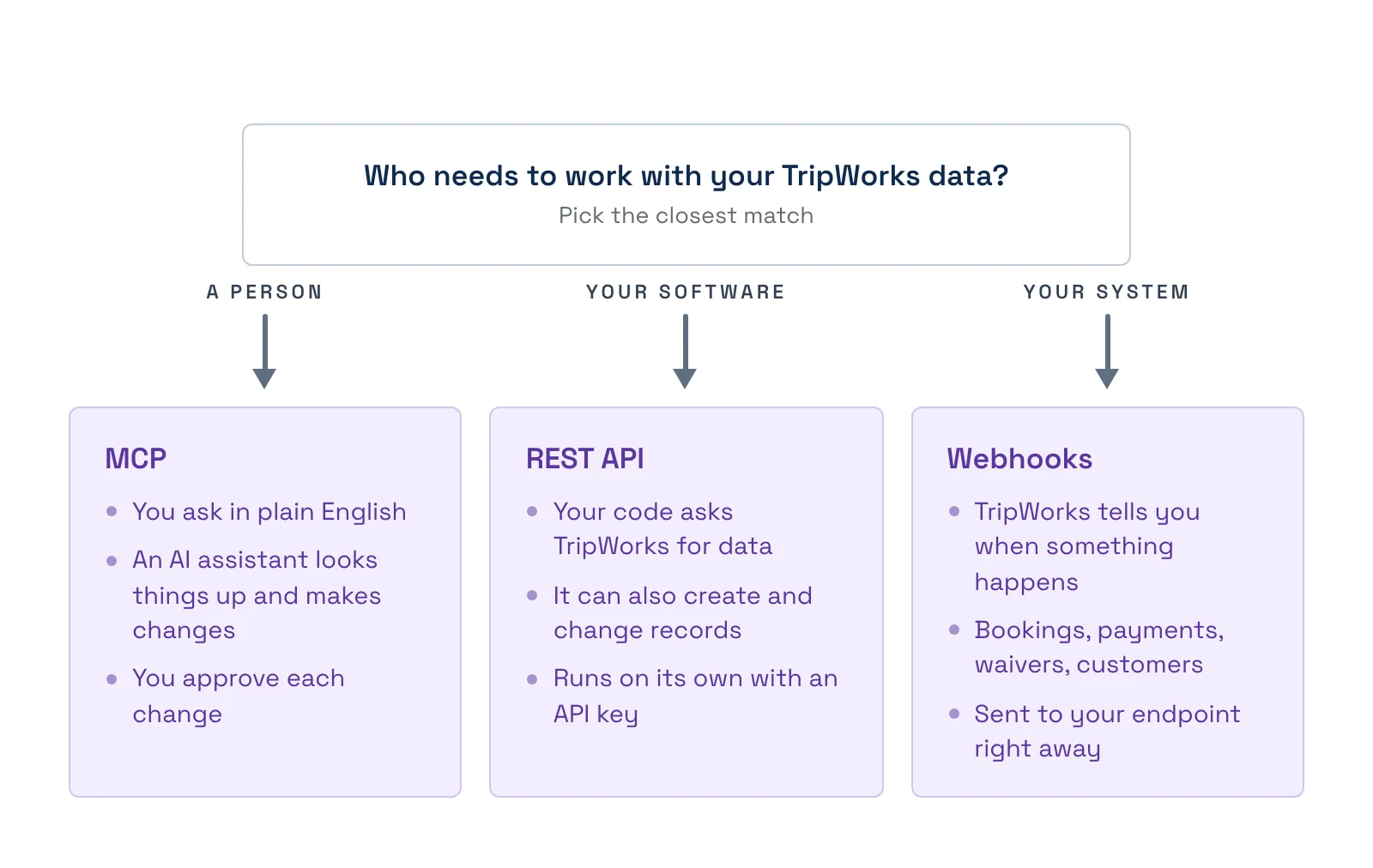
Zapier is a fourth option for no-code automations that react to something happening in TripWorks. For the full picture, including Octo for resellers, see Does TripWorks have an API?
A quick way to choose:
- "I want to ask a question or make a quick change myself." Use MCP.
- "I want something to happen automatically every time a booking comes in." Use Zapier if you want no code, or webhooks if you're sending data to your own system.
- "I'm building my own software on top of TripWorks." Use the REST API. Its documentation is at api-docs.tripworks.com, and you create an API key under Setup Integrations REST API.
The biggest difference is who is acting. With MCP, a real person is always behind the connection, so it follows that person's permissions and needs their approval. An API key or a Zapier connection is a standing credential for software, with no person approving each request. Use MCP when a person is in the loop, and the others when software runs on its own.
How security and permissions work
Your assistant runs as you. When you approve a connection, TripWorks treats every request from your assistant as if you made it yourself. It can see and do only what your permission group already lets you see and do, and never more. If you can't open the Locations setup screen, your assistant can't list or change locations either.
Two layers of control work together:
- Your permissions. Your permission group decides what you can do in TripWorks. The connection can never go beyond it. Someone who is later moved to a group with less access loses that access in their assistant too.
- Your approval choices. On the approval screen you choose Read access, Write access, or both. This narrows what that one connection can do. If you leave Write access unchecked, your assistant can't create, edit, or delete anything, even if your own permissions would allow it.
Here is the permission each area needs, in addition to the approval choice above:
| Area | Permission needed |
|---|---|
| Trips and bookings | View Trips to look up; Edit bookings on trips or Change existing trips to change |
| Trip notes | View Trips to read; Add comments to Trips or Change existing trips to add. Only your own notes can be edited |
| Manifest | View the daily manifest or View calendar in the Dashboard |
| Reports | View reports module, plus the permission for each report |
| Analytics | Access Smart Insights Dashboard |
| Experiences | Manage activities or experiences |
| Locations | Manage company locations |
| Customers | View customers in the dashboard to look up, Edit customers in the dashboard to change |
| Booking restrictions | Manage booking restrictions |
| Resources | Manage resources for blackouts |
| Resellers | View affiliates and partners to look up, Manage affiliates and partners to edit |
| Reviews | View and run Marketing reports |
| Promo codes | Manage offer codes |
| Trip sources | Manage Trip marketing sources |
| Team members | Create and manage other users |
| Phone calls | Manage company profile to list calls; Playback and analyze phone calls also lets it open a single call |
| Audit log and account settings | Manage company profile |
| Search | Each result type follows the matching view permission, so results only include what you're allowed to see |
More ways your account stays protected:
- You sign in yourself. Approval happens in your browser with your normal TripWorks login. Nobody shares a password or key with the assistant.
- One connection, one account. If you belong to more than one TripWorks account, you pick which one when you approve. Each connection reaches that account only.
- You stay in control. Turn Enable AI assistants off under Setup Integrations AI Assistants and every connected assistant stops working right away.
- Changes are previewed. Nothing is created, edited, or deleted without a preview and a confirmation.
- Your assistant provider sees what it reads. Anything your assistant looks up is passed to that AI platform to answer you, and is handled under that provider's own terms. Turn on Read access only for what you're comfortable sharing, and review your provider's privacy settings.
Only turn on Write access for people you'd trust to make the same edits by hand. Deleting a customer or experience can't be undone.
For the full list of what each permission unlocks, see the User permissions reference.
Frequently asked questions
What is the TripWorks MCP server URL?
https://mcp.tripworks.com/mcp. Paste it into your assistant's custom connector or server URL field. It's the same for every account, and you can copy it from the AI Assistants page under Setup Integrations.
Which AI assistants work with TripWorks?
Claude, ChatGPT, and Gemini all have setup steps on the AI Assistants page, and Google Antigravity has its own article. Any other assistant that supports remote MCP servers with sign-in can use the same URL. Whether you can add a custom connector depends on your assistant and your plan with that provider.
I can't find AI Assistants under Setup > Integrations. Why?
Either you don't have the Setup integrations catalog permission, or AI Assistants isn't turned on for your account yet. Ask an account admin to check your permission group (see Permission groups), and contact TripWorks if the card still isn't there.
Does my assistant see everything in my account?
No. It sees only what your own permission group allows, further limited by the Read and Write choices you made when you approved the connection. A team member with less access gets an assistant with less access.
Can my assistant change or delete things without asking me?
No. Every create, edit, and delete starts as a preview, and nothing is saved until it's confirmed. If you only approved Read access, it can't make changes at all.
What can my assistant do with trips and bookings?
It can look up trips and bookings with their guests, check guests in, change a booking's status, mark waivers signed, add or remove guests on a trip order, and read and add trip notes. It can also read the day's manifest and run reports. Anything it changes starts as a preview. New tools are added regularly.
How do I disconnect an assistant?
To stop every connected assistant at once, turn off Enable AI assistants under Setup Integrations AI Assistants. TripWorks doesn't list individual connections, so you can't remove just one there. To remove a single assistant, remove the connector inside that assistant. To change what an assistant is allowed to do, remove the connector and connect again, then choose different Read and Write options.
My assistant says it needs me to sign in again. What do I do?
Approve the sign-in prompt. Connections renew themselves in the background, but a long stretch without use can require a fresh approval. If the prompt reports that MCP isn't enabled for your account, ask an admin to switch Enable AI assistants on.
I approved Read access only. How do I add Write access?
Remove the TripWorks connector in your assistant and add it again with the same URL. On the approval screen, check both Read access and Write access.
Should I use MCP or Zapier?
Use MCP when a person wants to ask questions or make changes in plain English. Use Zapier when you want something to happen automatically each time an event occurs in TripWorks, such as adding every new lead to your email tool. Zapier reacts to events; MCP responds to you.
Built for attractions, tours & activities
Ask your booking data a question
See how attractions, tours, and activities look up guests, check numbers, and update their catalog in plain English with TripWorks. Book a demo and make the switch.