
You can save any signed waiver as a PDF.
- Open the waiver — from More → Waivers, or from a guest's waiver on a trip. See Viewing signed waivers.
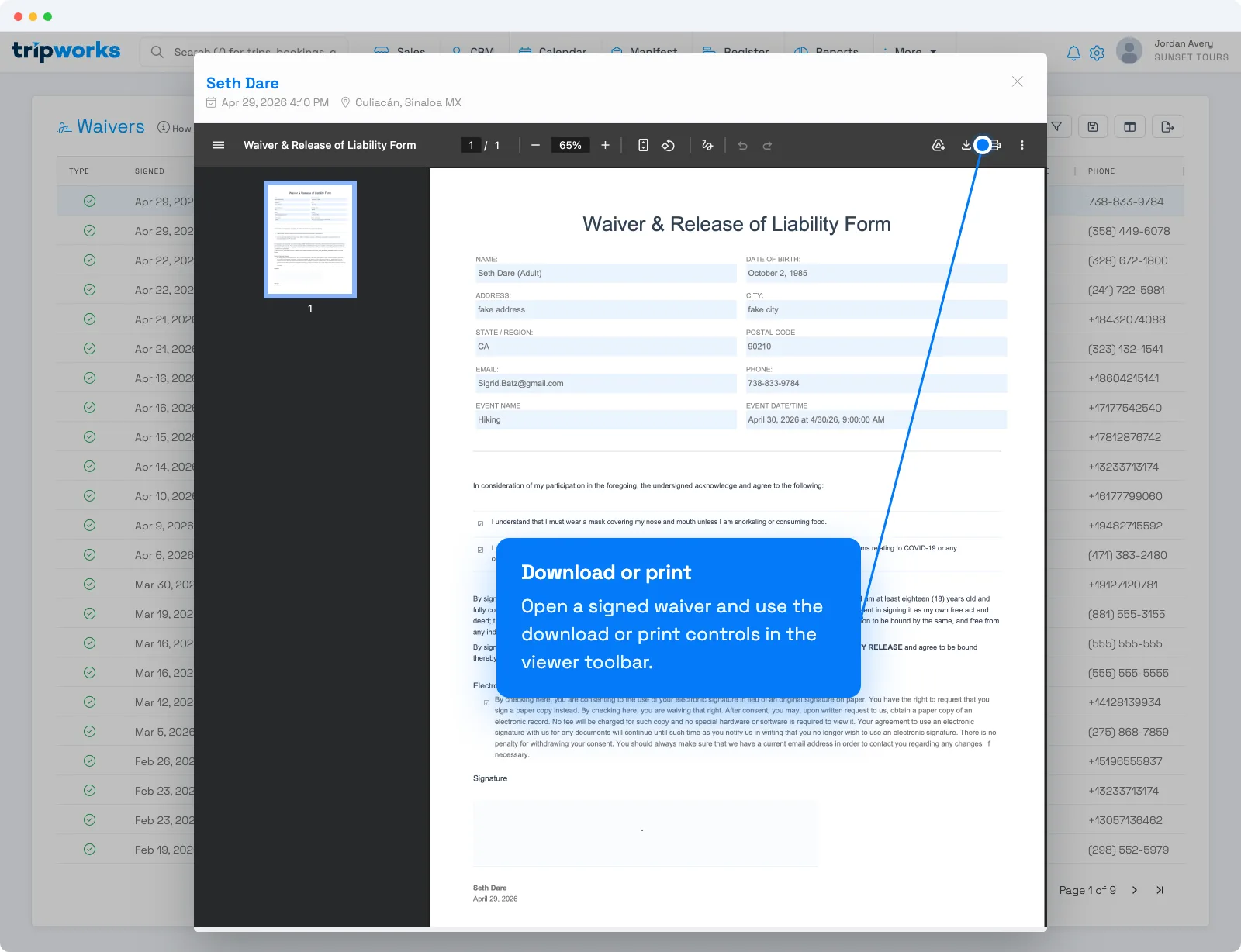
- In the waiver viewer's toolbar, select the download control (or open the ⋮ menu and choose Download PDF).
What's in the PDF
The PDF includes the waiver's title, the activity and its date and time, and a block for each signer with their name and whether they signed as an adult or a minor. Each block also shows the details the waiver collects, such as date of birth, contact details, emergency contact, and insurance or driver's license information. Below that is the waiver text, with checkboxes shown as checked or unchecked, any guardian consent for a minor, the electronic signature consent, and the signature itself. A certificate at the end records the signer, IP address, location, device, and the date it was signed. The layout may differ slightly on older waivers.
Frequently asked questions
Can I download several waivers at once?
Download is per-waiver from the viewer. To pull many at once, use the export control on the More → Waivers list — see Viewing signed waivers.
Related
Built for attractions, tours & activities
Your waiver records, always at hand
See how attractions, tours, and activities keep signed waivers organized on TripWorks. Book a demo and make the switch.