
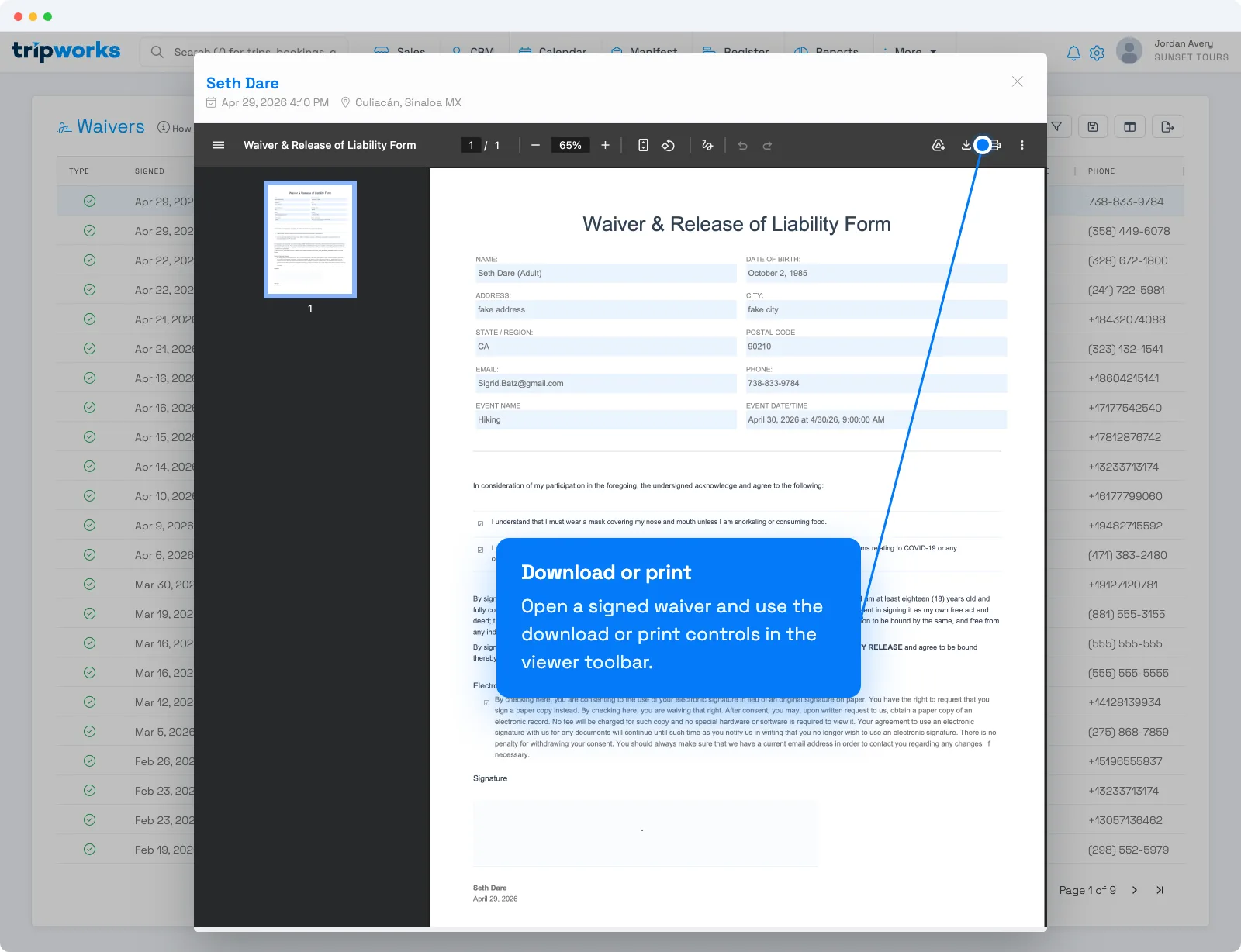
You can print any signed waiver from the viewer.
- Open the waiver — from More → Waivers, or from a guest's waiver on a trip. See Viewing signed waivers.
- In the waiver viewer's toolbar, select the print control (or open the ⋮ menu and choose Print PDF), then print as usual.
Frequently asked questions
Nothing prints — what should I check?
The waiver prints as a PDF. If nothing happens, download it first (the download control is right next to print) and print the PDF from your computer. See How do I download a signed waiver?
Related
Built for attractions, tours & activities
Your waiver records, always at hand
See how attractions, tours, and activities keep signed waivers organized on TripWorks. Book a demo and make the switch.