
TripWorks supports up to three waivers per activity, an unlimited library of waiver templates, per-guest signing status, bulk actions for paper waivers, and a way to handle portal signers who don't have a ticket. Here's how each piece works.
In this article
How waivers work
- Build an unlimited library of waiver templates in your account.
- Assign up to 3 waivers to any activity (for example: general liability + minor/parental consent + an activity-specific release).
- Track per-guest status with X/3 badges on the trip and manifest.
- Manage additional signers — people who signed in the portal without a ticket.
- Use bulk "mark as signed" for paper waivers or an outside system.
Build your waiver templates
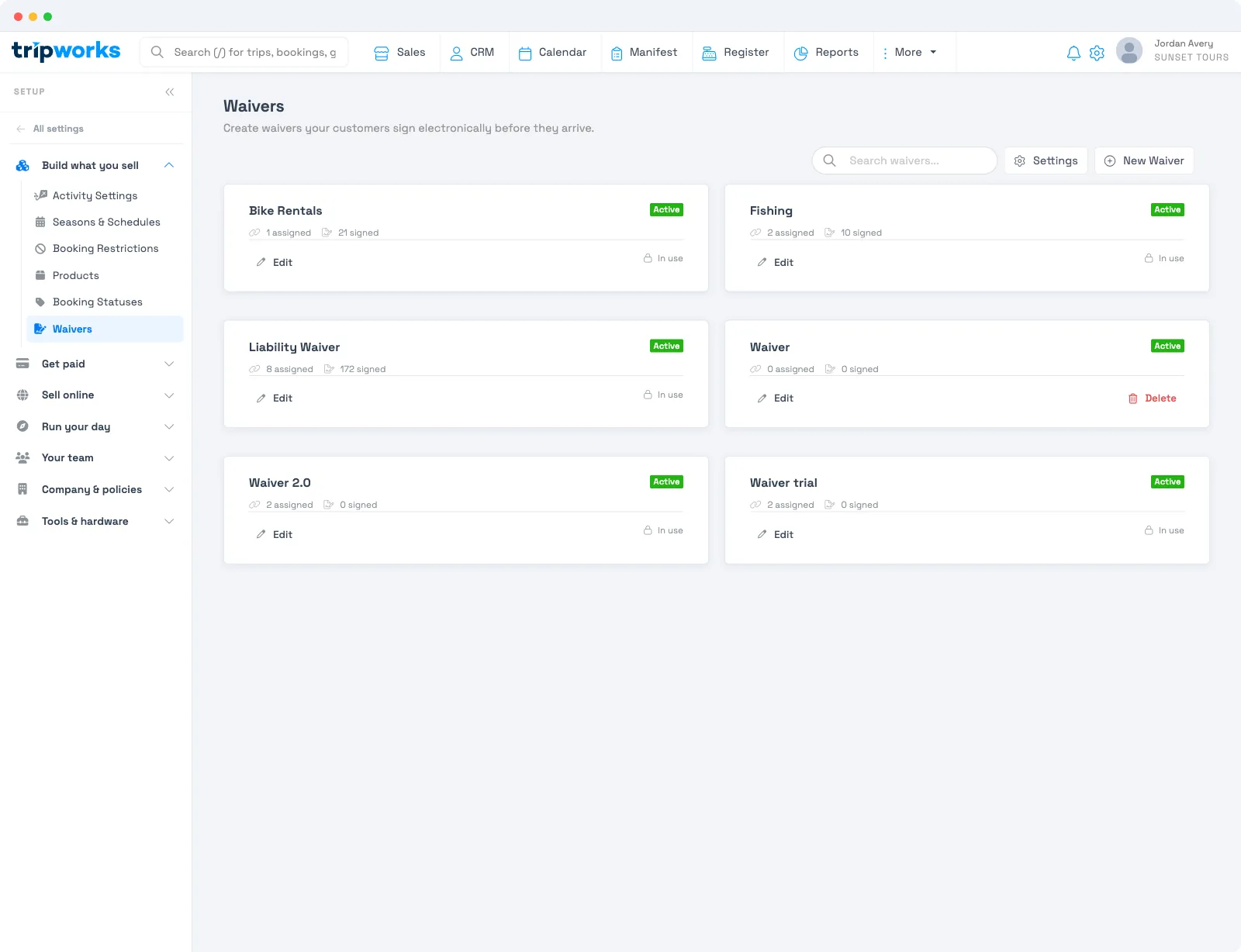
Your template library is unlimited — make separate waivers per activity type, season, or location, then assign whichever you need.
- Go to Setup Build what you sell Waivers.
- Select New Waiver.
- Name it and enter the waiver content (your legal text — see Where can I get a waiver template?).
- Save.
Assign waivers to an activity
Each activity can have up to three waivers.
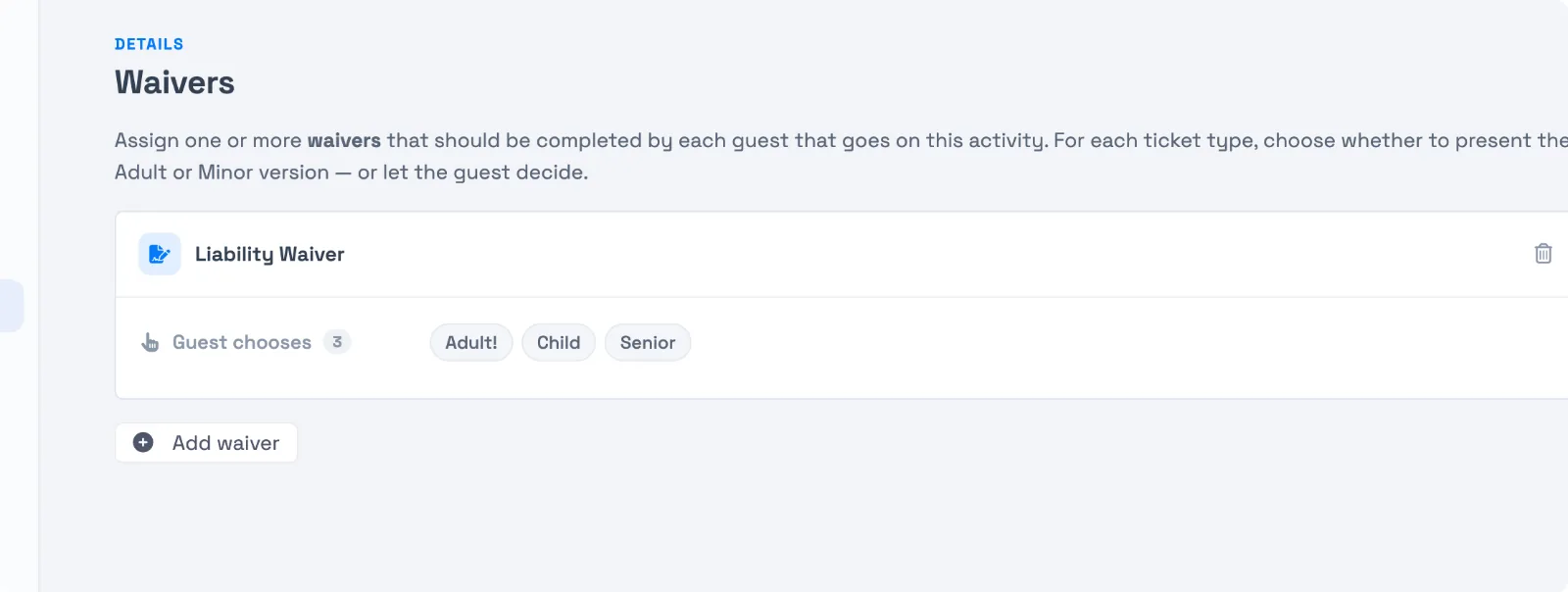
- Open the activity and go to its Waivers tab.
- Select Add waiver.
- In the drawer, choose the waiver template, then set how each ticket type signs it — Adult, Minor, or Guest chooses. Use Set all ticket types to to apply one choice to every type at once.
- Select Save changes.
Once three are attached, the button reads "3 of 3 waivers configured." To swap one, remove an existing waiver first. Common setups: general liability + minor liability + activity release; or adult waiver + parental consent.
Track signing status on a trip
Every guest row on a trip shows a waiver badge next to the ticket type:
- Gray 0/3 — nothing signed yet
- Blue 1/3 or 2/3 — partially signed
- Green "All Signed" — every required waiver is complete
A guest's Waiver Actions menu covers the rest: send to iPad, Browse Signed Waivers, send a reminder, change status to signed, view the QR code, and preview the portal. For a guest with several waivers, Change status to signed lets you mark them all at once or pick a specific one.
Reuse a signed waiver (rebook)
When a guest is rebooked to a different activity, their signed waiver follows them only if the new activity requires the same waiver. If it doesn't, the new booking starts unsigned and the signed waiver goes back to the pool of unattached waivers, so the guest doesn't have to sign again. TripWorks warns you on the Change Activity confirmation when waivers won't carry over.
To attach one yourself, open the guest's Waiver Actions, choose Browse Signed Waivers, search by name or email, and select Assign on the right row. Unattached waivers are listed first. If the waiver is already on another active booking, TripWorks asks you to confirm with Assign anyway, and the other booking still shows as signed.
Mark waivers signed in bulk
If a group signed on paper or in another system, update everyone at once instead of opening each record.
- From a booking: open the trip, select the booking's waiver status, choose Change status to signed, and confirm which waiver(s) to mark.
- From the manifest: open the manifest, select Waiver Actions → Change status to signed, and confirm — every guest on the trip is marked signed.
Additional signers — portal signers without a ticket
Your customer portal can let people sign a waiver even without a ticket — useful for boat tours, walk-ups, or groups whose headcount changes. You control this at two levels. The account default is under Setup, Waivers, settings, where you choose between one waiver per booked guest and letting guests add their own waivers in the portal. For a single activity, open its Waivers tab, select Settings, and turn on Override for this activity. Choose Always allow to allow additional waivers beyond the ticket count, or Never allow so only booked guests can sign. These additional signers appear in their own section on the trip.
When portal signers without a ticket exist, a callout strip appears above the bookings list. Expand it to see each signer with their name, email, waiver status, and an Add Ticket button.
Turn an additional signer into a ticket holder
- Select Add Ticket on the signer's row.
- Choose a ticket type (Adult, Child, and so on).
- Select Add Ticket & Attach Waivers.
The ticket is created at that type's standard price, their signed waivers transfer over, and the row leaves the additional-signers panel. You're not required to add a ticket — if the person just signed but isn't paying, leave them in the panel.
At the bottom of the panel, Link additional waivers to this trip associates any portal-signed waiver with the trip for record-keeping. Linking is visibility only — it doesn't create a ticket, a booking, or a charge.
Frequently asked questions
Can I attach more than one waiver to a single ticket?
Yes. When an activity has more than one waiver assigned, every guest booked on it must sign each required waiver — so a single ticket can have two or three waivers attached to it. Each guest's progress shows as an X/3 badge (for example 1/3, 2/3, "All Signed"), and the guest signs each one in a single pass through the portal.
How many waivers can I assign to one activity?
Up to three — enough for general liability + minor/child liability + an activity-specific release. Your library of templates is unlimited; only the per-activity assignment is capped at three.
Can a guest sign in the portal if there are no tickets left?
Yes, if additional waivers are allowed for that activity (or by your account default). They appear on the trip and manifest as additional signers, where you can manage them or promote them to a ticket holder. If it's set to Never allow, only booked guests can sign.
Does "mark as signed" cover all of a guest's waivers?
The bulk action marks every required waiver for the selected guests as signed. To mark only one waiver for one guest, use Change status to signed in that guest's Waiver Actions menu and pick which one.
Does linking a portal waiver to a trip create a booking?
No — linking is record-keeping only. It associates the waiver with the trip for visibility; it doesn't create a ticket, a booking, or a charge.
Related
Built for attractions, tours & activities
Waivers that keep up with real groups
See how attractions, tours, and activities collect every signature — even for walk-ups and changing headcounts — on TripWorks. Book a demo and make the switch.