Connecting Twilio lets you text guests from a phone number of your own choosing instead of a shared, unbranded one, so your SMS messages feel like they're coming from your business. Where two-way texting is enabled, you can also receive and reply to guests' SMS replies directly.
Before you begin. Connecting Twilio requires the Setup integrations catalog permission. It comes with the built-in Owner group, or any custom permission group that includes it. If Integrations doesn't appear under Setup, you don't have that permission yet, so ask an account admin to grant it to you. Learn how to manage permission groups
This is your own Twilio account for SMS, separate from TripWorks's built-in AI CallBot, which provisions its own phone numbers behind the scenes and doesn't use these credentials.
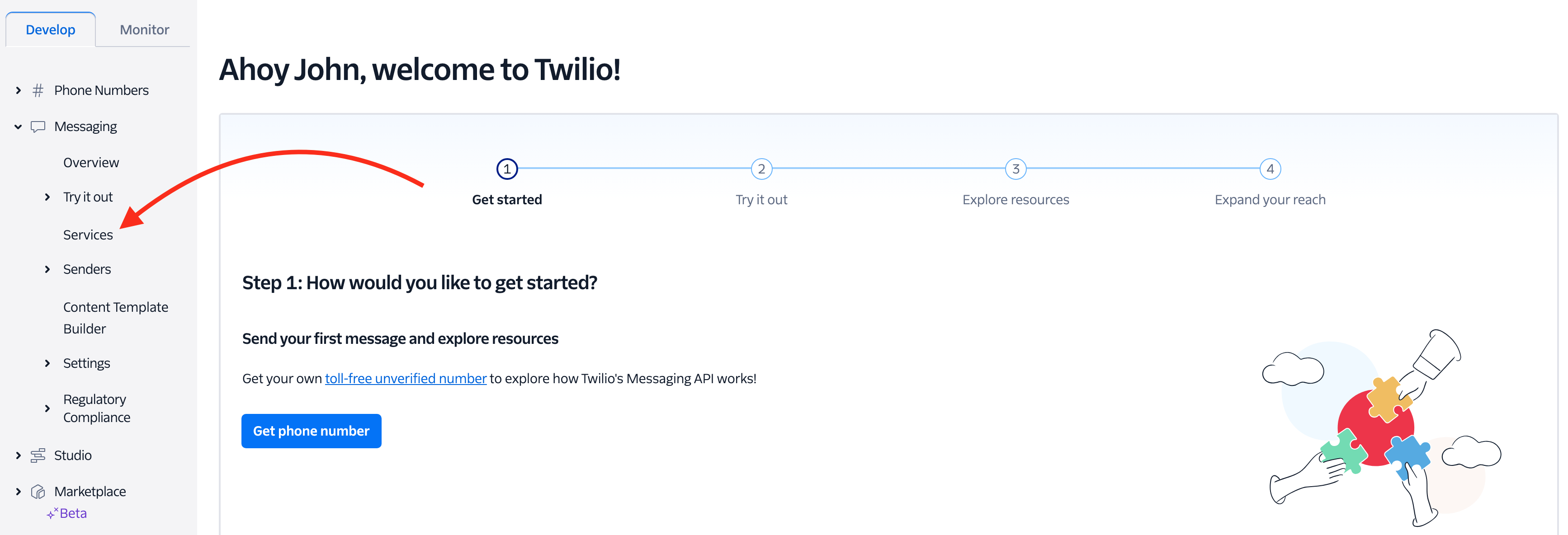
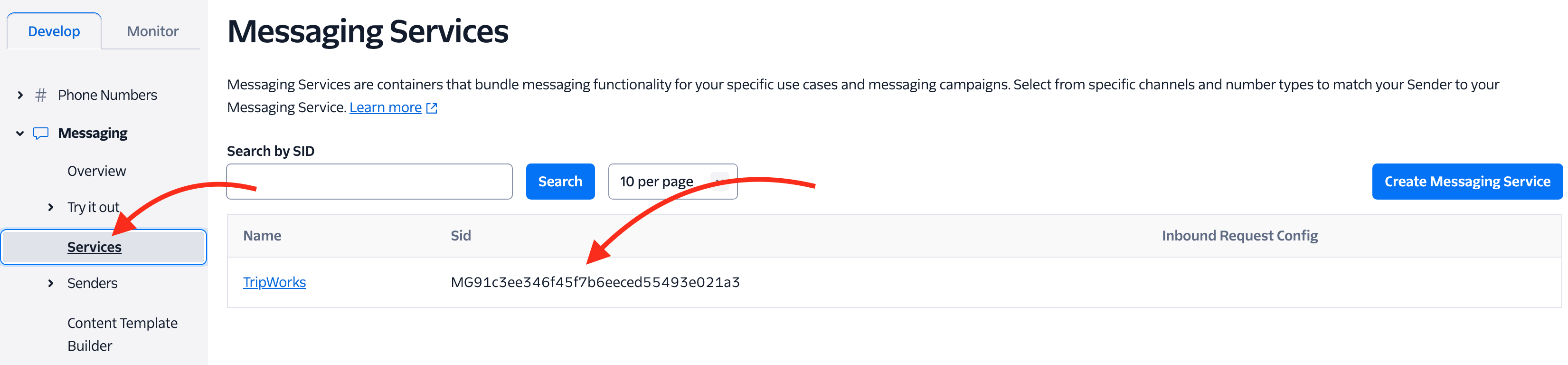
Log in to Twilio and, from the dashboard, select Messaging > Services on the left menu.
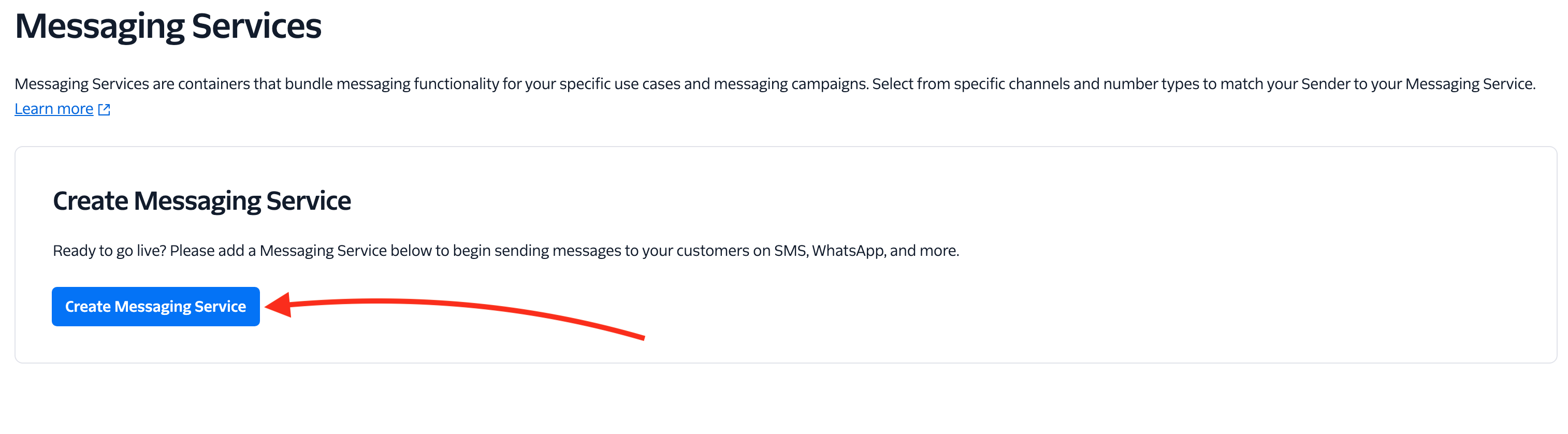
Select Create Messaging Service.
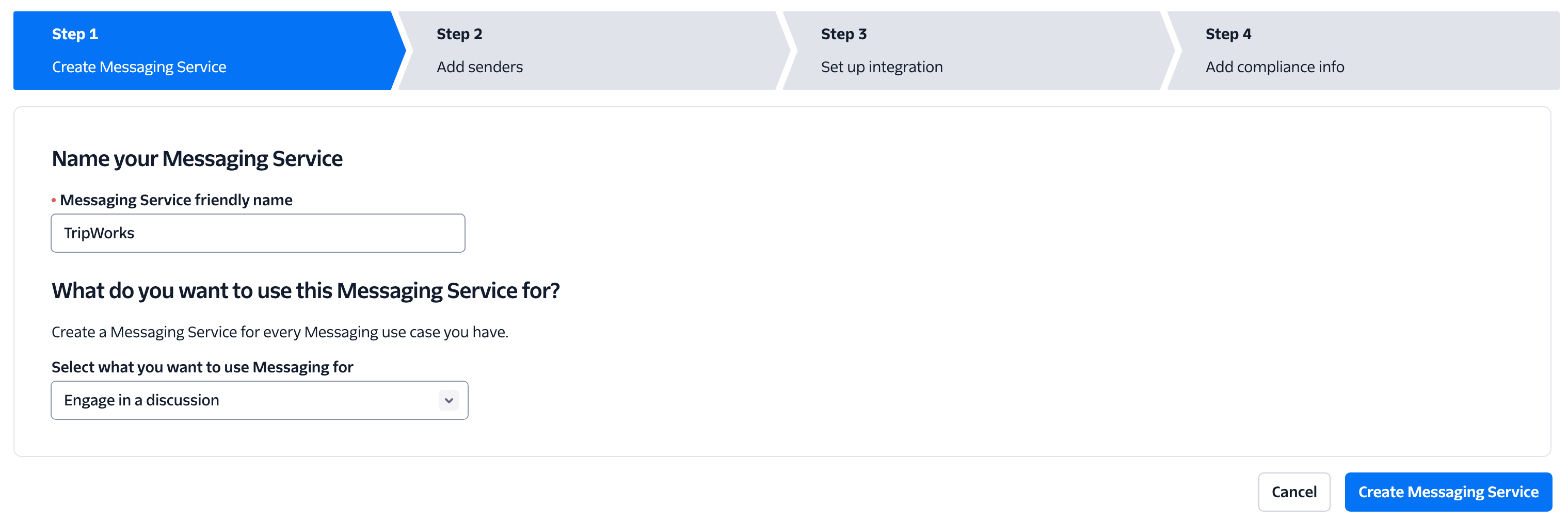
Name your messaging service and select a use case, then continue.
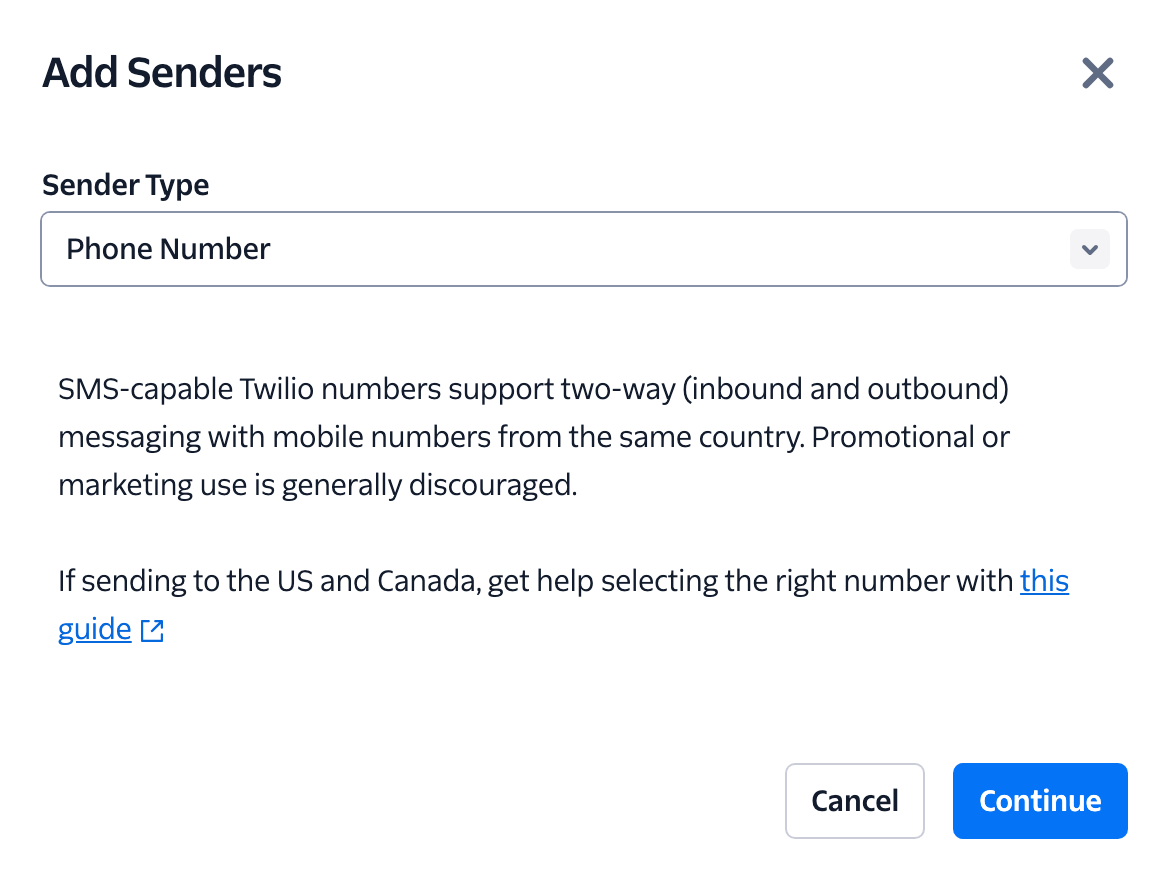
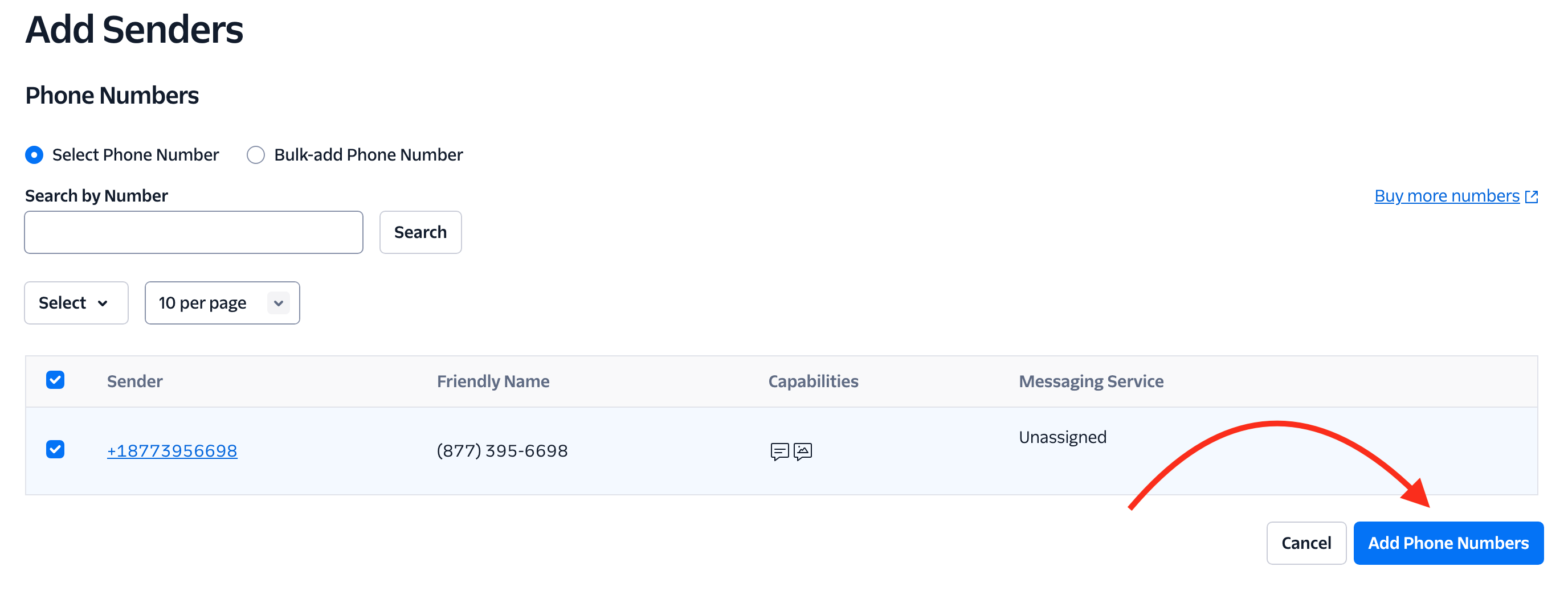
On the Add Senders step, choose Phone Number, then continue and add a phone number.
Other sender types (like short codes or alphanumeric senders) aren't guaranteed to work with this integration. Choose Phone Number.
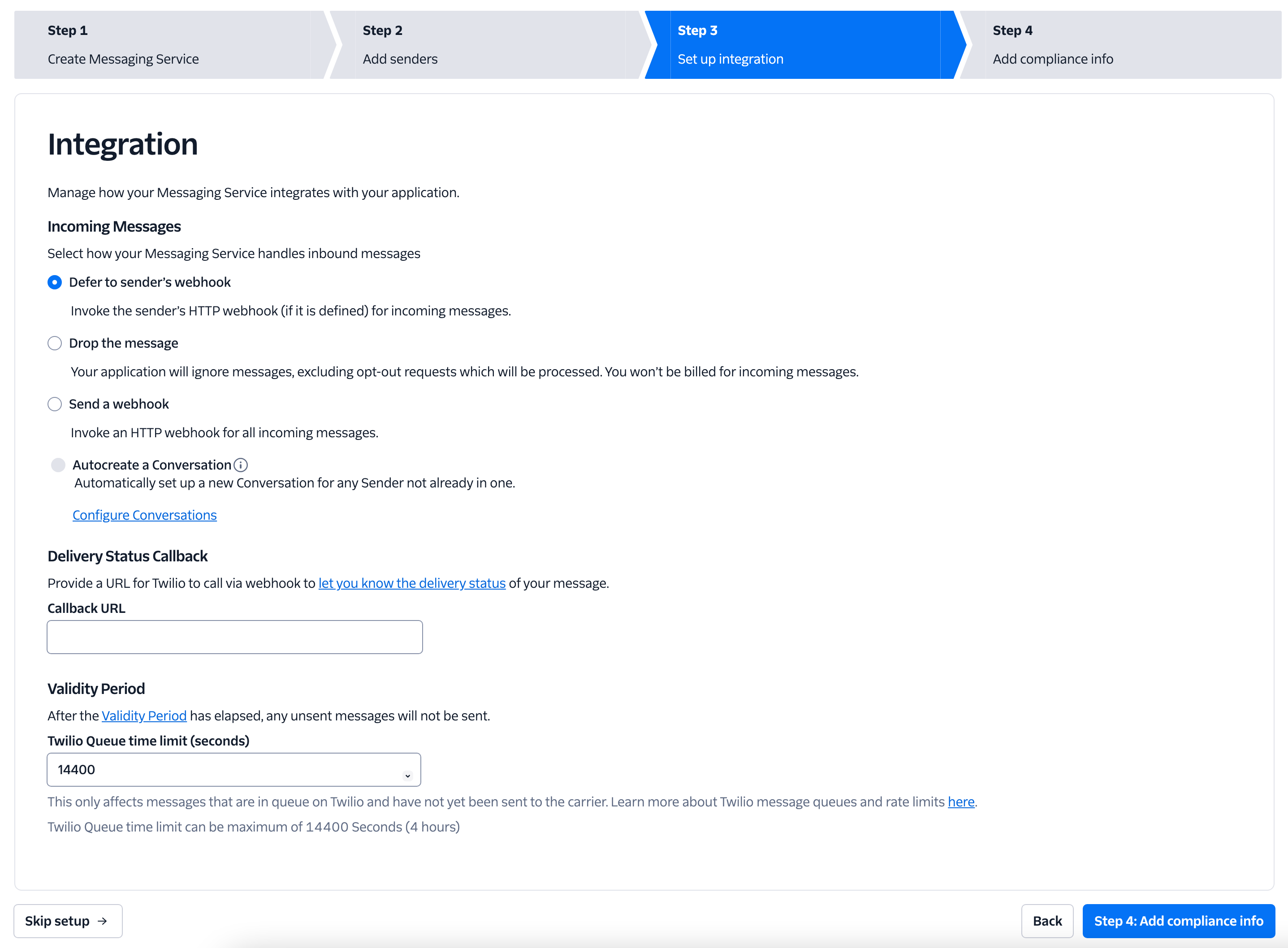
Leave the next step's settings as-is, then select Step 4: Add compliance info.
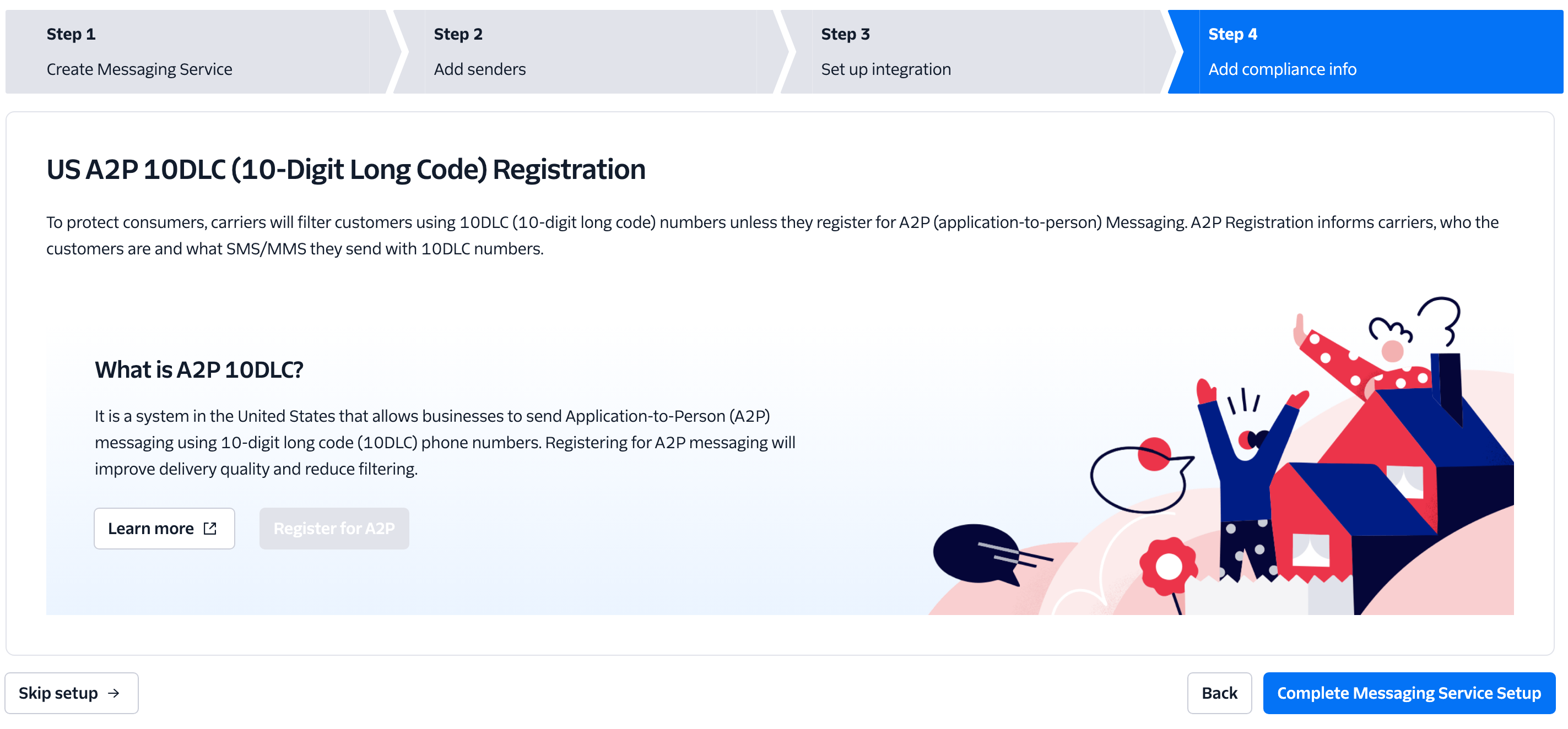
Complete any country-specific compliance or registration details Twilio asks for, then select Complete Messaging Service Setup.
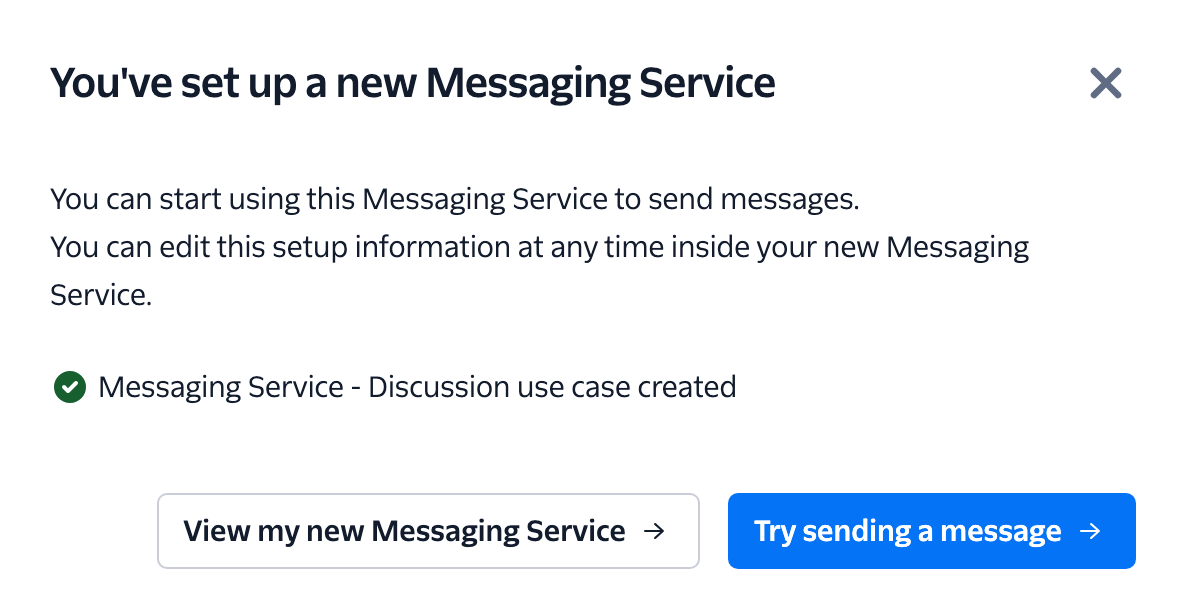
You'll see a confirmation once the Messaging Service is set up.
Step 2: Add your Messaging Service SID to TripWorks
In Twilio, select Services on the left menu. Copy your Messaging Service's SID (it starts with MG).
In TripWorks, go to Setup Integrations and select Twilio. Paste your SID into the Messaging Service SID field.
Step 3: Add your Twilio Account SID and Auth Token
In Twilio, select your account name in the upper left.
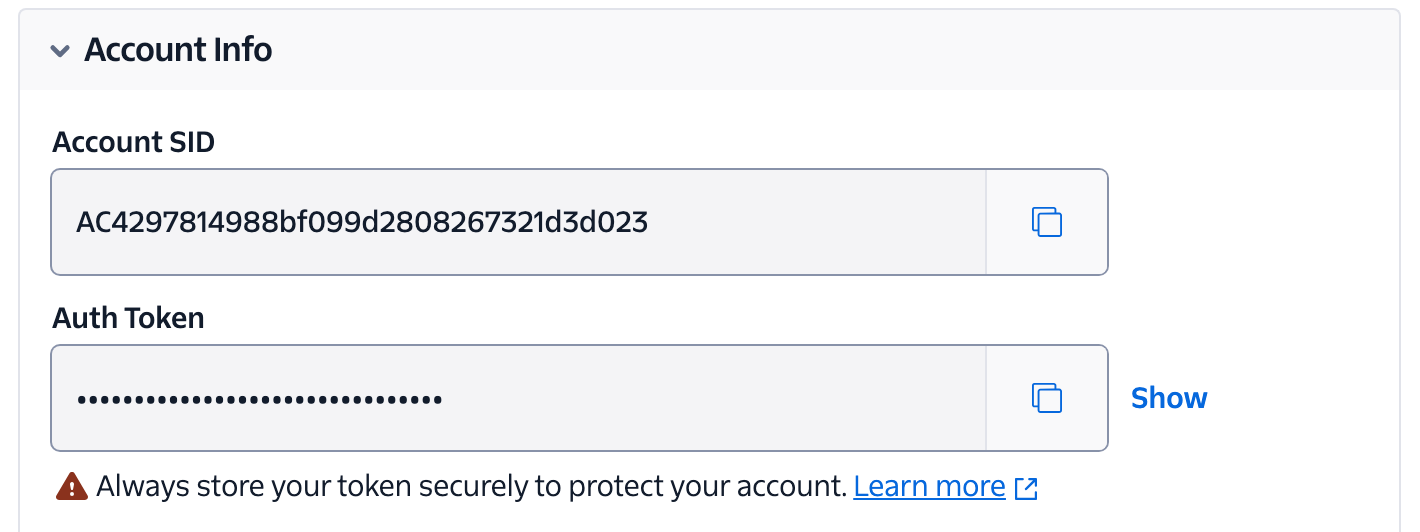
Scroll to Account Info to find your Account SID and Auth Token.
Copy both into the matching fields on TripWorks's Twilio integration screen, then select Save.
Two-way texting
If two-way texting is enabled for your account, an Enable Two-Way Texting option appears on the same screen. Turn it on to receive and reply to guests' SMS replies inside TripWorks, instead of only sending one-way messages. If you don't see this option, it isn't turned on for your account yet — ask your TripWorks contact.
Example: what this looks like in practice
A booking confirmation goes out from your own number — a guest gets their confirmation text from the number you set up, not a generic shared one, so it's instantly recognizable as your business.
A guest texts back to ask about parking — with two-way texting enabled, that reply lands in TripWorks instead of disappearing into a number nobody's watching.
A reminder text goes unanswered — you can see in TripWorks whether the guest's carrier delivered the message, instead of guessing why they didn't show up.
Frequently asked questions
Do I need a Twilio account already, or does TripWorks provide one?
You bring your own Twilio account and phone number. TripWorks connects to it using the Messaging Service SID, Account SID, and Auth Token you enter.
Can I reply to a guest's text message?
Only if two-way texting is enabled for your account. If you don't see an Enable Two-Way Texting option on the Twilio integration screen, it isn't turned on for you yet.
Is this the same thing as the AI CallBot's phone number?
No. This integration is your own Twilio account, used for SMS. The AI CallBot provisions and uses its own phone numbers behind the scenes, entirely separate from these credentials.
What sender type should I choose in Twilio?
Phone Number. Other sender types, like short codes or alphanumeric senders, aren't guaranteed to work with this integration.